

What is the File Manager?
cPanel is a control panel. A control panel is a dashboard where you manage your hosting. File Manager is the tool inside it that lets you see, upload, move and edit your website files. It works like the file explorer on your computer, but in a web page.
Open File Manager
- Log in to cPanel. The link and details are in your welcome email. You can also start from the client area.
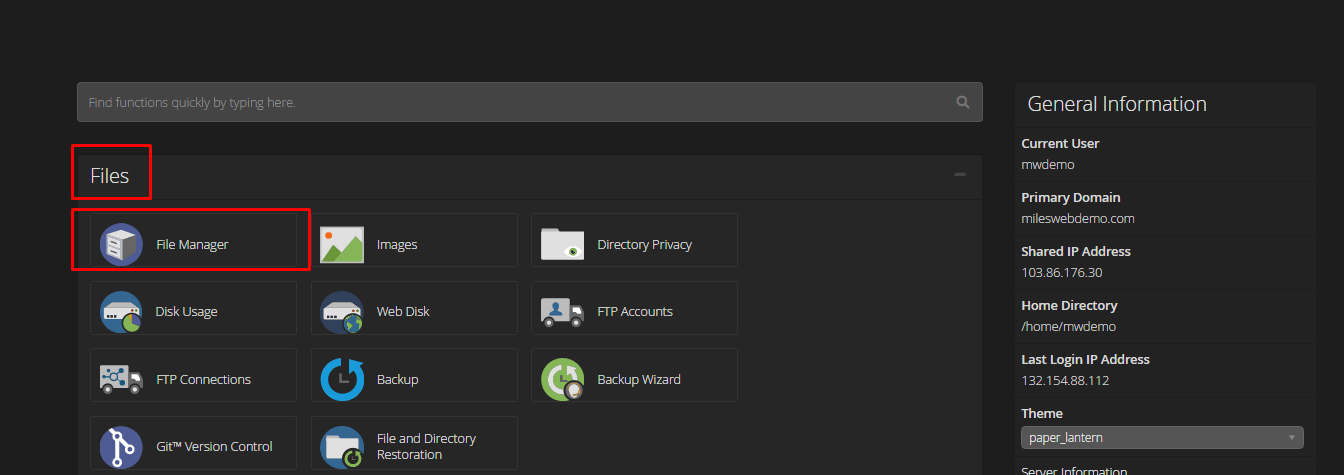
- Find the Files section.
- Click File Manager. It opens in a new tab.
Find your way around
- The left side shows folders.
- The right side shows the files inside the chosen folder.
- Your main website folder is usually
public_html.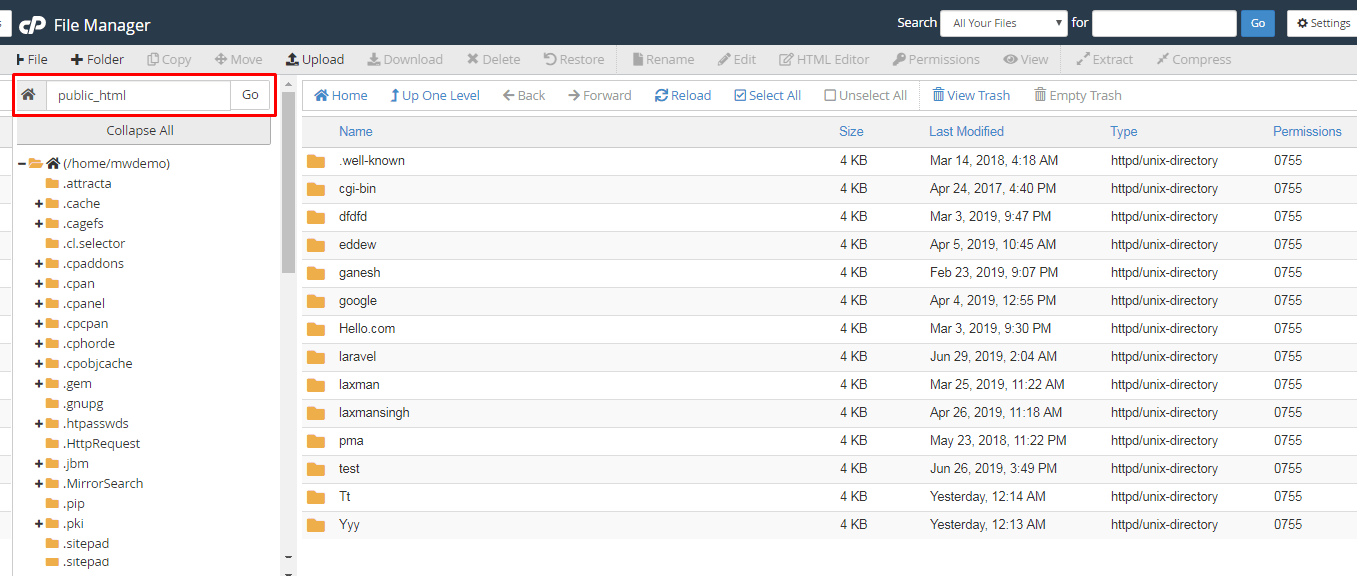
- The top bar has buttons such as + File, + Folder, Upload, Download, Copy, Move, Delete and Edit.
Common tasks
- To upload, open the folder, click Upload, then choose files from your computer.
- To make a folder, click + Folder, type a name and click Create New Folder.
- To edit a file, right-click it and choose Edit.
- To rename, right-click and choose Rename.
- To unpack a zip file, right-click it and choose Extract.
Warning: Deleting a file can break your website. Download a backup copy first.
What are hidden files?
On Linux servers, a file whose name starts with a dot is hidden. Examples are .htaccess and .user.ini. They hold important settings, so they stay out of sight to avoid accidents.
Show hidden files
- Open File Manager.
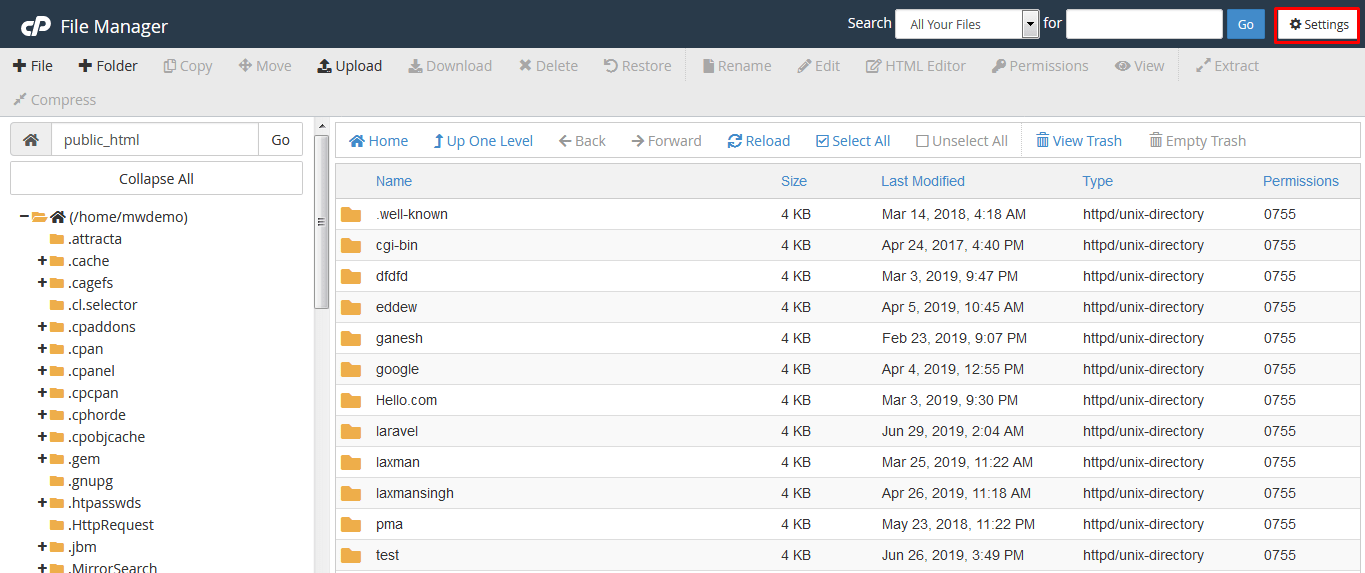
- Click Settings in the top right corner.
- Tick Show Hidden Files (dotfiles).
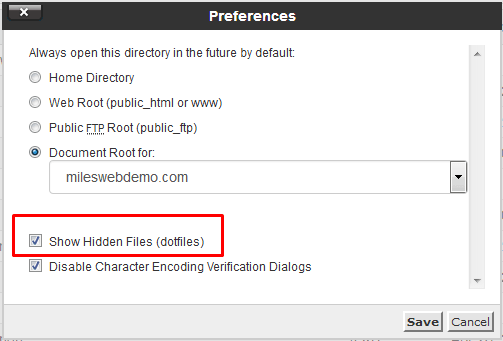
- Click Save.
- The page reloads and the dot files appear.
Tip: You can also choose which folder File Manager opens first from the same Settings window.
Quick recap
- File Manager is in the Files section of cPanel.
- Your site files usually live in
public_html. - Use the top bar to upload, edit, move and delete.
- Hidden files start with a dot.
- Turn them on under Settings.