

What is ModSecurity?
ModSecurity is a web application firewall. A firewall is a guard that checks traffic. ModSecurity reads each visit to your website and blocks the ones that look like attacks, using a list of rules.
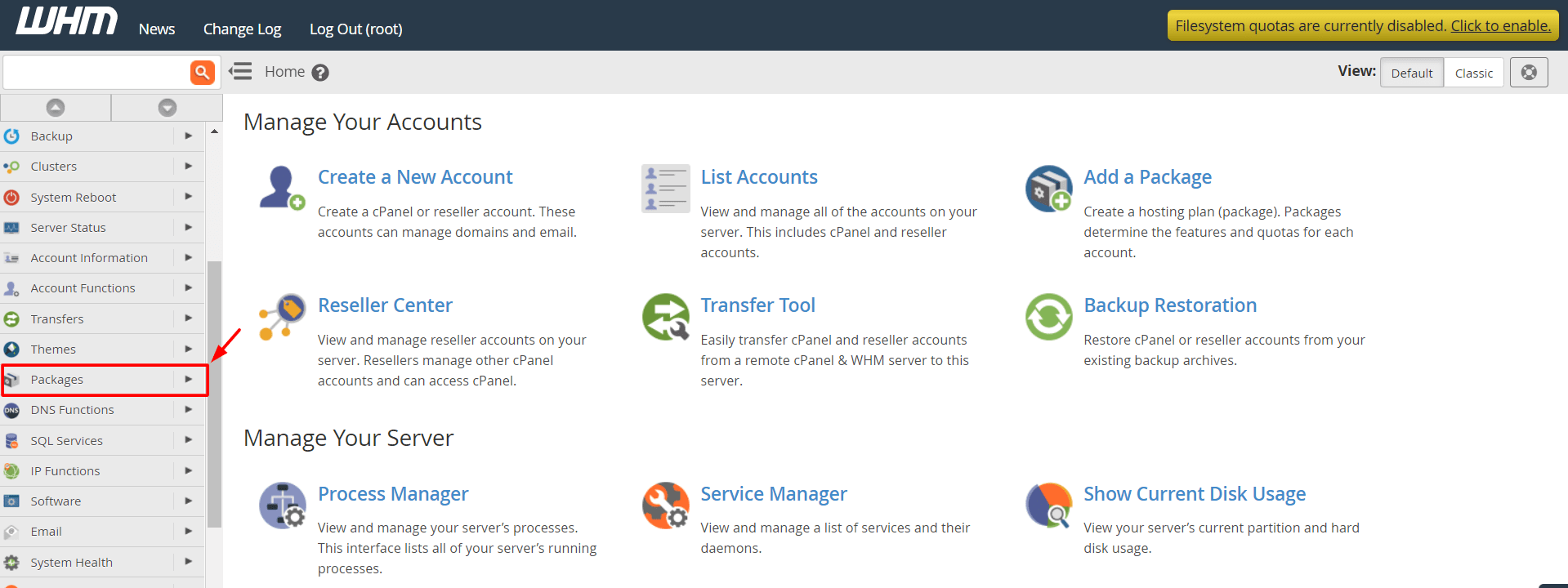
WHM is the control panel for the server owner. A control panel is a website where you manage a server. A VPS or dedicated server customer has root access, which means full control.
Why control it per domain?
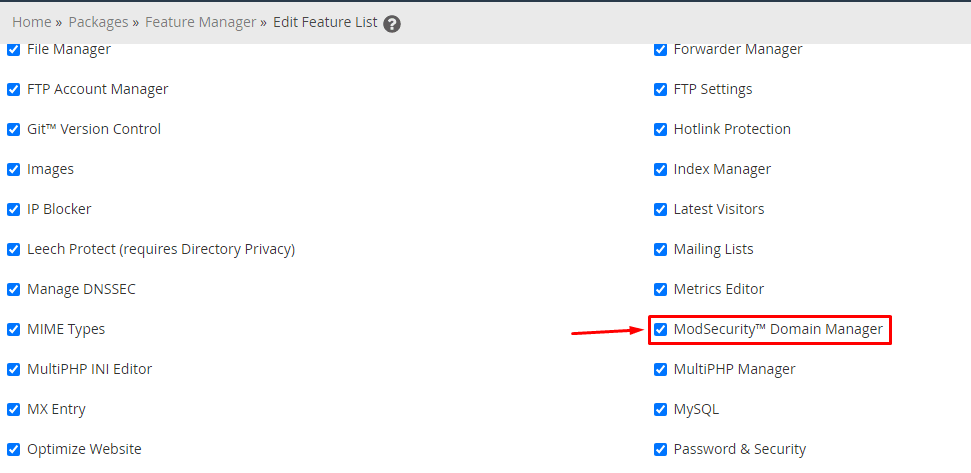
Sometimes ModSecurity blocks a good action by mistake. This is a "false positive". A page editor or a plugin may stop working on one site. You can switch ModSecurity off for that domain only and keep every other site protected.
Turn ModSecurity on for the server
- Log in to WHM.
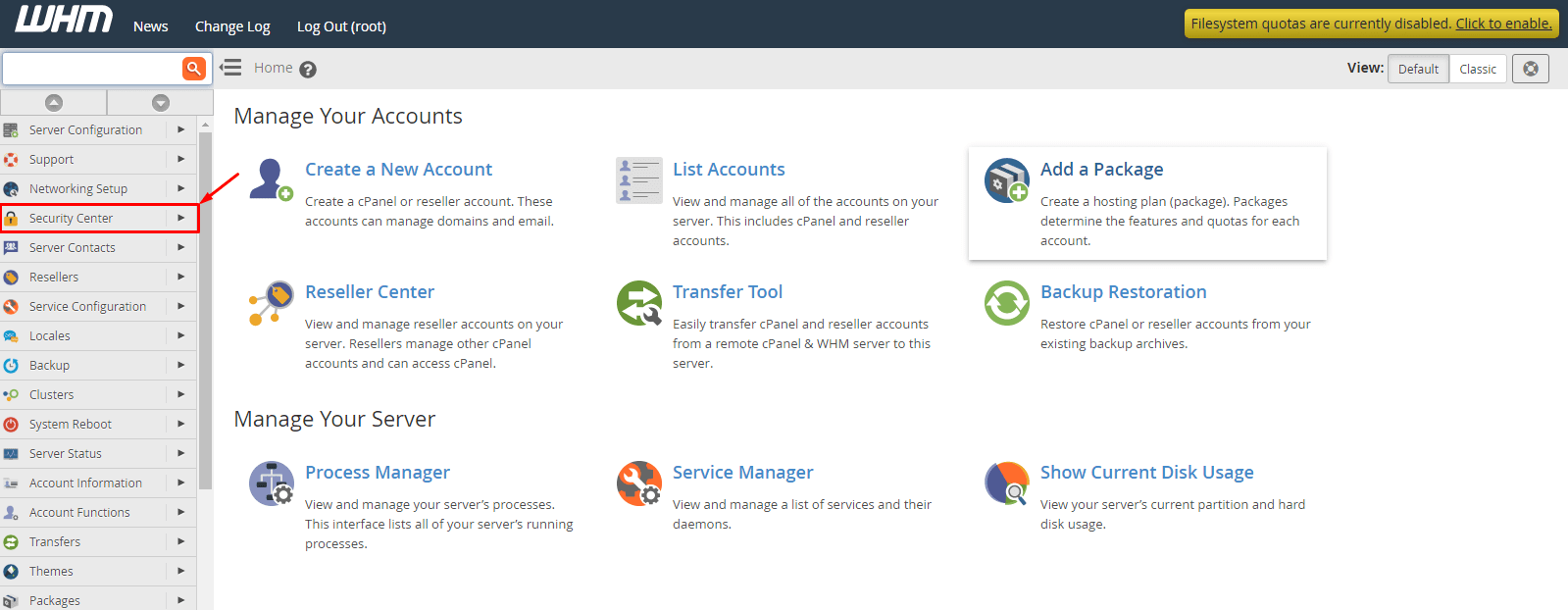
- Type
ModSecurityin the search box on the left. - Click ModSecurity Configuration.
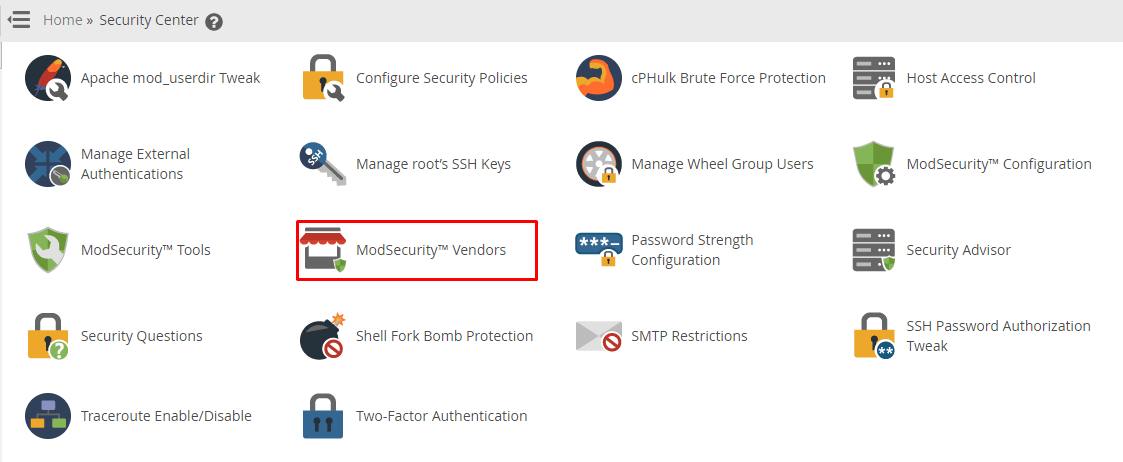
- Check that Rules Engine is set to On. If it says Off, switch it on and save.
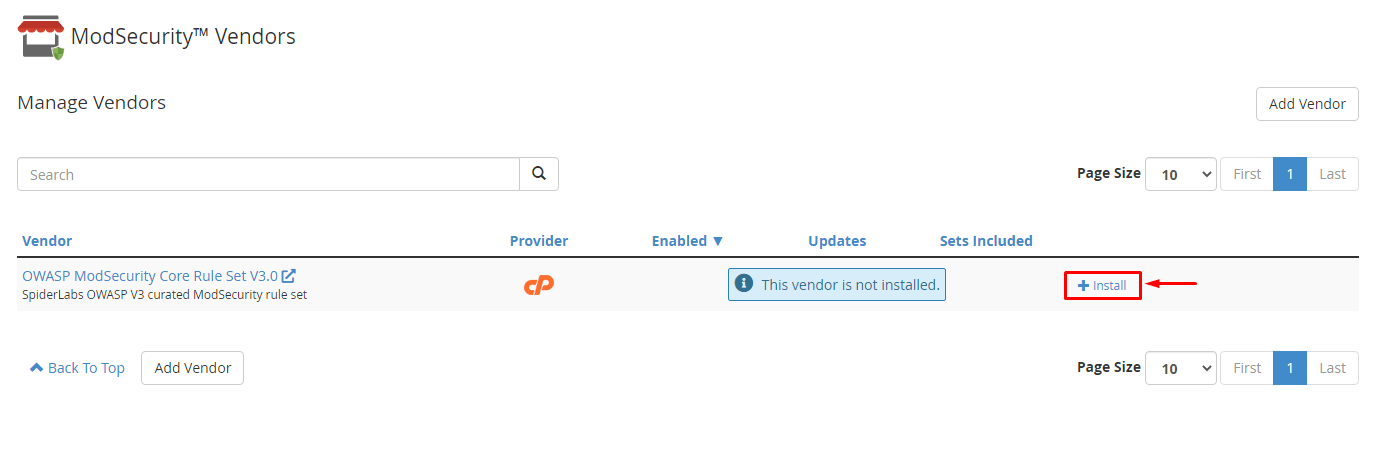
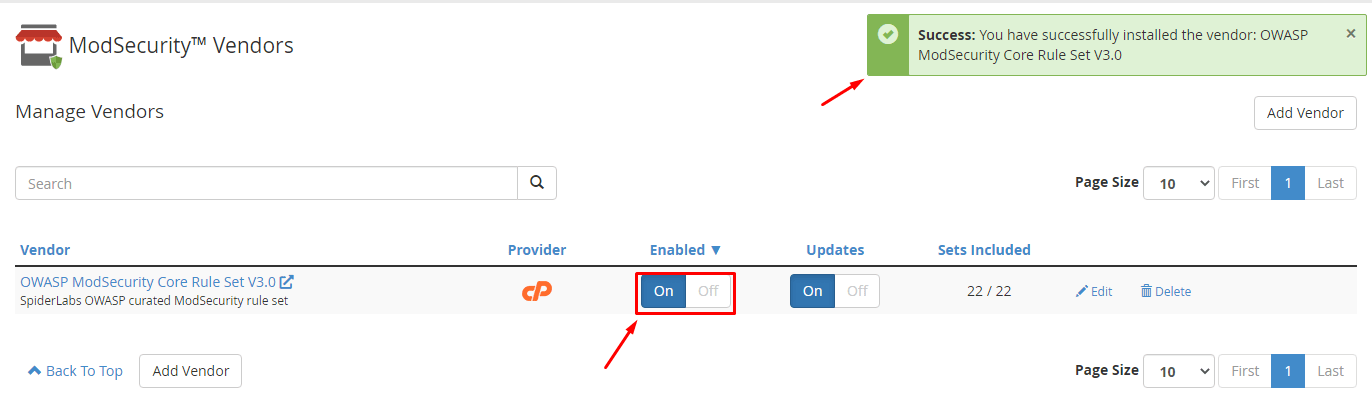
- Go back and click ModSecurity Vendors. Add a rule set, such as OWASP, and turn it on. Without rules, ModSecurity has nothing to check for.

The ModSecurity software must be installed on the server first. If you do not see it, check EasyApache 4 in WHM and add ModSecurity there.
Control a single domain
- In WHM, open ModSecurity Tools.
- Find the domain in the list of domains.
- Click the switch in the status column to turn ModSecurity on or off for that domain.

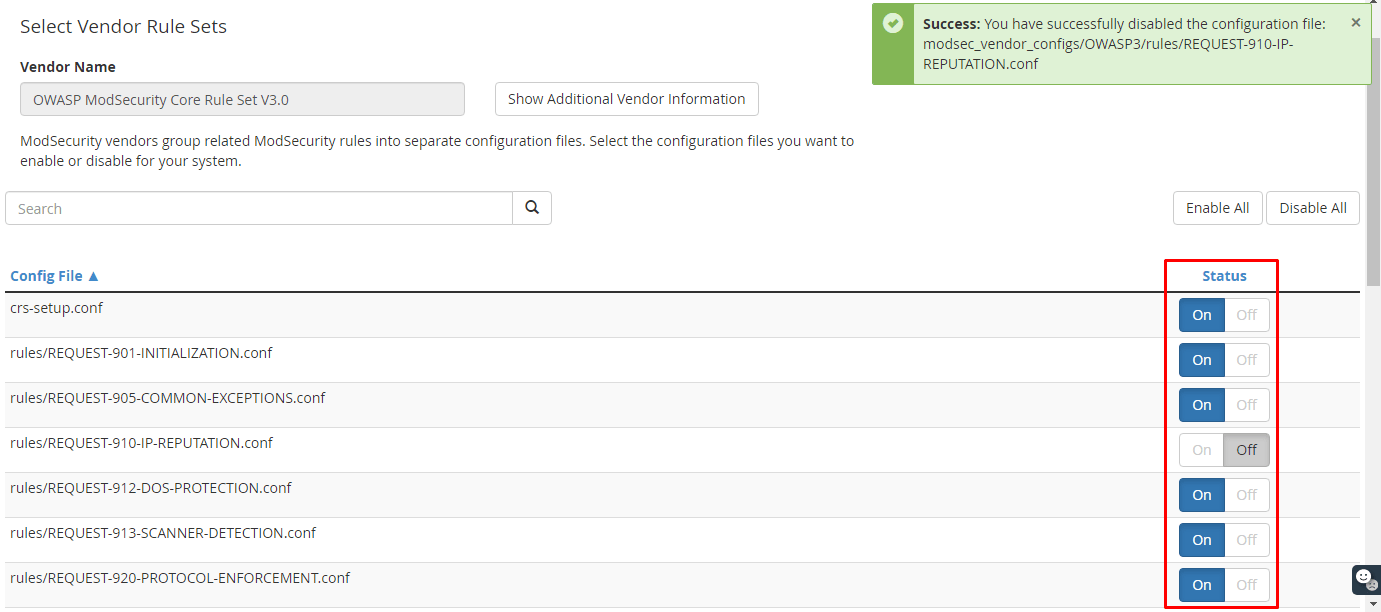
- Wait a moment. WHM saves the change on its own.
Some newer WHM versions show this as a Domain Manager list or a set of domain options. The names can differ a little between versions, so look for the list of your domains.
Find the cause of a false positive
- Try the action that fails again.
- Open ModSecurity Tools and look at the Hits List.
- Note the rule ID number.
- Add that ID to the list of disabled rules in the configuration, or ask your support team for help.

Customers on shared hosting usually cannot reach WHM. For help, open a support ticket.
Quick recap
- ModSecurity blocks attacks using rules.
- Turn the rules engine on and add a rule set.
- Use ModSecurity Tools to switch it per domain.
- Use the Hits List to find false positives.
- Do not leave protection off.