

What is a port?
A computer has thousands of numbered doors called ports. Each service uses its own door. For example, websites use port 80 and 443. Remote Desktop uses port 3389.
The Windows Firewall is a guard that keeps most doors shut. If you run a program that needs outside connections, such as a web server, you must open its door. This applies to a Windows VPS or a Windows computer. You need administrator rights.
Open a port
- Click Start. Type
Windows Defender Firewall with Advanced Securityand open it.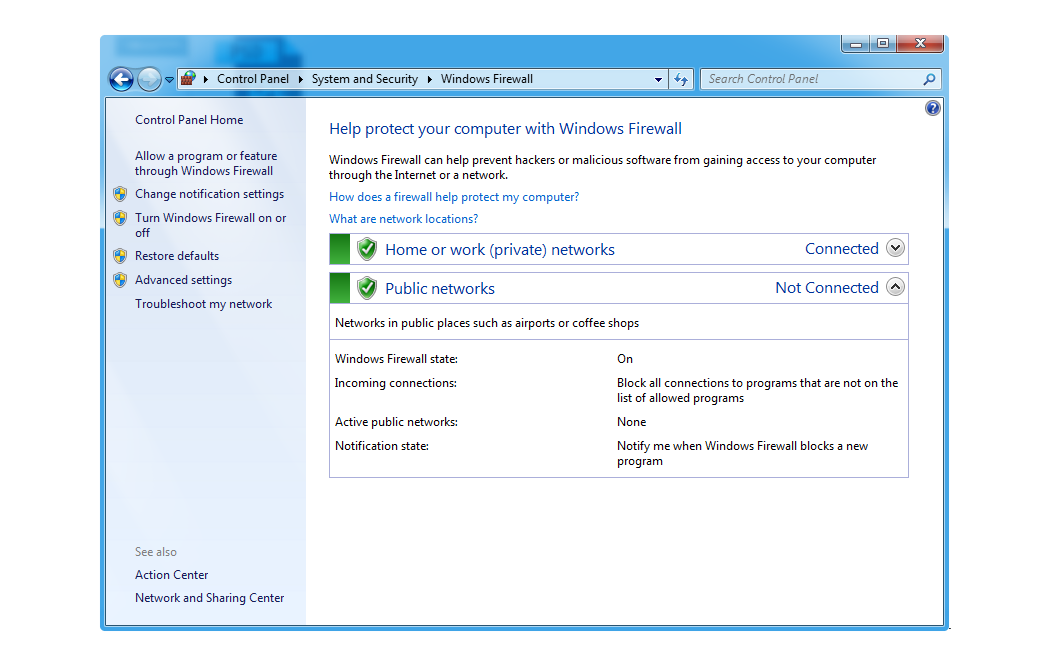
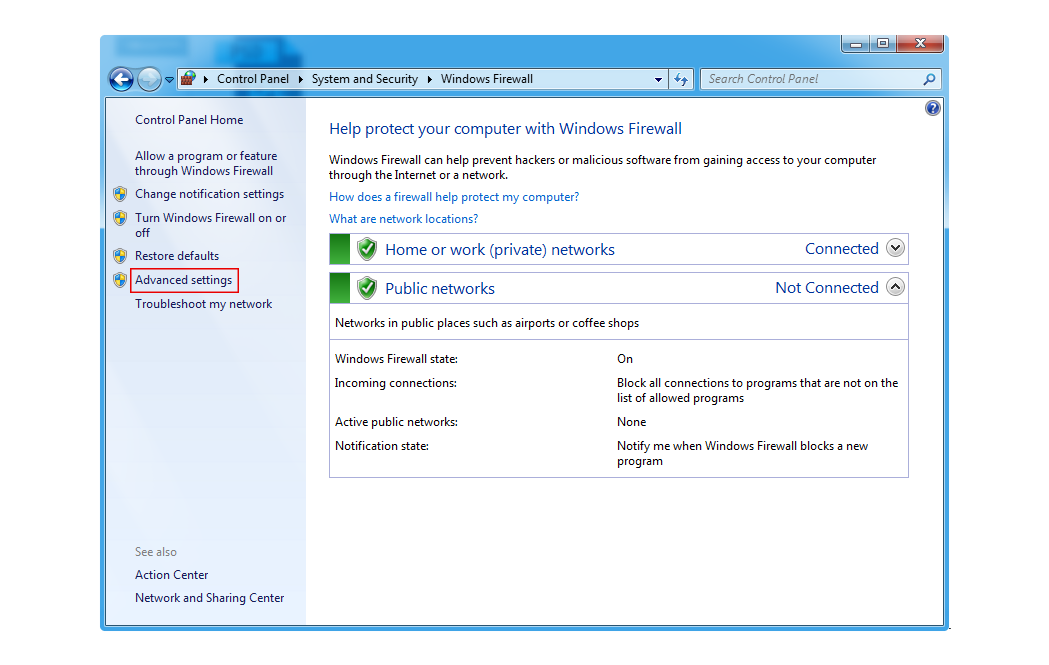
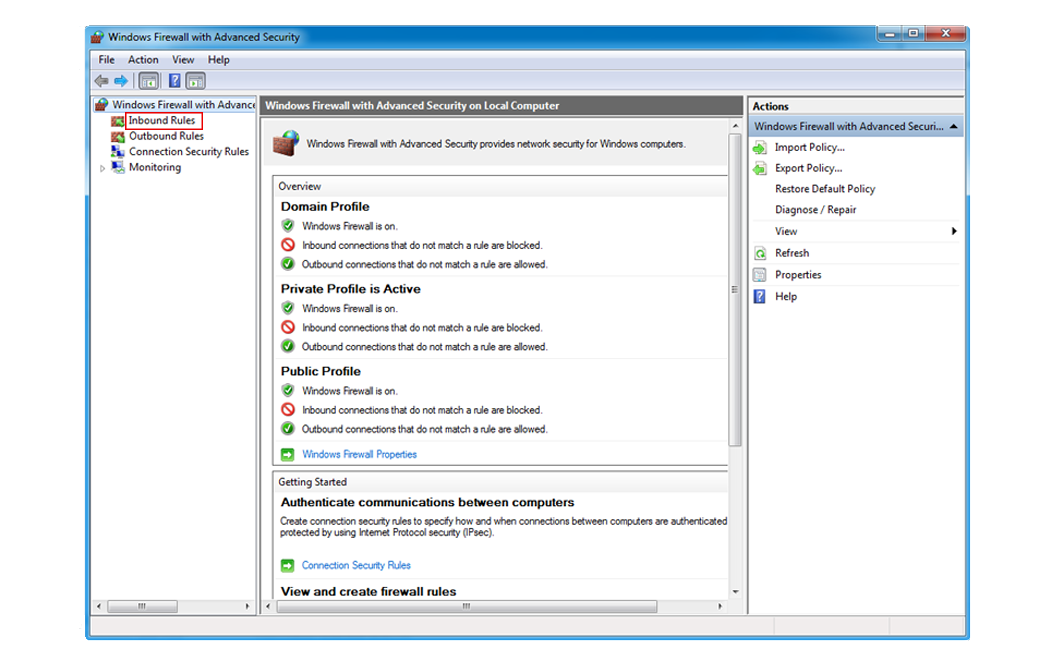
- Click Inbound Rules on the left. Inbound means traffic coming in.
- Click New Rule on the right.
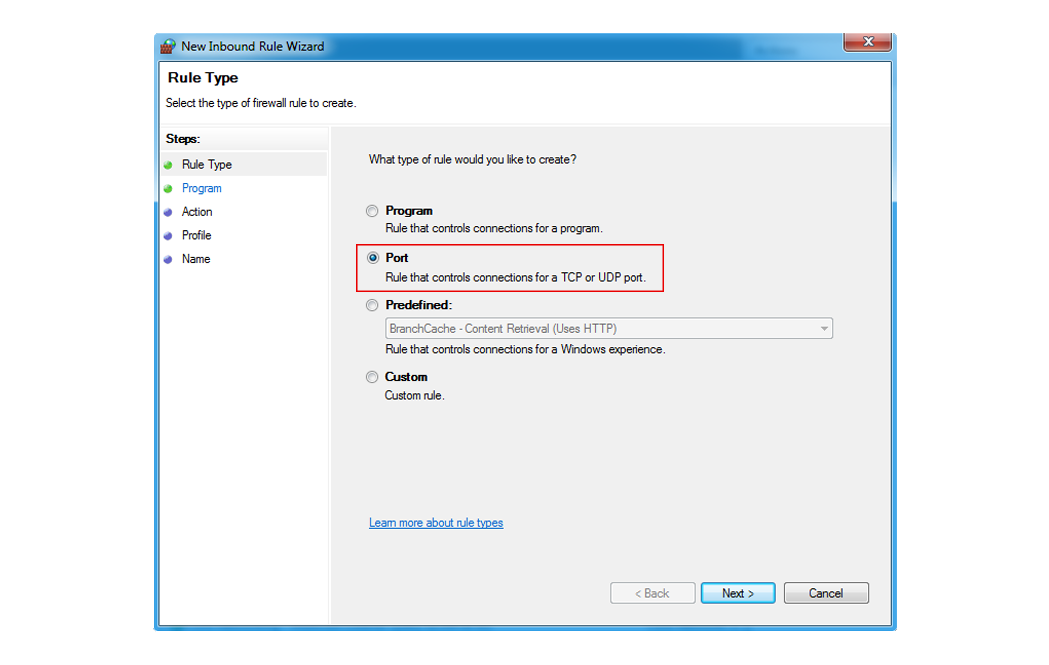
- Select Port and click Next.
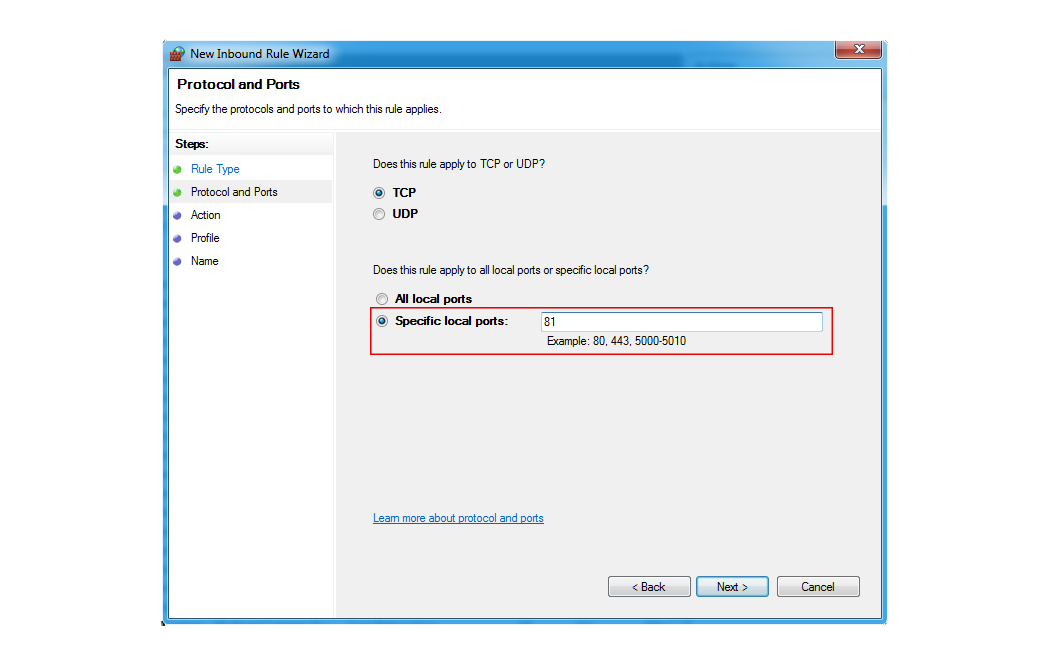
- Choose TCP or UDP. Most services use TCP. The software's guide tells you which.
- Select Specific local ports. Type the number, for example
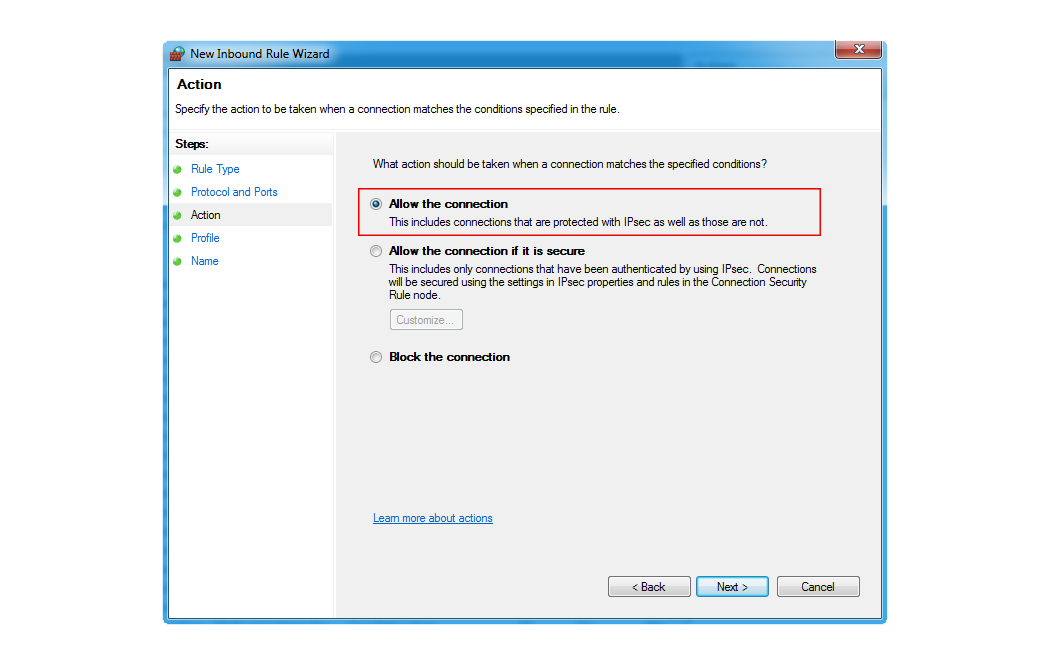
8080. Click Next. - Select Allow the connection. Click Next.
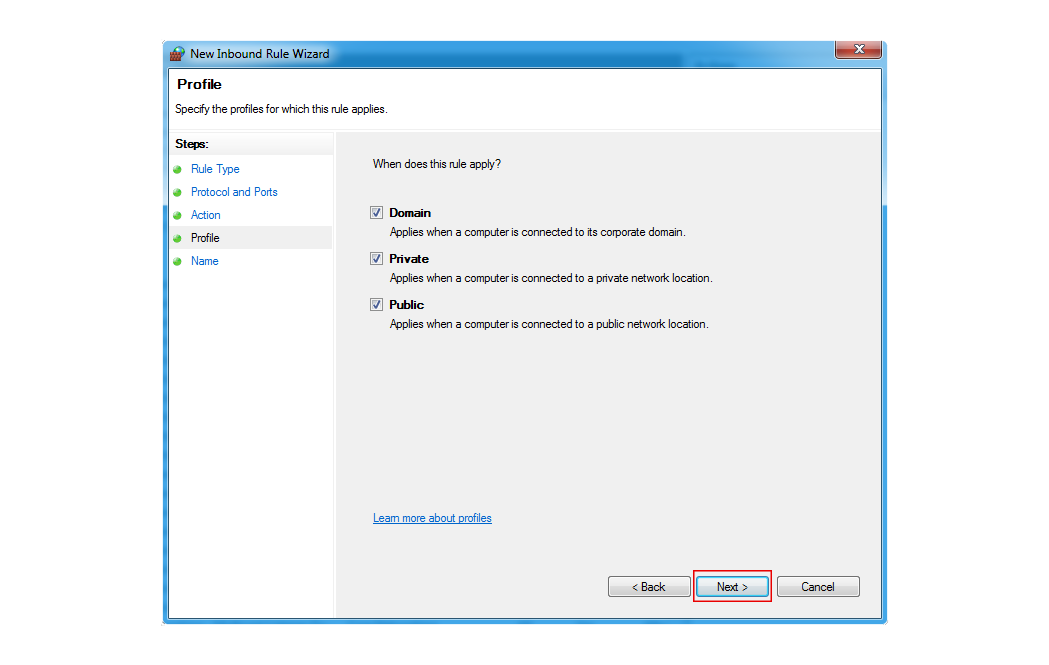
- Tick the network types: Domain, Private, Public. For a server on the internet, Public is needed. Click Next.
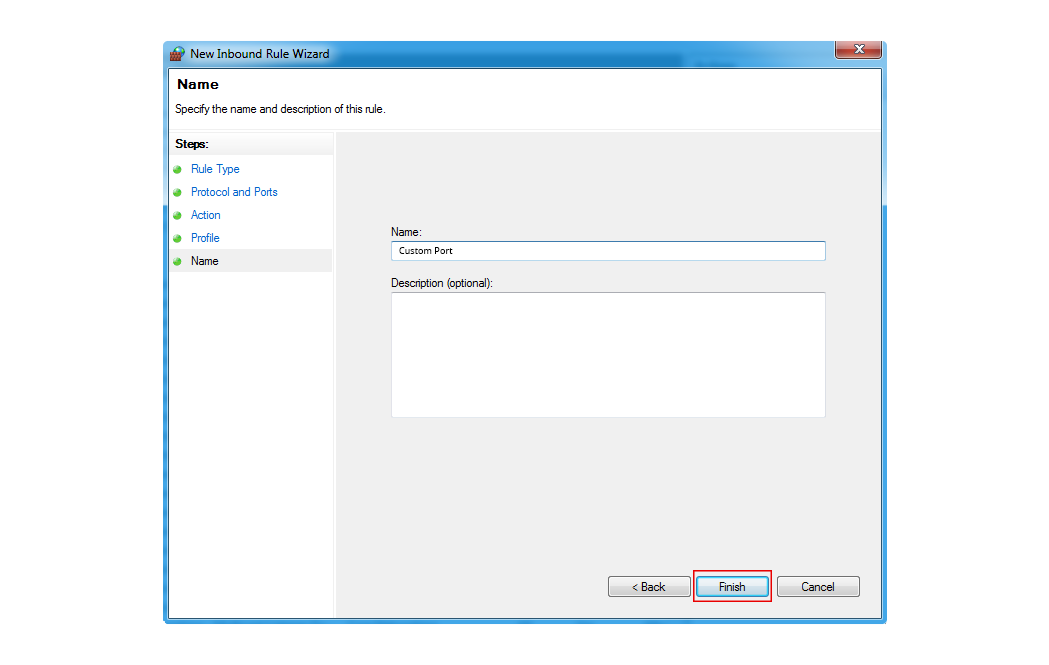
- Type a name, like "Open port 8080". Click Finish.
The new rule appears in the list and starts working right away.
Close a port
- Open Inbound Rules again.
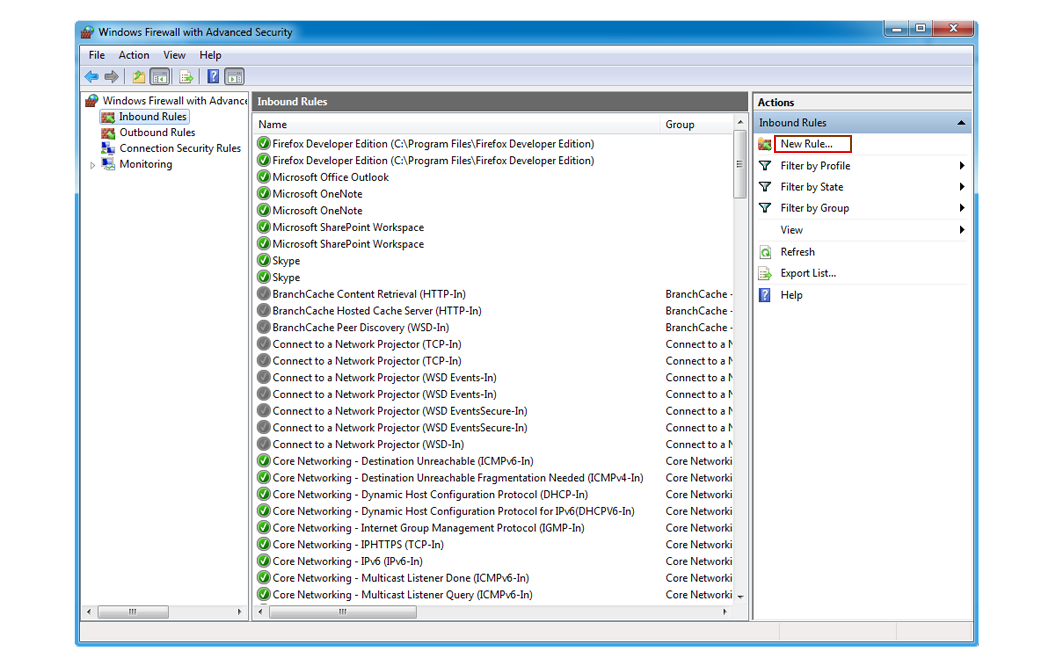
- Find your rule by name.
- Right-click it.
- Choose Disable Rule to pause it, or Delete to remove it.
Do it with a command
Open PowerShell as administrator. To open port 8080:
New-NetFirewallRule -DisplayName "Open port 8080" -Direction Inbound -Protocol TCP -LocalPort 8080 -Action AllowThis adds a rule that allows incoming TCP traffic on port 8080.
To remove it:
Remove-NetFirewallRule -DisplayName "Open port 8080"This deletes the rule with that name.
Test the port
From another computer, run:
Test-NetConnection -ComputerName YOUR_SERVER_IP -Port 8080If it says TcpTestSucceeded : True, the port is open. The program must also be running. Some hosts have a second firewall outside your server. Ask Hostvento support if the port stays closed.
Need help? Open a support ticket.
Quick recap
- A port is a numbered door for a service.
- Add an Inbound Rule to open one.
- Disable or delete the rule to close it.
- Open only the ports you need.
- Test with
Test-NetConnection.