

What are logs?
A log is a diary kept by your server. It records what happened, such as a login, a blocked visitor or an error. When something goes wrong, logs help you find out why.
What is CSF?
CSF means ConfigServer Security & Firewall. It is a firewall add-on for servers that run WHM. WHM is the admin panel for the whole server. CSF can show and search several log files from one page. Ask Hostvento support if CSF is installed on your server.
Steps
- Log in to WHM as root.
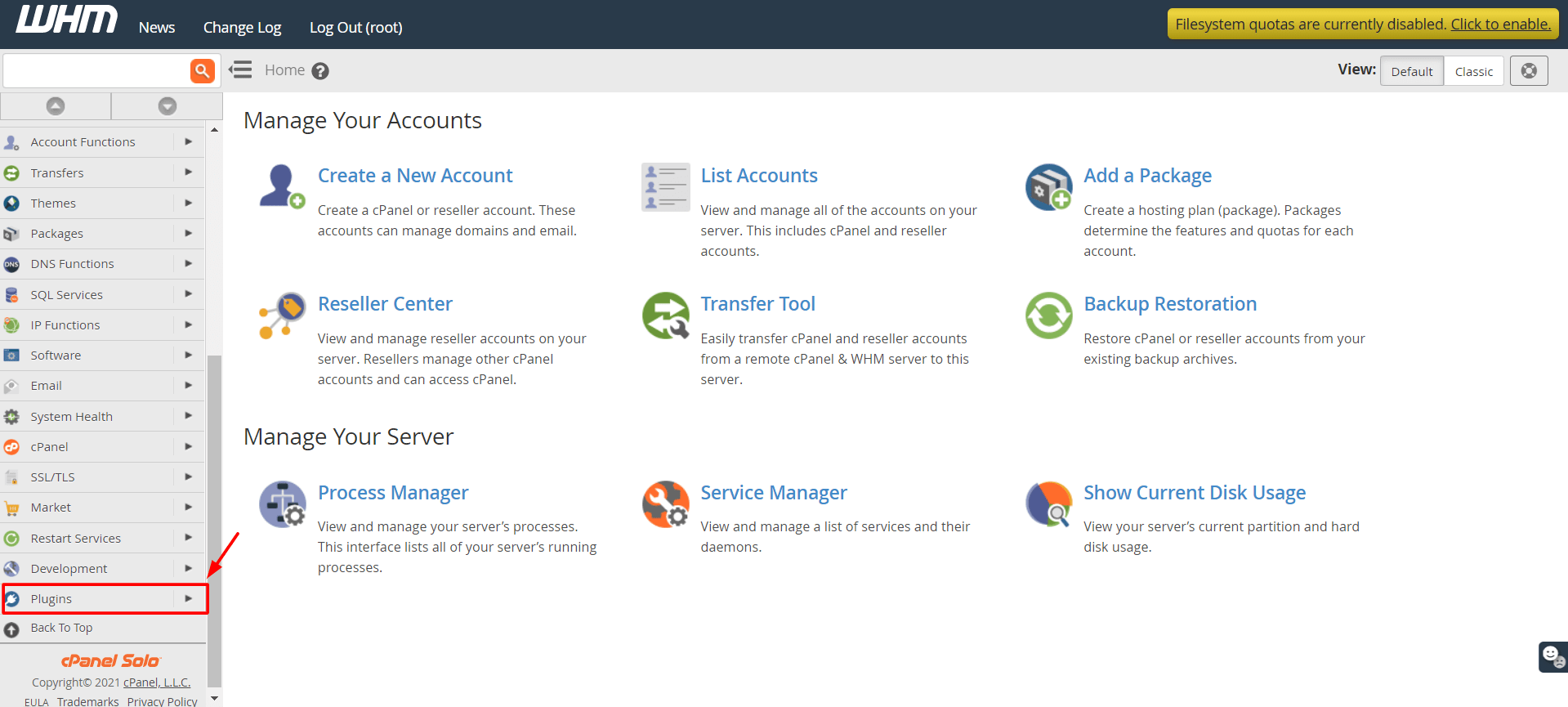
- Type CSF in the search box.
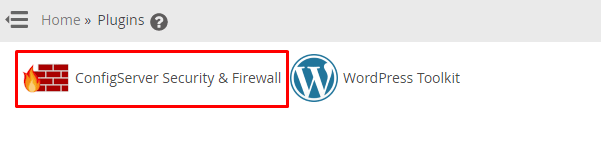
- Click ConfigServer Security & Firewall.
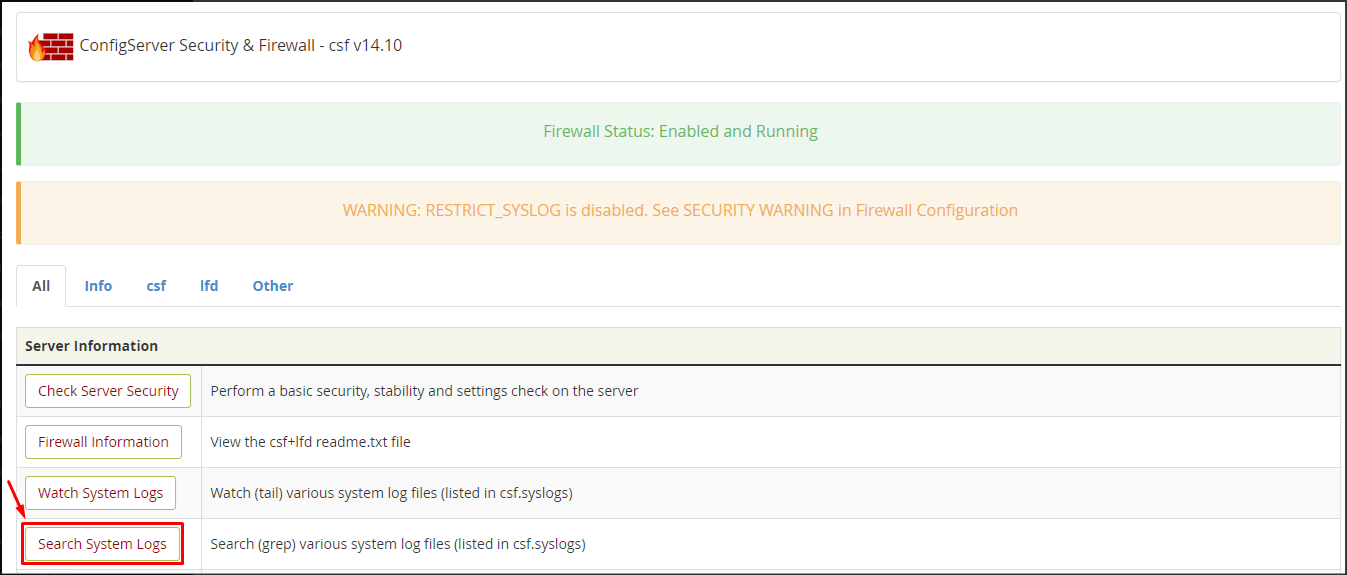
- Find the section called Search System Logs. It may be called Search System Logs under the main list of options.
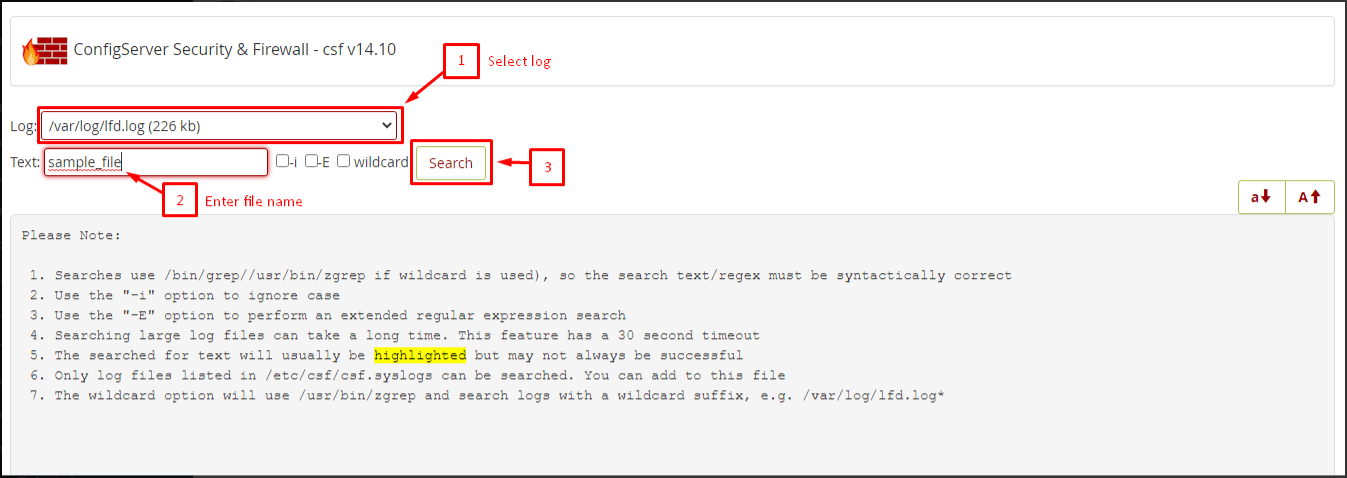
- Pick a log file from the drop-down list. Examples are the firewall log, the login failure log or the mail log.
- In the box, type the word or IP address you want to find. Examples:
203.0.113.25orFailed. - Click Search.
- Read the lines that match. Each one starts with a date and time.
What to search for
- An IP address, to see why it was blocked.
- The word
Blocked, to see firewall actions. - A user name, to see login tries.
- A port number, to see traffic to that port.
Other helpful CSF pages
- Search for IP asks CSF if an address is blocked or allowed.
- View iptables Log shows recent firewall hits.
Command line option
grep "203.0.113.25" /var/log/lfd.logThis prints each line in the login failure log that mentions that IP address. The log file may have a different name on your server.
Warning: Read logs only. Do not delete log files to fix a problem. You may lose clues. Download a copy first if you plan to clean up.
Tip: Search short words first. A long phrase may miss lines that are worded a little differently.
Need help? Open a support ticket.
Quick recap
- Logs are diaries of what your server did.
- Open CSF in WHM and use the log search section.
- Pick a log, type a word or IP and click Search.
- Do not delete logs while troubleshooting.