
Why it happens
- Wrong display settings when Kali runs in a virtual machine.
- Old or missing graphics drivers.
- A recently installed program that blocks the desktop.
- Missing or damaged system files that the graphical interface needs.
Quick checks
- Check that the monitor is on and the cable is firmly connected.
- Try another port on the computer or another cable.
- Restart the system. Some problems are temporary.
Fix it
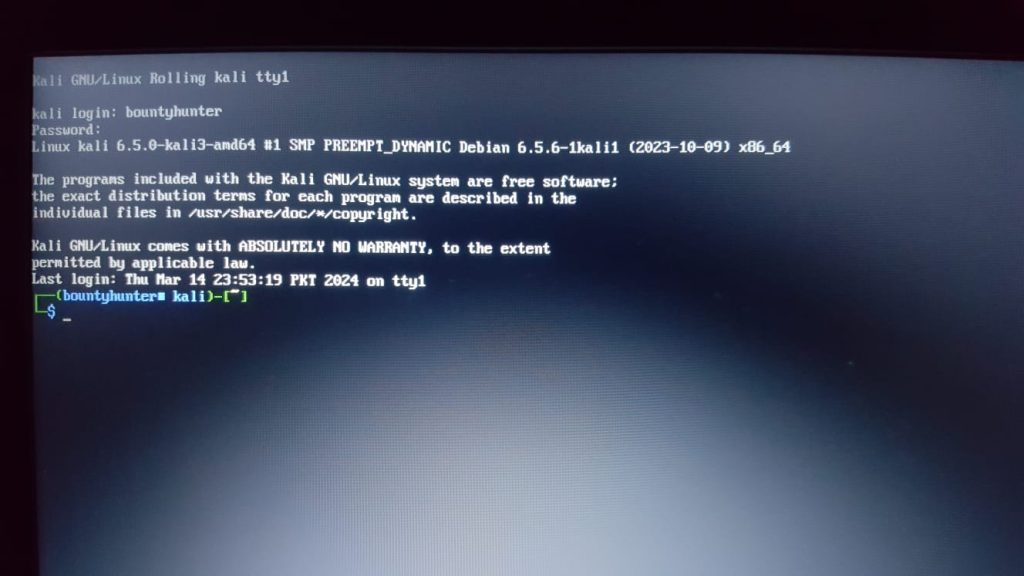
1. Open a text terminal
- Virtual machine: press the Right Ctrl (host key) with F2.
- Physical machine: press Ctrl + Alt + F2. Keys F1 to F6 may also work.
Log in with your username and password.
2. Reconfigure the display manager
Find out which display manager you use, such as GDM3 or LightDM.
For GDM3:
sudo dpkg-reconfigure gdm3For LightDM:
sudo dpkg-reconfigure lightdmRestart it (use gdm3 or lightdm):
sudo systemctl restart gdm33. Update the system
sudo apt update && sudo apt full-upgrade -yA missing package or a broken update is a common cause. If the install is incomplete, repair it:
sudo apt --fix-broken install4. Check the file system
Boot into recovery mode or from a live image, then check an unmounted partition. Replace /dev/sda1 with your partition:
sudo fsck /dev/sda1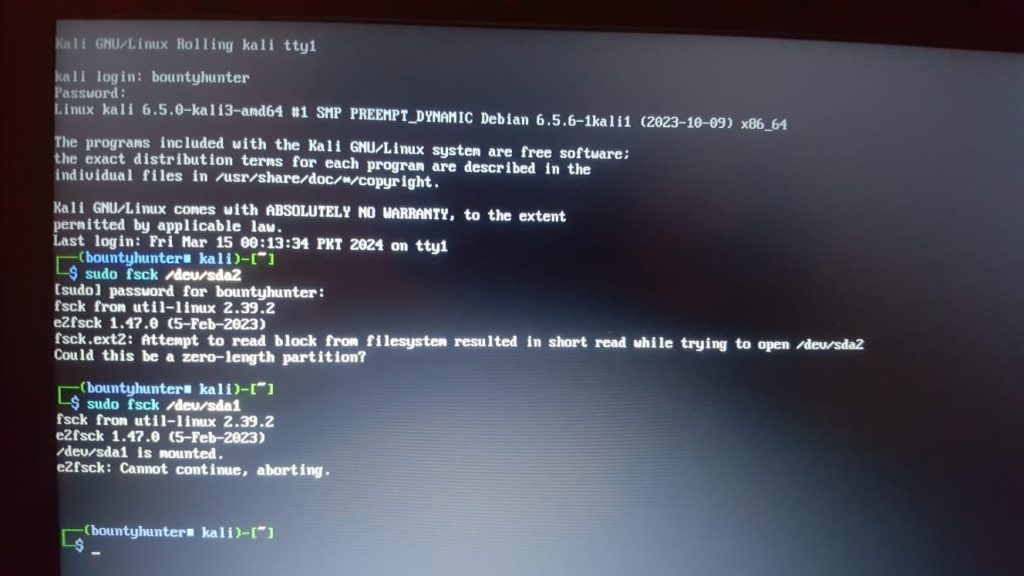
Warning: Never run
fsck on a mounted partition. It can damage the data.5. Look at the Xorg log
cat /var/log/Xorg.0.log | grep -i -E "(EE)|error"The lines with (EE) name the failing driver or device.
Advanced steps
- Boot into recovery mode and repair the installation from there.
- If nothing works, back up your files and reinstall Kali.
FAQ
Can I lose data? Troubleshooting should not remove data, but back up important files first.
Will a reset help? It can, but try the simple steps first.
What if it stays? Update the graphics drivers, remove recent software, and try the safe or recovery mode.
How do I prevent it? Update Kali and its drivers regularly.
Quick recap
- Open a text terminal with Ctrl + Alt + F2.
- Reconfigure the display manager, update, and check the Xorg log.