

What 304 means
The status code 304 Not Modified tells the browser: "The file has not changed since you last got it, so use your saved copy." It saves bandwidth and makes sites faster.
Normally you do not need to fix a 304. Act only if visitors keep seeing old content after an update.
Common causes
- Cached content that does not refresh. The browser or a cache keeps the old file.
- Wrong server headers. Cache headers say that the file is still fresh.
- **Wrong
ETagorLast-Modifiedvalues.** The server says "not modified" when the file did change. - A proxy or CDN that serves an old copy.
- Browser cache settings.
Diagnose it
- Browser developer tools. Press
F12, open the Network tab and reload. Look at the status, theETag,Last-ModifiedandCache-Controlheaders. - Server logs. Look for 304 responses for the files you changed.
- cURL. Check the headers from the command line:
curl -I https://example.com/style.cssSend a conditional request to test:
curl -I -H "If-None-Match: \"etag-value\"" https://example.com/style.cssFix it as a visitor
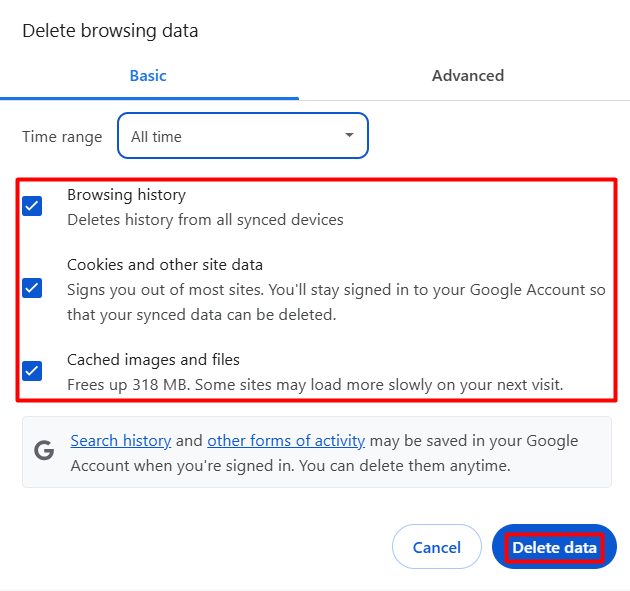
- Clear the browser cache.
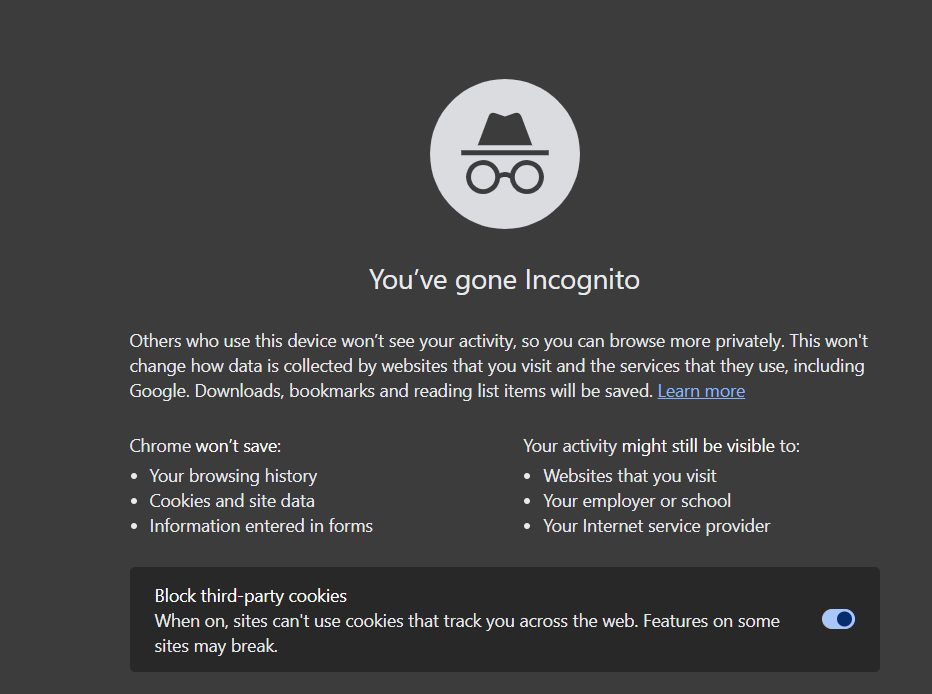
- Open the page in a private (incognito) window.
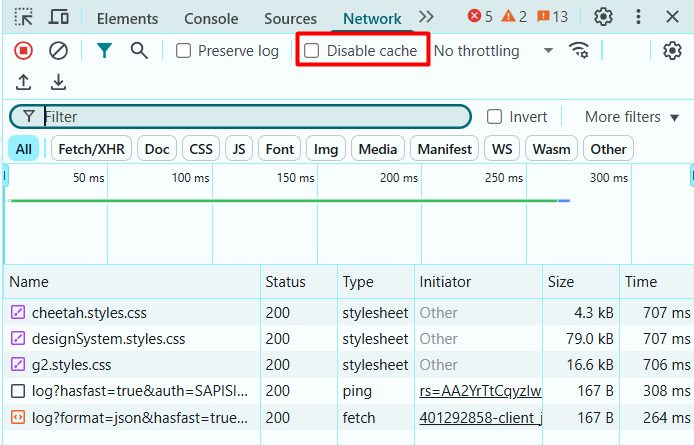
- Turn off the cache while developer tools are open. In the Network tab, tick Disable cache.
- Try another browser or device.
- Do a hard reload with
Ctrl + F5(Cmd + Shift + Ron a Mac).
Fix it as a site owner
- Correct the headers. Check
Cache-Control,ETagandLast-Modified. - Remove long caching for files that change often.
- Use correct date formats for
Last-Modified(HTTP date format). - Turn off server caching if it serves old pages, or purge it after an update.
- Update the CDN or proxy rules, and purge their cache.
Best practices
- Use proper cache headers.
- Set a reasonable expiry time.
- Version your assets (
style.css?v=2or file names with a hash), so a change forces a new download. - Watch your logs.
Quick recap
- 304 is normal and saves bandwidth.
- If old content shows, clear caches and purge the CDN.
- Version your files so updates always reach visitors.