

What Node.js is
Node.js is an open-source, cross-platform runtime that runs JavaScript outside the browser. It uses the V8 engine of Chrome. With Node.js you can write the back end of an app in the same language as the front end. It is event-driven and non-blocking, so it is fast for network apps.
Windows
- Open the official Node.js download page and download the Windows installer (the
.msifile). Choose the LTS version for a stable release.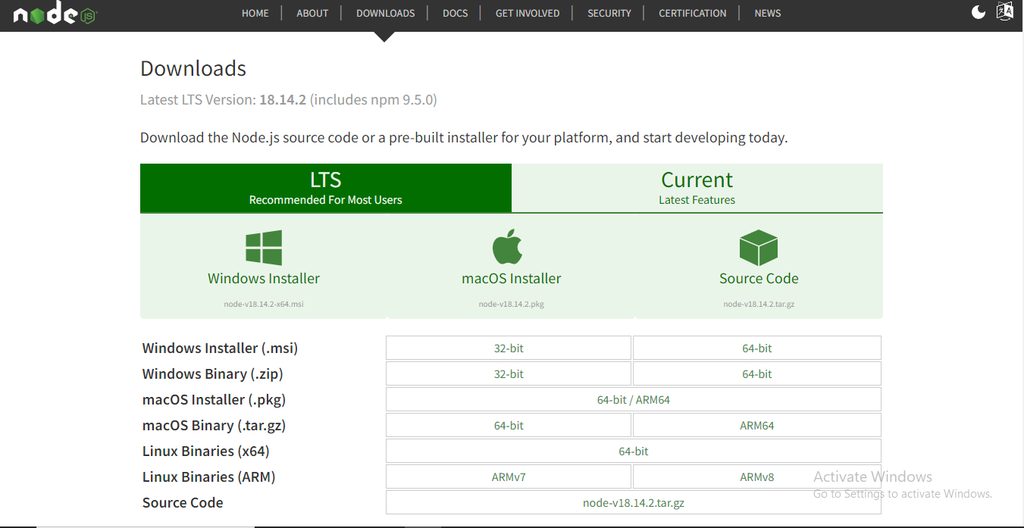
- Run the installer and accept the license. Keep the default settings.
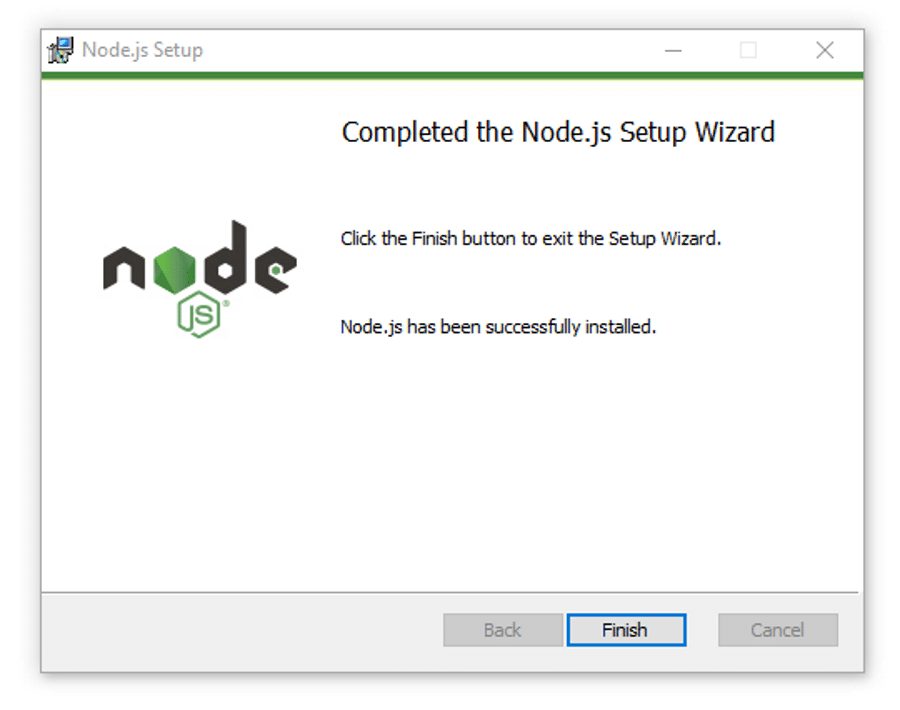
- Restart the computer if you need to.
- Open Command Prompt and check:
node -v
npm -v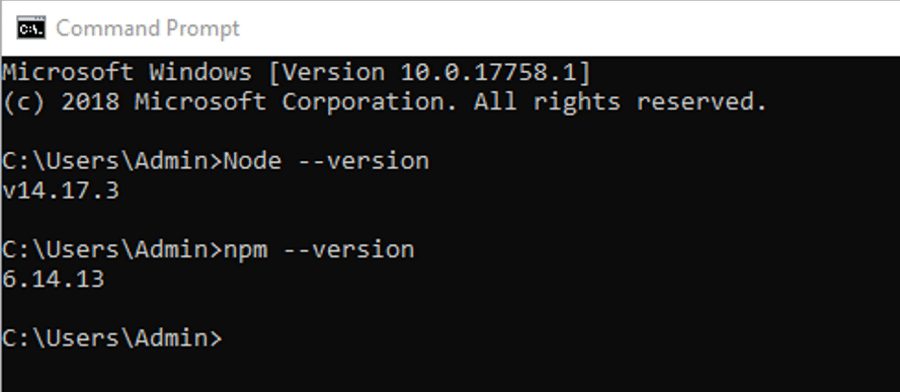
macOS
- Download the macOS installer (
.pkg) from the Node.js website.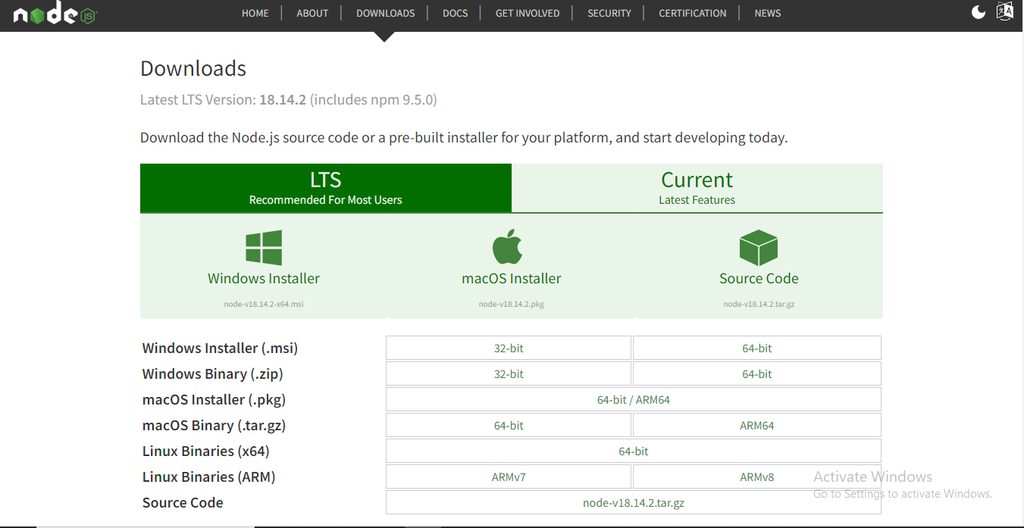
- Open the file and follow the steps.
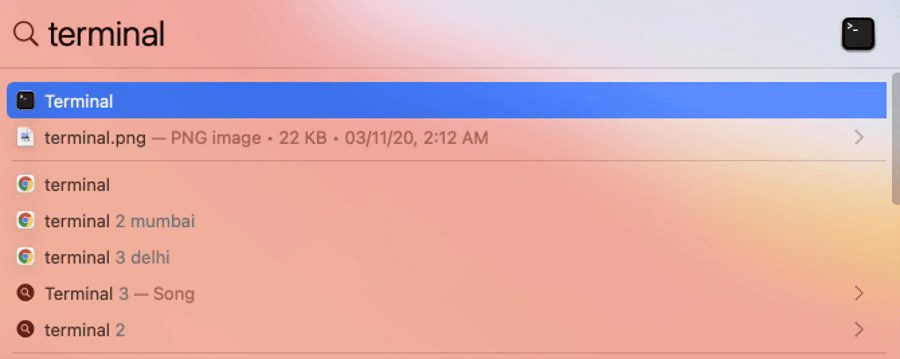
- Open Terminal and check:
node -v
npm -v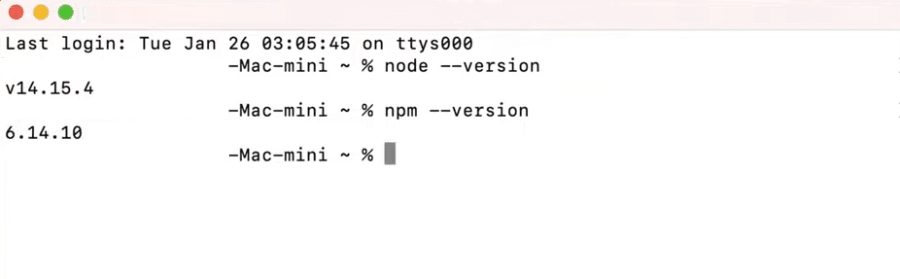
You can also install it with Homebrew: brew install node.
Linux
Ubuntu and Debian
sudo apt update
sudo apt install nodejs npm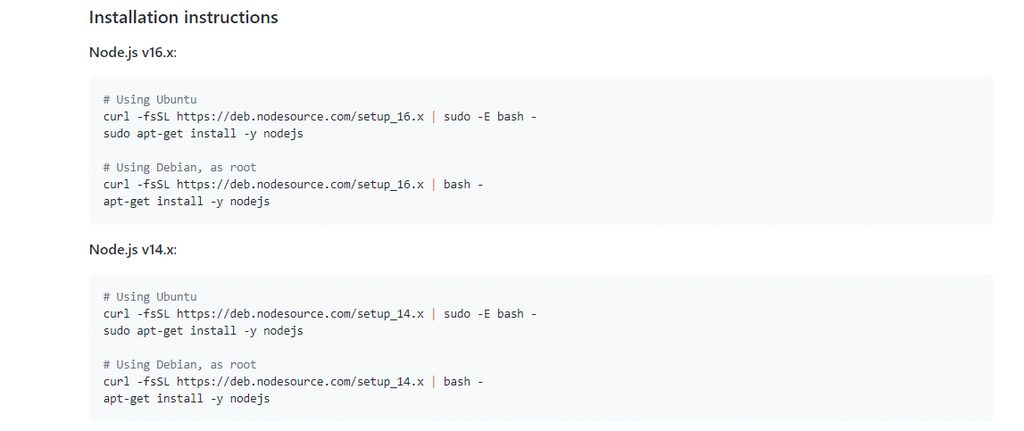

Check the version:
node -v
npm -v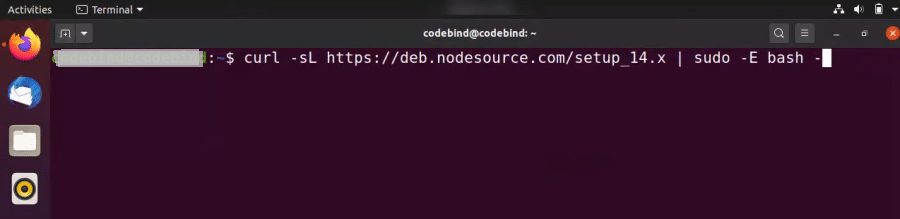
The version in the distribution repository can be old. To get a newer one, use the NodeSource repository. For example, for Node.js 20:
curl -fsSL https://deb.nodesource.com/setup_20.x | sudo -E bash -
sudo apt install -y nodejs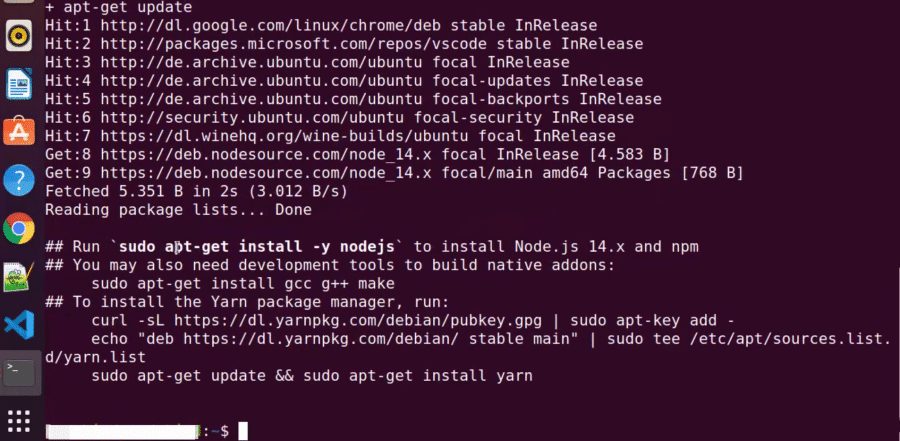

Or use nvm, which lets you switch between versions:
curl -o- https://raw.githubusercontent.com/nvm-sh/nvm/v0.39.7/install.sh | bash
source ~/.bashrc
nvm install --lts
nvm ls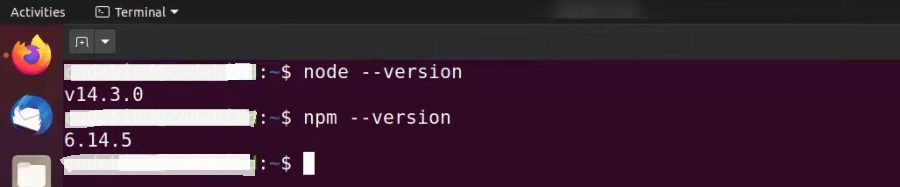
Check the version at any time
node --versionQuick recap
- Use the installer on Windows and macOS, or
apt/ NodeSource /nvmon Linux. - Check with
node -vandnpm -v. - Pick an LTS version for production.