

Requirements
- The recent version of macOS. Check Software Update in System Settings.
- Lots of free disk space. Xcode needs about 40 GB.
- An Apple ID to download from the App Store.
Download Xcode
- Open the App Store on your Mac.
- Type
Xcodein the search bar at the top. - Open Xcode from the results.
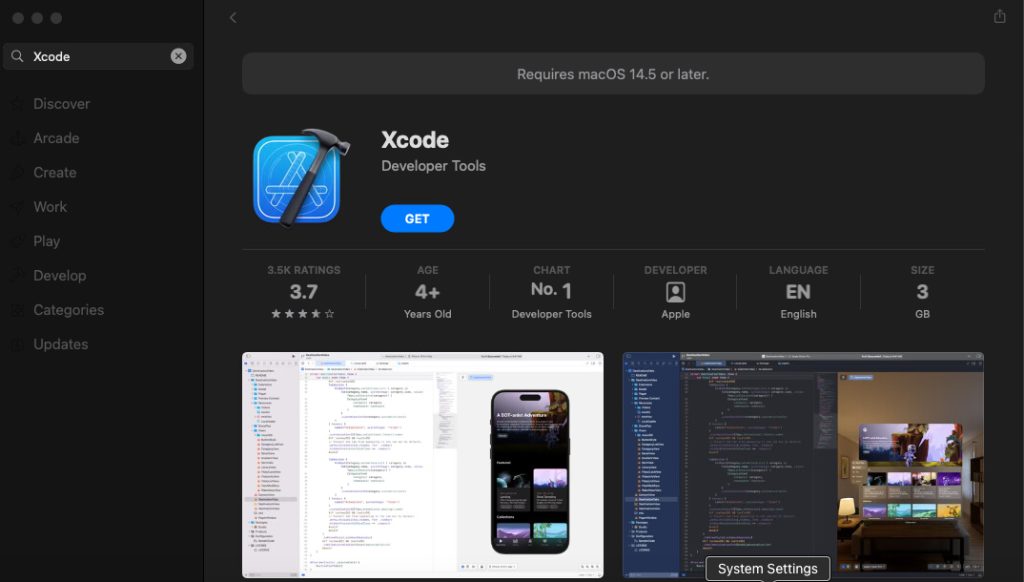
- Click Get, then Install. The download is large, so give it time.
Install the command-line tools
- Open Terminal. It is in Applications > Utilities.
- Run:
xcode-select --install- A pop-up asks if you want to install the tools. Click Install and follow the prompts.
Check the installation
- Open the Applications folder and double-click Xcode.
- On the first launch, accept the license and let it install the extra components.
- Check the tools in Terminal:
xcodebuild -versionTroubleshooting
- Not enough space. Free some disk space and start again.
- Slow download. Check the connection, or try later or on another network.
FAQ
What is Xcode? Apple's IDE for apps on iOS, macOS, watchOS and tvOS.
Is Xcode free? Yes.
Can I install Xcode on Windows? No. Xcode only runs on macOS.
Do I need an Apple ID? Yes, to download from the App Store.
Quick recap
- Install from the App Store.
- Run
xcode-select --installfor the command-line tools.