

Step 1: Update Ubuntu
sudo apt update && sudo apt upgrade -y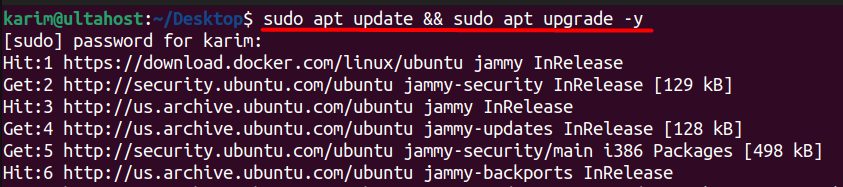
Step 2: Install Apache
sudo apt install apache2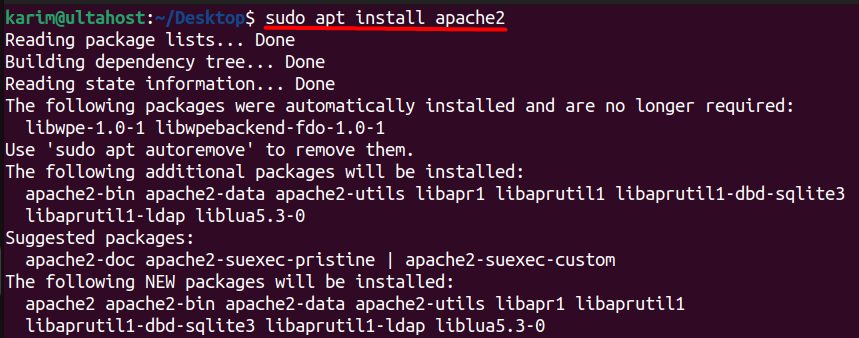
Step 3: Allow .htaccess files
sudo nano /etc/apache2/sites-available/000-default.confInside the VirtualHost, add:
<Directory /var/www/html>
    AllowOverride All
</Directory>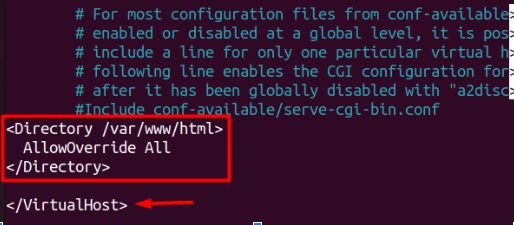
Enable mod_rewrite and restart Apache:
sudo a2enmod rewrite
sudo systemctl restart apache2
Step 4: Install PHP
sudo apt install php libapache2-mod-php php-mysql php-curl php-gd php-dom php-xml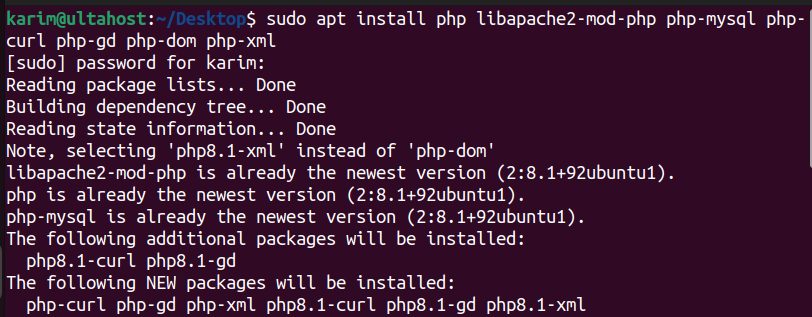
Add the other extensions that PrestaShop needs:
sudo apt install php-cli php-common php-mbstring php-intl php-zip php-xmlrpc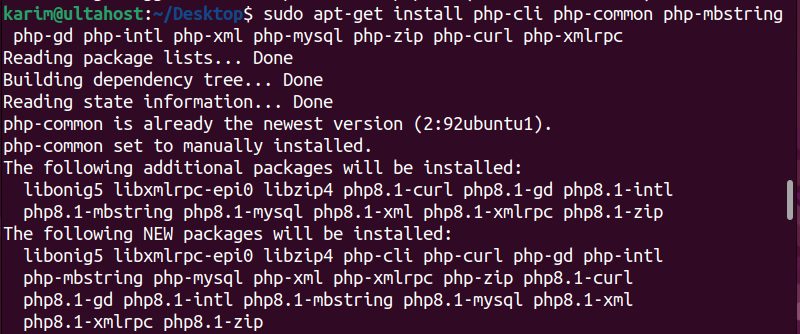
sudo systemctl restart apache2Step 5: Install MariaDB and create the database
sudo apt install mariadb-server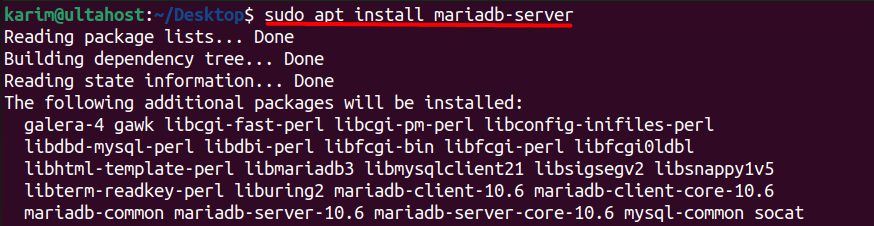
sudo mysql_secure_installation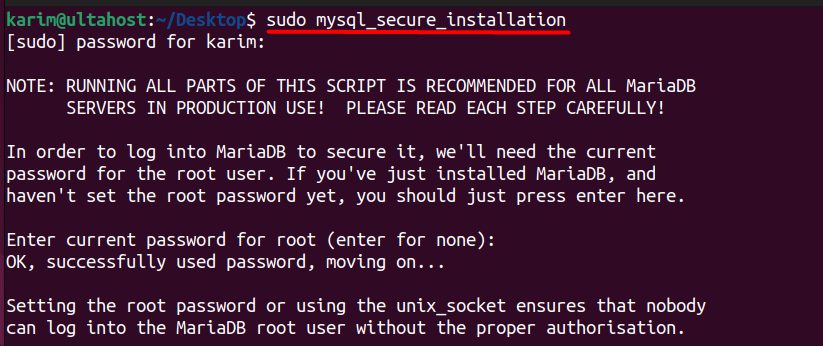
sudo mysql -u root -p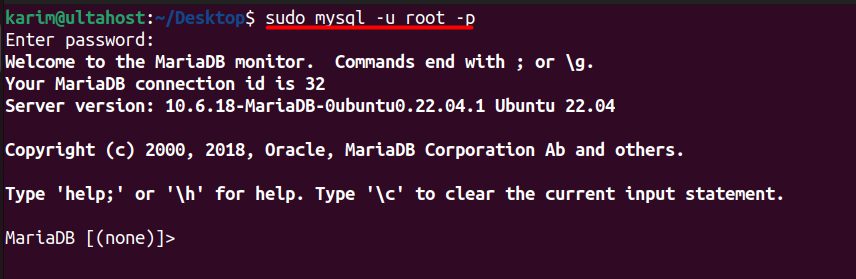
CREATE DATABASE prestashop;
CREATE USER 'ps_user'@'localhost' IDENTIFIED BY 'a_strong_password';
GRANT ALL PRIVILEGES ON prestashop.* TO 'ps_user'@'localhost';
FLUSH PRIVILEGES;
EXIT;

Use a strong password. Your system is now ready for PrestaShop.
Step 6: Download PrestaShop
Download the latest PrestaShop zip from the PrestaShop website into your web folder, then unzip it. The package may contain a second zip (prestashop.zip) that you must unzip again:
cd /var/www/html
sudo wget https://assets.prestashop3.com/dst/edition/corporate/8.1.7-1.0/prestashop_edition_basic_version_8.1.7-1.0.zip
sudo apt install unzip
sudo unzip prestashop_*.zip
sudo unzip prestashop.zip
sudo chown -R www-data:www-data /var/www/html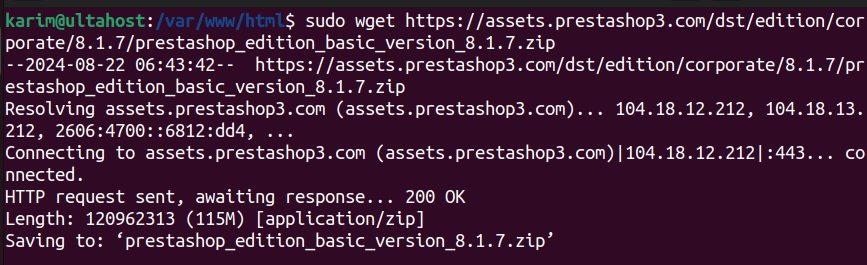
(Use the download link of the current version from the PrestaShop site.)
Step 7: Install PrestaShop
Open your domain (or the server address) in a browser.
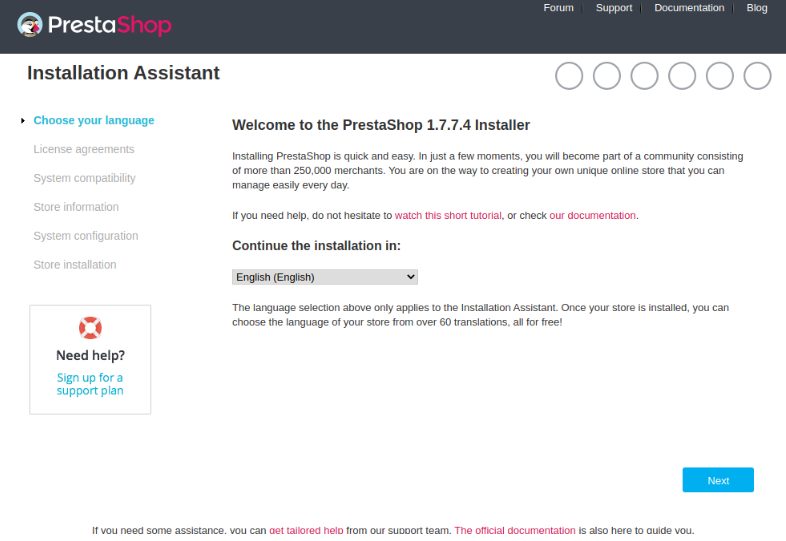
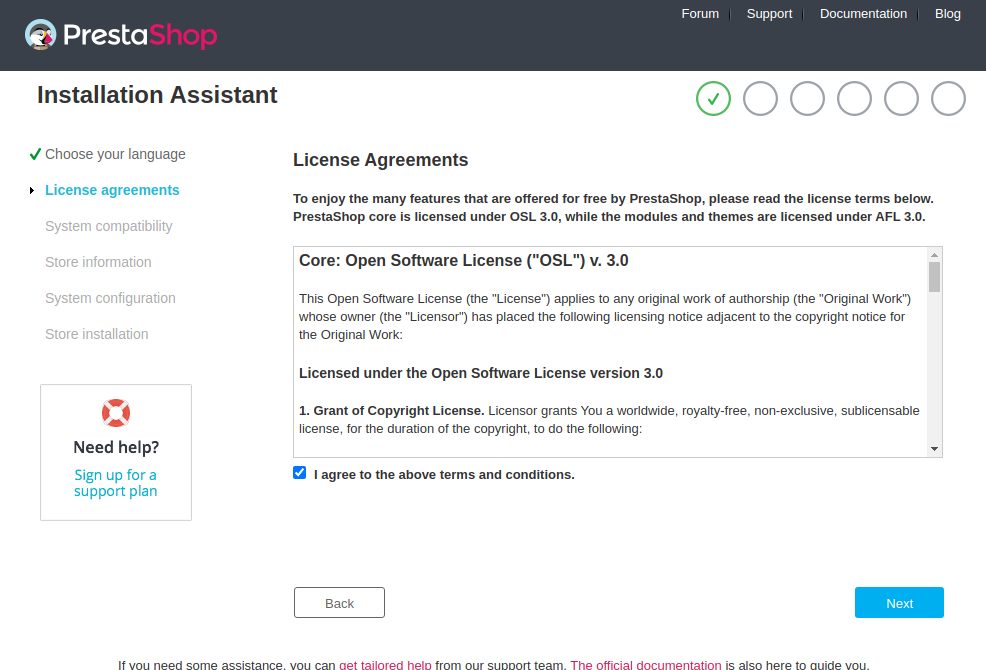
- Choose the language and read and accept the license agreement.
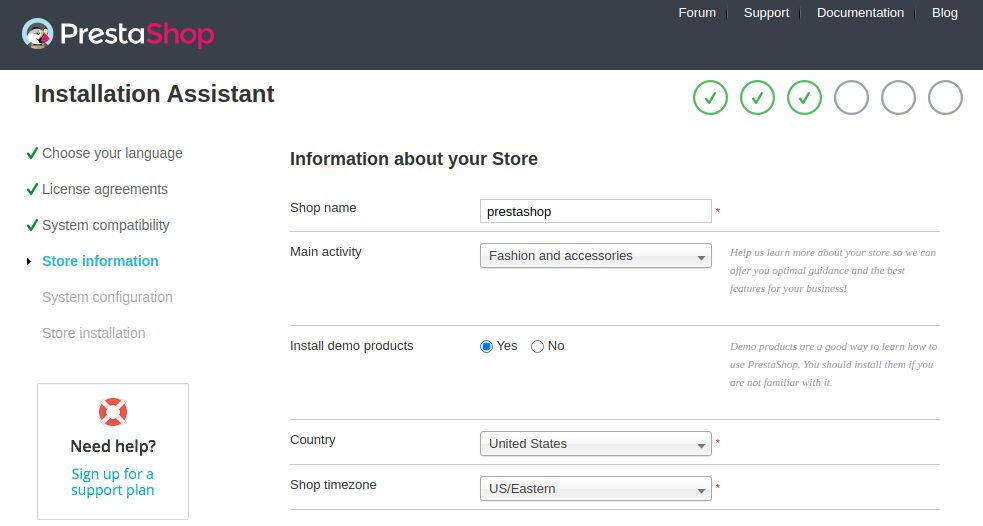
- Enter the information about your store (name, activity, country, admin name, email and password).
- Enter the database information: server
localhost, the database nameprestashop, the userps_userand its password.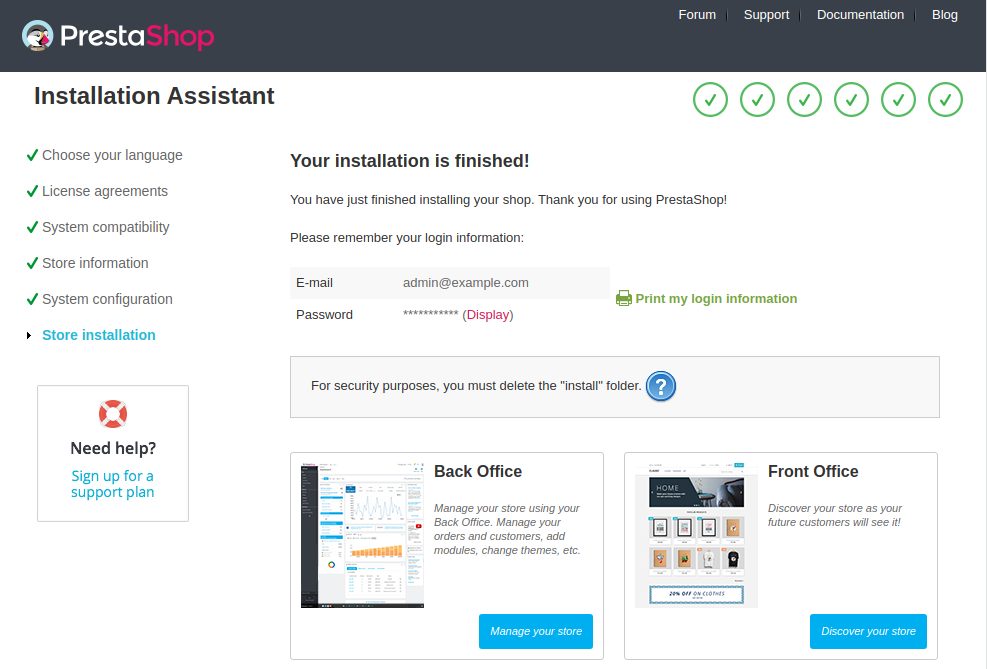
- When it finishes, delete the
installfolder as the installer says, and note the new name of the admin folder. Log in to the back office.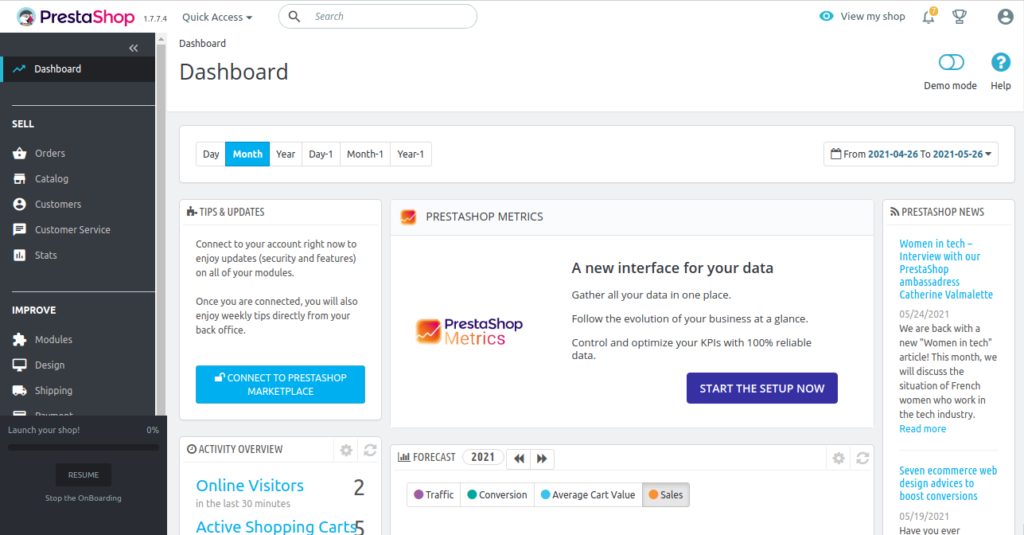
Key features
- Scalability and performance.
- Security. SSL support, password hashing and updates.
- Customization. Themes, modules and templates.
- User management and many payment methods.
Quick recap
- Install Apache, PHP and MariaDB, and create a database.
- Download and unzip PrestaShop, set the owner.
- Finish the installer and remove the
installfolder.