

What does importing mean?
Softaculous is a tool in cPanel that installs and manages website apps. If you installed WordPress by hand, or moved a site from another host, Softaculous does not know about it. Importing tells Softaculous that the app exists. After that, you can upgrade, back up and clone it with a few clicks.
Importing does not move or change your files. It only adds the app to the Softaculous list.
Before you start
- The app files must already be in a folder on your account.
- The database must already exist and work. A database is where the app keeps its text and settings.
- Take a backup first. It is a good habit before any change.
Steps
- Log in to your Hostvento client area at https://secure.hostvento.com/clientarea.php.
- Open Services, choose your hosting plan and log in to cPanel.
- Open Softaculous Apps Installer.
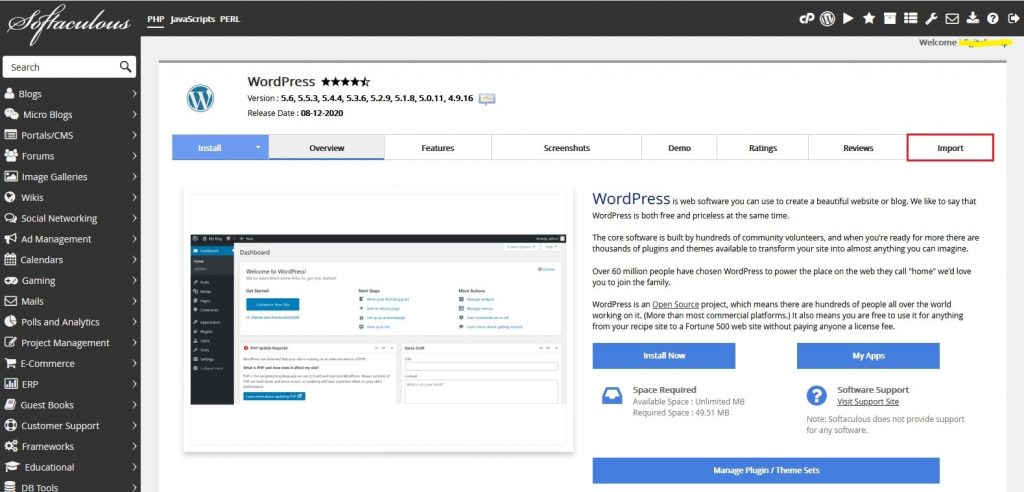
- Click the Import icon. It sits near the top right, next to the other tool icons.
- You will see a list of app types that can be imported. Find the one that matches your site, for example WordPress. Click Import next to it.
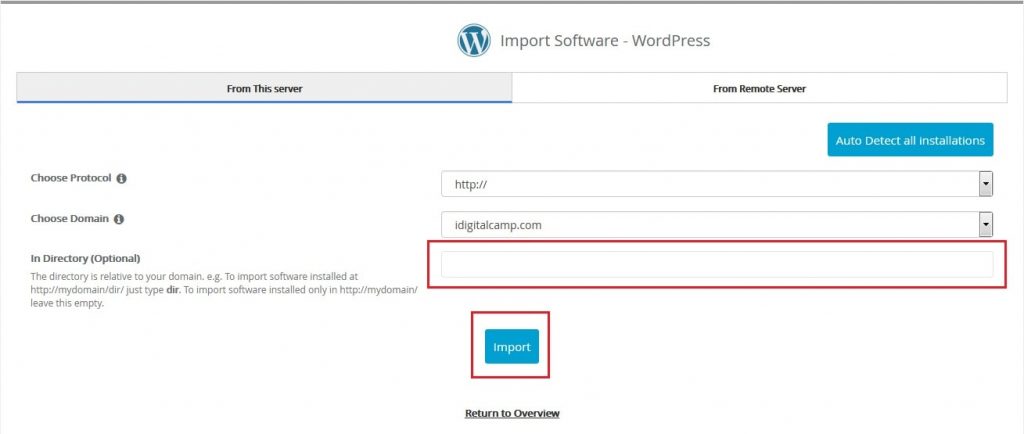
- Choose the domain where the app lives.
- Type the folder name if the app is not on the main page. A folder is a directory on the server. Leave the box empty if the app is on the main page of the domain.
- Click Import again to confirm.
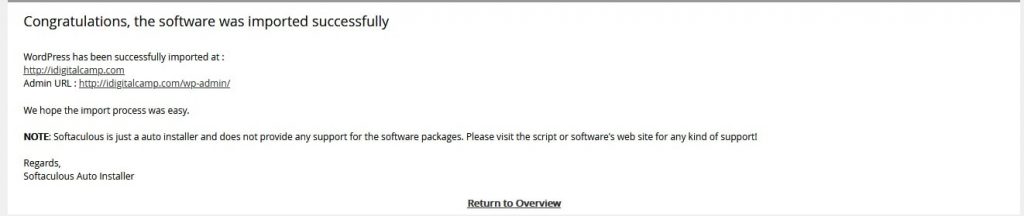
- Wait for the message that says the import finished.
Check the result
- Click All Installations.
- Look for your app in the list.
- Click the app name to see its details.
If the import fails
- Check that the folder is correct.
- Check that the app files are complete and not damaged.
- Make sure the app version is one Softaculous supports.
- Open a support ticket at https://secure.hostvento.com/submitticket.php and tell us the app name and folder.
Tip: If you have many sites, import them one by one and check each in All Installations.
Quick recap
- Importing adds an existing app to the Softaculous list.
- Your files stay where they are.
- Use the Import icon, pick the app type, then the domain and folder.
- Check All Installations to confirm.
- Ask Hostvento support if it fails.