

What is Joomla?
Joomla is a free tool for building websites. It is a content management system, or CMS. A CMS lets you add pages and posts from a web screen without writing code. People use Joomla for blogs, company sites and community sites.
Softaculous is a tool in cPanel that installs apps like Joomla for you. cPanel is the control panel where you manage your hosting.
Steps
- Log in to your Hostvento client area at https://secure.hostvento.com/clientarea.php.
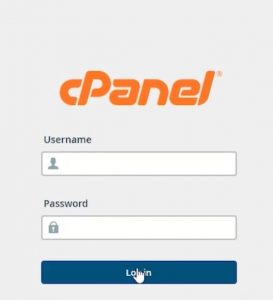
- Open Services, choose your hosting plan and log in to cPanel.
- Find Softaculous Apps Installer and open it. If you cannot find it, ask Hostvento support whether it is on your plan.
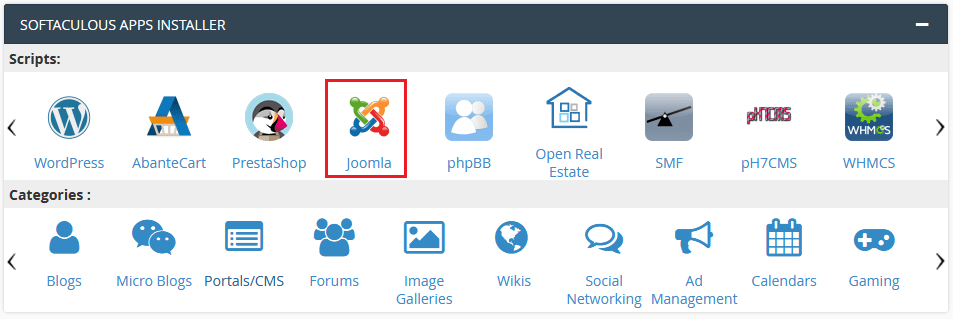
- Use the search box or the left menu to find Joomla. Click it.
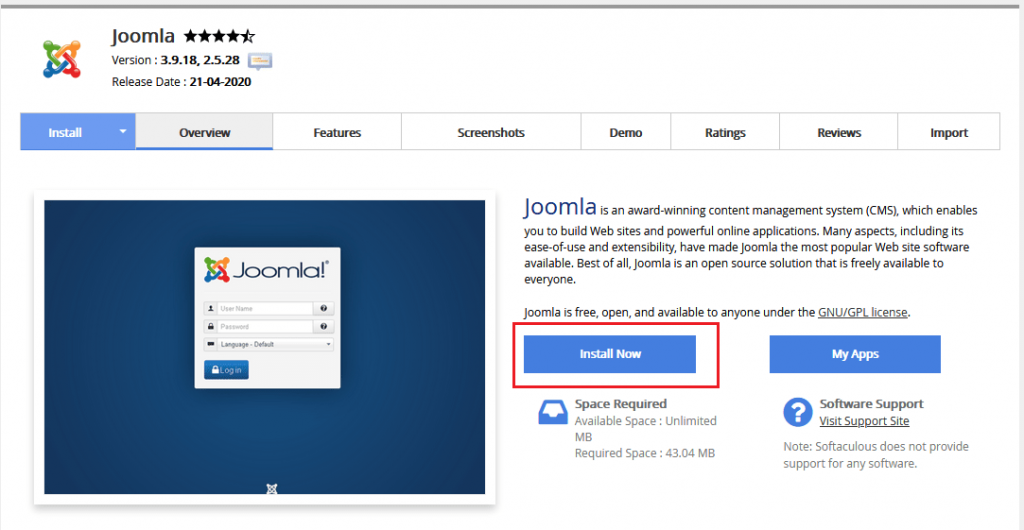
- Click Install Now.
- Under Choose Protocol, pick the one with https if you have an SSL certificate. SSL keeps the connection to your site private.
- Under Choose Domain, select the website name.
- In In Directory, leave the box empty to install on the main page. Type a name such as
joomlato install in a sub folder.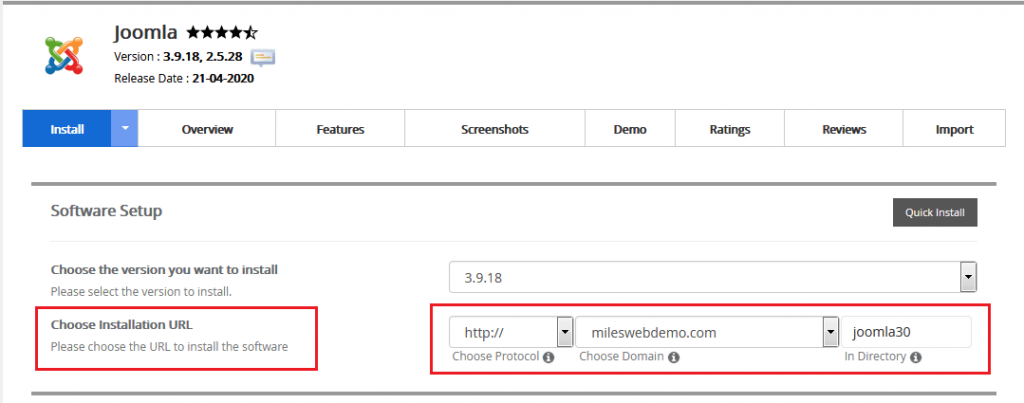
- Type a name for your site in Site Name.
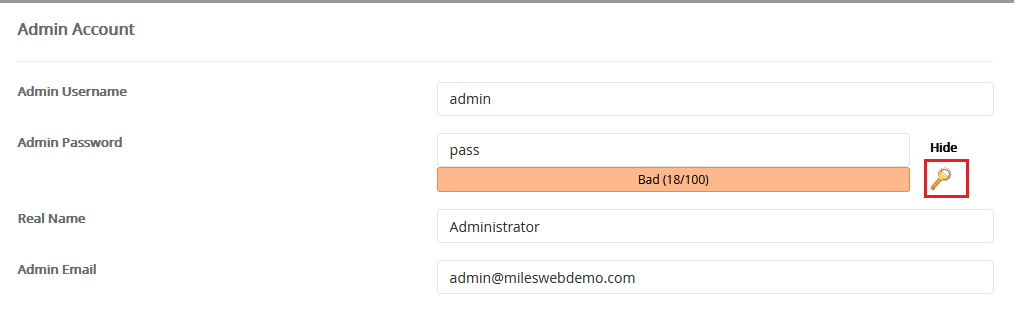
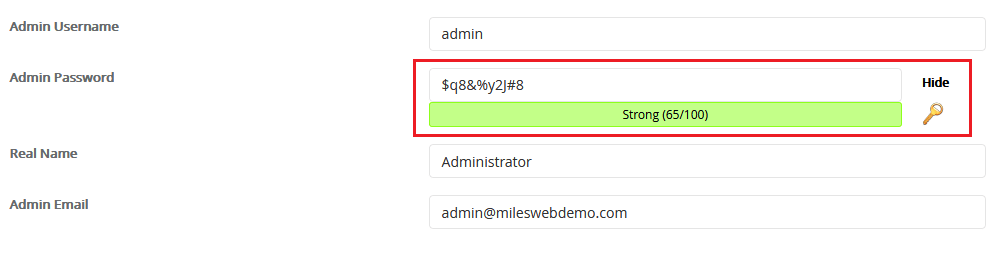
- Under Admin Account, choose an admin username and a strong password. A strong password is long and mixes letters, numbers and symbols. Save these details in a safe place.
- Type your email address in Admin Email.
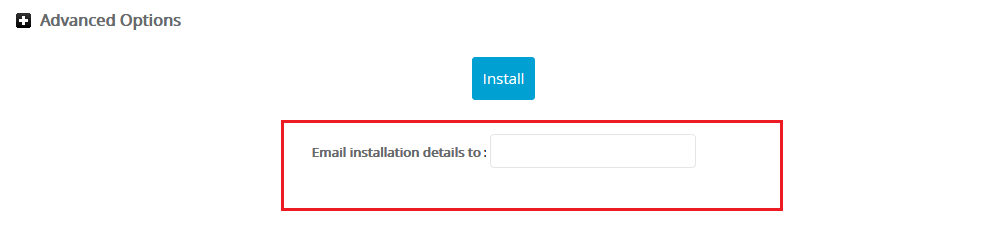
- Pick a language if you want one other than the default.
- Scroll to the bottom and click Install.

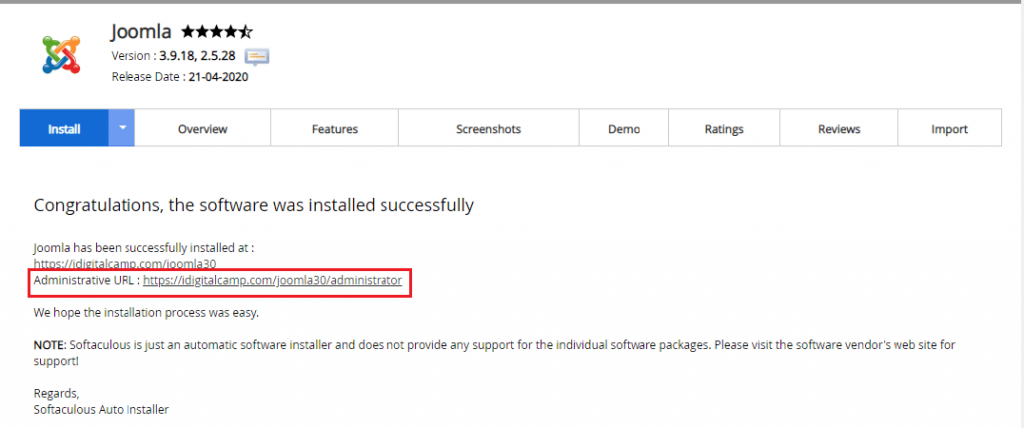
- Wait until you see a message that the install is done. It shows two links: one for your site and one for the admin area.
Log in to Joomla
- Click the admin link, or add
/administratorto the end of your site address.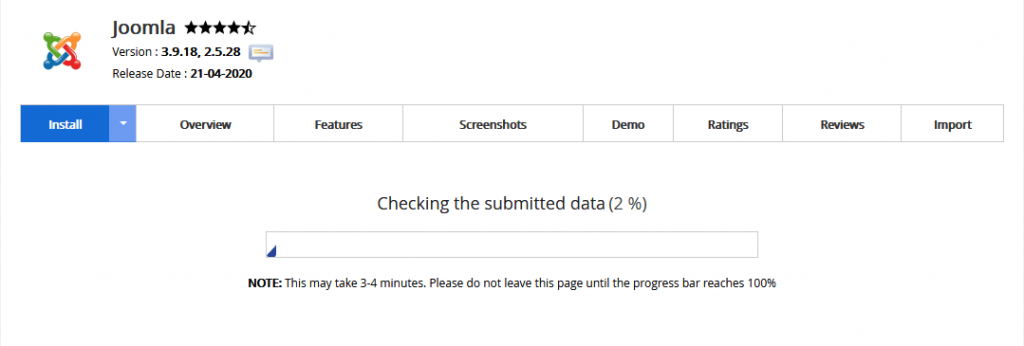
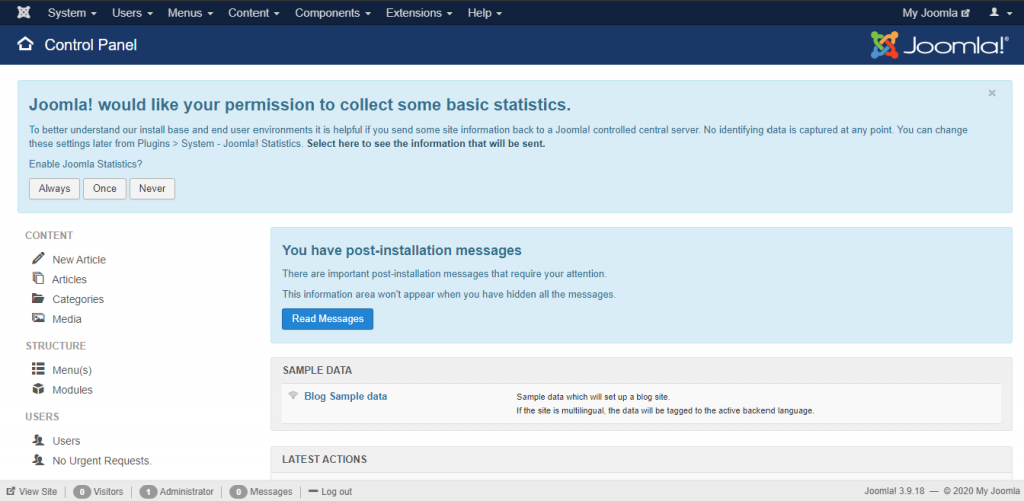
- Type the admin username and password you chose.
- Click Log in.
Tip: If a site is already in the folder you picked, the install may overwrite it. Use a new folder or take a backup first.
Quick recap
- Joomla is a free tool for building websites.
- Open Softaculous in cPanel and find Joomla.
- Click Install Now and fill in the domain, folder and admin details.
- Click Install and wait for the finish message.
- Log in at
/administrator.