

What is happening here?
WordPress is a popular tool for building websites. Softaculous is an installer inside cPanel that sets WordPress up for you. cPanel is the dashboard where you manage your hosting. When you remove WordPress, you delete the site from your hosting account.
Warning first
This can delete your pages, posts, pictures and settings for good. Take a full backup before you start. If you are not sure you want to delete the site, stop and ask first.
Steps
- Log in to your client area at https://secure.hostvento.com/clientarea.php.
- Open your hosting service and log in to cPanel.
- Click Softaculous Apps Installer. If you do not see it, search for "Softaculous" at the top.
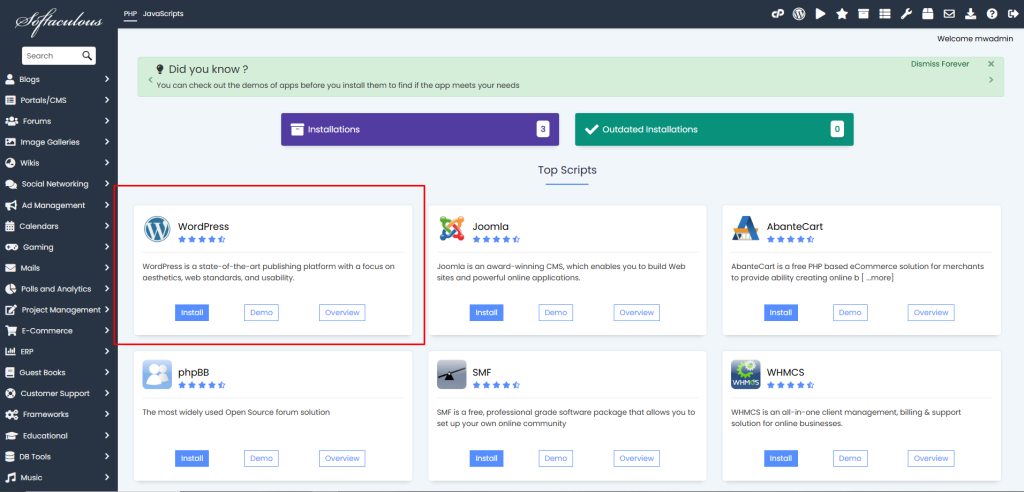
- On the left menu, click WordPress. Or click All Installations at the top.
- Find your WordPress site in the list.
- Click the red X icon on that row.
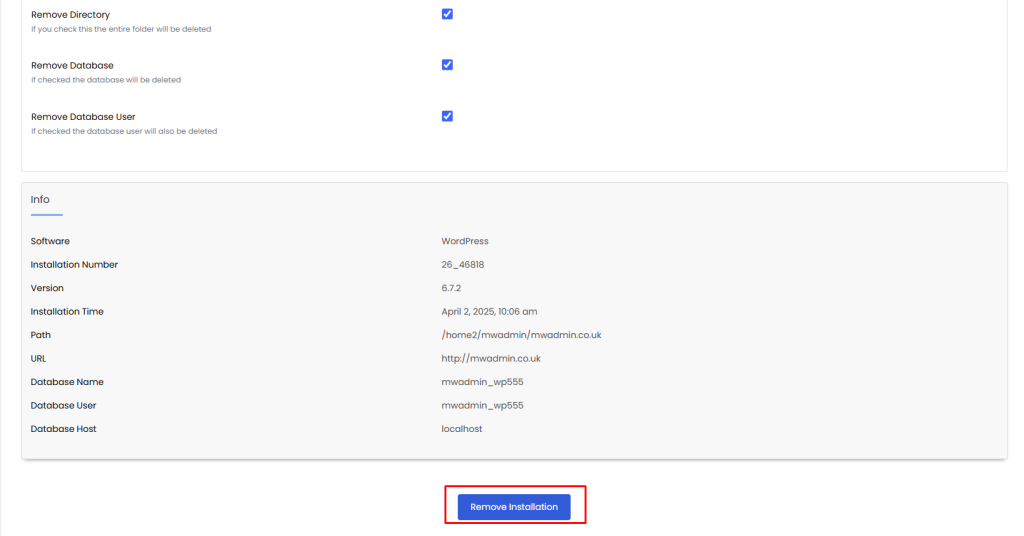
- Choose what to delete. The box may show these options:
- Remove Directory deletes the site files.
- Remove Database deletes the stored content.
- Remove Database User deletes the login that connects the site to the database.
- Click Remove Installation.
- Wait for the success message.
Check that it is gone
- Open the web address of the site. It should show an error or an empty page.
- Open File Manager and check that the folder is gone.
- Open MySQL Databases and check that the database is gone.
If you want to keep the files
If you only want to remove the Softaculous record, leave the boxes for the directory and database unticked. Then the site stays, but Softaculous will no longer manage it.
If the WordPress is not in the list
Softaculous only lists sites it installed. If you added WordPress by hand, delete its folder in File Manager and its database in MySQL Databases.
Tip: If you plan to reinstall WordPress in the same folder, remove the old files first. This avoids errors during the new install.
Quick recap
- Back up before you delete anything.
- Open Softaculous and find your WordPress install.
- Click the red X and choose what to remove.
- Confirm with Remove Installation.
- Check the folder and database are gone.