

What is HSTS?
HSTS stands for HTTP Strict Transport Security. It tells the browser to open your site only over HTTPS. Even if a visitor types http://, the browser switches to https:// by itself. This helps stop man-in-the-middle attacks, protocol downgrade and cookie theft.
Note: Install an SSL certificate first. HSTS only works when HTTPS already works on your whole site.
The header uses three settings:
| Setting | What it does |
|---|---|
max-age | How long, in seconds, the browser must use HTTPS. 63072000 is two years. |
includeSubDomains | Also applies the rule to all subdomains. |
preload | Lets browsers enforce HTTPS even on the first visit. |
A full header looks like this:
Strict-Transport-Security: max-age=63072000; includeSubDomains; preloadMethod 1: Use the All in One SEO plugin
The security header feature is in the premium version of the plugin.
- Install the All in One SEO plugin.
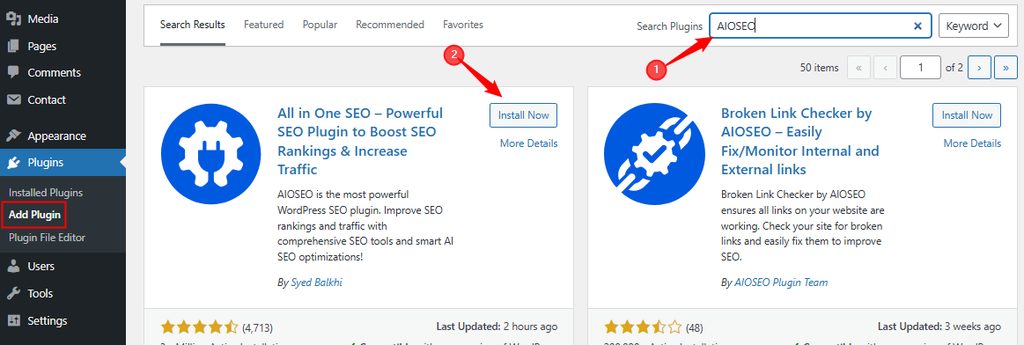
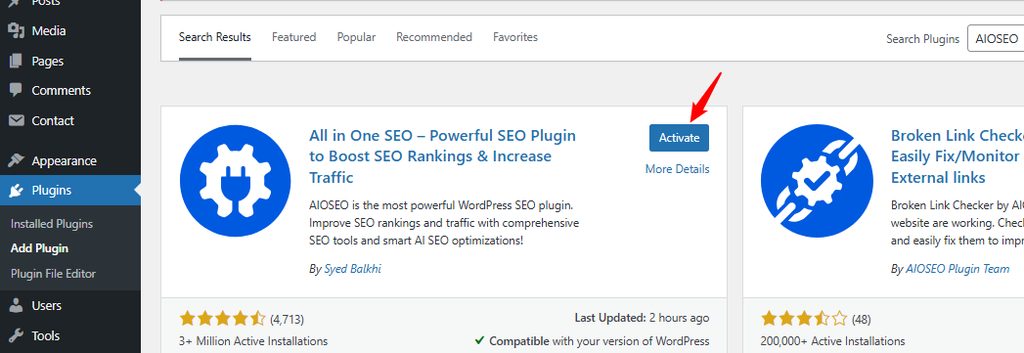
- Activate it.
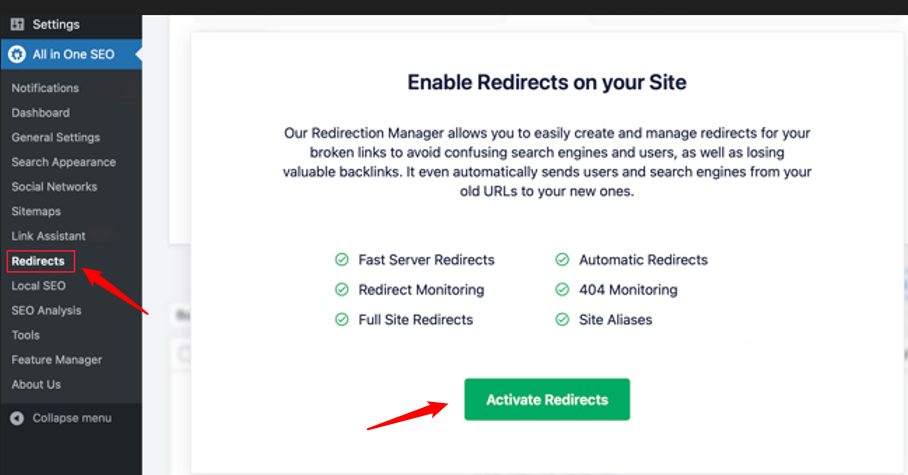
- Go to All in One SEO, then Redirects. Click Activate Redirects.
- Open the Full Site Redirect tab. Scroll to Canonical Settings and turn it on. Click Add Security Presets.
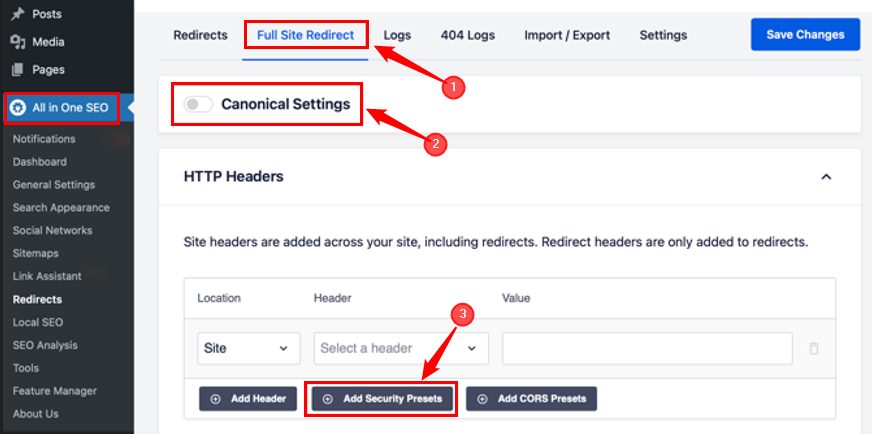
- A table of recommended headers appears. Change them if you need to.
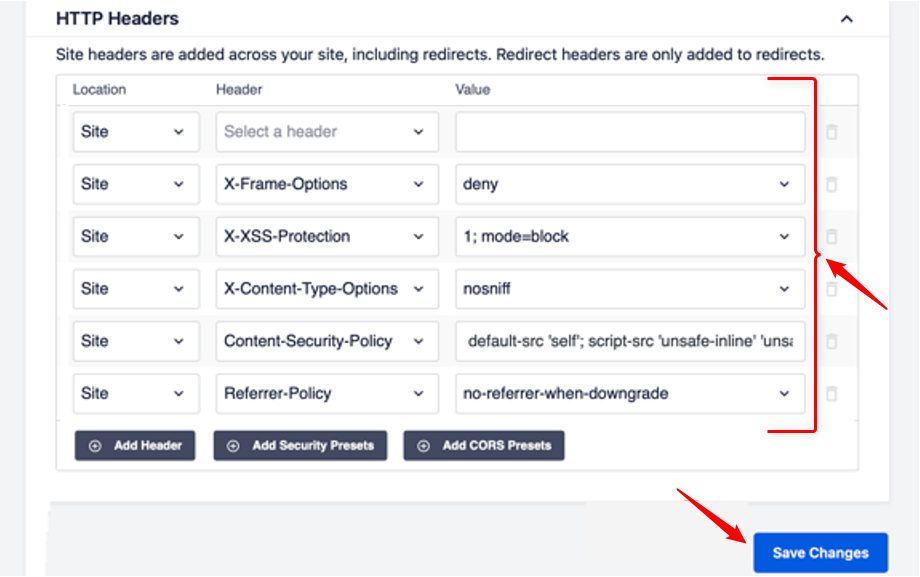
- Click Save Changes, then check your site.
Method 2: Use Cloudflare
- Connect your site to Cloudflare (change your nameservers to the ones Cloudflare gives you).
- In Cloudflare, go to SSL/TLS, then Edge Certificates.
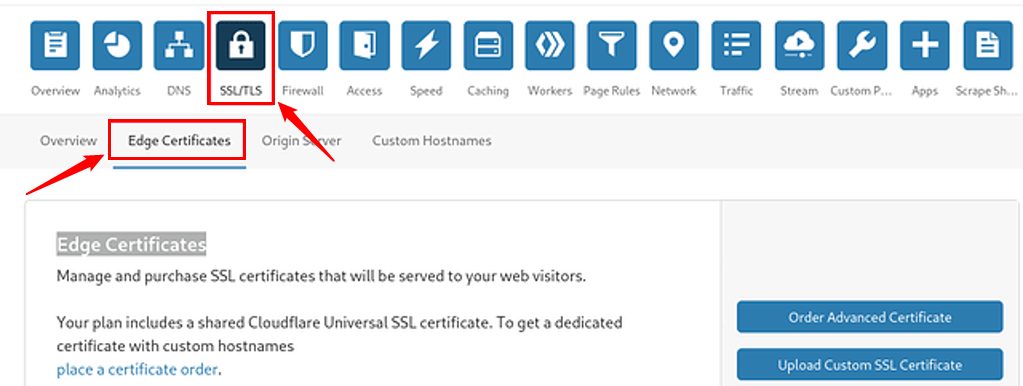
- Find HTTP Strict Transport Security (HSTS) and click Enable HSTS.

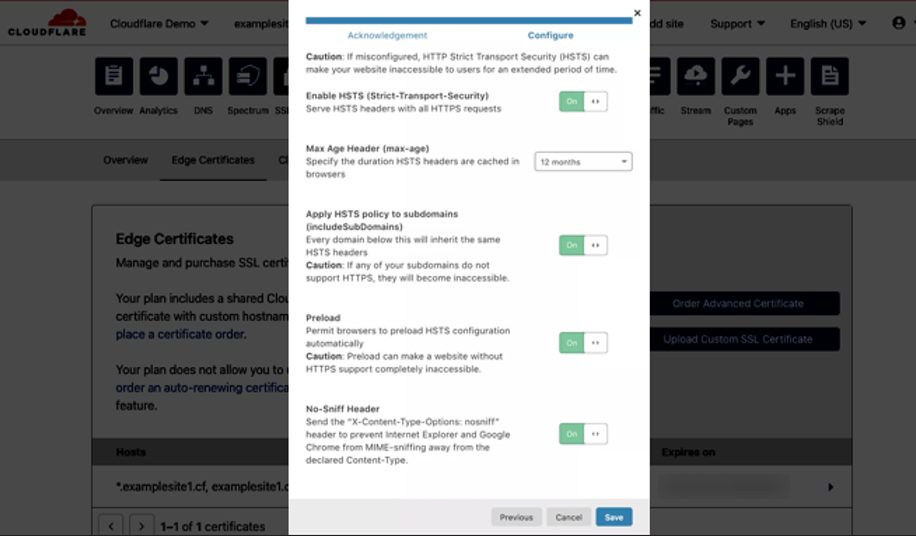
- Read the warning, then click Next. Choose the options you want: HSTS, subdomains, preload and the no-sniff header.
Method 3: Edit the .htaccess file
This works on Apache servers. Back up your site first.
- Open your site files with FTP or File Manager. Go to the root folder.
- Open
.htaccessin a text editor.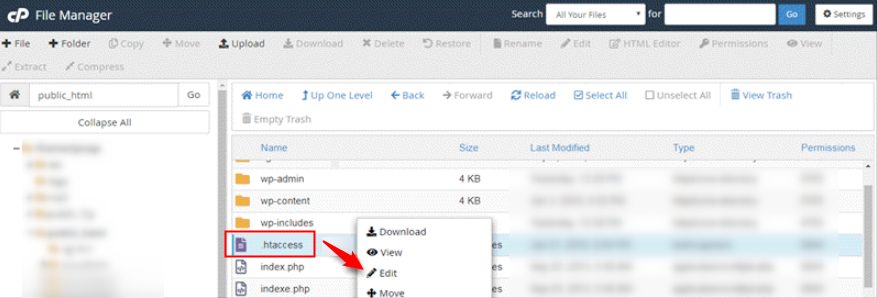
- Add this block at the bottom:
<IfModule mod_headers.c>
  Header set Strict-Transport-Security "max-age=31536000" env=HTTPS
  Header set X-XSS-Protection "1; mode=block"
  Header set X-Content-Type-Options nosniff
  Header set X-Frame-Options DENY
  Header set Referrer-Policy "no-referrer-when-downgrade"
</IfModule>- Save the file and open your site to make sure it still loads.
What the other headers do
- X-XSS-Protection blocks some cross-site scripting attacks.
- X-Frame-Options stops other sites from showing yours in a frame (clickjacking).
- X-Content-Type-Options stops browsers from guessing file types.
- Referrer-Policy controls how much address data is sent to other sites.
Warning: Start with a short
max-age. A long value, plus preload, is hard to undo if HTTPS breaks later.Quick recap
- HSTS forces HTTPS in the browser.
- Use a plugin, Cloudflare, or
.htaccess. - Test your site after every change.