

Steps
- Log in to HestiaCP in your browser. Use your VPS IP address and the default Hestia port 8083, for example
https://203.0.113.10:8083/.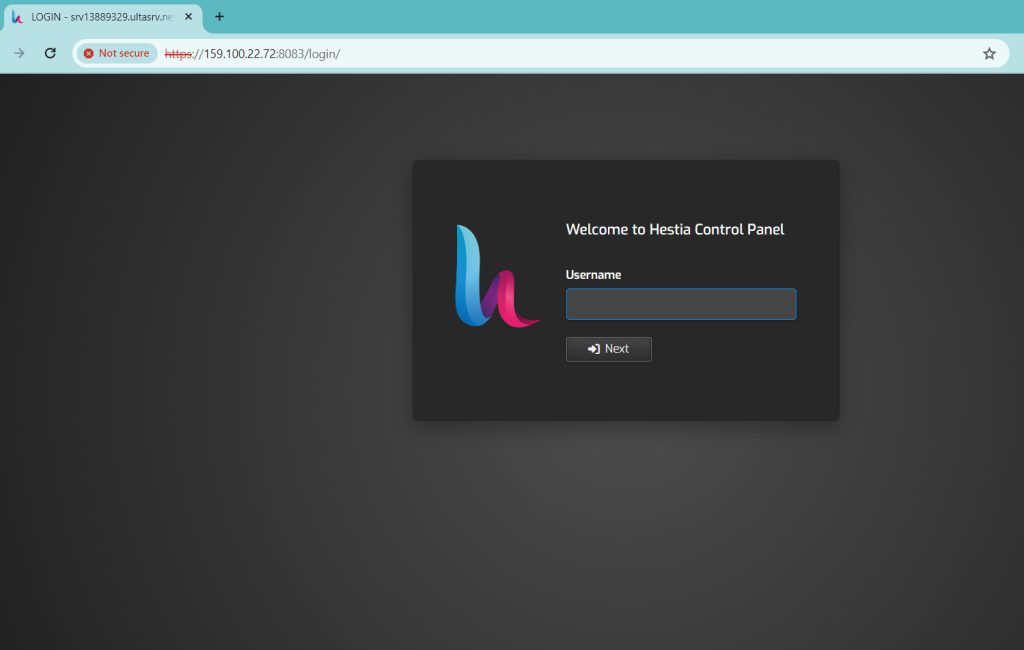
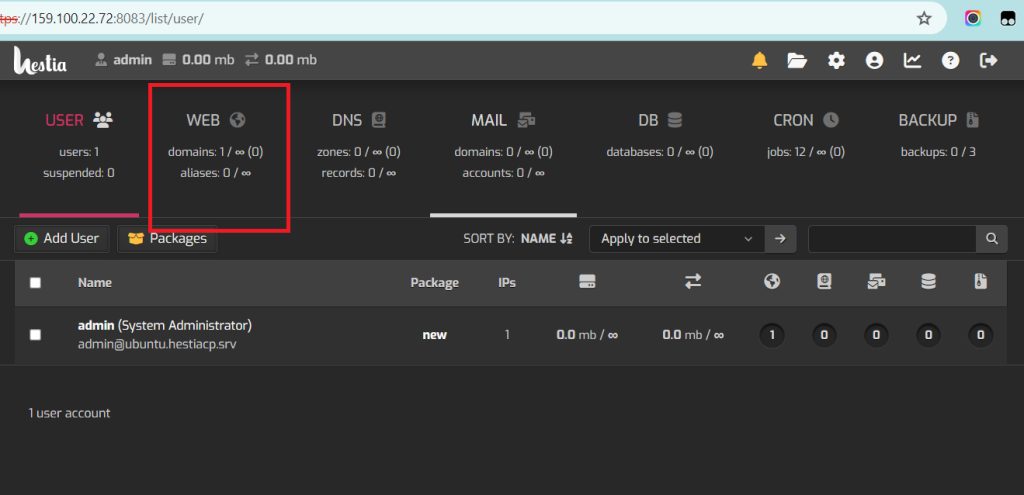
- Click Web in the top menu. Then click the name of your domain to edit it.
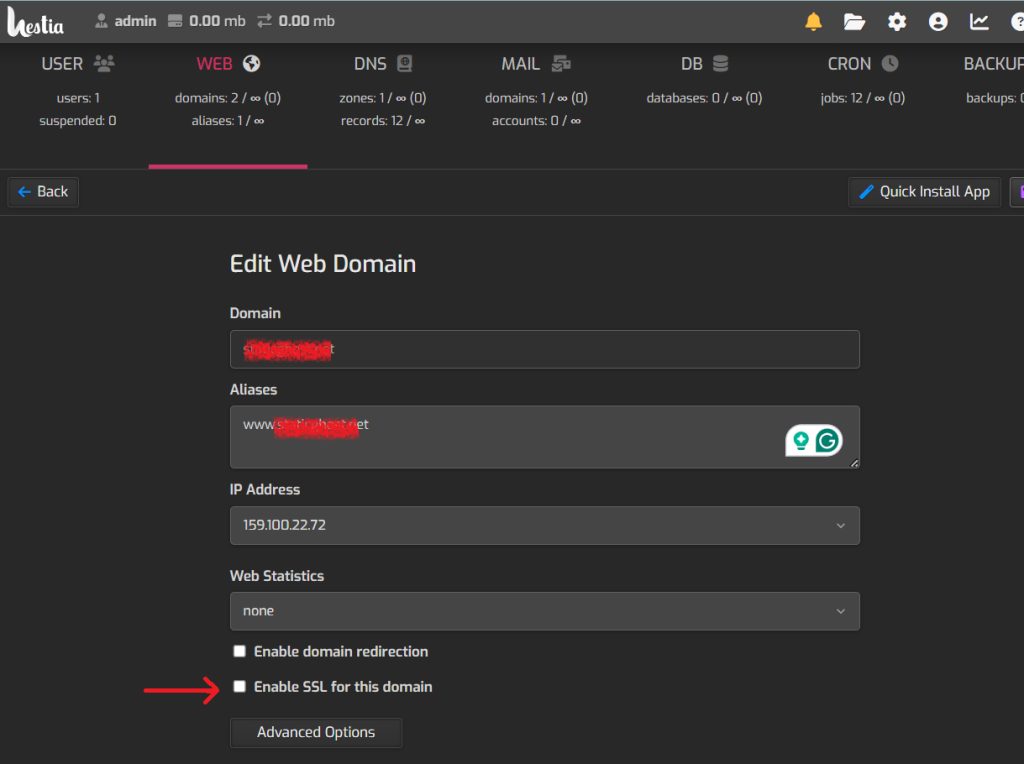
- On the Edit Web Domain page, tick Enable SSL for this domain.
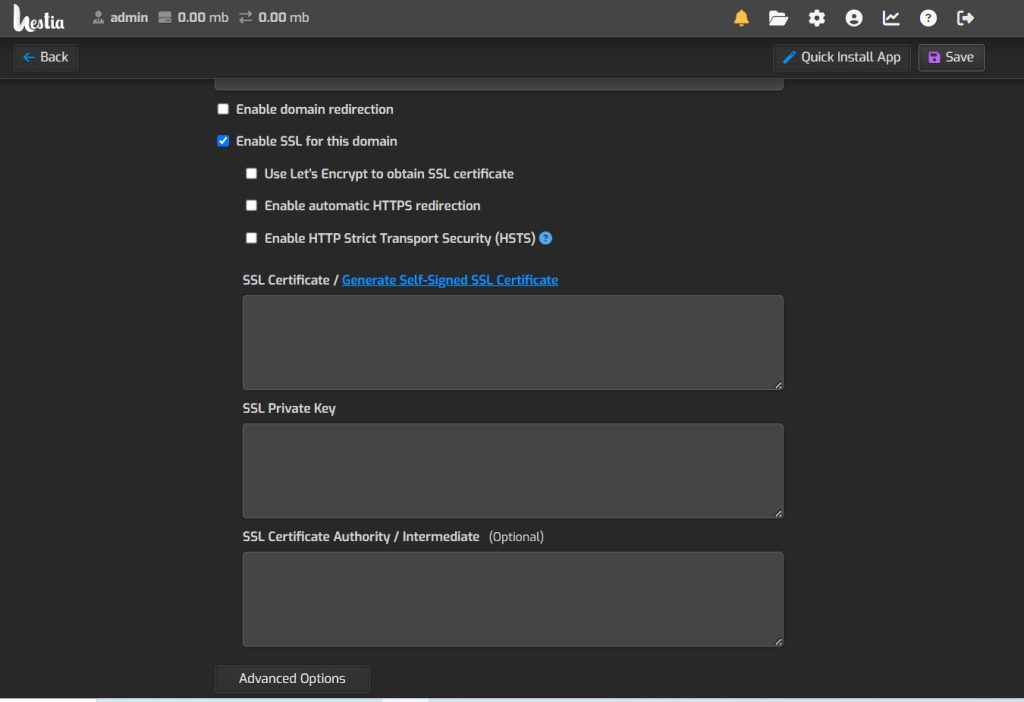
- Choose the certificate type. For a free certificate, tick Use Let's Encrypt to obtain SSL certificate. You can also paste a certificate that you bought. You can tick the option for automatic HTTPS redirect here too.
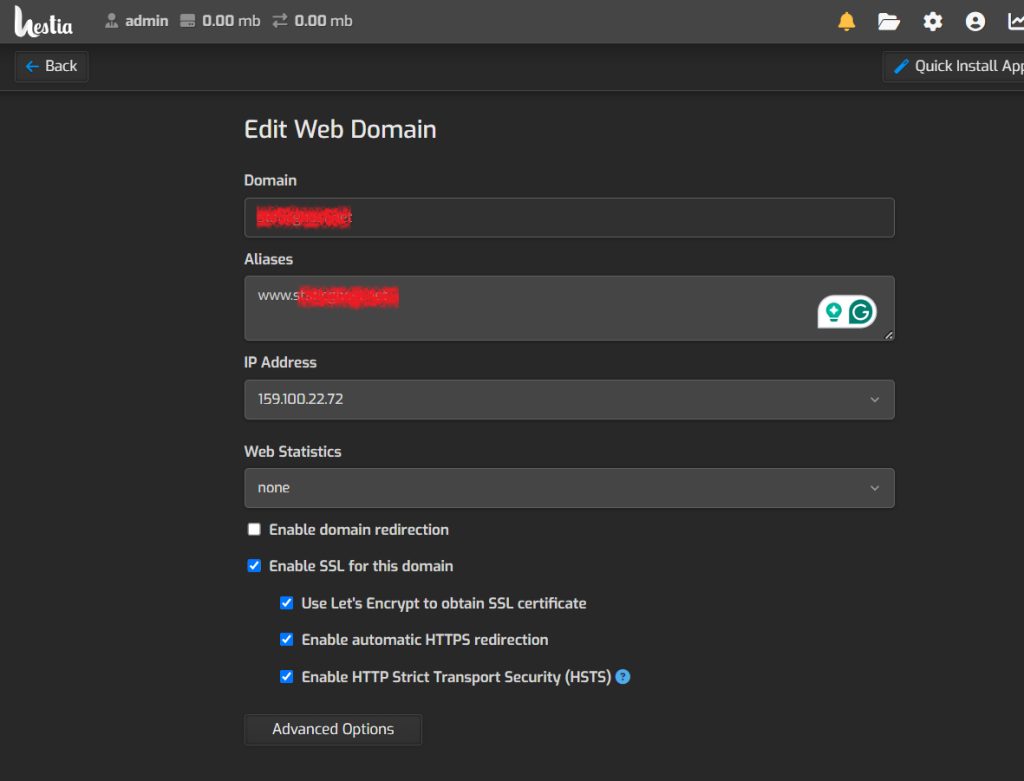
- Click Save.
SSL is active within a few minutes. Open your site with https:// to check the padlock.
Tip: Your domain must already point to the VPS IP address. Let's Encrypt cannot issue a certificate if the DNS is not set.
Quick recap
- Go to Web, then edit the domain.
- Tick Enable SSL for this domain and choose Let's Encrypt.
- Save and wait a few minutes.