

What do you need?
An SSL certificate is a small digital file that proves your site is real and locks the connection. When you buy one, the seller gives you these parts:
- The certificate (also called CRT). This is the main file.
- The private key. This is a secret file that matches the certificate. Never share it.
- The CA bundle. This is a chain of files that links your certificate to a trusted company.
The private key is made when you create a CSR. A CSR is a Certificate Signing Request. It is a block of text you send to the seller to order the certificate.
Steps
- Log in to cPanel. You can find the link in your welcome email or in the client area.
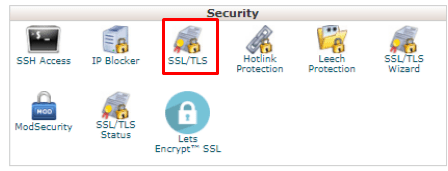
- Open SSL/TLS in the Security section.
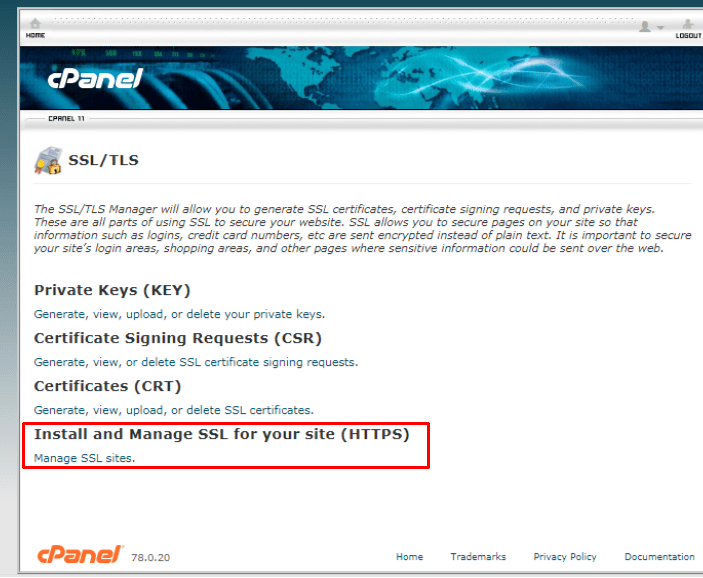
- Click Manage SSL sites (it may be named Install and Manage SSL for your site (HTTPS)).
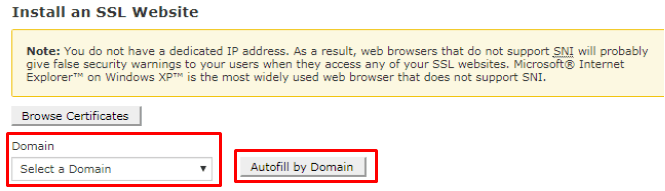
- Choose your domain from the drop-down list.
- Paste the certificate text into the Certificate: (CRT) box. Or use the upload option.
- Click Autofill by Certificate. cPanel often fills the key and bundle for you.
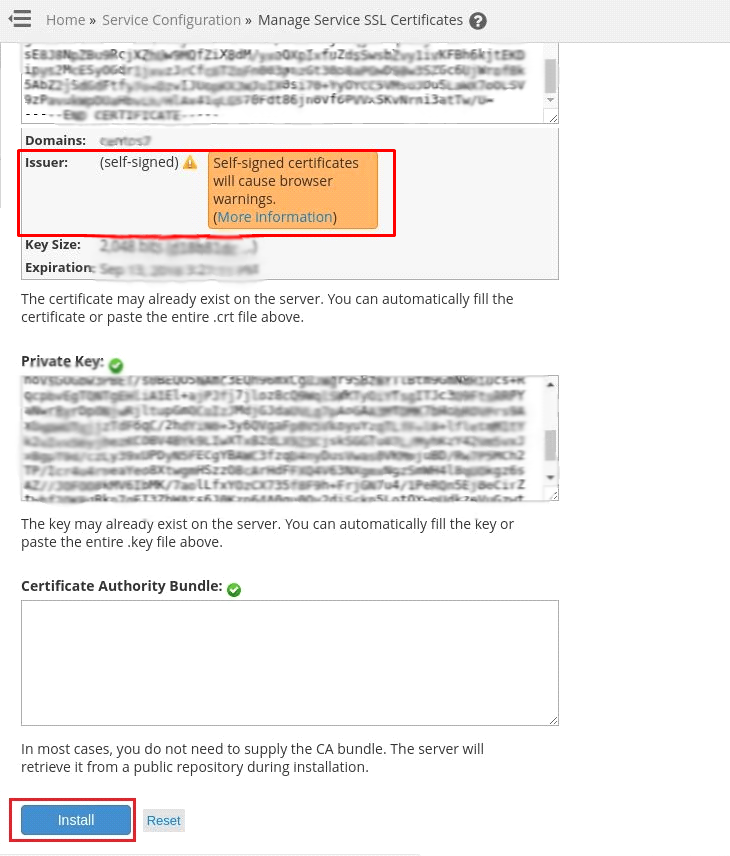
- Check that the Private Key (KEY) box is filled. If it is empty, paste the key you saved.
- Check that the Certificate Authority Bundle (CABUNDLE) box is filled. If it is empty, paste the bundle from the seller.
- Click Install Certificate.
- Wait for the success message.
Check that it works
- Open a new browser window.
- Type
https://yourdomain.com. - Look for the padlock beside the address.
Tip: If the browser still shows an old warning, clear your cache and wait a few minutes.
If it fails
- "Key does not match": the key and certificate came from different orders. Use the key made with your CSR.
- "Bundle missing": paste the CA bundle again.
Your plan may not allow some of these options. Ask support through a ticket if you are unsure.
Quick recap
- Have the certificate, private key and CA bundle ready.
- Go to SSL/TLS, then Manage SSL sites.
- Pick the domain, paste the files and click Install Certificate.
- Test with
https://in a fresh window.