

What is a CAPTCHA?
A CAPTCHA is a small test that tells people from robots. It may be a tick box that says "I am not a robot", or a picture puzzle. Robots often send fake comments and try to guess passwords. A CAPTCHA stops many of them. WordPress is a popular tool for building websites.
What you need
Google reCAPTCHA is a free CAPTCHA service. You need two keys from it. A key is a long code that links your site to the service. One is the site key and the other is the secret key. Keep the secret key private. Other services, such as hCaptcha or Cloudflare Turnstile, work in a very similar way.
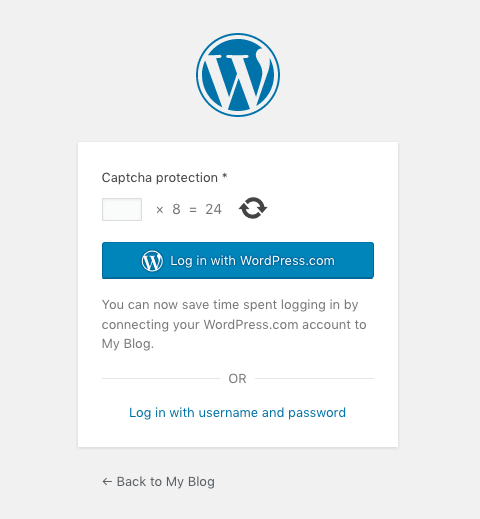
Step 1: Get your keys
- Sign in with a Google account on the reCAPTCHA admin page.
- Click the button to register a new site.
- Enter a label, such as your site name.
- Choose the type. reCAPTCHA v2 with the tick box is simple for beginners.
- Add your domain name.
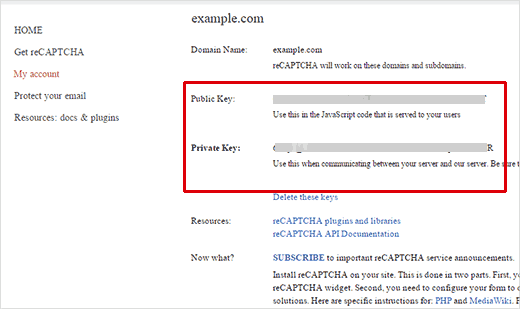
- Submit the form and copy the site key and the secret key.
Step 2: Install a plugin
A plugin is an add-on that gives WordPress new features.
- Log in to your WordPress dashboard.
- Go to Plugins, then Add New.
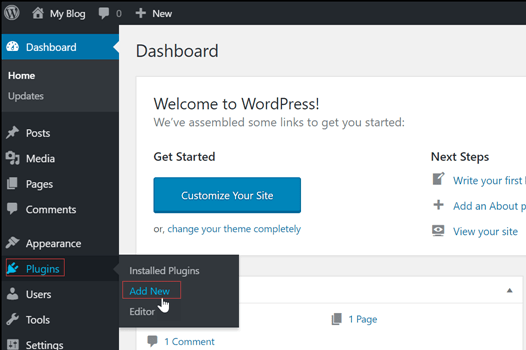
- In the search box, type "CAPTCHA" or "reCAPTCHA".
- Choose a plugin that is popular and updated recently.
- Click Install Now, then Activate.
Step 3: Add your keys
- Open the settings page of the plugin. Look under Settings or in its own menu item.
- Paste the site key and the secret key in the right boxes.
- Tick the places where you want the CAPTCHA, such as login, registration, comments and lost password.
- Click Save Changes.
Step 4: Test it
- Open a private browser window.
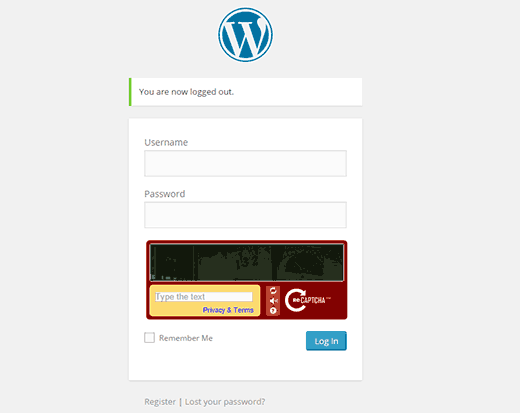
- Go to your login page or comment form.
- Check that the CAPTCHA shows and works.
Tip: If you use a contact form plugin, it often has its own reCAPTCHA setting. Look in the form plugin's settings.
Quick recap
- A CAPTCHA blocks robots with a small test.
- Get a site key and a secret key from the CAPTCHA service.
- Install a plugin and paste the keys.
- Choose the forms to protect and test them.