

What the warning means
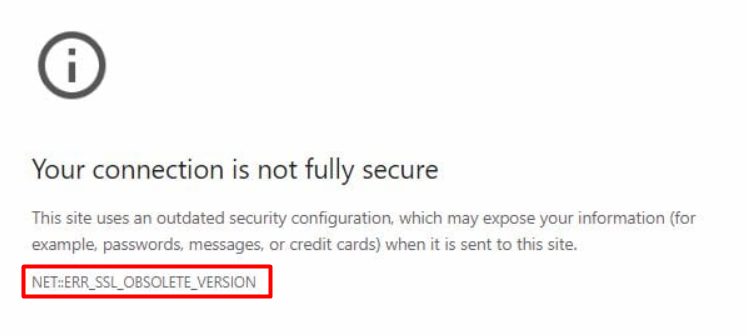
Chrome shows ERR_SSL_OBSOLETE_VERSION (or a warning about an obsolete connection) when a site uses an old version of the encryption protocol, such as TLS 1.0 or 1.1.
Why Chrome blocks old versions
Old protocols have known weaknesses:
- POODLE lets an attacker decrypt parts of a secure connection.
- BEAST attacks block ciphers in TLS 1.0 to read data.
Browsers now push all sites to modern standards: TLS 1.2 and TLS 1.3.
Check which version a site uses
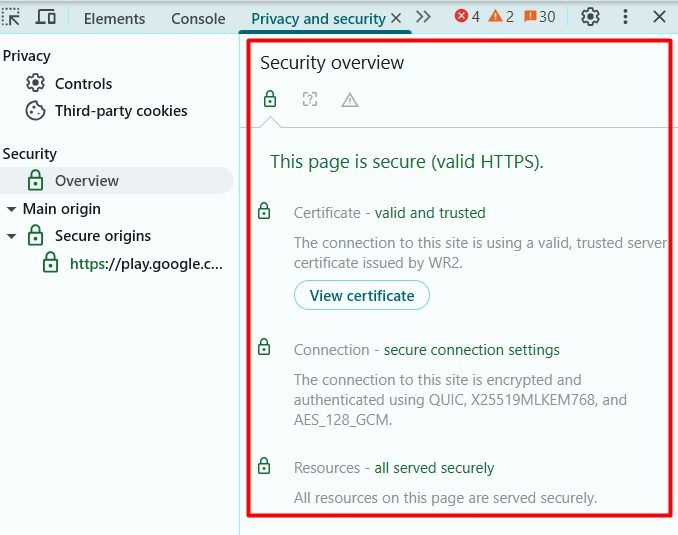
Chrome DevTools. Press F12, open the Security tab and look at the connection details.
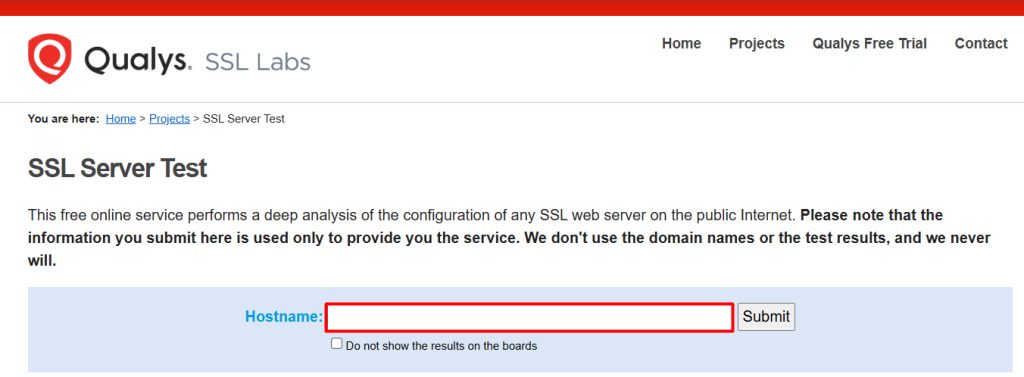
Online tools. Enter the domain at Qualys SSL Labs (SSL Server Test) or a similar checker. It lists the supported protocols.
Command line.
openssl s_client -connect example.com:443 -tls1_2If the handshake works, the server supports TLS 1.2. Test -tls1_3 as well.
Fix it as a website owner
- Turn off SSLv3, TLS 1.0 and TLS 1.1. Allow only TLS 1.2 and 1.3.
Apache
SSLProtocol -all +TLSv1.2 +TLSv1.3Nginx
ssl_protocols TLSv1.2 TLSv1.3;- Reload the web server after the change (
sudo systemctl reload apache2orsudo systemctl reload nginx). - In cPanel or a hosting panel, ask your host to update the TLS settings, if you cannot edit them.
- Update the server software and OpenSSL.
- Test again with an SSL checker.
Fix it as a visitor
- Update Chrome and your operating system.
- Do not click through the warning on sites that handle logins or payments.
- Tell the site owner about the problem.
- Check that your date and time are right. A wrong clock can cause SSL errors.
Best practices
- Use only TLS 1.2 and TLS 1.3.
- Renew certificates automatically.
- Use Let's Encrypt or a managed SSL service.
- Test your SSL settings on a regular basis.
Quick recap
- The site uses an old TLS version.
- Owners: allow only TLS 1.2 and 1.3 and reload the server.
- Visitors: update the browser and tell the owner.