

What is the problem?
A hostname is the name of the server itself, for example server1.example.net. Your domain should open your website. But if a setting is wrong, the web server sends visitors to the hostname instead. Often they also see an SSL warning, because the certificate is for your domain, not the hostname.
Common causes
- The domain is not set up properly in the server's list of sites.
- The hostname has no good SSL certificate, so https visits fall back to it.
- A redirect in
.htaccessor the server setup points to the hostname. - cPanel's setting to redirect to the hostname is on.
Steps
- Take a backup of the account before you change anything.
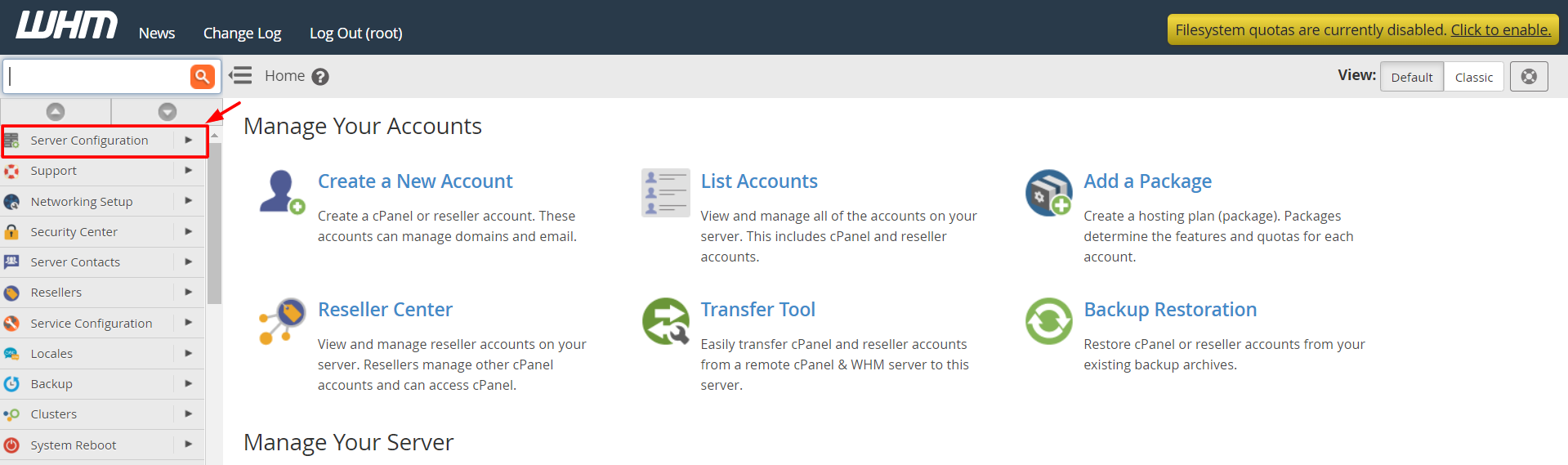
- Log in to WHM.
- Type Tweak Settings in the search box and open it.
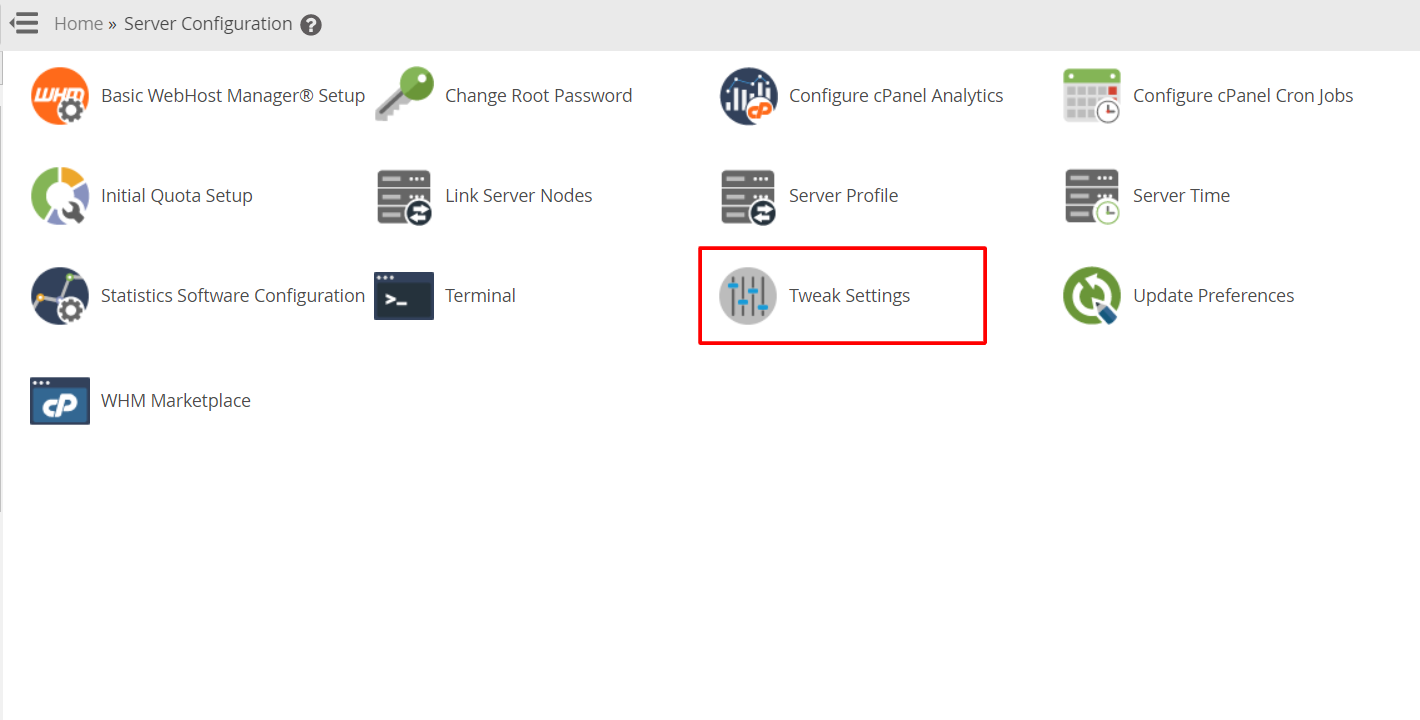
- Open the Redirection tab.
- Find the option Always redirect to SSL/TLS and the options about redirecting to the hostname. Turn off any that send visitors to the hostname. Click Save.
- Open List Accounts and check that the domain is listed against the right account.
- Open Manage SSL Hosts or SSL/TLS Status in WHM. Make sure the domain has its own valid certificate.
- Open Manage AutoSSL and click Run AutoSSL for All Users to issue missing certificates.
- Rebuild the web server settings. In the Terminal or over SSH, run:
/scripts/rebuildhttpdconf
/scripts/restartsrv_httpd
The first command rebuilds the web server settings file. The second restarts the web server.
- Clear your browser cache and test in a private window.
Warning: restarting the web server briefly interrupts all sites on the server. Do it at a quiet time.
Still redirecting?
Look inside .htaccess in public_html for a rule that mentions the hostname. Remove it. Also check that the domain's DNS points to the right server IP.
Tip: On shared hosting you cannot use WHM. Open a ticket at https://secure.hostvento.com/submitticket.php.
Quick recap
- The domain is sending visitors to the server's own name.
- Check the redirection settings in WHM Tweak Settings.
- Make sure the domain has its own SSL certificate.

- Rebuild the web server settings and restart.
- Check
.htaccessand DNS.