

What it means
When you connect with SSH, your computer saves the key of the server in ~/.ssh/known_hosts. If the key changes later, SSH stops with:
WARNING: REMOTE HOST IDENTIFICATION HAS CHANGED!
Common causes
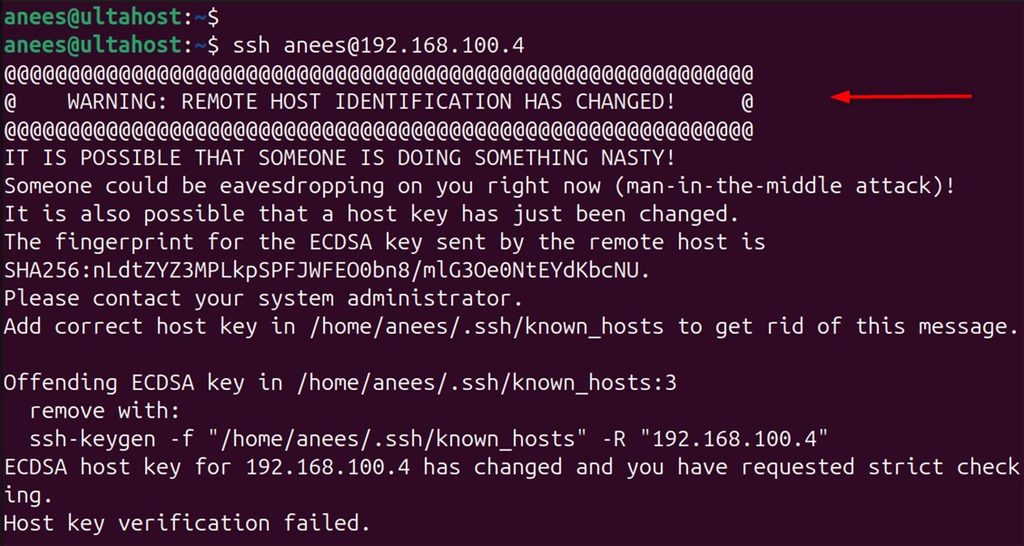
- The server was reinstalled or upgraded. A new SSH host key was created.
- The IP address now belongs to another server. This happens often with cloud servers.
- The admin changed the key on purpose.
- A man-in-the-middle attack. This is rare but serious.
Warning: Before you remove the key, make sure the change is expected. If you did not reinstall the server, ask your provider or compare the fingerprint with the one in your control panel.
Method 1: Remove the old key (recommended)
Find the old entry:
ssh-keygen -F hostname_or_ip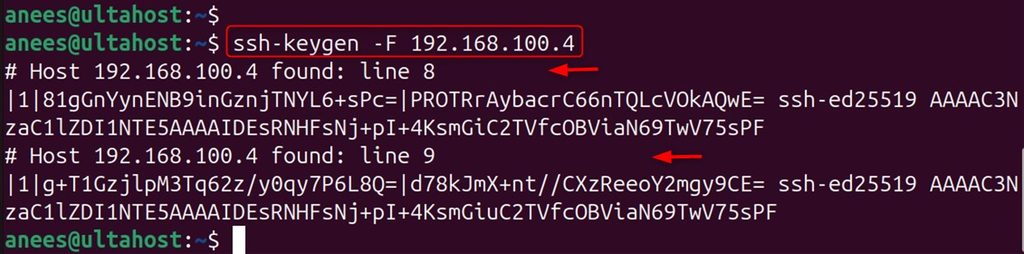
Remove it:
ssh-keygen -R hostname_or_ipFor example:
ssh-keygen -R 192.168.100.4
Connect again. SSH asks you to accept the new key. Check the fingerprint, then type yes:
ssh user@hostname_or_ip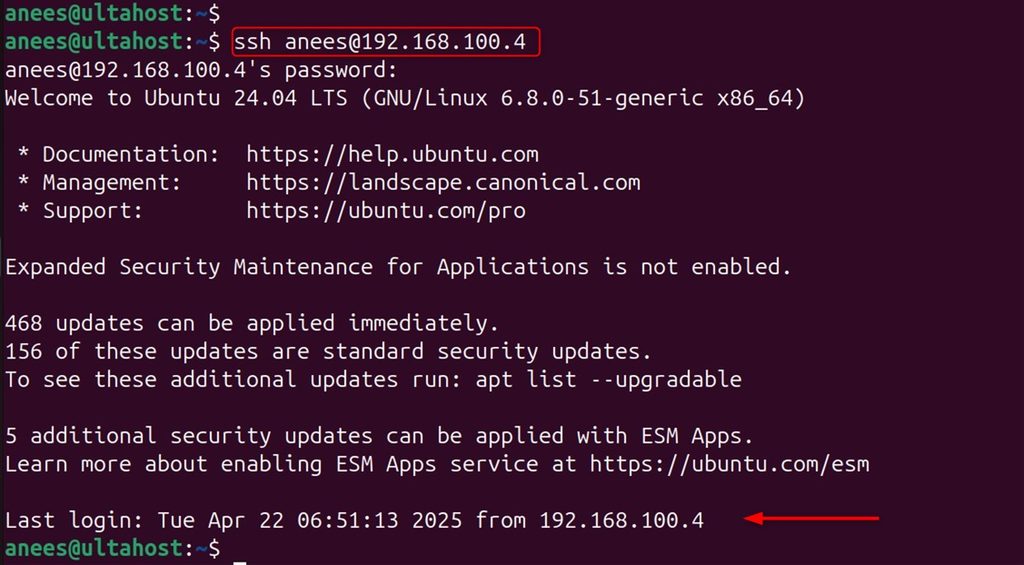
Method 2: Edit known_hosts by hand
The warning names the file and the line number. Open the file and delete that line:
nano ~/.ssh/known_hosts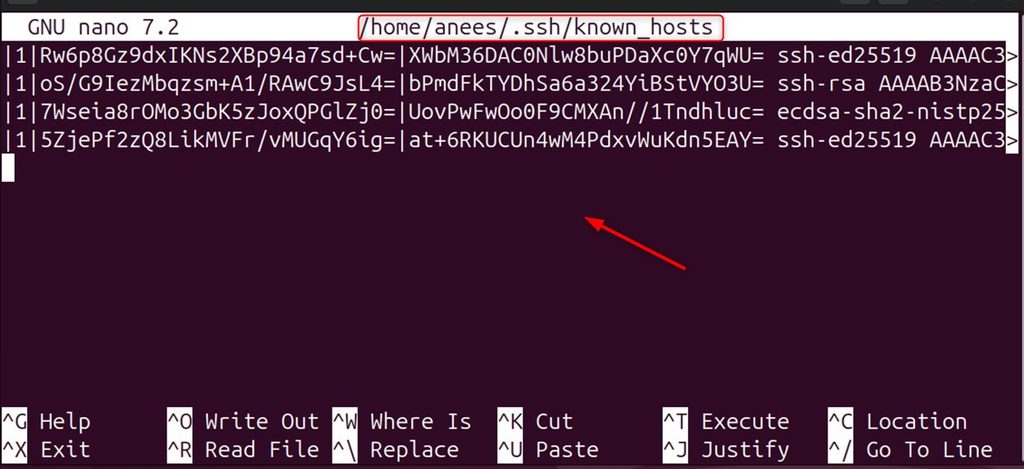
Save the file and connect again:
ssh user@hostname_or_ip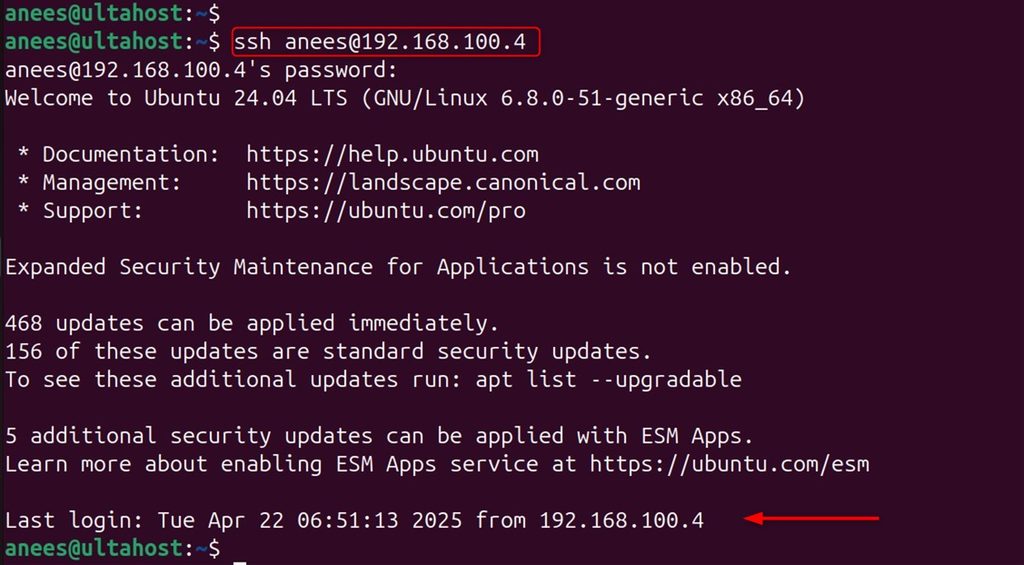
Method 3: Turn off host key checking (not recommended)
Only for a throw-away test. This switches off a security check:
ssh -o StrictHostKeyChecking=no -o UserKnownHostsFile=/dev/null user@hostname_or_ip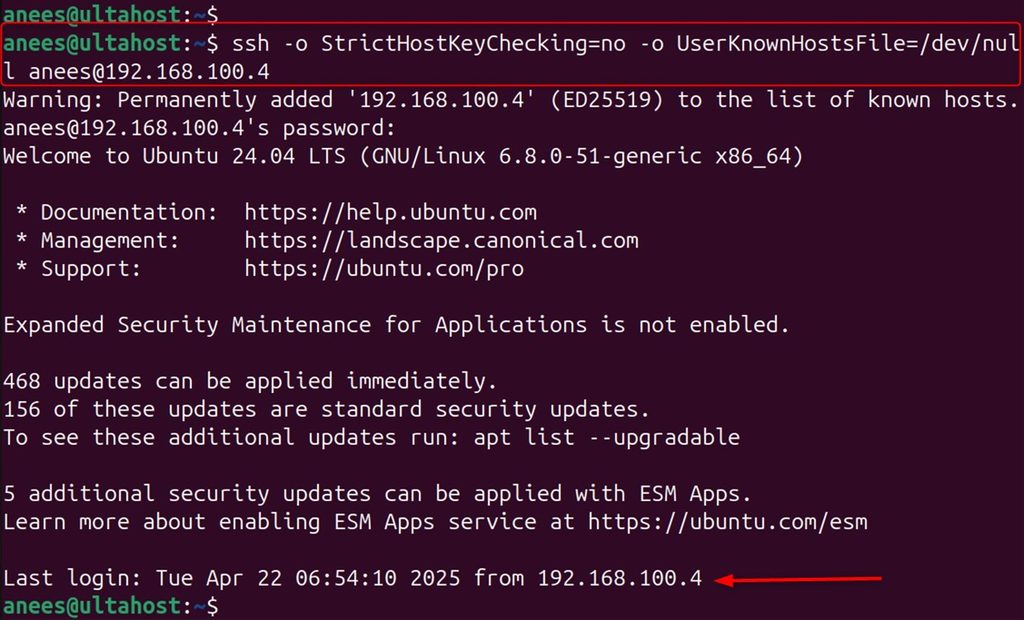
Method 4: Add the new key yourself (for controlled setups)
ssh-keyscan -H hostname_or_ip >> ~/.ssh/known_hostsFor example:
ssh-keyscan -H 192.168.100.4 >> ~/.ssh/known_hosts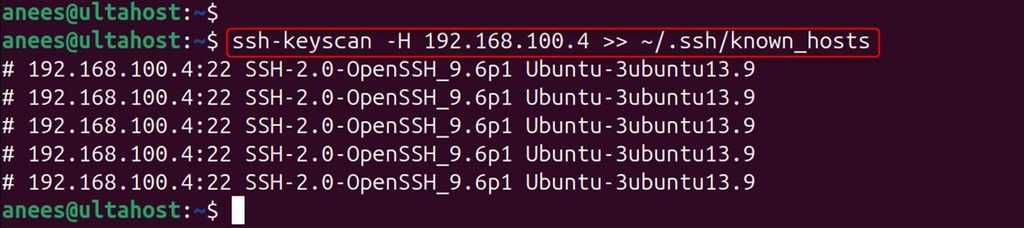
Compare the fingerprint with a trusted source before you rely on it.
Avoid the problem
- Use DNS SSHFP records so that clients can verify keys.
- Tell users before you change SSH keys.
- Keep the host keys when you rebuild a server (copy
/etc/ssh/ssh_host_*). - Do not turn off
StrictHostKeyCheckingin daily use. - Use configuration tools such as Ansible to spread host keys safely.
Quick recap
- A changed key may be harmless, or an attack. Check first.
- Remove the old key with
ssh-keygen -R host. - Connect again and check the new fingerprint.