

What you need
- An Ubuntu VPS (2 GB of RAM or more).
- A domain name that points to the IP address of the VPS (for HTTPS).
- Ports 80 and 443 open.
- An installation ID and key from Bitwarden (free, see step 7).
Step 1: Install the packages
sudo apt update
sudo apt install apt-transport-https ca-certificates curl gnupg-agent software-properties-common -y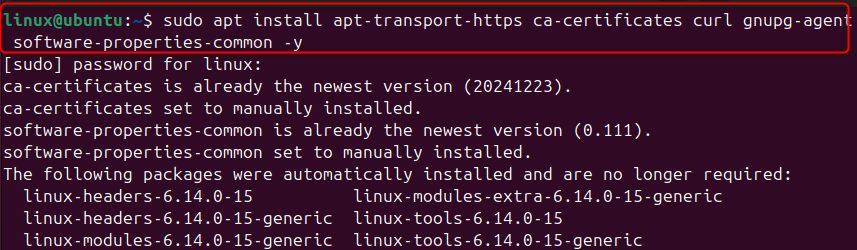
Step 2: Add the Docker GPG key
curl -fsSL https://download.docker.com/linux/ubuntu/gpg | sudo gpg --dearmor -o /usr/share/keyrings/docker-archive-keyring.gpg
Step 3: Add the Docker repository
echo "deb [arch=$(dpkg --print-architecture) signed-by=/usr/share/keyrings/docker-archive-keyring.gpg] https://download.docker.com/linux/ubuntu $(lsb_release -cs) stable" | sudo tee /etc/apt/sources.list.d/docker.list > /dev/null
sudo apt update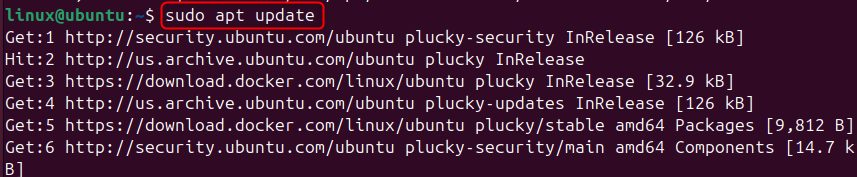
Step 4: Install Docker Engine
sudo apt install docker-ce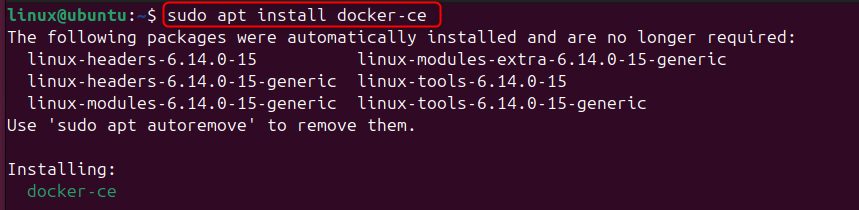

Check that it runs:
sudo systemctl status docker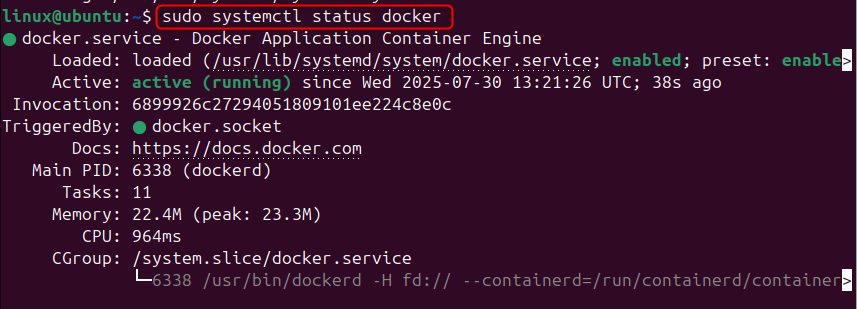
Step 5: Install Docker Compose
sudo apt install docker-compose -y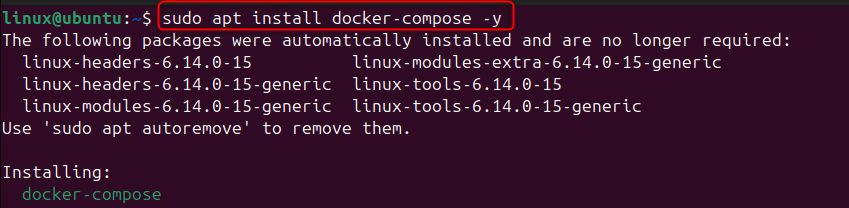
(You can also install the docker-compose-plugin package and use docker compose.)
Step 6: Create a user for Bitwarden
sudo useradd -G docker -s /bin/bash -m -d /opt/bitwarden bitwarden
Set a password:
sudo passwd bitwarden
Step 7: Get an installation ID and key
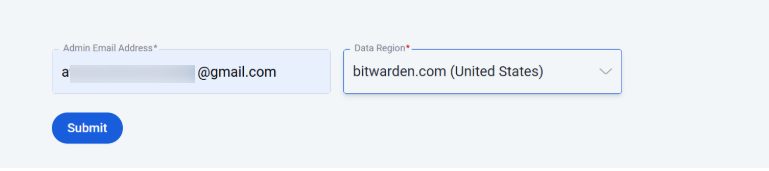
Go to the Bitwarden website page for hosting (bitwarden.com/host). Enter your email address and choose the data region (US or EU).
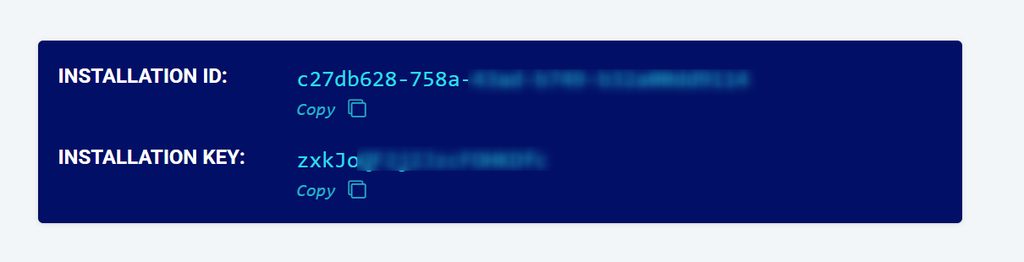
Bitwarden shows an installation ID and an installation key. Copy both.
Step 8: Download the install script
Switch to the new user:
su - bitwardenDownload the official script:
curl -Lso bitwarden.sh https://go.btwrdn.co/bw-sh
Make it executable:
chmod +x bitwarden.sh
Step 9: Install and start Bitwarden
./bitwarden.sh install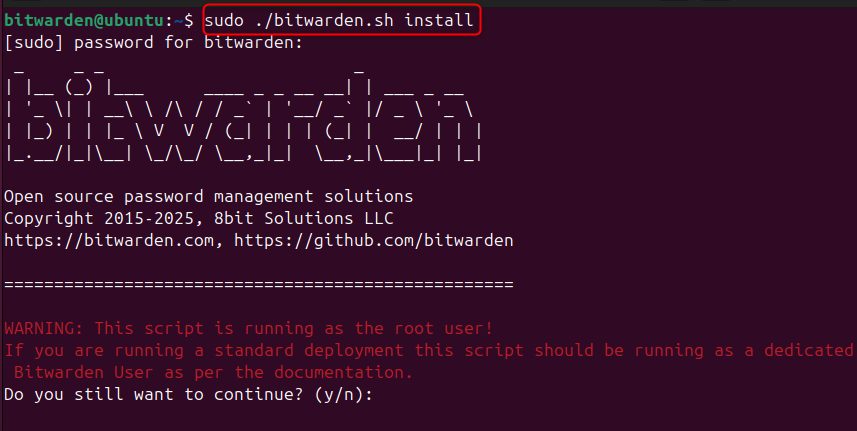
The installer asks you for:
- The domain name of your server.
- Whether to use Let's Encrypt for a free certificate (answer
y). - The database name (the default is fine).
- The installation ID and installation key from step 7.
- The data region (US or EU).
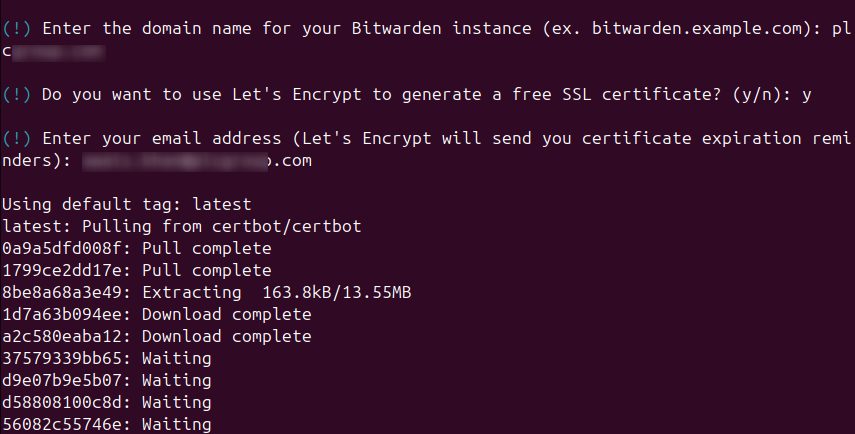
Then start it:
./bitwarden.sh startStep 10: Open the web vault
Go to https://your-domain.com in your browser. Create your account, and log in.
Set up email
Edit ~/bwdata/env/global.override.env with your SMTP details so that the server can send emails (for example for verification). Restart with ./bitwarden.sh restart.
Update
./bitwarden.sh updateself
./bitwarden.sh update
Tip: Back up the folder
~/bwdata on a regular basis.Quick recap
- Install Docker and Docker Compose.
- Get an installation ID and key, then run
./bitwarden.sh install. - Open your domain and create your account.