

What Cursor is
Cursor is a code editor built on the base of Visual Studio Code, with AI features such as code suggestions, chat and edits by prompt.
Requirements
- At least 4 GB of RAM and 2 GB of free disk space. More RAM helps with large projects.
- An Ubuntu desktop (not a server without a screen).
- A stable internet connection, because the AI features use online services.
Step 1: Download the AppImage
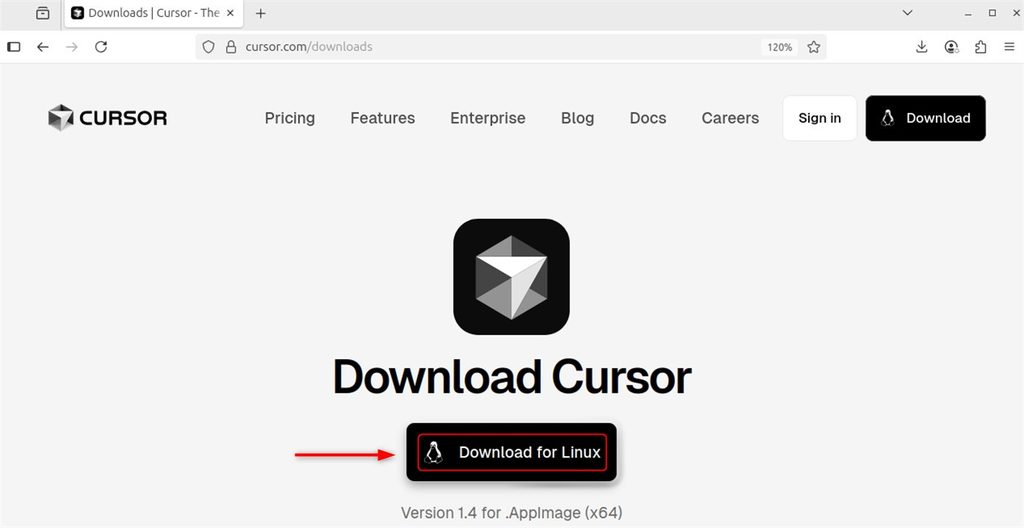
Open the Cursor website and download the Linux (x64) AppImage.
Step 2: Make it executable
Go to the folder of the download and set the execute bit (use the real file name of your download):
cd ~/Downloads
chmod a+x Cursor-*.AppImage
AppImages may need the FUSE library. On Ubuntu 22.04 and later install it with:
sudo apt install libfuse2Step 3: Add a menu entry
Move the file to a fixed place:
sudo mv Cursor-*.AppImage /opt/cursor.AppImage
Create a desktop file:
sudo nano /usr/share/applications/cursor.desktopAdd:
[Desktop Entry]
Name=Cursor
Comment=AI Code Editor
Exec=/opt/cursor.AppImage --no-sandbox
Icon=code
Terminal=false
Type=Application
Categories=Development;
Update the desktop database:
sudo update-desktop-database
Step 4: Start and set up Cursor
Start it from the applications menu, or from a terminal:
/opt/cursor.AppImage --no-sandbox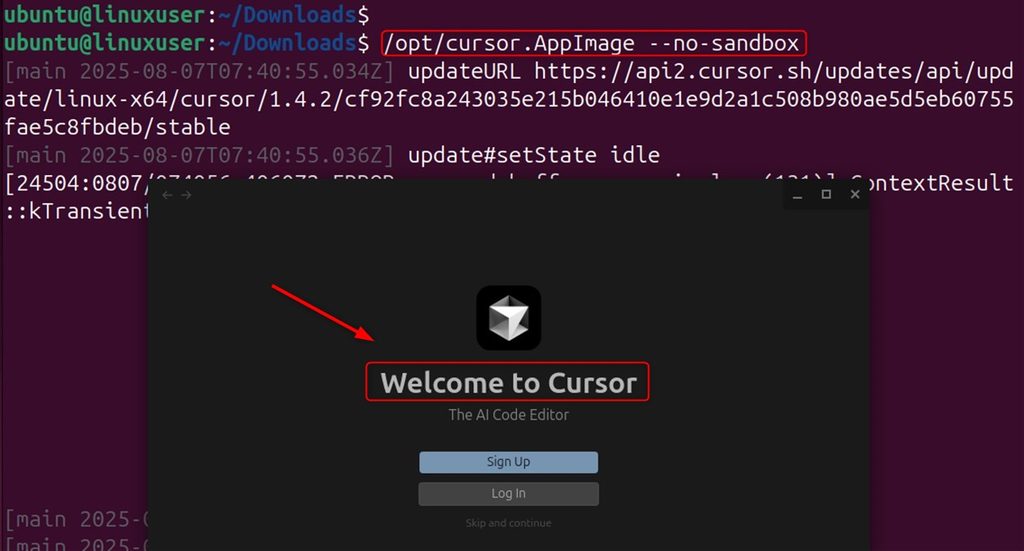
The --no-sandbox flag is needed on some Ubuntu versions where the sandbox of the AppImage is blocked. Use it only if Cursor does not start without it.
On the first start:
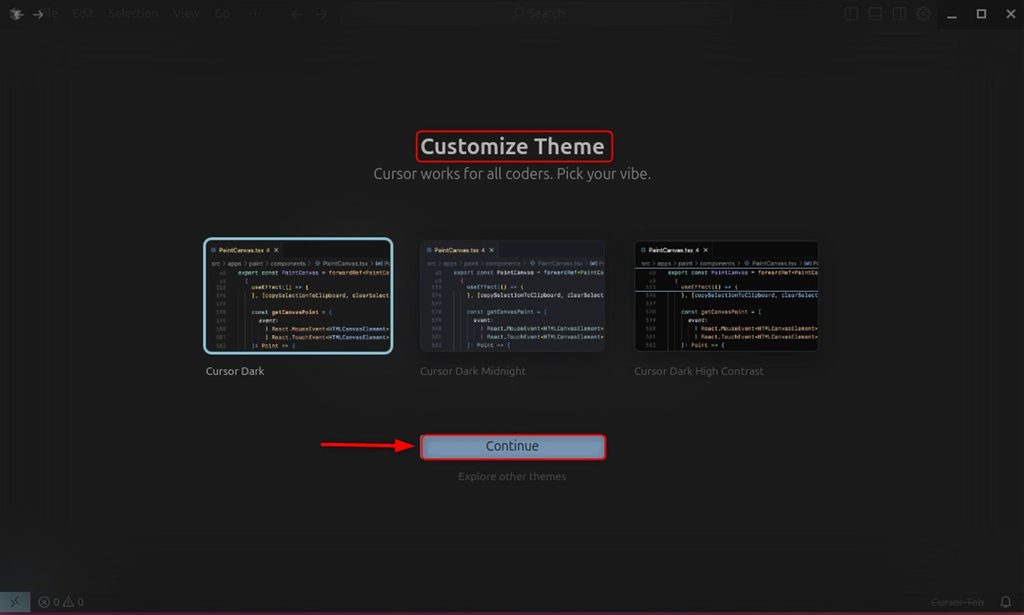
- Choose a theme.
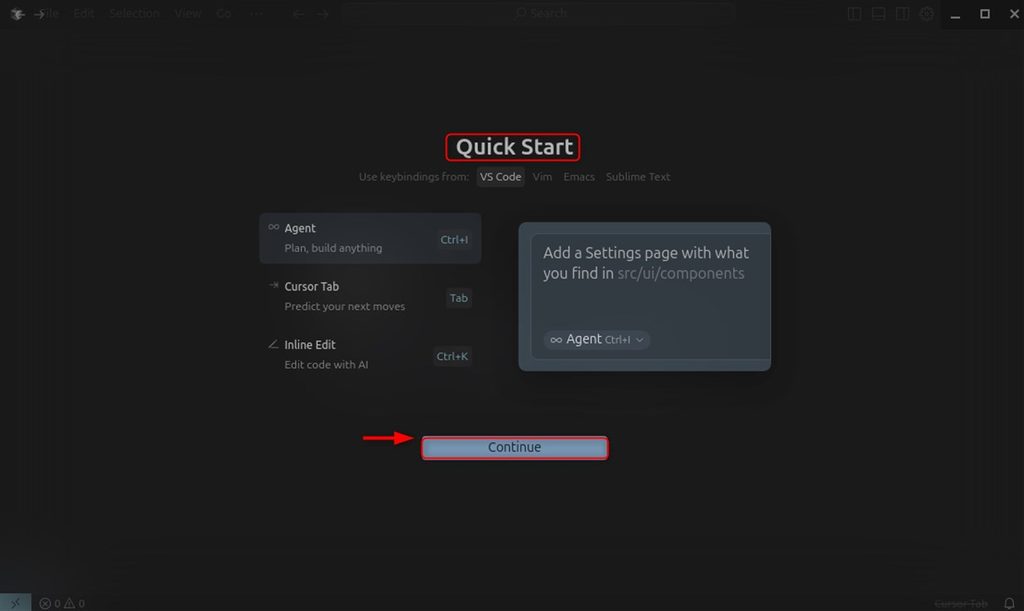
- Follow the quick-start screen. You can import your VS Code settings.
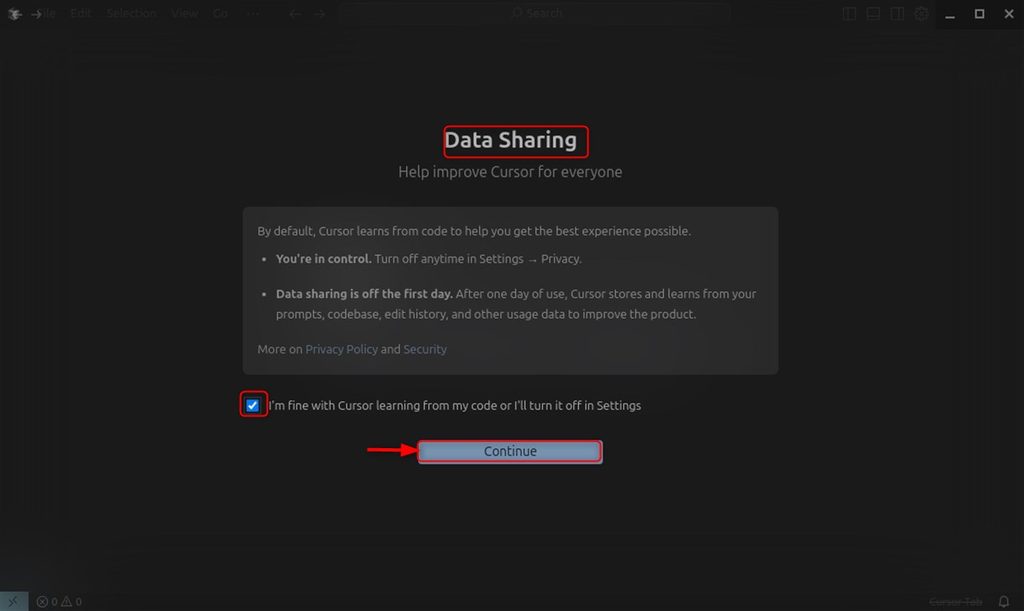
- Choose your data sharing option (privacy mode).
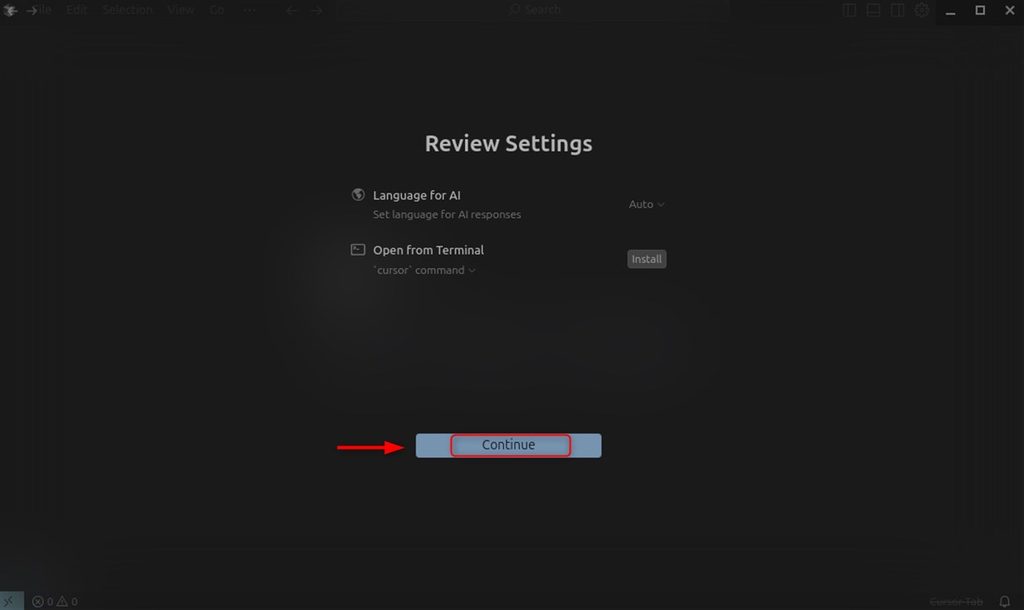
- Review the settings and sign in to your Cursor account.
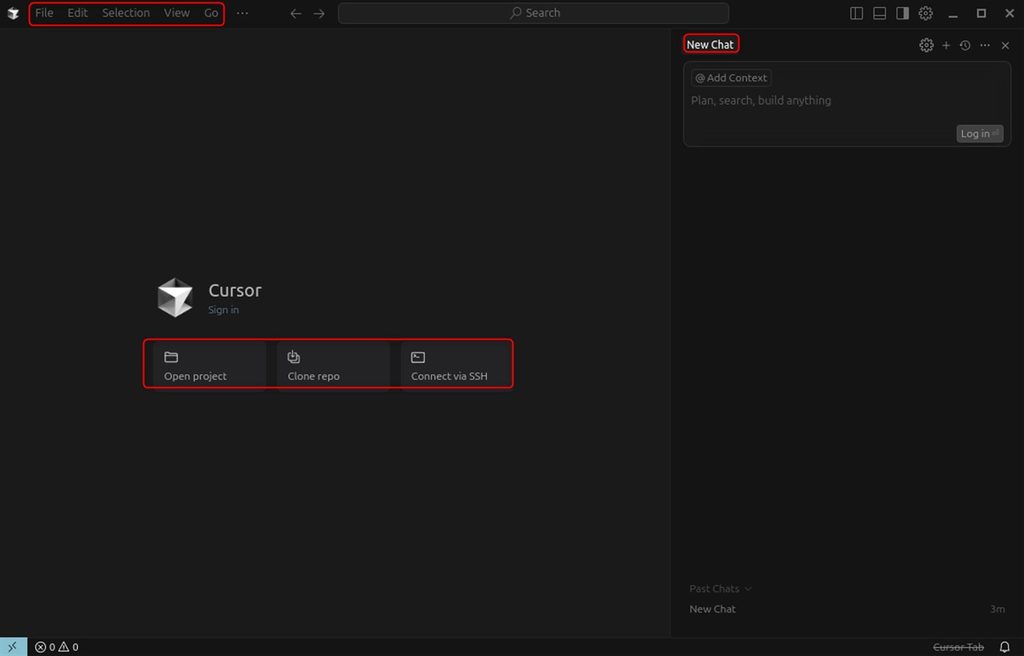
- Cursor is ready to use.
Quick recap
- Download the AppImage,
chmod a+x, move it to/opt. - Add a
.desktopfile for the menu. - Install
libfuse2if the AppImage does not start.