

What you need
- A running Kubernetes cluster (on Ubuntu or elsewhere; Minikube works for tests).
kubectlset up to reach the cluster.- Basic knowledge of Kubernetes and Jenkins.
Step 1: Create a namespace
kubectl create namespace jenkins
kubectl get namespaces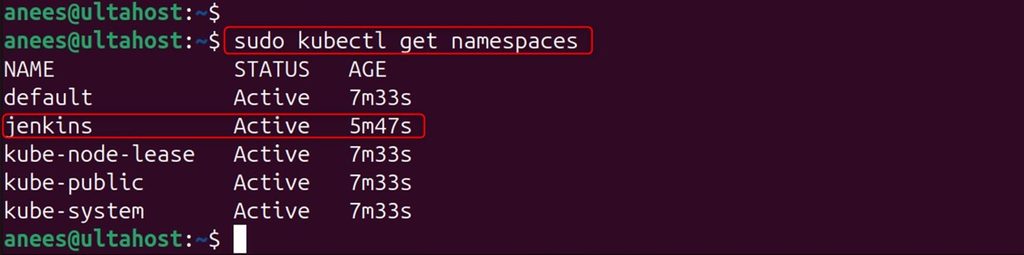
Step 2: Create a service account
Save this as sa-jenkins.yaml:
apiVersion: rbac.authorization.k8s.io/v1
kind: ClusterRole
metadata:
  name: jenkins-admin
rules:
  - apiGroups: [""]
    resources: ["*"]
    verbs: ["*"]
---
apiVersion: v1
kind: ServiceAccount
metadata:
  name: jenkins-admin
  namespace: jenkins
---
apiVersion: rbac.authorization.k8s.io/v1
kind: ClusterRoleBinding
metadata:
  name: jenkins-admin
roleRef:
  apiGroup: rbac.authorization.k8s.io
  kind: ClusterRole
  name: jenkins-admin
subjects:
  - kind: ServiceAccount
    name: jenkins-admin
    namespace: jenkins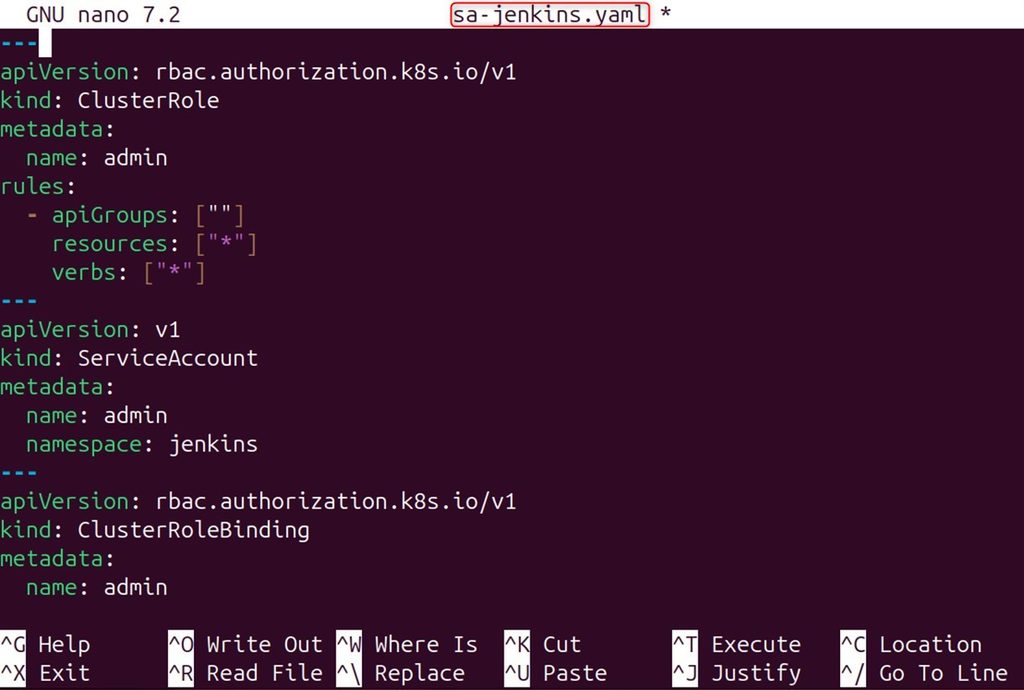
This gives Jenkins wide rights. For production, give it only the rights it needs.
kubectl apply -f sa-jenkins.yaml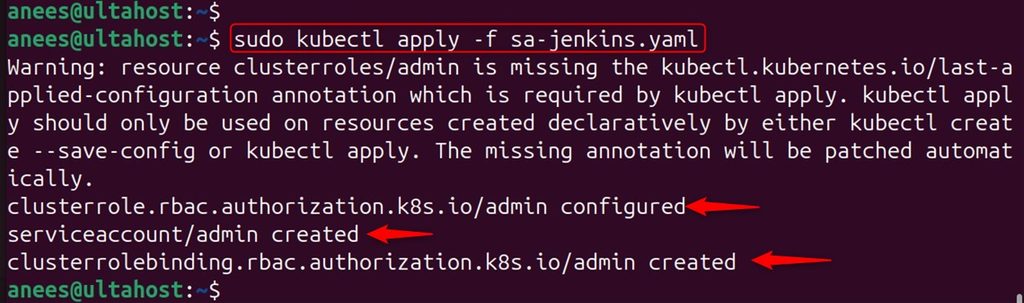
Step 3: Create the storage
Jenkins keeps its data in a volume, so it survives a restart. Save this as volume-jenkins.yaml:
apiVersion: storage.k8s.io/v1
kind: StorageClass
metadata:
  name: local-storage
provisioner: kubernetes.io/no-provisioner
volumeBindingMode: WaitForFirstConsumer
---
apiVersion: v1
kind: PersistentVolume
metadata:
  name: jenkins-pv-volume
  labels:
    type: local
spec:
  storageClassName: local-storage
  claimRef:
    name: jenkins-pv-claim
    namespace: jenkins
  capacity:
    storage: 10Gi
  accessModes:
    - ReadWriteOnce
  local:
    path: /mnt
  nodeAffinity:
    required:
      nodeSelectorTerms:
      - matchExpressions:
        - key: kubernetes.io/hostname
          operator: In
          values:
          - minikube
---
apiVersion: v1
kind: PersistentVolumeClaim
metadata:
  name: jenkins-pv-claim
  namespace: jenkins
spec:
  storageClassName: local-storage
  accessModes:
    - ReadWriteOnce
  resources:
    requests:
storage: 3Gi- The first part creates the
local-storagestorage class. - The second creates the persistent volume
jenkins-pv-volume. - The third is the claim that Jenkins uses.
- In
nodeAffinity,valuesmust be the name of your node. The example usesminikube. Find yours withkubectl get nodes.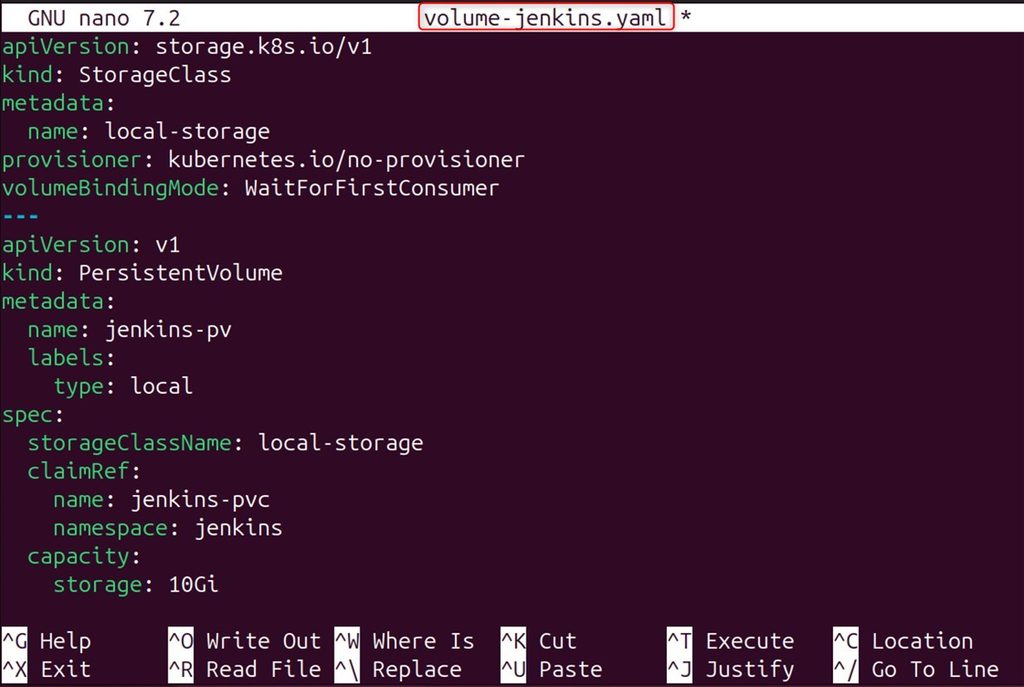
Apply it:
kubectl apply -f volume-jenkins.yaml
Step 4: Deploy Jenkins
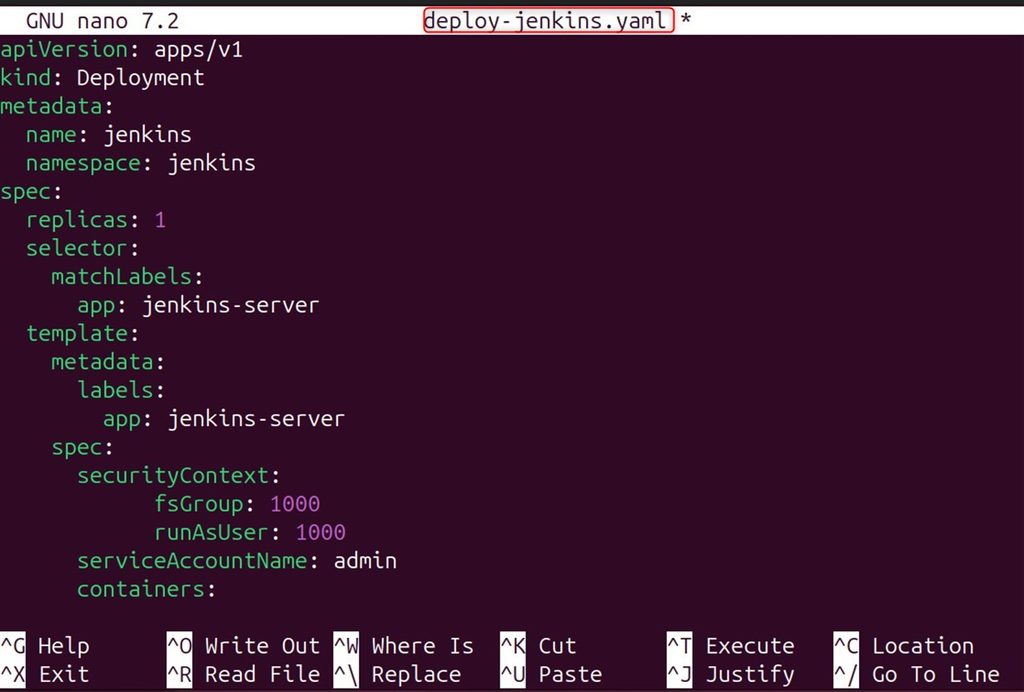
A deployment manages the pods. Save this as deploy-jenkins.yaml:
apiVersion: apps/v1
kind: Deployment
metadata:
  name: jenkins
  namespace: jenkins
spec:
  replicas: 1
  selector:
    matchLabels:
      app: jenkins-server
  template:
    metadata:
      labels:
        app: jenkins-server
    spec:
      securityContext:
        fsGroup: 1000
        runAsUser: 1000
      serviceAccountName: jenkins-admin
      containers:
        - name: jenkins
          image: jenkins/jenkins:lts
          resources:
            limits:
              memory: "2Gi"
              cpu: "1000m"
            requests:
              memory: "500Mi"
              cpu: "500m"
          ports:
            - name: httpport
              containerPort: 8080
            - name: jnlpport
              containerPort: 50000
          livenessProbe:
            httpGet:
              path: "/login"
              port: 8080
            initialDelaySeconds: 90
            periodSeconds: 10
            timeoutSeconds: 5
            failureThreshold: 5
          readinessProbe:
            httpGet:
              path: "/login"
              port: 8080
            initialDelaySeconds: 60
            periodSeconds: 10
            timeoutSeconds: 5
            failureThreshold: 3
          volumeMounts:
            - name: jenkins-data
              mountPath: /var/jenkins_home
      volumes:
        - name: jenkins-data
          persistentVolumeClaim:
            claimName: jenkins-pv-claim
The deployment uses the image jenkins/jenkins:lts with one replica on port 8080. volumeMounts mounts the volume from step 3. The two probes check if Jenkins is alive and ready.
Apply it:
kubectl apply -f deploy-jenkins.yaml
Step 5: Expose Jenkins with a service
Save this as service-jenkins.yaml:
apiVersion: v1
kind: Service
metadata:
  name: jenkins-service
  namespace: jenkins
spec:
  type: NodePort
  selector:
    app: jenkins-server
  ports:
    - port: 8080
      targetPort: 8080
      nodePort: 32000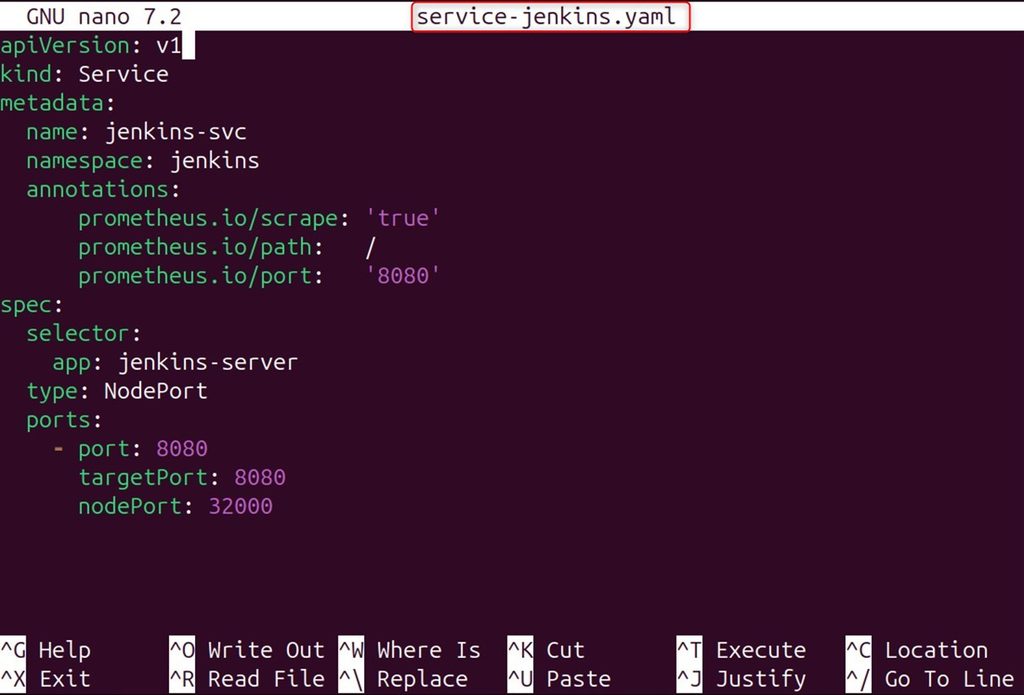
kubectl apply -f service-jenkins.yaml
Step 6 (optional): Jenkins Operator
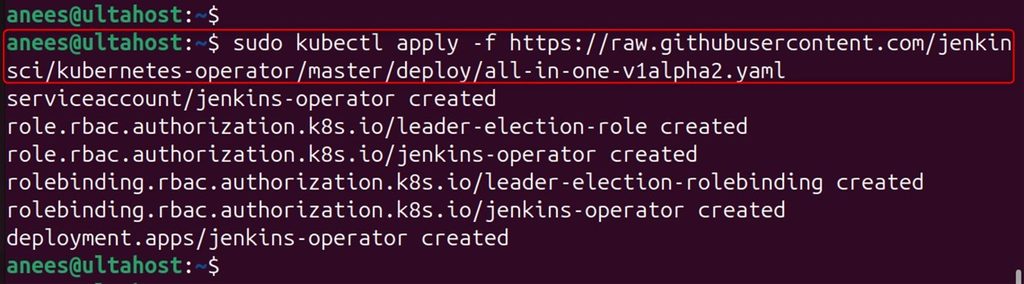
The Jenkins Operator is a Kubernetes extension that manages Jenkins for you. Install its custom resources and the operator with the YAML files from its project page (kubectl apply -f ...).

Watch it become ready with the -w option:
kubectl get pods -n jenkins -w
Step 7: Open Jenkins
Check that the pod runs:
kubectl get pods -n jenkins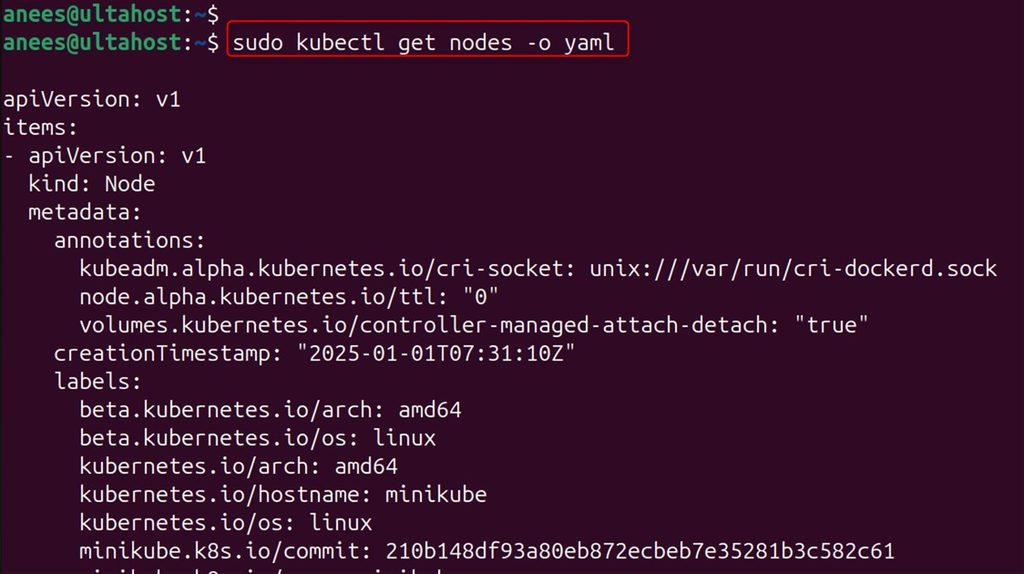
On Minikube, get the address:
minikube service jenkins-service -n jenkins --urlOpen it in your browser.
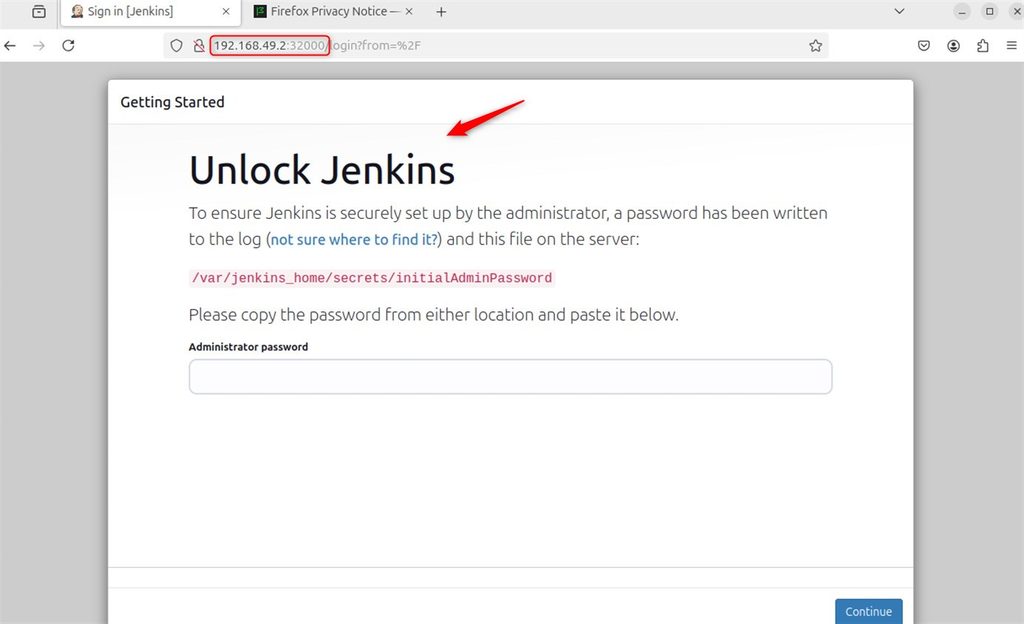
Jenkins asks for the first admin password. Read it from the pod log (replace the pod name):
kubectl logs <jenkins-pod-name> -n jenkins
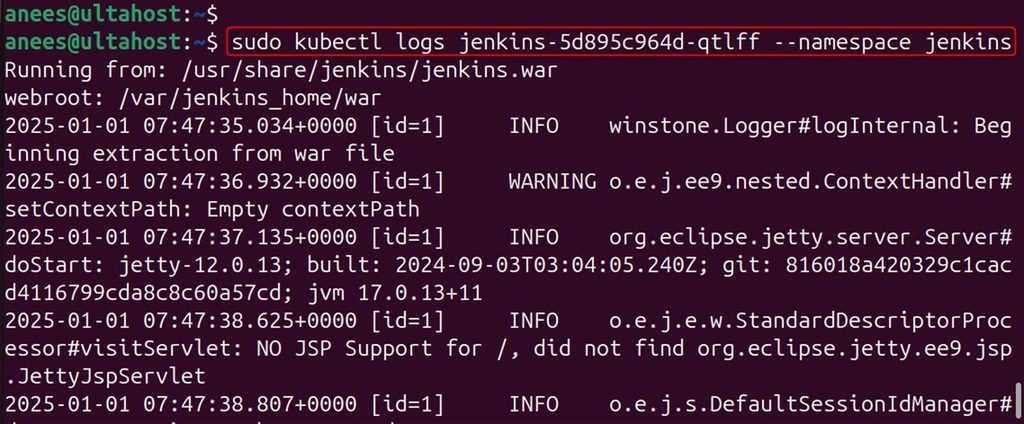
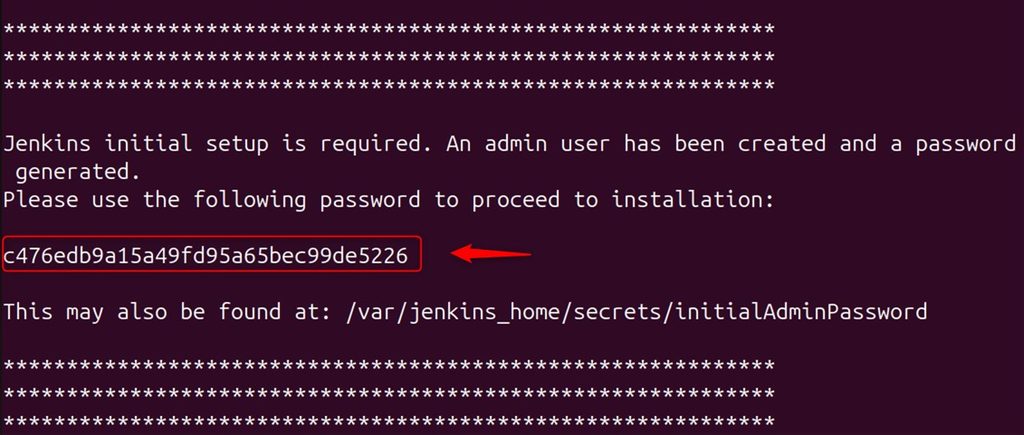
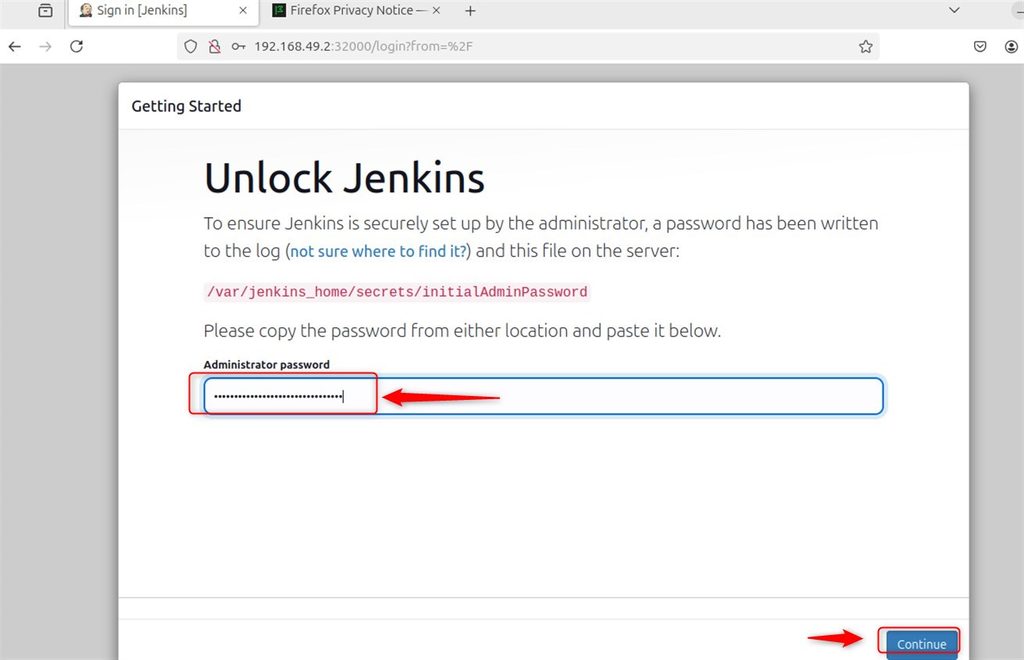
Paste it into the Unlock Jenkins page.
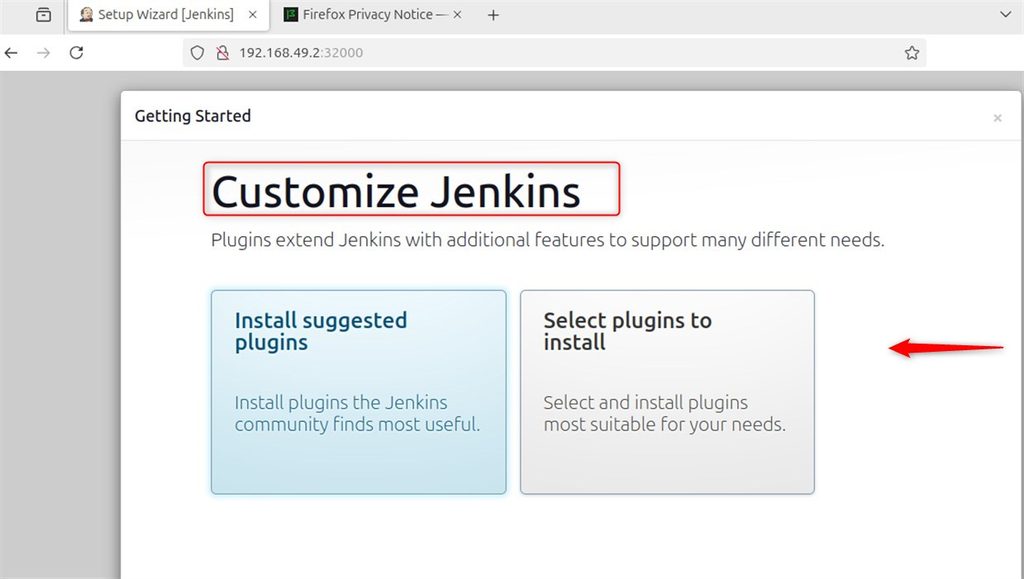
Choose Install suggested plugins.
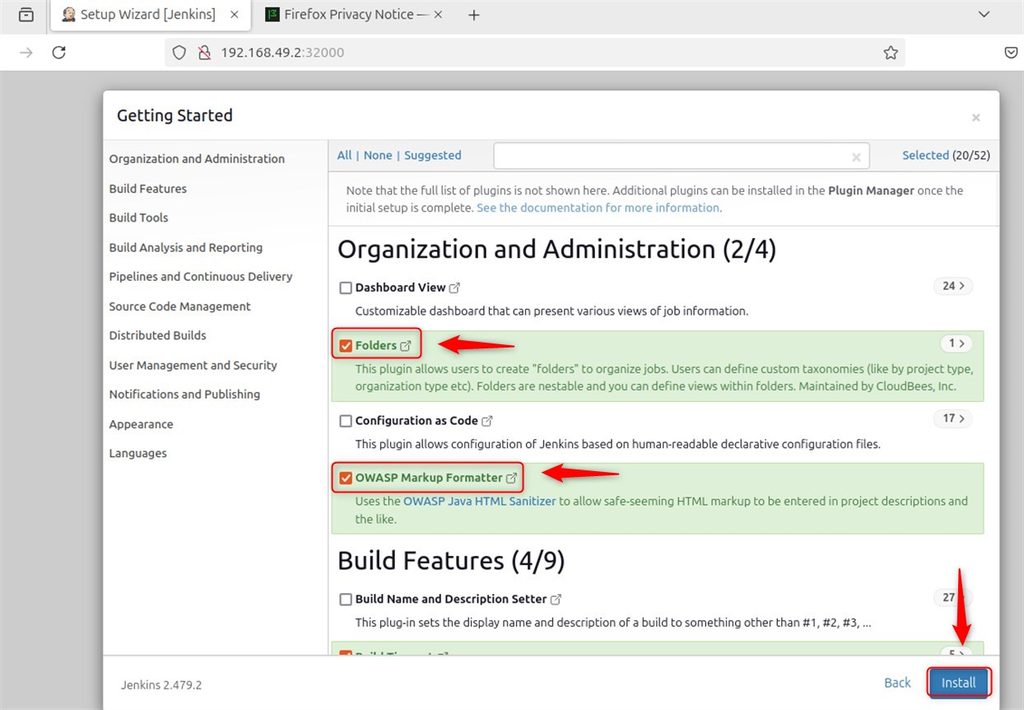
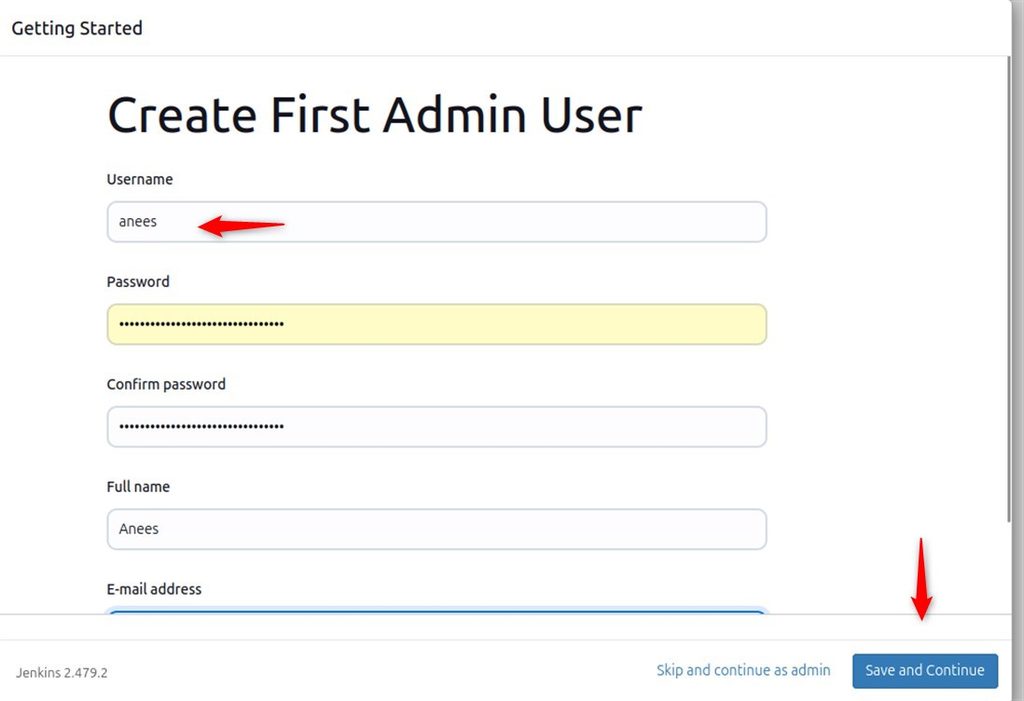
Create your admin user.
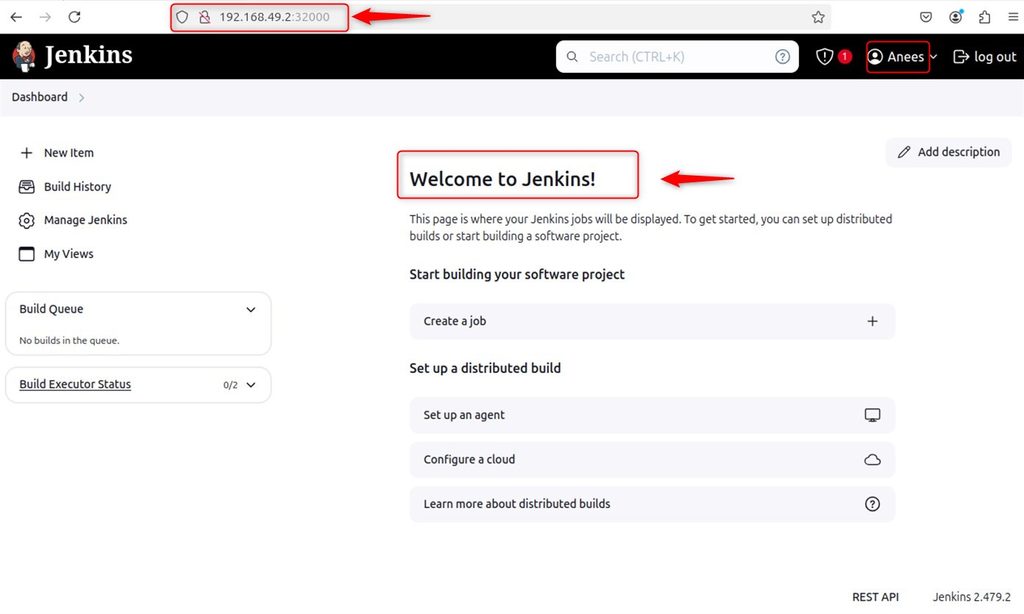
The Jenkins dashboard appears.
Quick recap
- Create a namespace, a service account, storage, a deployment and a service.
- Read the first admin password from the pod log.
- Use a real storage class and narrower rights in production.