

What Kali Linux is
Kali Linux is a Debian-based Linux distribution built for security testing and digital forensics. It comes with hundreds of tools.
System requirements
- As a basic SSH server without a desktop, a small amount of RAM (about 128 MB) and 2 GB of disk space is enough.
- With the default Xfce4 desktop and the default tools, plan for at least 2 GB of RAM and 20 GB of disk space.
- Heavy tools such as Burp Suite need more memory.
Prepare
- Download the installer image from the official Kali website, and check its checksum.
- Write the image to a USB stick or DVD, or attach the ISO to a virtual machine.
- Back up any important data on the computer.
- Set the BIOS/UEFI to boot from USB, CD/DVD.
- Turn off Secure Boot. It does not accept the unsigned Kali kernel on many systems.
Install
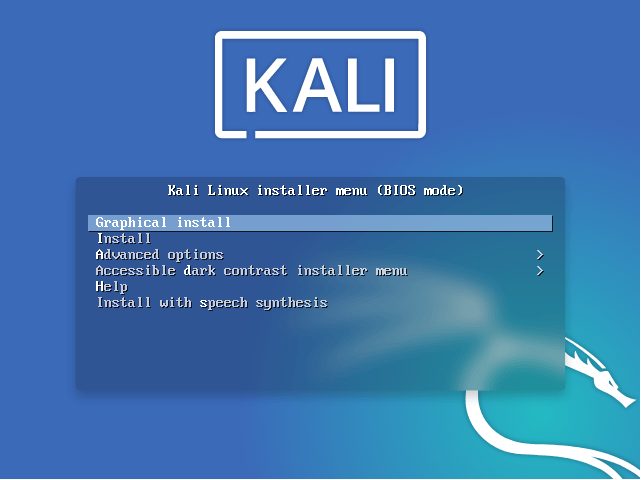
Step 1. Boot from the installation medium. The Kali boot screen appears. Choose Graphical install or Install (text mode).
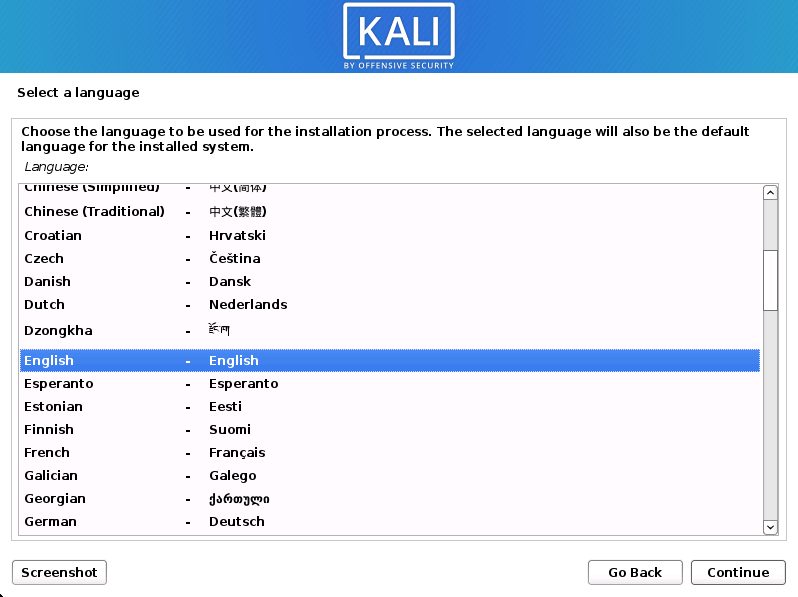
Step 2. Choose your language. It is used for the installer and for the system after the install.
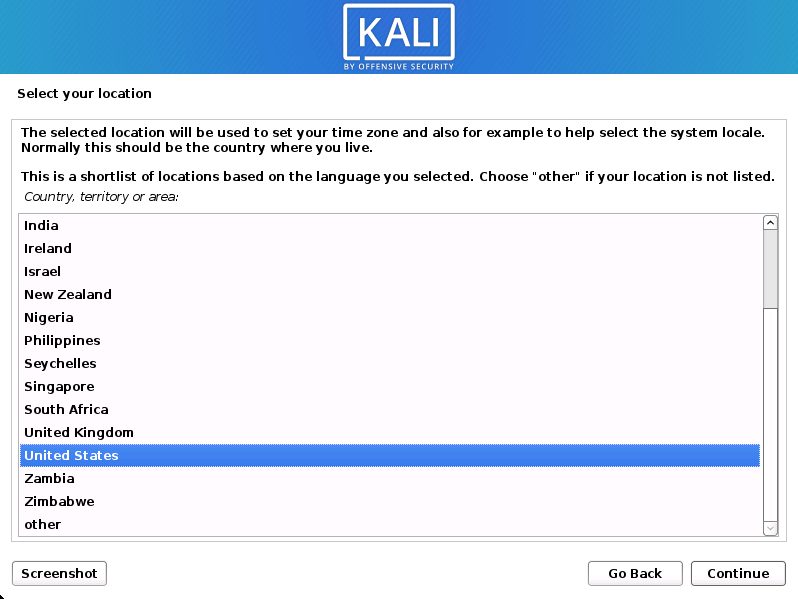
Step 3. Choose your location.
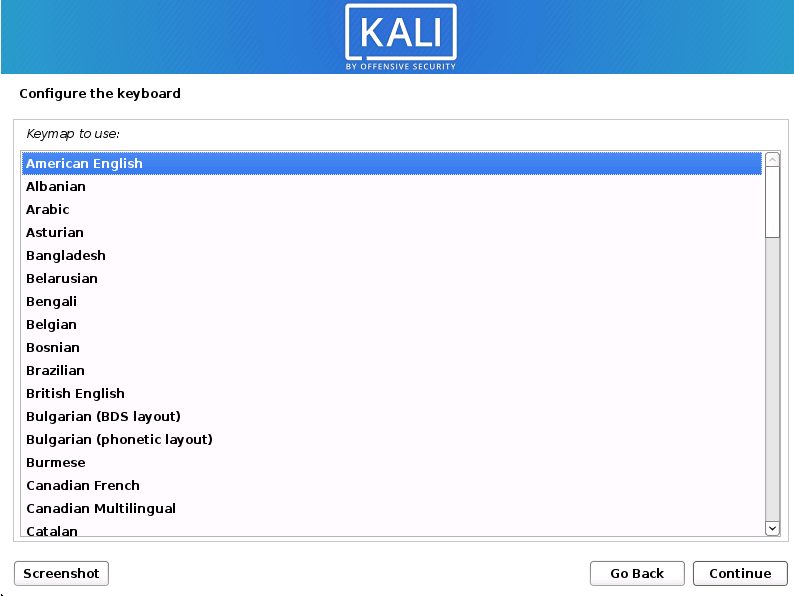
Step 4. Choose your keyboard layout.
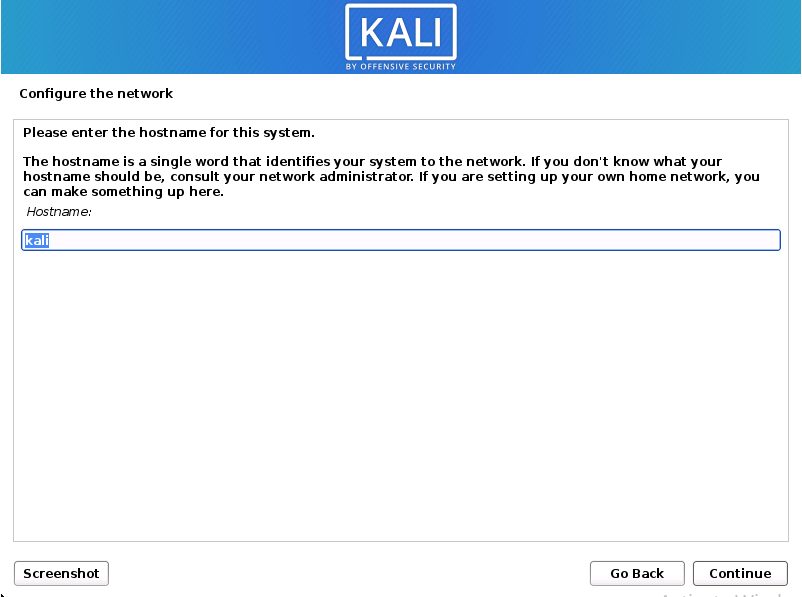
Step 5. The installer looks for a network (DHCP) and asks for a host name for the machine.
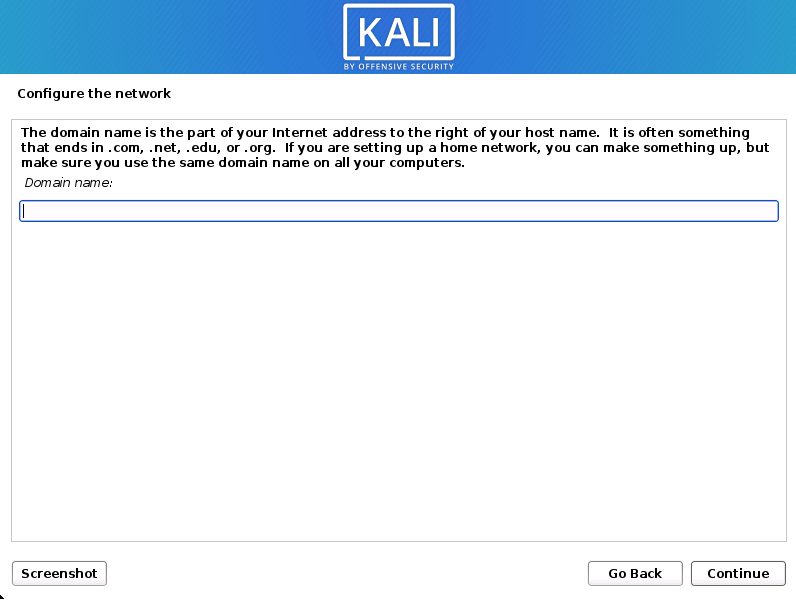
Step 6. Enter a domain name if you have one. You can leave it empty.
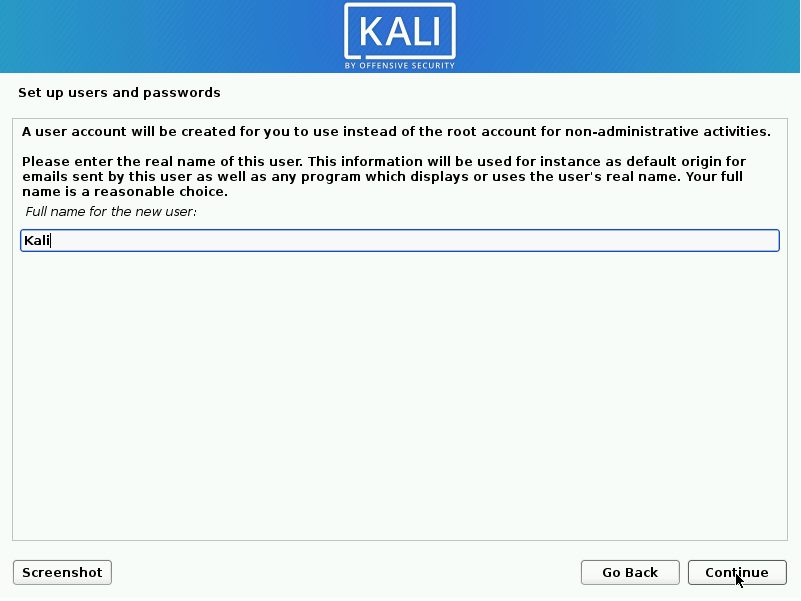
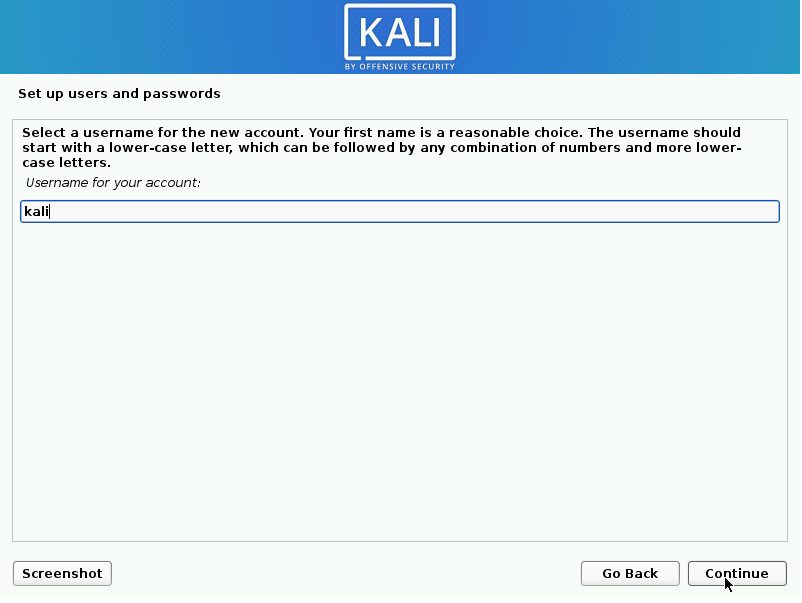
Step 7. Create the user account: the full name, the user name and a strong password.
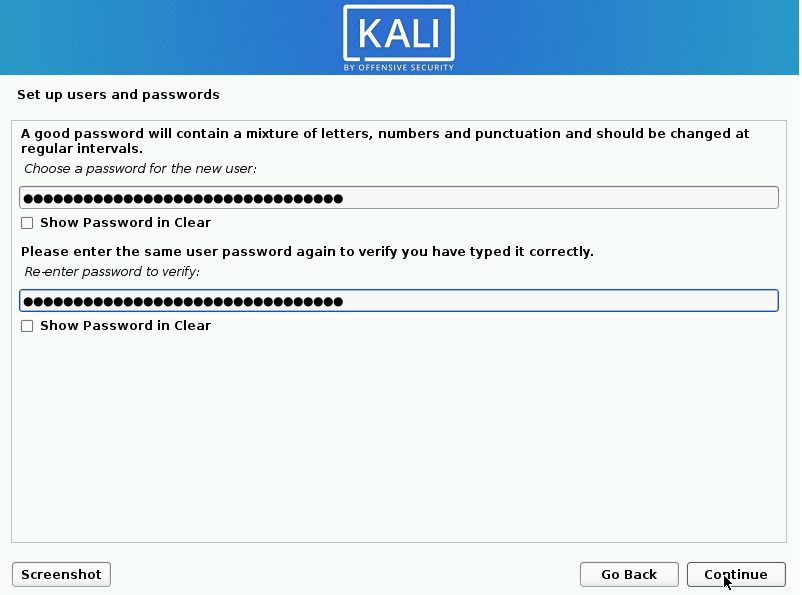
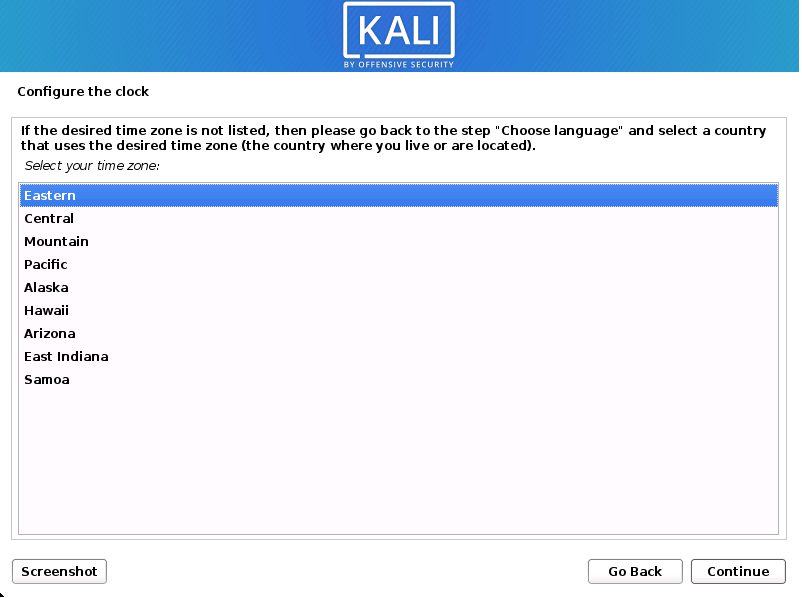
Step 8. Choose your time zone.
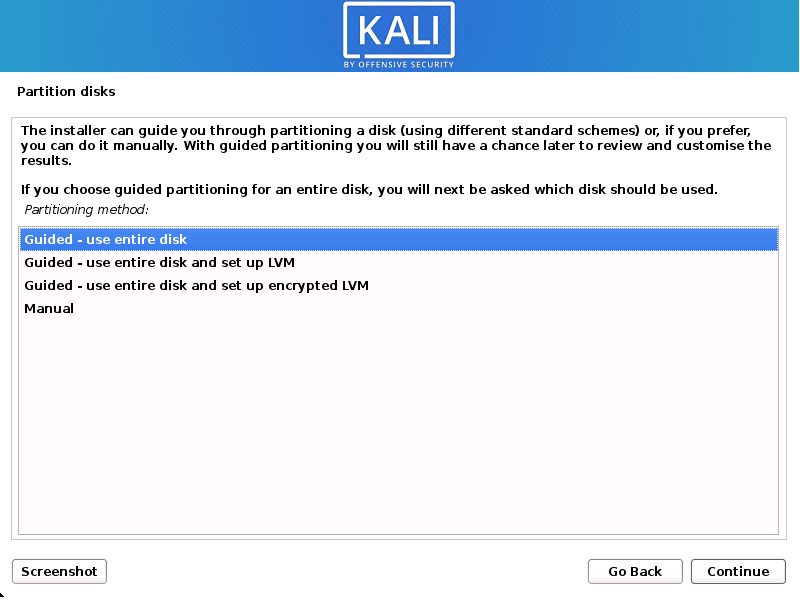
Step 9. The installer checks your disks and offers ways to partition them.
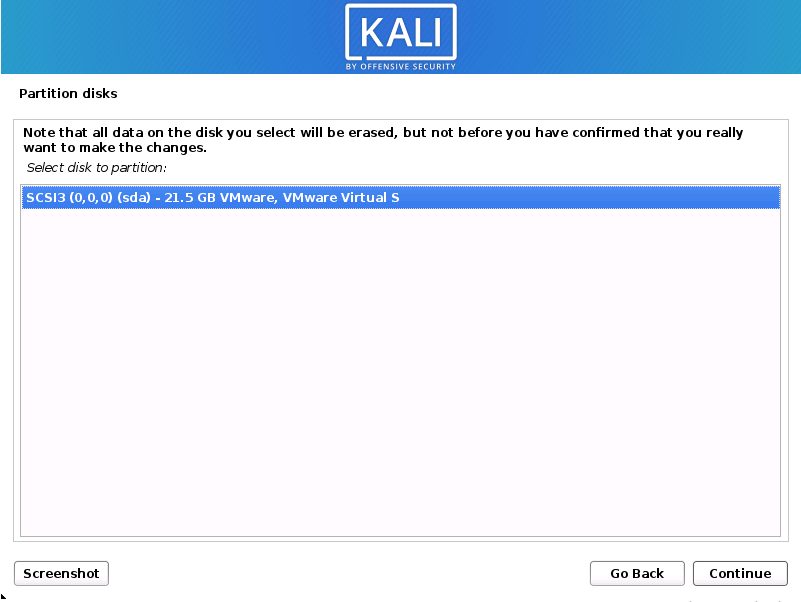
Step 10. Choose the disk to use.
Step 11. Choose how to lay out the files. For most people, the default is All files in one partition.
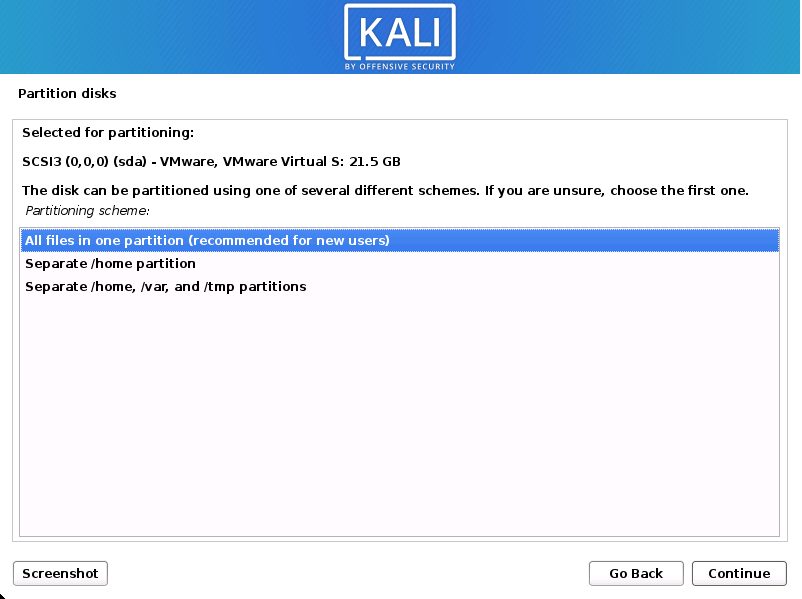
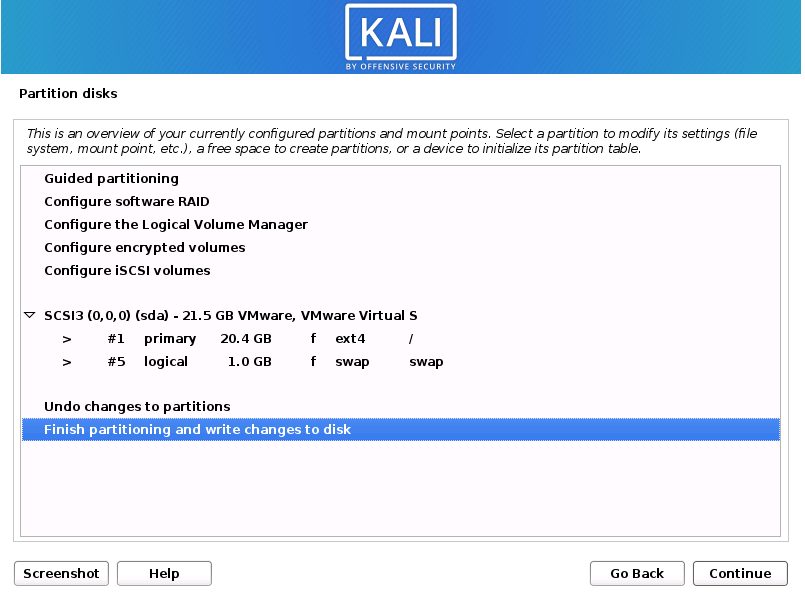
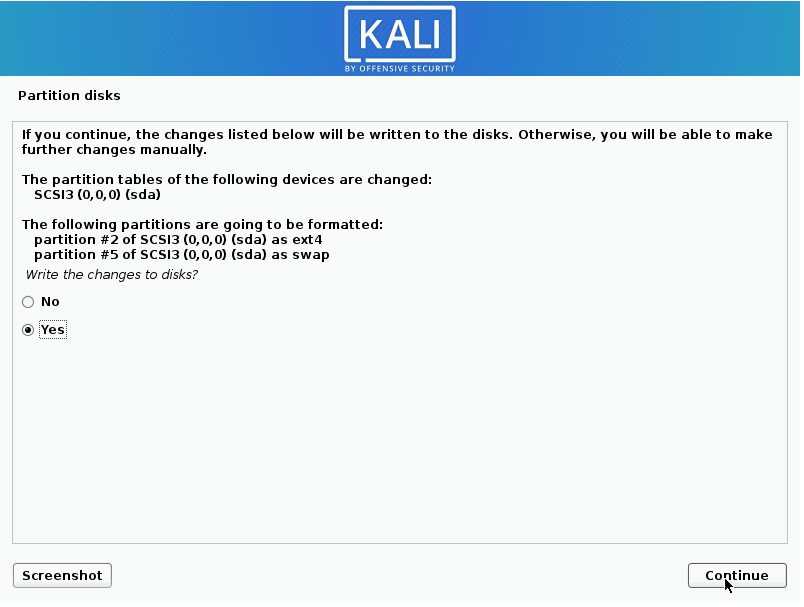
Step 12. Check the disk setup before the installer writes the changes.
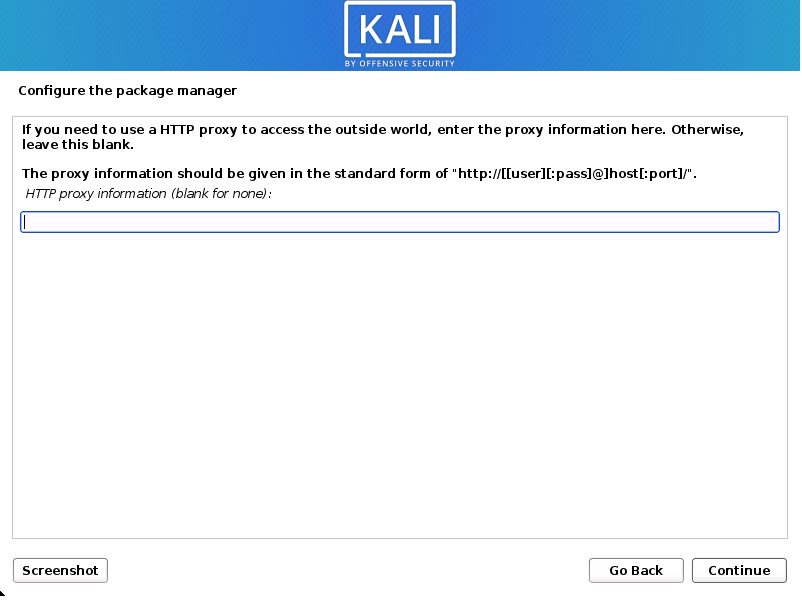
Step 13. Kali uses a shared repository. If you need a proxy to reach the internet, enter it. Otherwise leave it empty.
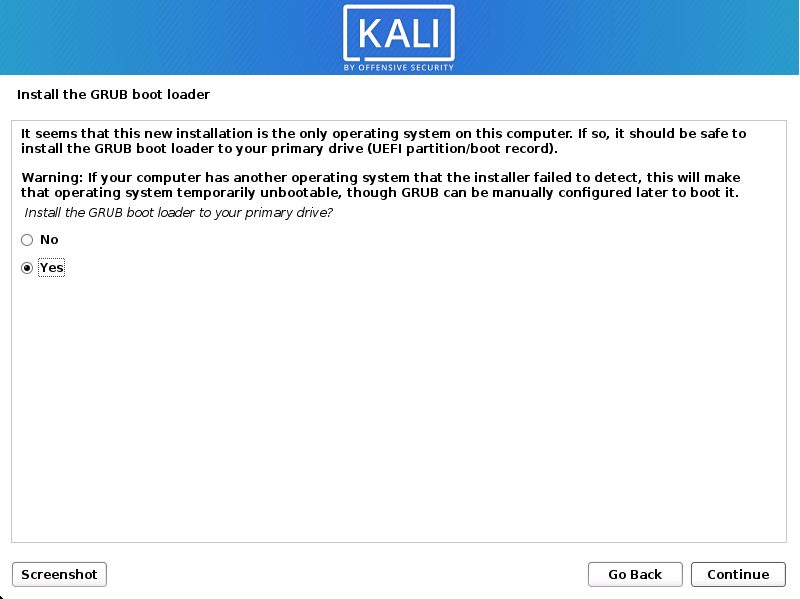
Step 14. Install the GRUB boot loader. Choose Yes and click Continue, then pick the disk.
Step 15. Click Continue to finish and restart.
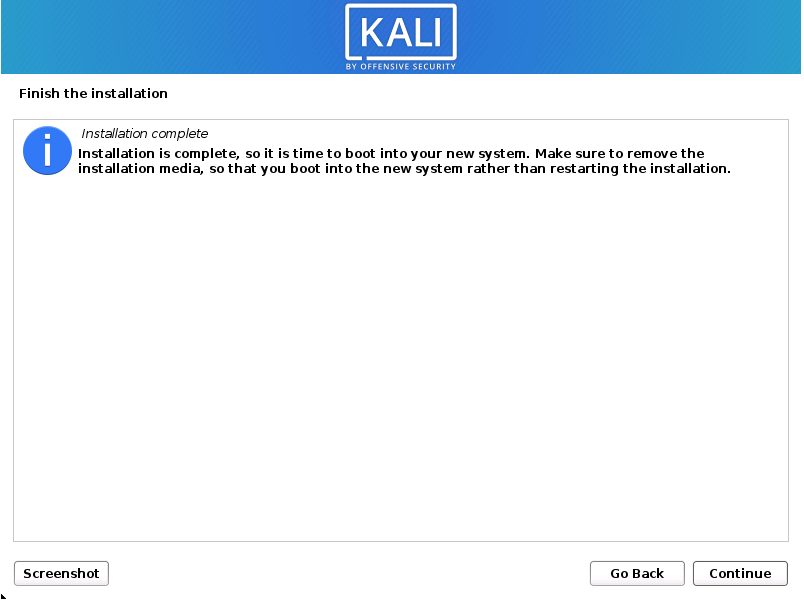
Remove the installation medium, and log in with the user you created.
After the install
sudo apt update && sudo apt full-upgrade -yQuick recap
- Prepare the image, boot from it, and follow the installer.
- Create a strong user and password.
- Update the system after the first login.