

Note: CentOS 7 has reached its end of life. The same steps work on AlmaLinux or Rocky Linux, which are better choices for new servers.
What you need
- A CentOS 7 server with root or
sudoaccess. - At least 2 CPU cores and 4 GB of RAM.
- Internet access to download the packages.
Step 1: Update the system
sudo yum update -y && sudo reboot
Step 2: Install Docker
Install the required tools:
sudo yum install -y yum-utils device-mapper-persistent-data lvm2
Add the Docker repository:
sudo yum-config-manager --add-repo https://download.docker.com/linux/centos/docker-ce.repo
Install Docker:
sudo yum install -y docker-ce
Start Docker and enable it at boot:
sudo systemctl start docker
sudo systemctl enable docker
sudo systemctl status docker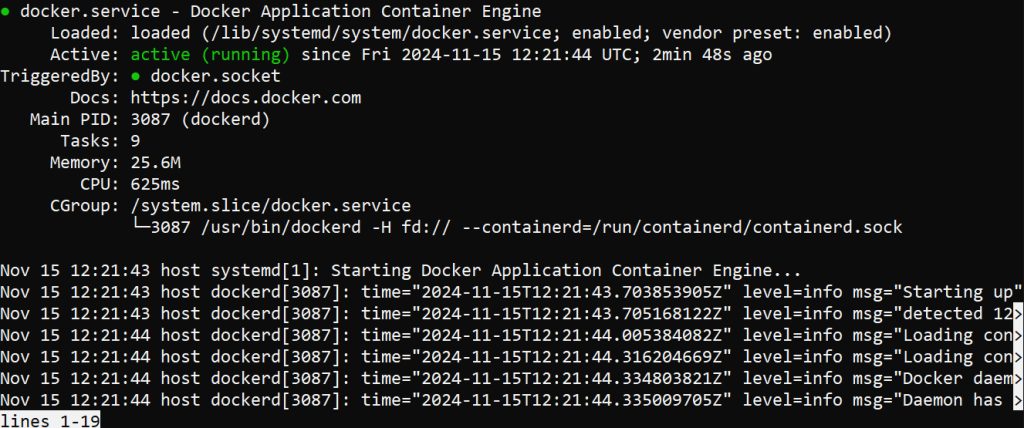
Check the version:
docker --versionStep 3: Install Rancher
Pull the image:
sudo docker pull rancher/rancher:latest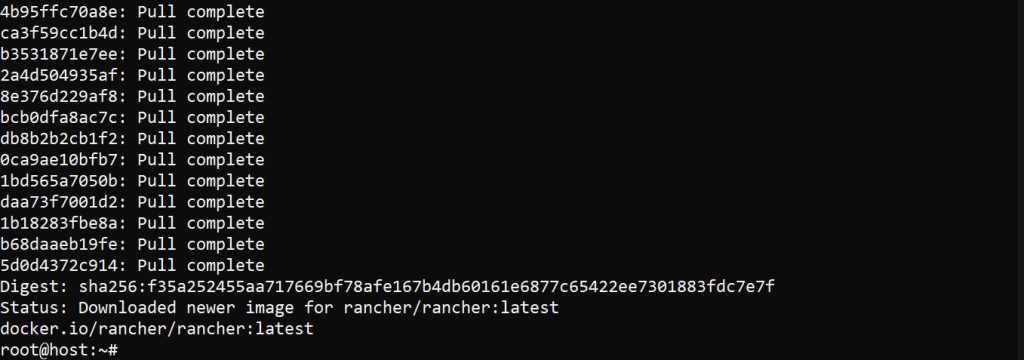
Run the container (it uses ports 80 and 443, and --privileged is needed by current versions):
sudo docker run -d --restart=unless-stopped --privileged -p 80:80 -p 443:443 rancher/rancher:latest
Wait a minute or two for Rancher to start.
Step 4: Open the Rancher interface
Go to this address in your browser:
https://<your-server-ip>/The certificate is self-signed at first, so your browser shows a warning. Continue.
Step 5: Set up Rancher
Rancher asks for the bootstrap password. Find it in the container log:
sudo docker logs <container_id> 2>&1 | grep "Bootstrap Password:"Use sudo docker ps to find the container ID. Enter the password, then set a new admin password and confirm the server URL.
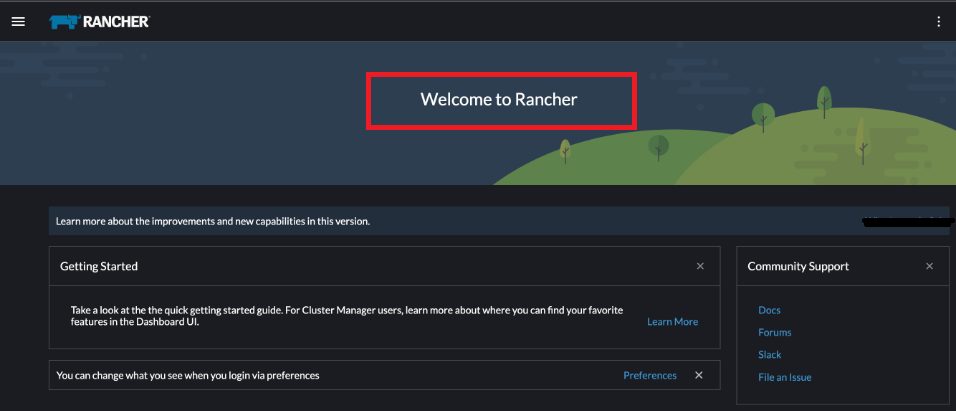
After that you can create or import Kubernetes clusters in Rancher.
Quick recap
- Install Docker.
docker run ... rancher/rancherstarts Rancher.- Open the server over HTTPS and use the bootstrap password from the log.