

Why use Tmux
- Session management. Run many terminals in one window.
- Persistence. Sessions keep running after you disconnect from SSH.
- Custom setup. You can change keys and looks.
- Efficiency. Split the screen to see several things at once.
Install Tmux
Update the package list:
sudo apt updateInstall Tmux:
sudo apt install tmux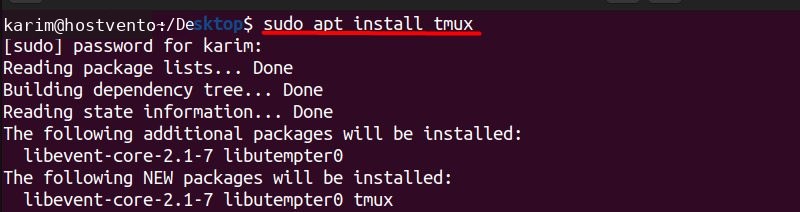
Check the version:
tmux -V
The basics
- A session is one Tmux instance.
- A window is a tab inside a session.
- A pane is a split part of a window.
Basic commands
Start a session
tmux
Detach
Press Ctrl+b, then d. The session keeps running in the background.

Attach again
tmux attach
List sessions
tmux ls
Useful keys (press Ctrl+b first)
ccreates a new window.nandpgo to the next and previous window.%splits the pane left and right."splits the pane top and bottom.xcloses the current pane.
Quick recap
- Install with
sudo apt install tmux. - Detach with
Ctrl+b dand return withtmux attach.