

Why add a second password?
WordPress already asks for a username and password. But bad bots try thousands of guesses on the login page. A second password protects the whole wp-admin folder. Bots must pass this lock before they even see the WordPress login. A folder is also called a directory.
Warning: Some plugins and themes use a file inside
wp-admin called admin-ajax.php for visitors. Locking the folder can break those features, such as some contact forms or live search. Test your site after you finish.Steps
- Log in to cPanel. Your welcome email has the link and details.
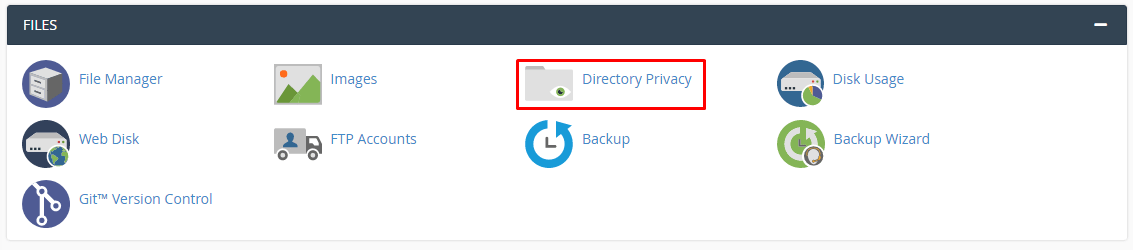
- Find the Files section and click Directory Privacy.
- Click the
public_htmlfolder name. If WordPress lives in another folder, open that one. - Click the
wp-adminfolder name. Click the folder's name, not the small icon, so you open the folder itself.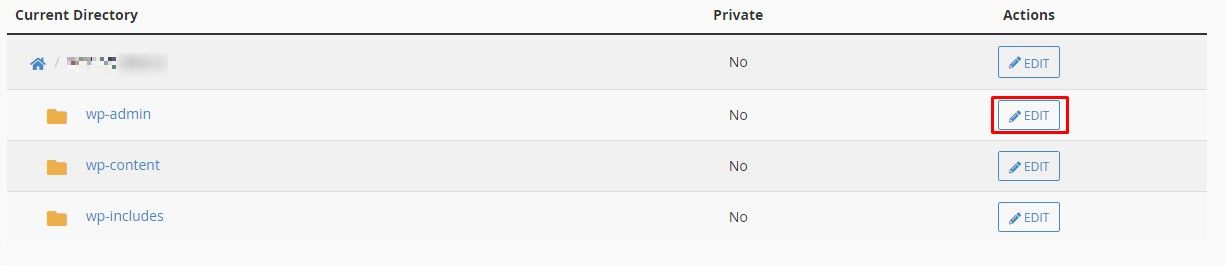
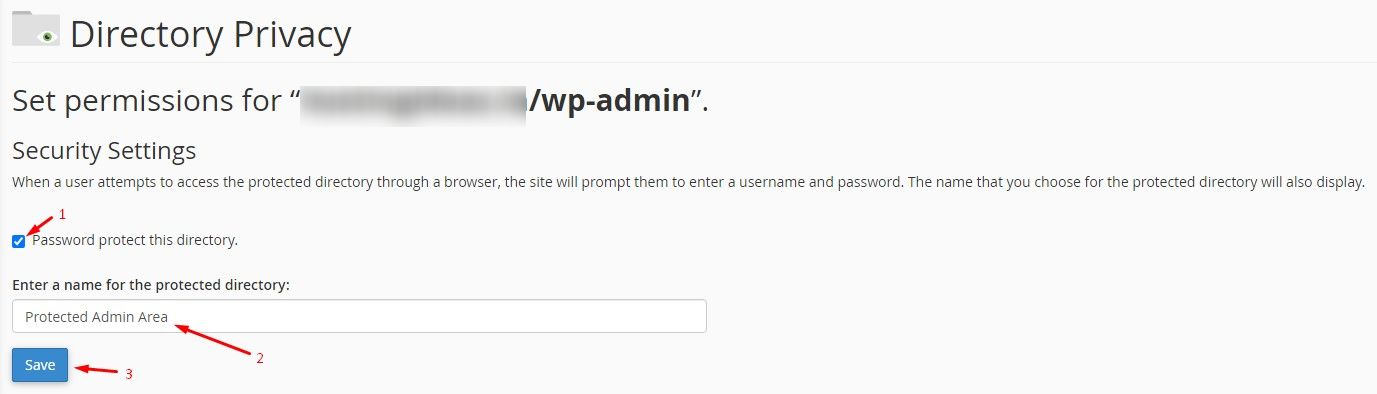
- Tick Password protect this directory.
- Type a name for the lock in the box, such as "Admin area". Visitors will see this name.
- Click Save.
- Click Go Back.
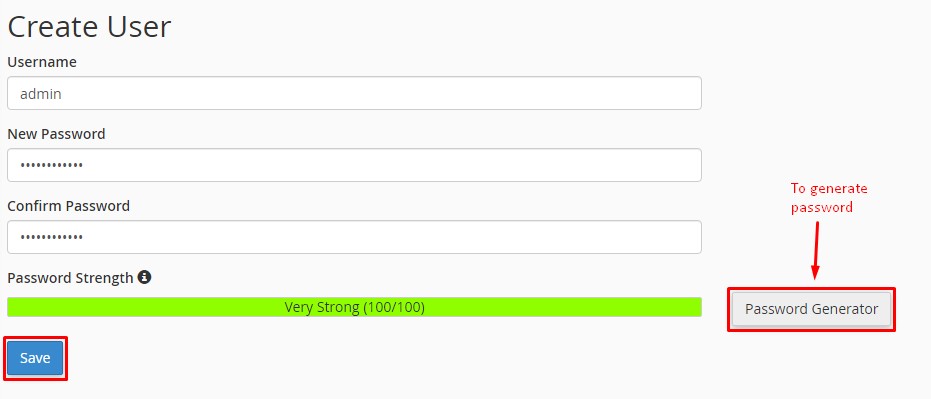
- Under Create User, type a username and a strong password. A strong password is long and mixes letters, numbers and symbols.
- Click Save.
Test it
- Open a private browser window.
- Go to
yourdomain.com/wp-admin. Use your own domain. - A box should pop up that asks for the new username and password.
- Log in with it. Then log in to WordPress as usual.
Fix the AJAX problem
If a feature on your public pages stops working, allow admin-ajax.php in the .htaccess file inside wp-admin. Take a backup of the file first. Add:
<Files admin-ajax.php>
Order allow,deny
Allow from all
Satisfy any
</Files>
This code lets that one file open without the password. If you are unsure, ask Hostvento support.
Remove the lock
Go back to Directory Privacy, open wp-admin, untick the box and click Save.

Quick recap
- A second password blocks bots before WordPress loads.
- Use Directory Privacy in cPanel.
- Choose the
wp-adminfolder and add a user. - Test the site, especially forms and live features.
- Allow
admin-ajax.phpif something breaks.