

What are these things?
A cron job is a task the server runs by itself at set times, like an alarm clock. A backup is a saved copy you can restore later. JetBackup is a backup tool that many hosts add to cPanel. It lets you pick what to save and restore it with a few clicks. Ask Hostvento support whether JetBackup is on your plan and how often it runs.
Why back up cron jobs?
Cron jobs are easy to forget. If you lose them, tasks such as nightly cleanups or report scripts stop working. You may not notice for weeks. A saved copy lets you bring them back fast.
Method 1: Use JetBackup
Look at what your plan allows. Some backups include Cron Jobs as a separate item, and some do not.
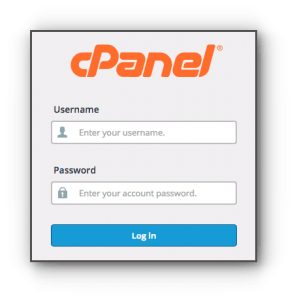
- Log in to cPanel. The link is in your welcome email.
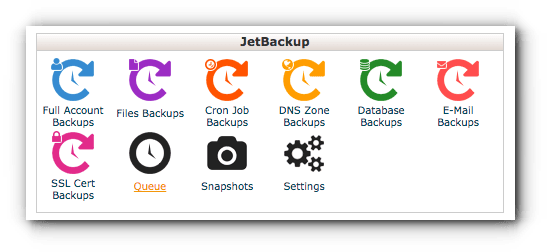
- In the Files section, click JetBackup, or look under a backup heading.
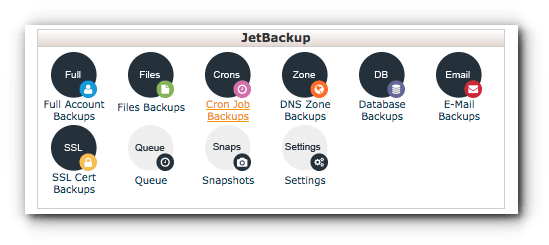
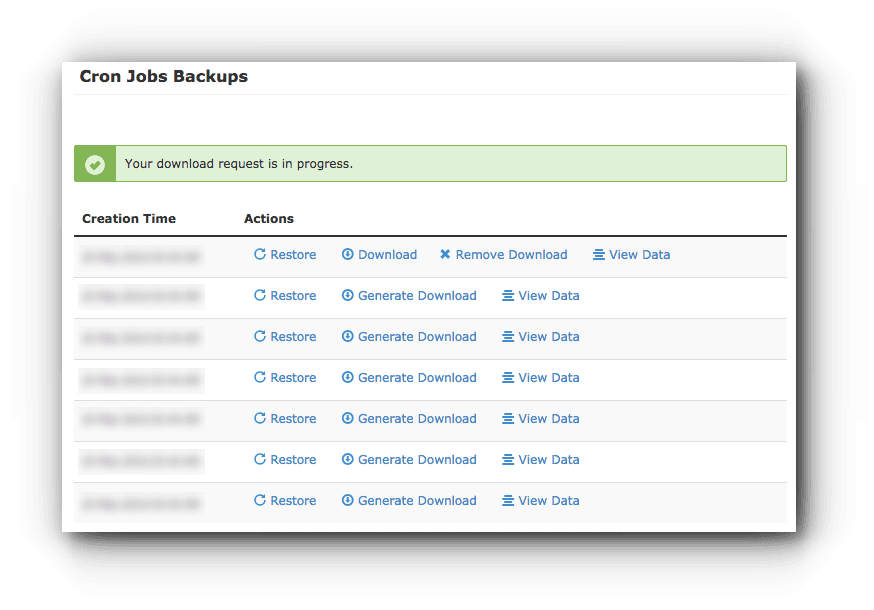
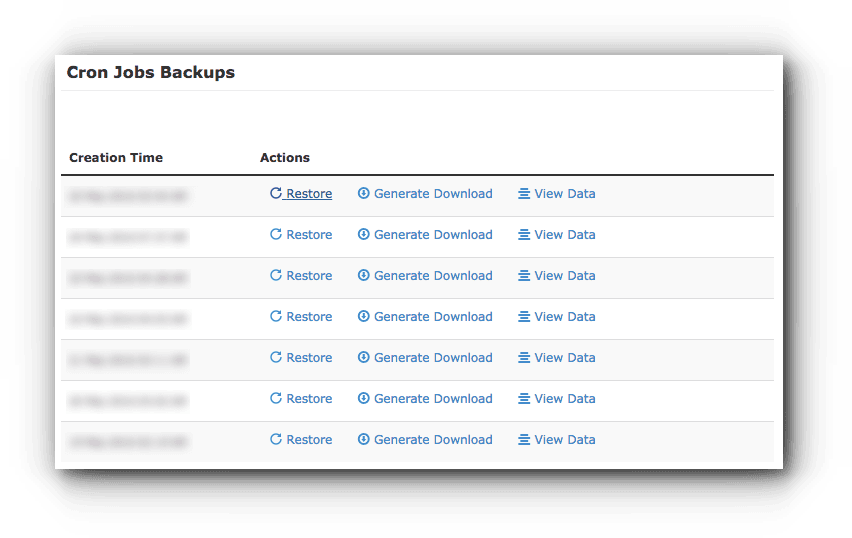
- Click Full Backups or Account Backups to see saved copies. Click Create Backup if you want a fresh one now.
- To bring back cron jobs, look for the Cron Jobs option under restore, if shown.
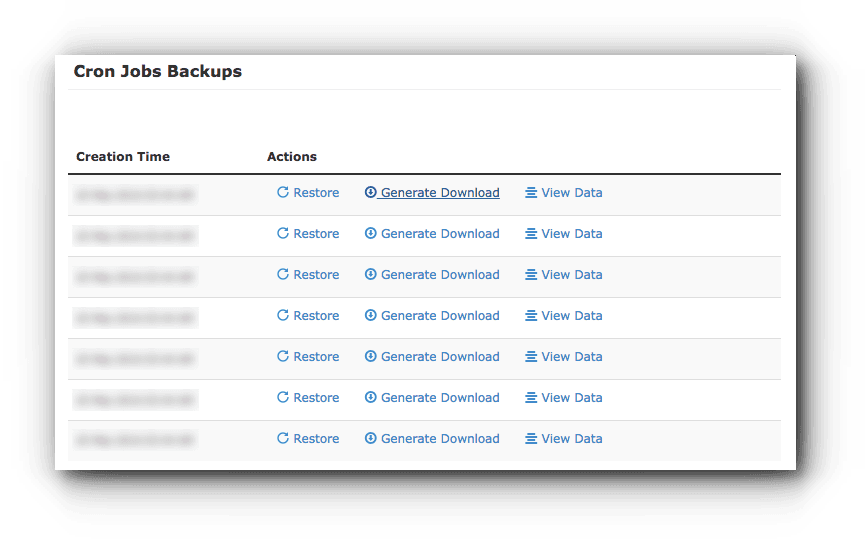
- Pick a date from the list.
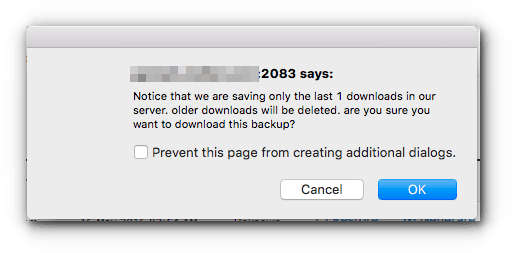
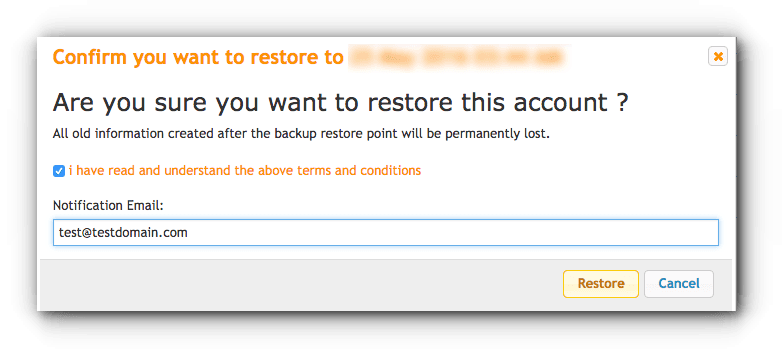
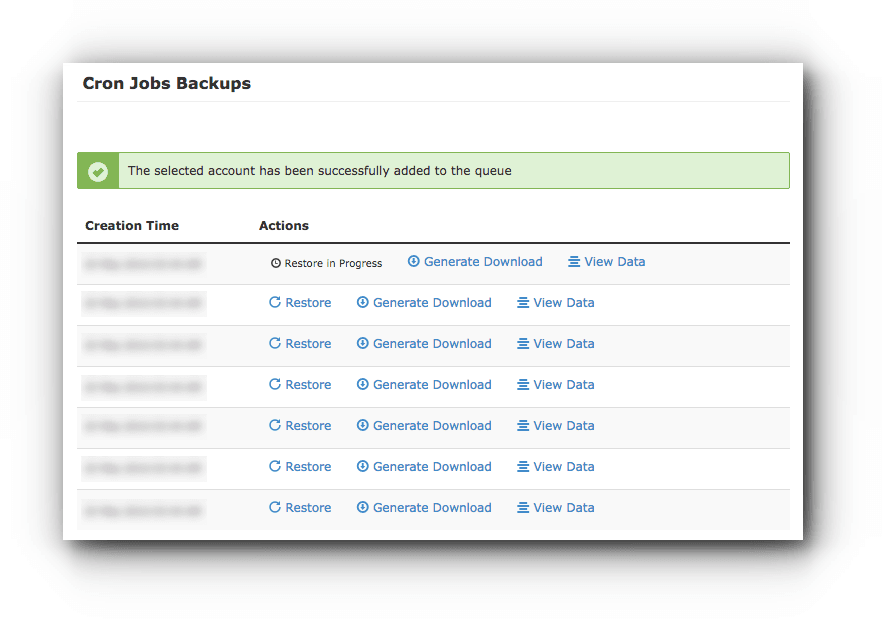
- Click Restore and confirm.
Method 2: Save the list by hand
This works even if JetBackup does not list cron jobs. It needs SSH access. SSH is a safe way to type commands on a faraway server. Ask Hostvento support if your plan has it.
- Log in with SSH.
- Save your cron jobs to a file:
This command writes every job into a text file.crontab -l > cron-backup.txt - Download that file to your computer with File Manager or FTP.
To put them back later:
crontab cron-backup.txtThis command loads the saved jobs. It replaces the current list.
Method 3: Copy by eye
- Open Cron Jobs in cPanel.
- Take a screenshot of the Current Cron Jobs list.
- Copy each command into a text file and save it.
Quick recap
- Cron jobs are scheduled tasks. Losing them can silently stop your site tasks.
- JetBackup may save and restore them. Ask support what your plan includes.
- Use
crontab -l > cron-backup.txtfor a manual copy. - Restores replace what you have now.