

What are PHP settings?
PHP is the language many websites, like WordPress, are written in. The server has rules for how PHP behaves. These rules are called settings or directives. For example, one rule limits how big an uploaded file can be. Another limits how long a script may run. If a site says "file too large" or "maximum execution time exceeded", you may need to change a rule.
MultiPHP INI Editor is a cPanel tool with a form for these rules. Ask Hostvento support if it is on your plan.
Steps
- Log in to cPanel. The link and details are in your welcome email.
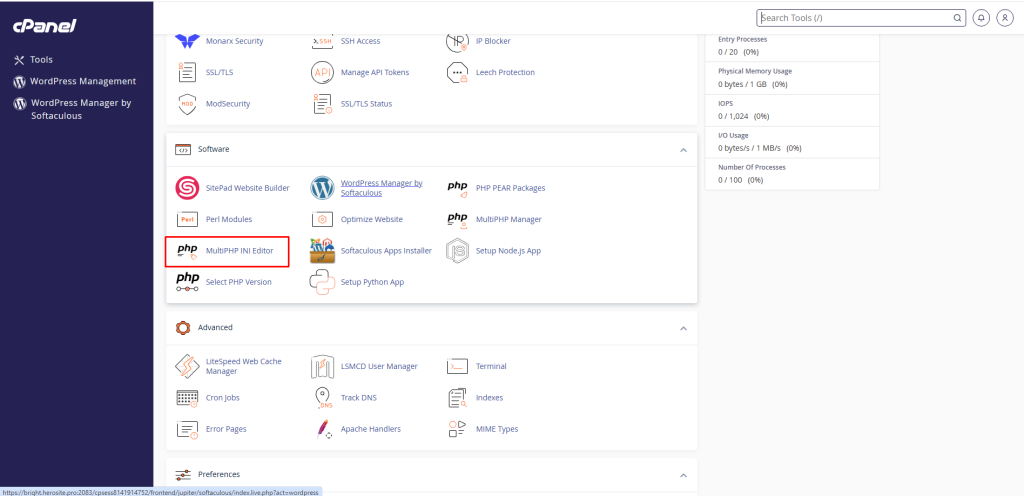
- In the Software section, click MultiPHP INI Editor.
- Choose Basic Mode for the common settings.
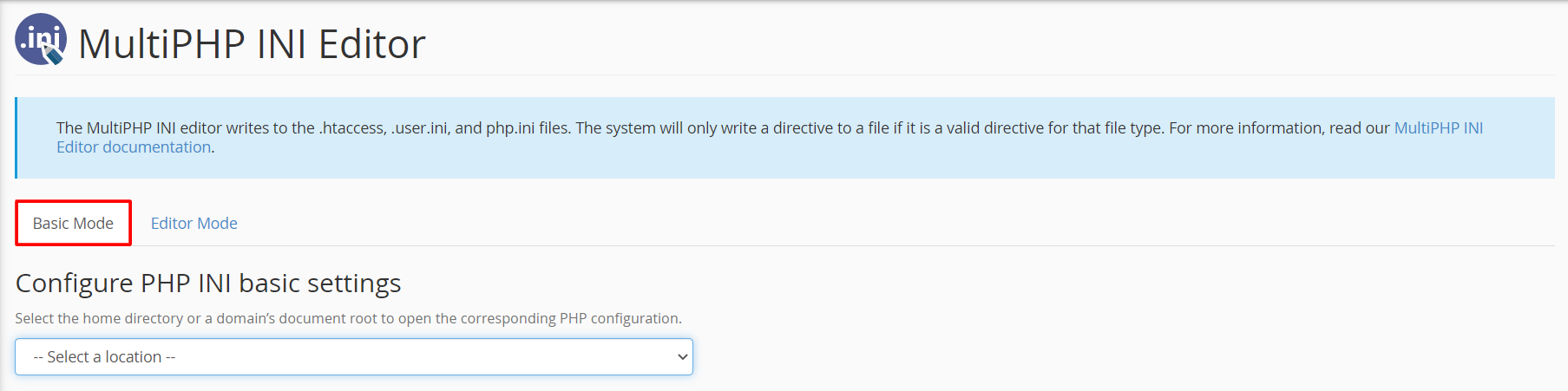
- Pick your domain from the drop-down list.
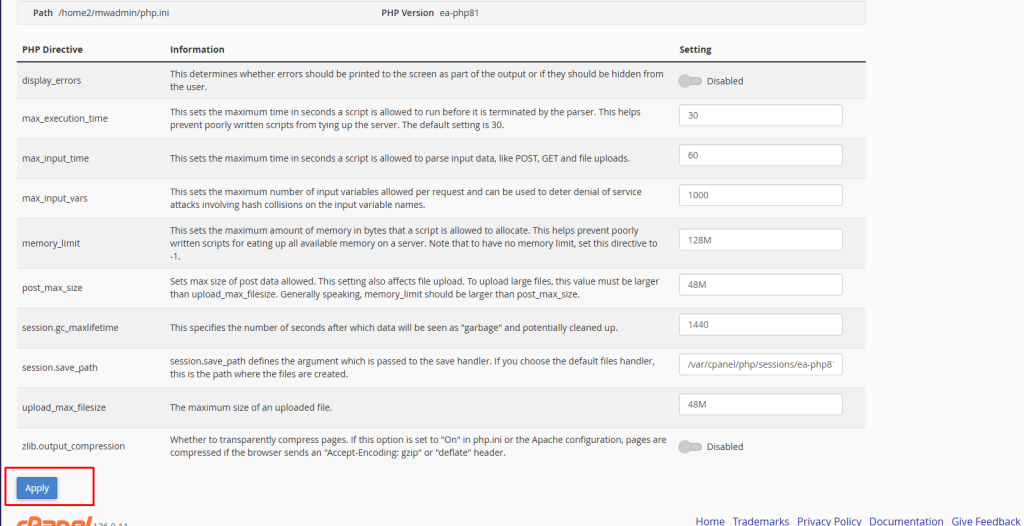
- Change the values you need. Common ones are in the table below.
- Click Apply.
- Wait a minute and test your site.
Common settings
| Setting | What it does |
|---|---|
memory_limit | How much memory one script may use |
upload_max_filesize | The biggest single file you may upload |
post_max_size | The biggest amount of data in one form send |
max_execution_time | How many seconds a script may run |
max_input_vars | How many form fields may be sent at once |
Keep post_max_size equal to or larger than upload_max_filesize. Otherwise big uploads still fail.
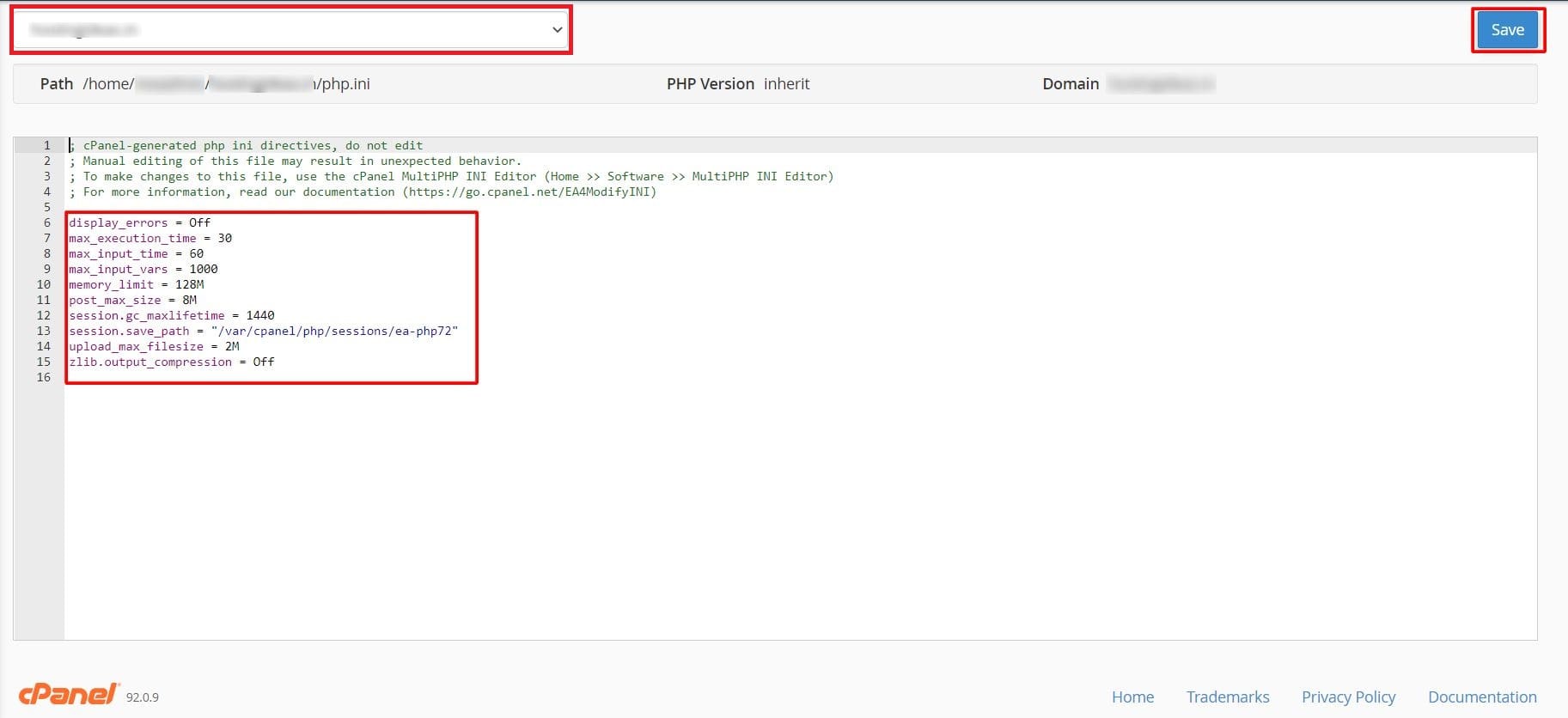
Editor Mode
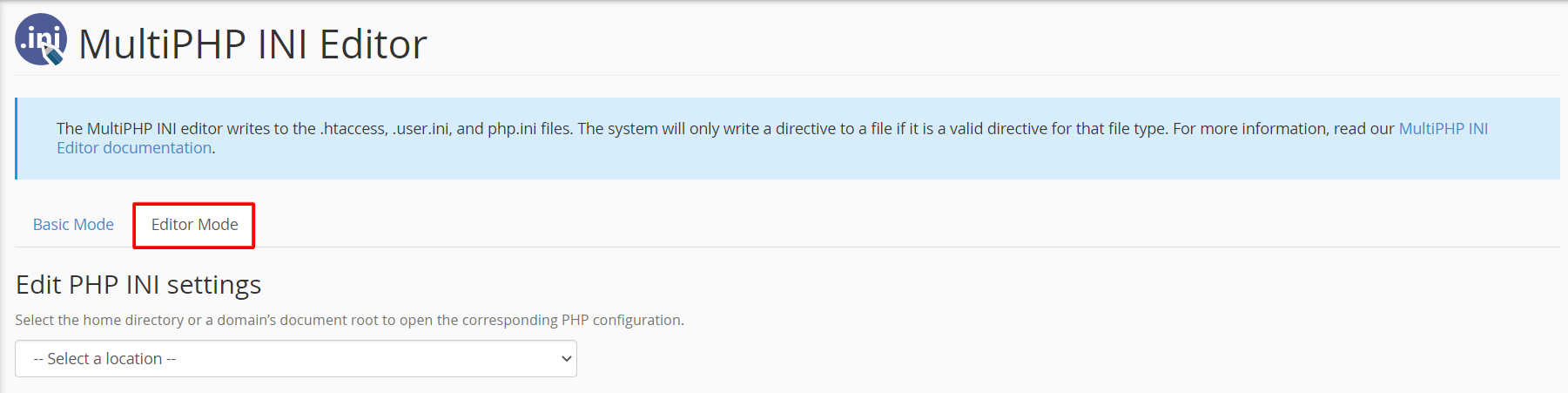
Editor Mode shows the raw text of the php.ini file. This is the file that holds the rules. Use it only if you know what to change. A typing mistake can break your site. Copy the old text to a safe place first.
Limits you cannot go past
The server may cap some values. If your change does not stick, ask Hostvento support whether a higher limit is allowed on your plan.
Quick recap
- PHP settings are rules for how PHP runs.
- Open MultiPHP INI Editor in cPanel.
- Pick your domain, change a value and click Apply.
- Keep
post_max_sizeat least as big asupload_max_filesize. - Ask support if a limit will not change.