

What is SitePad?
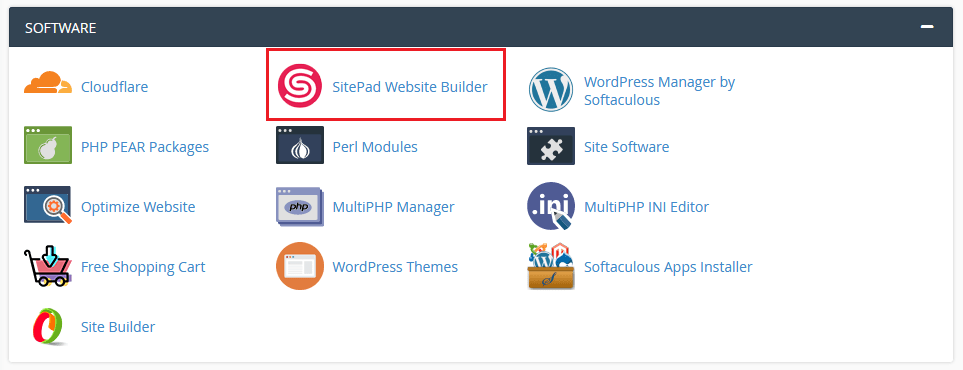
SitePad is a drag-and-drop website builder. A website builder lets you make pages by clicking and moving blocks, with no code. Ask Hostvento support whether SitePad is on your plan. It is often installed from cPanel or Softaculous. Softaculous is a tool that installs apps with one click.
Why clone a site?
- You want a second site that looks the same.
- You want to try changes on a copy, without risking the live site.
- You want to start a new project from a good template.
Only clone your own sites. Copying someone else's design or text can break their rights.
Method 1: Clone a site you built in SitePad
- Log in to your SitePad panel. Use the link from your hosting account.
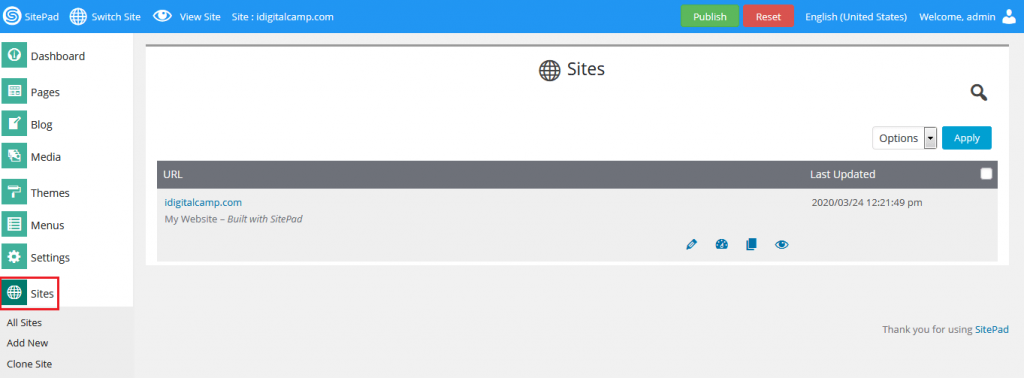
- Find the site list. Look for the site you want to copy.
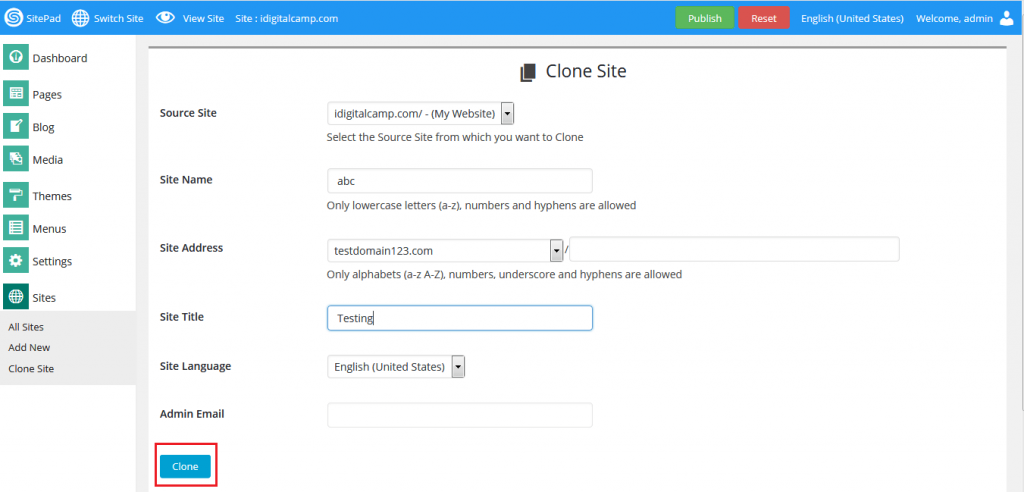
- Look for a Clone or Duplicate option near that site.
- Give the copy a new name.
- Confirm. The new site appears in your list.
- Open the copy and edit it freely.
Method 2: Copy the files by hand
Use this if you cannot find a clone option. Take a backup first.
- Log in to cPanel.
- Open File Manager.
- Go to the folder that holds the site. It is often in
public_html. - Select everything in the folder and click Compress. Choose a zip file.
- Create a new folder, or add a new domain or subdomain for the copy. A subdomain is a small address in front of your domain, such as test.yourdomain.com.
- Upload and Extract the zip in the new folder.
- If the site uses a database, create a new one in MySQL Databases. Export the old one in phpMyAdmin and import it into the new one. Update the connection details in the site's config file.
- Open the new address and check each page.
After cloning
- Change the site title and contact details.
- Replace the pictures and text so both sites are not identical.
- Check your links. Some may still point to the old address.
Quick recap
- Cloning makes a copy of your site.
- Look for Clone or Duplicate in SitePad.
- Or compress, upload and extract the files by hand.
- Copy the database too if the site uses one.

- Ask Hostvento support whether SitePad is on your plan.