

What is a cron job?
Imagine an alarm clock that, instead of ringing, runs a small program. That is a cron job. You can use it to run a PHP script every night, clear a folder each week, or send a daily report. Cron is the name of the time scheduler on Linux servers.
How the timing works
A cron time has five parts, in this order:
| Minute | Hour | Day | Month | Weekday |
|---|---|---|---|---|
| 0 to 59 | 0 to 23 | 1 to 31 | 1 to 12 | 0 to 6 (Sunday is 0) |
A star * means "every". So 30 2 * * * means 2:30 in the morning, every day.
Steps
- Log in to cPanel. The link is in your welcome email.
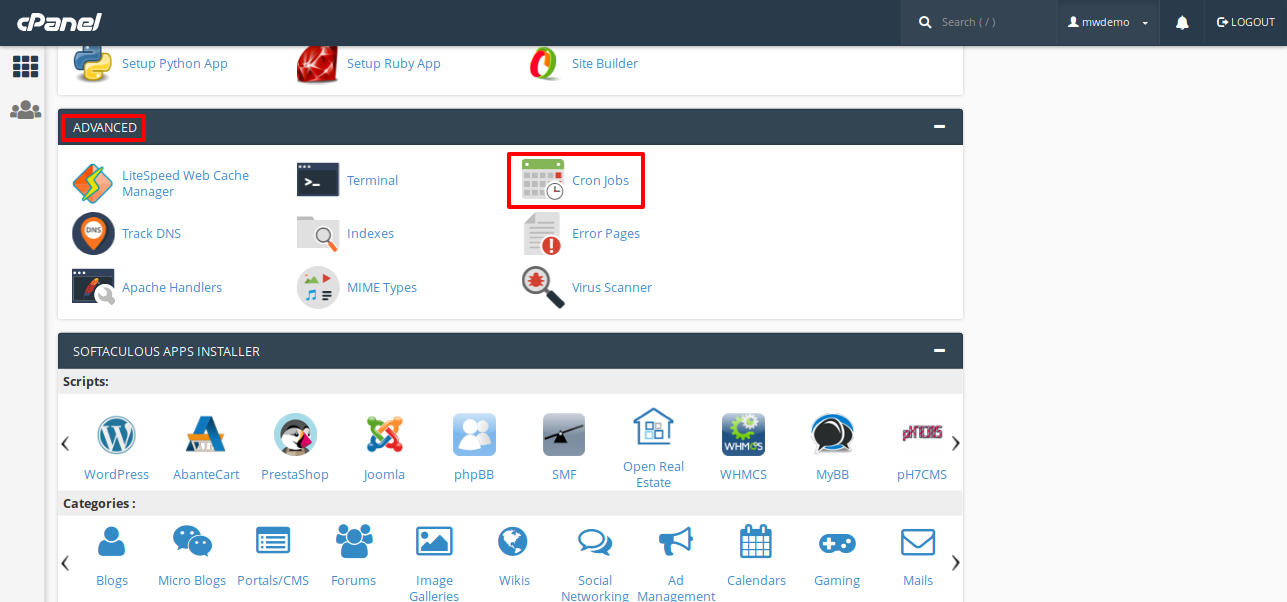
- In the Advanced section, click Cron Jobs.
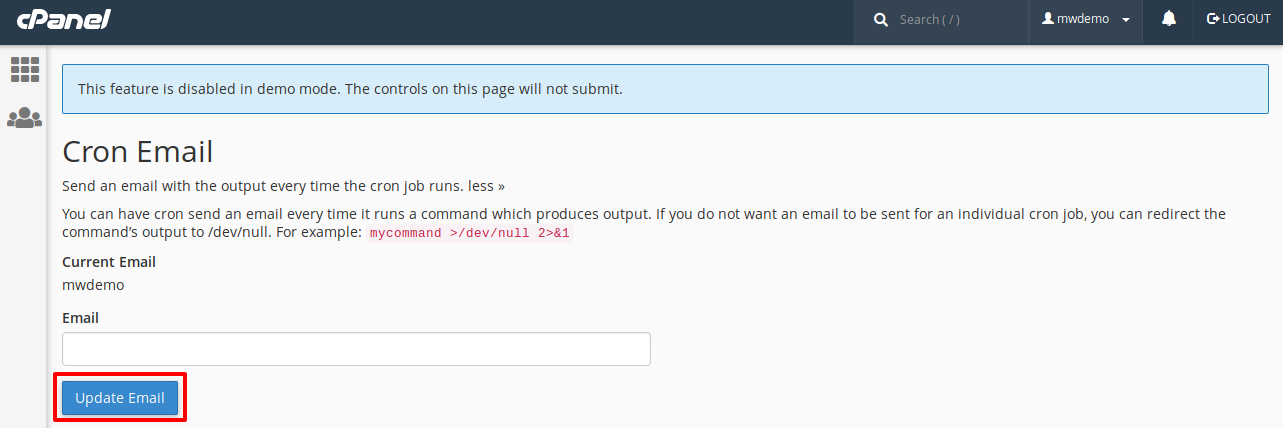
- Under Cron Email, type an email address if you want reports. Click Update Email.
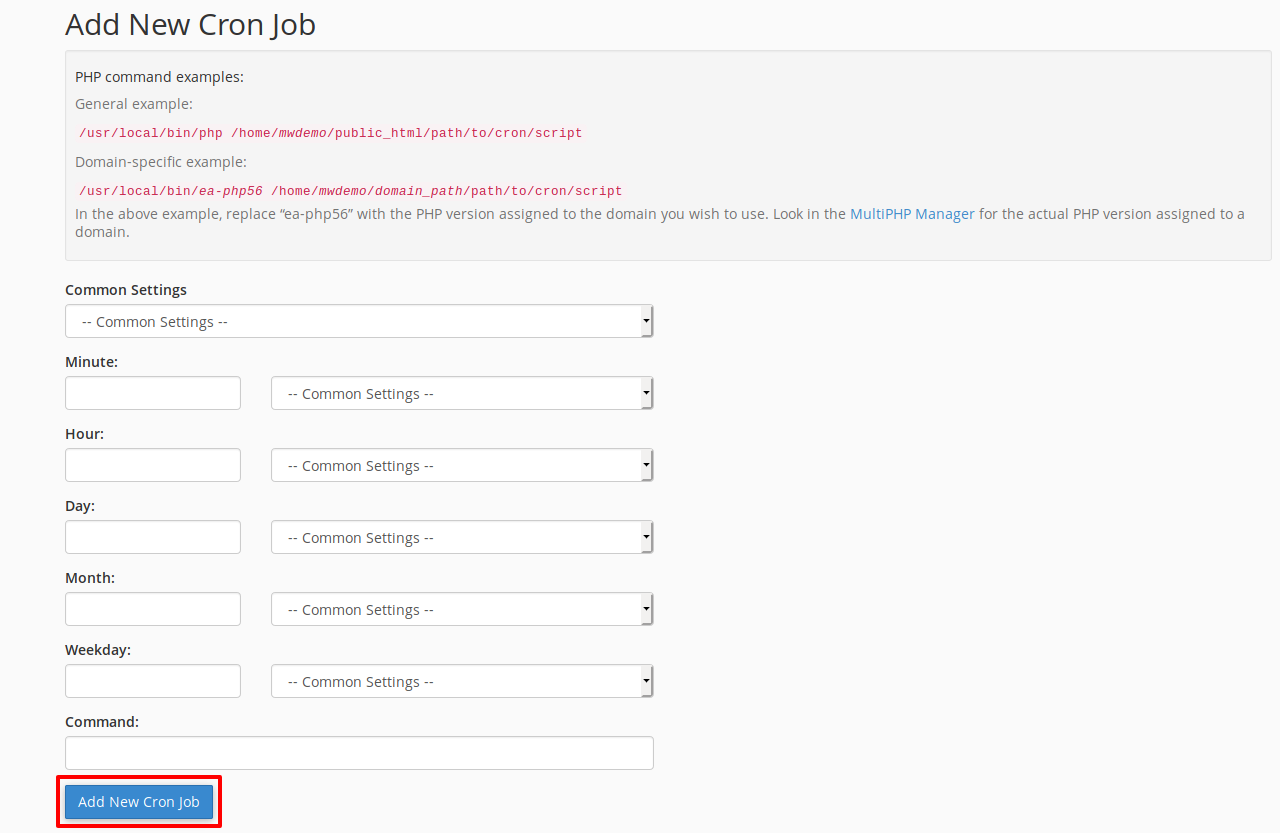
- Under Add New Cron Job, pick a time from Common Settings, such as Once Per Day. The boxes fill in for you.
- In the Command box, type what should run. Example for a PHP script:
This command runs the file/usr/local/bin/php /home/username/public_html/script.phpscript.phpwith PHP. Replaceusernamewith your cPanel username. The PHP path may differ on your server, so check with Hostvento support if it fails. - Click Add New Cron Job.
Your new job now shows in the list under Current Cron Jobs.
Stop the email spam
By default, cron emails you the output every run. To stop this, add this to the end of the command:
>/dev/null 2>&1It throws the output away.
Edit or delete a job
- Go back to the Current Cron Jobs list.
- Click Edit to change a job, or Delete to remove it.
Tip: Do not run a job every minute unless you must. It can slow down your site. Also, a wrong command can change your files, so take a backup first.
Quick recap
- A cron job runs a task on a schedule.
- Times have five parts: minute, hour, day, month, weekday.
- Open Cron Jobs in cPanel and pick a time.
- Type the command and click Add New Cron Job.
- Add
>/dev/null 2>&1to stop emails.