

What are these tools?
PrestaShop is a free program for running an online store. You can list products, take orders and manage customers. cPanel is the control panel for your hosting. Softaculous is an installer inside cPanel. It sets up apps with a few clicks. Ask Hostvento support if Softaculous is on your plan.
Before you start
- Log in to your client area and open cPanel.
- Decide where the shop will live, like yourdomain.com or yourdomain.com/shop.
- If a site already lives at that place, take a backup first.
Steps
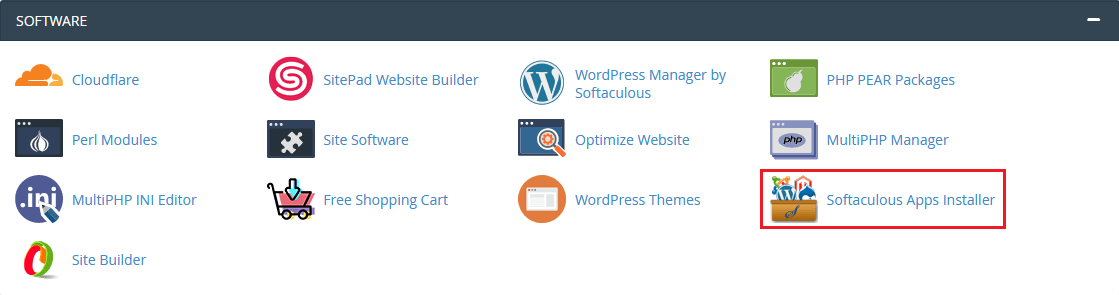
- In cPanel, find the Softaculous Apps Installer section. Click Softaculous or the PrestaShop icon if it shows.
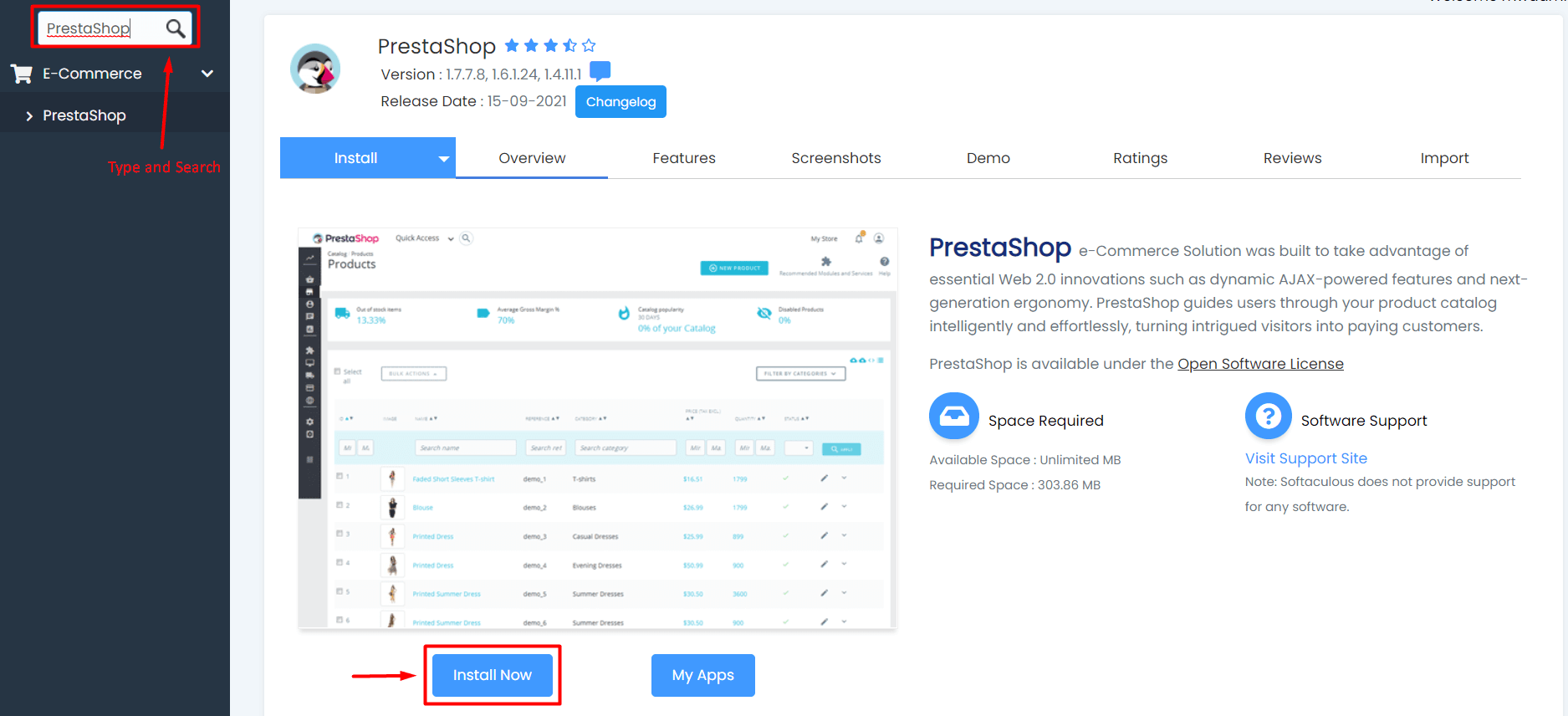
- Use the search box to find PrestaShop. Open it.
- Click Install Now.
- Pick the Protocol. Use
https://if your domain has an SSL certificate. SSL keeps the connection private. - Choose the Domain from the list.
- In In Directory, type a folder name for a sub-folder shop. Leave it empty to install on the main address.
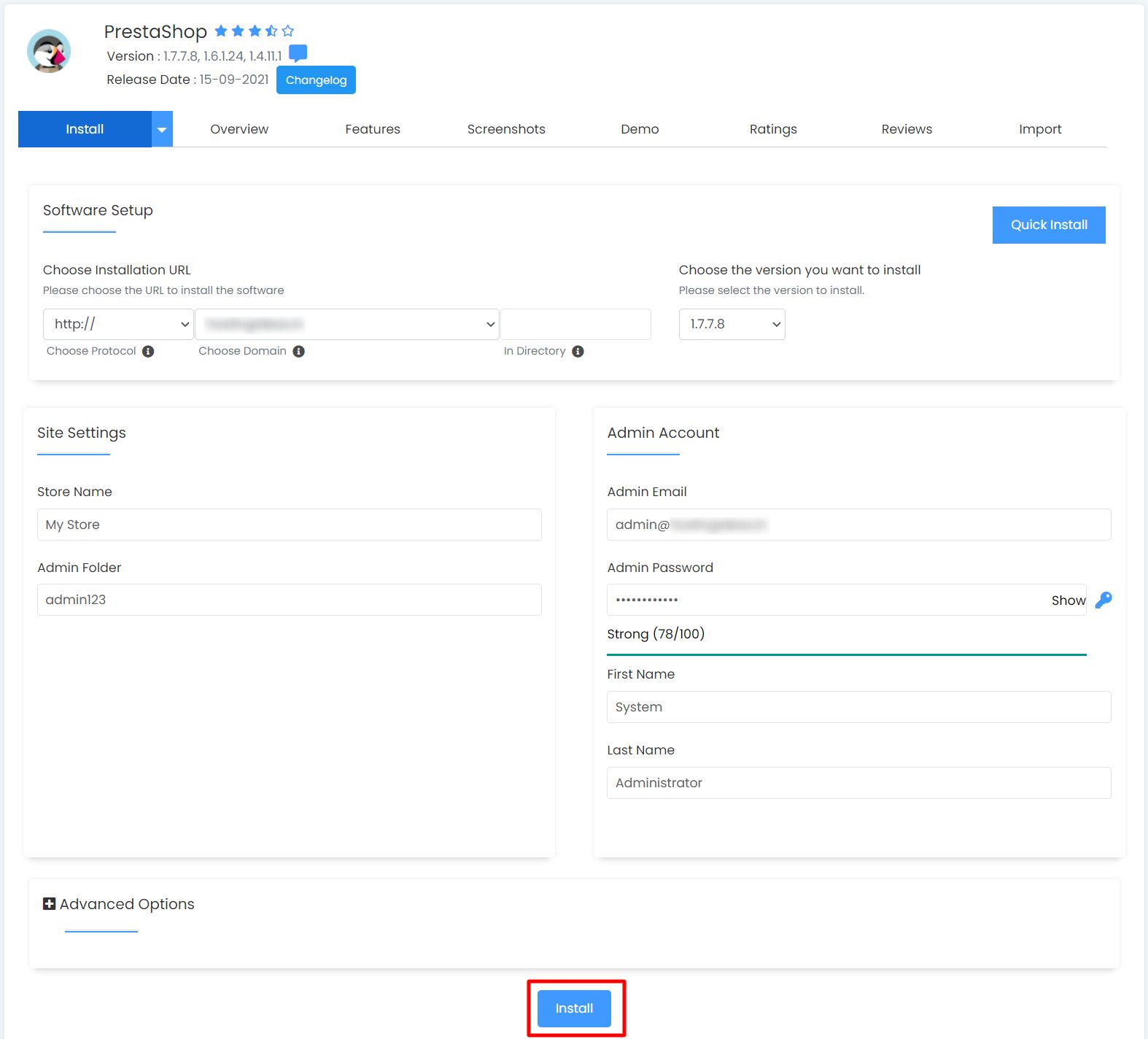
- Type a shop name and a short description.
- Set the admin user name, password and email. Pick a strong password. Use an email you can reach. You need it to recover access.
- Choose your language and, if offered, the shop country.
- Open Advanced Options if you want to change the database name. Most people can leave it as it is.
- Check the email box if you want the details sent to you.
- Click Install.
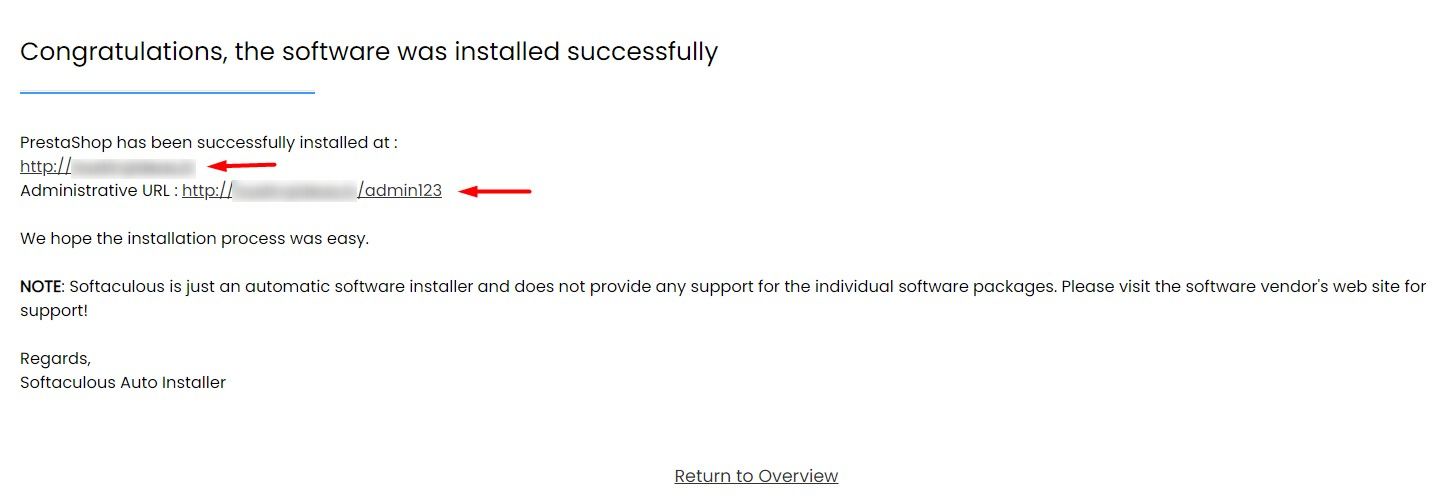
- Wait until the bar is full. Softaculous then shows two links: one to your shop and one to the admin area.
After the install
- Open the admin link and log in.
- Some PrestaShop versions give the admin folder a random name for safety. Save the link in a safe place.
- Add your products, set up payment and shipping, and view your shop.
Tip: Never share your admin link and password. Update PrestaShop and its modules often.
Quick recap
- Open Softaculous in cPanel and search PrestaShop.
- Click Install Now and choose the domain and folder.
- Set a strong admin password and a working email.
- Click Install, then open the admin link.
- Back up first if a site already exists there.