

What is PHP error reporting?
PHP is a language that runs many websites. When a PHP page has a problem, it may print a message on the screen. These messages can look ugly. They may also show file paths that hackers like to see. It is better to hide them on a live site.
Hidden errors are not gone. You can still save them in a log file and read them later.
Take a backup of any file before you change it.
Method 1: MultiPHP INI Editor in cPanel
- Log in to cPanel.
- Open MultiPHP INI Editor.
- Choose Basic Mode and select your domain.
- Find
display_errorsand switch it off. - Click Apply.
Method 2: the .htaccess file
The .htaccess file holds rules for your site.
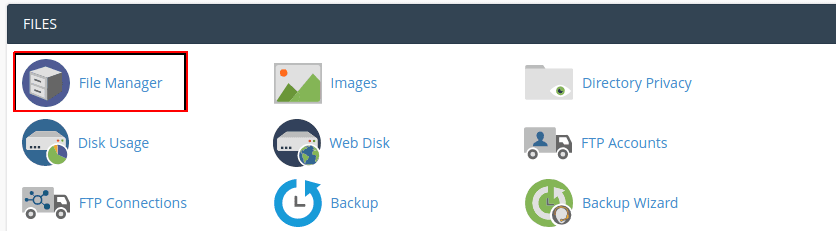
- Open File Manager in cPanel.
- Go to your site folder, often
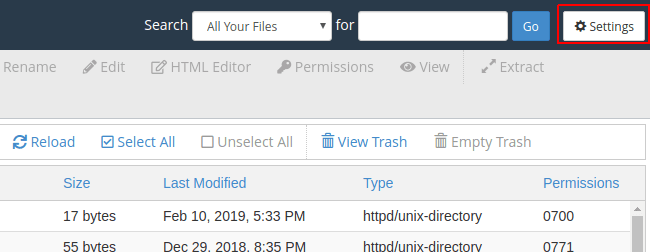
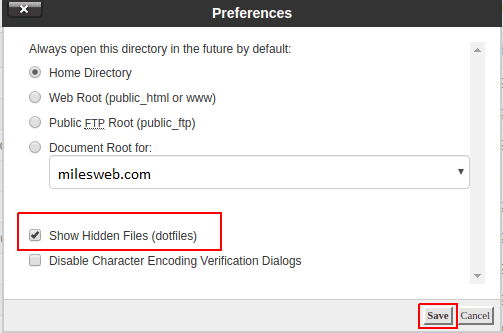
public_html. - Click Settings and tick Show Hidden Files.
- Right-click
.htaccessand choose Edit.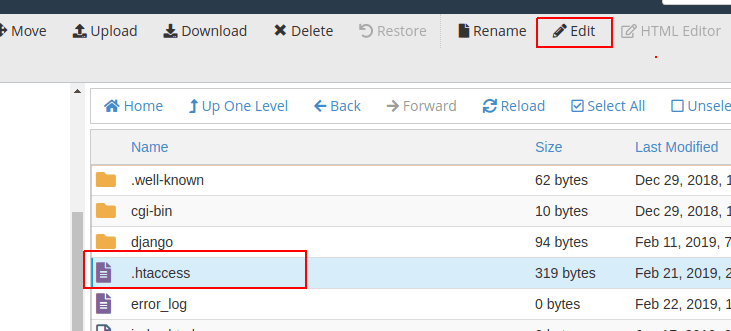
- Add this line at the bottom.
php_flag display_errors offThis tells PHP not to print errors. On some setups this line causes a 500 error. If so, remove it and use Method 1.
- Save the file and reload your site.
Method 3: inside a PHP file
- Open your PHP file in the editor.
- Add this at the very top, after
<?php.
ini_set('display_errors', 0);
error_reporting(0);
The first line hides errors. The second line tells PHP to stop tracking them.
WordPress sites
Open wp-config.php and look for WP_DEBUG. Set it to false.
define('WP_DEBUG', false);Tip: Turn errors on again while fixing a bug. Turn them off when you finish.
Quick recap
- Hide errors on live sites for looks and safety.
- Use MultiPHP INI Editor,
.htaccess, or code. - In WordPress set
WP_DEBUGto false. - Back up before editing files.