

What open ports are
An open port is a TCP or UDP port that a program is using to accept traffic. There are 65,535 of them in three ranges:
- Well-known ports (0-1023) for common services such as FTP (21), SSH (22) and HTTP (80).
- Registered ports (1024-49151) assigned to products and vendors.
- Dynamic ports (49152-65535) for short, private connections.
Why check
- Malware can use open ports to talk to its controller.
- A port that is open by mistake can let attackers in.
- Needless services use system resources.
- A port clash is a common cause of "app will not start" problems.
netstat
Open Command Prompt and run:
netstat -an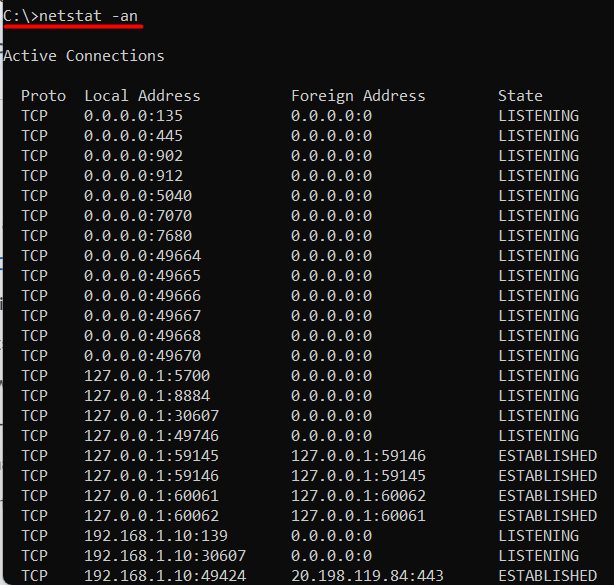
Look in the Local Address column. The number after the colon is the port. LISTENING means the port waits for connections.
To see which program uses the port, add -ob in an Administrator prompt:
netstat -anoThe last column is the process ID. Match it in Task Manager under Details.
PowerShell
Open PowerShell and run:
Get-NetTCPConnection -State Listen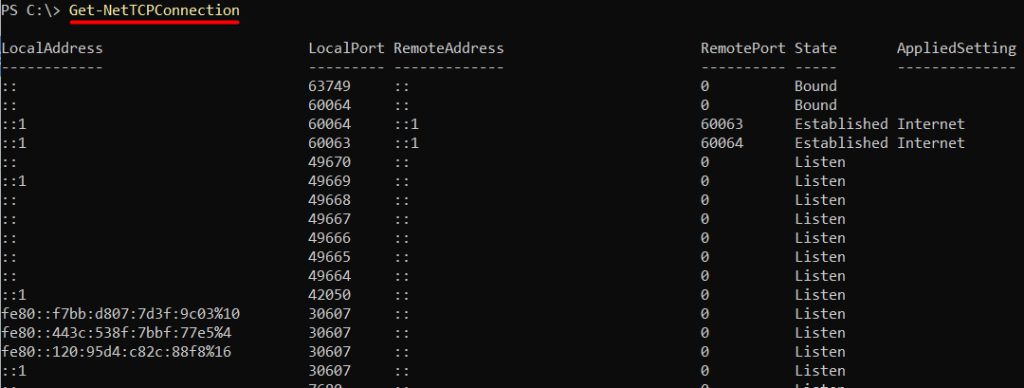
The column LocalPort shows the port and OwningProcess the process ID.
Nmap
Nmap is a free port scanner.
- Download and install it from the official Nmap site.
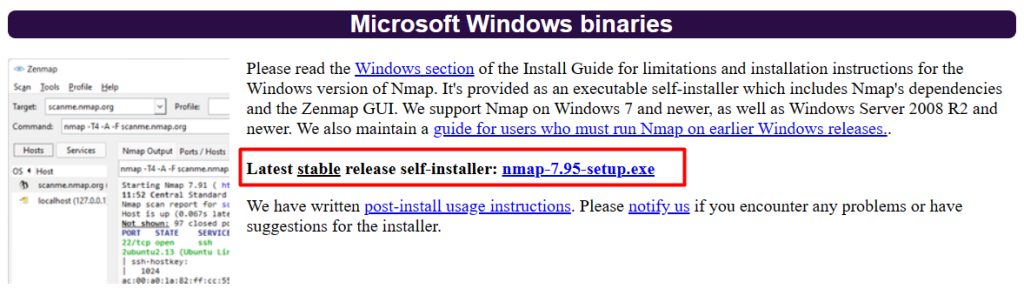
- Open Command Prompt and scan your own machine:
nmap localhost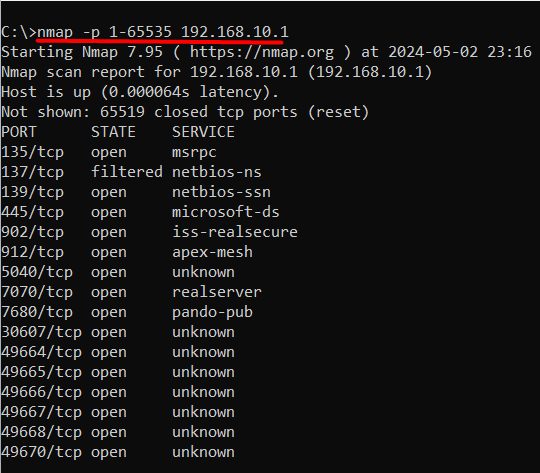
Add -p 1-65535 to check all ports.
Warning: Scan only computers that you own or may test.
Close a port you do not need
Stop the program or service that uses it. Or block the port in Windows Defender Firewall with an inbound rule.
Quick recap
netstat -anoandGet-NetTCPConnectionshow listening ports.- Match the process ID in Task Manager.
- Close ports you do not need.