

Why it matters
A server holds important data and services. A weak or old password is an easy way in for attackers. Change passwords on a regular schedule, and at once if you think someone else knows them.
Method 1: With the screen (GUI)
- Log in to the server with your current password.
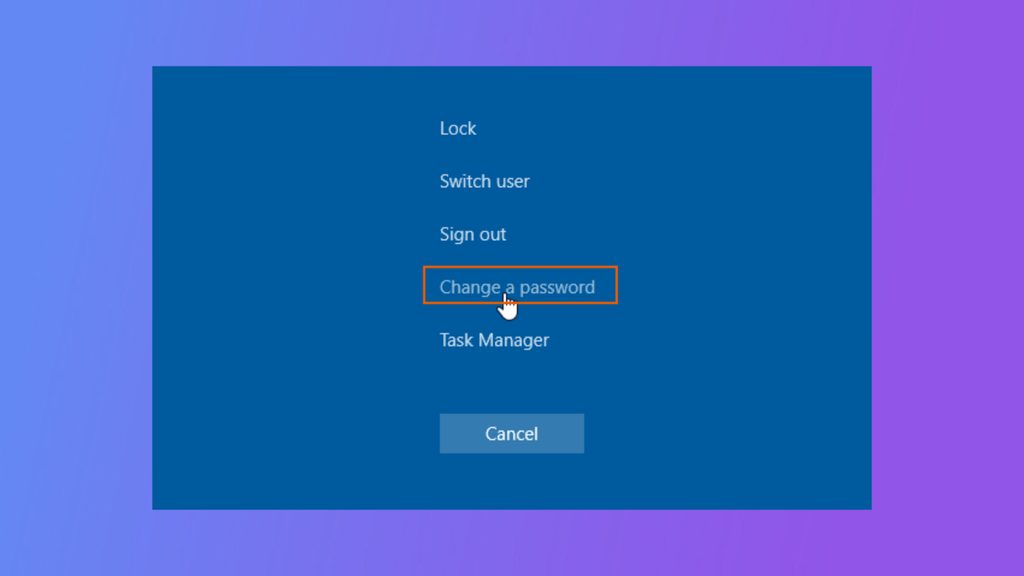
- Press
Ctrl + Alt + Delete. If you use Remote Desktop, pressCtrl + Alt + Endinstead. - Click Change a password.
- Type your current password in Old password.
- Type the new password in New password and again to confirm it.
- Click OK (or press
Enter).
Method 2: With the command line
- Open Command Prompt. To change the password of another user you must run it as administrator (right-click it and choose Run as administrator).
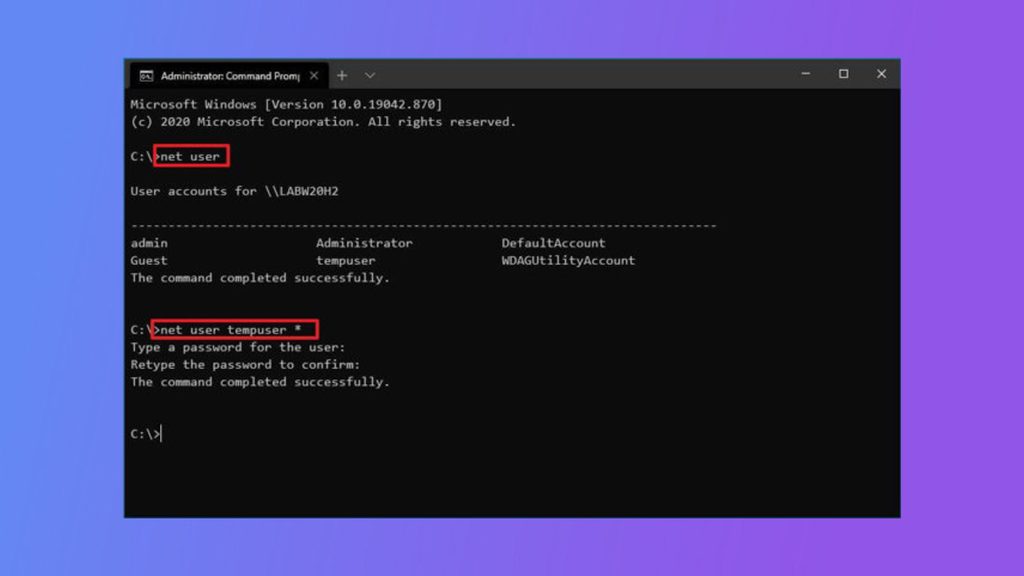
- Type this command, with the user name and the new password:
net user username NewPassword123!To be asked for the password and keep it off the screen, use an asterisk:
net user username *- Press
Enter. A message says "The command completed successfully."
If you see "Access is denied", run Command Prompt as administrator.
For a domain account, add /domain:
net user username * /domainMake a strong password
- Use upper and lower case letters, numbers and symbols.
- Use at least 12 characters. Longer is better.
- Do not use birthdays, pet names or common words.
- Use a different password for every account.
- Use a password manager to create and store them.
Keep passwords private
- Never share a password in an email or a chat.
- Do not write passwords on paper or in a text file on the server.
- Turn on two-factor authentication where you can.
- Change the passwords of shared accounts when a person leaves.
Quick recap
- GUI:
Ctrl + Alt + Delete, then Change a password. - CLI:
net user username *as administrator. - Use a long, unique password.