

What is an error log?
An error log is a diary kept by the server. Each time something fails on your site, the server writes a short note. Reading the notes helps you find the cause. ASP.NET is Microsoft's system for building websites. Plesk is a control panel, which is a web page where you manage your hosting. Ask Hostvento support whether Plesk is part of your plan.
Steps
- Log in to Plesk. Use the link and details from your welcome email.
- Click Websites & Domains in the left menu.
- Find your domain name.
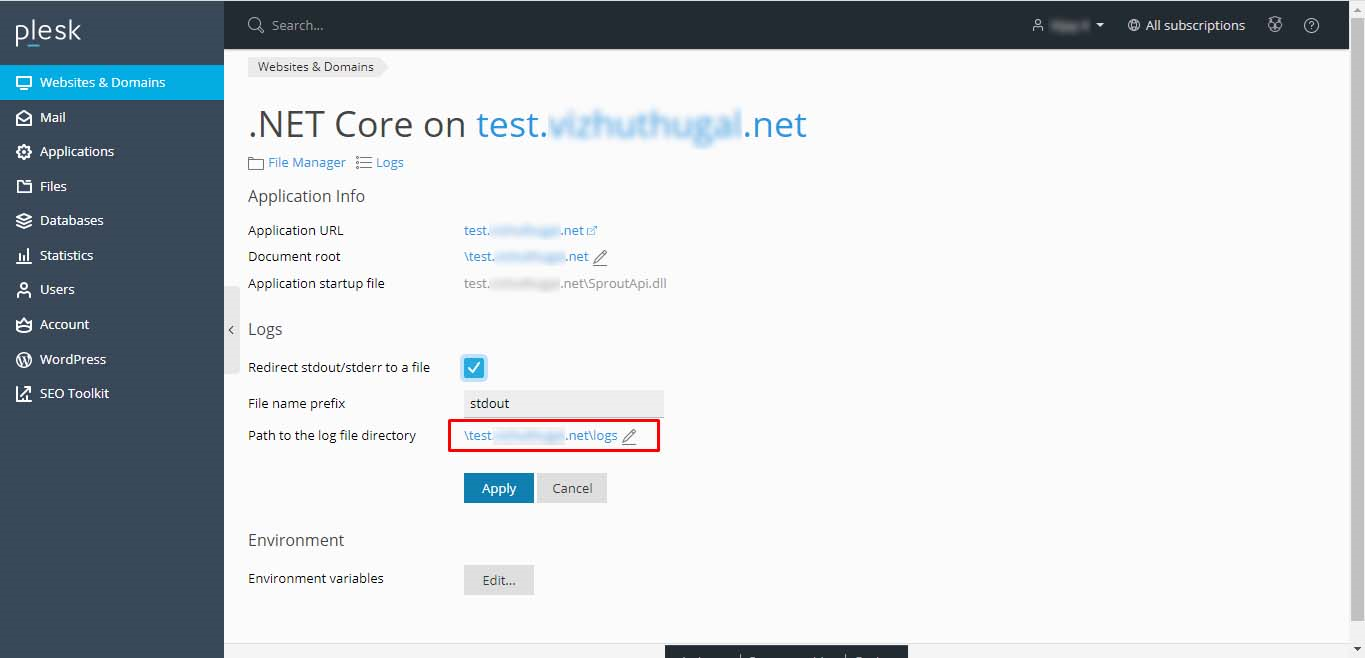
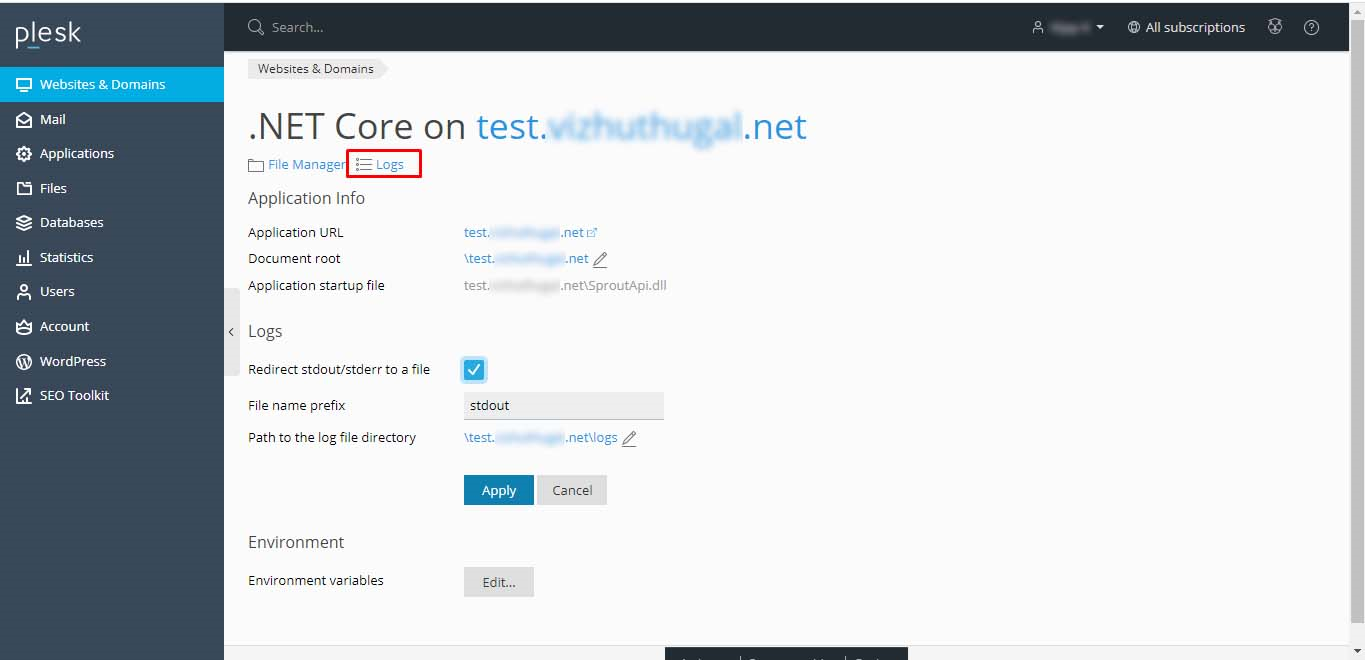
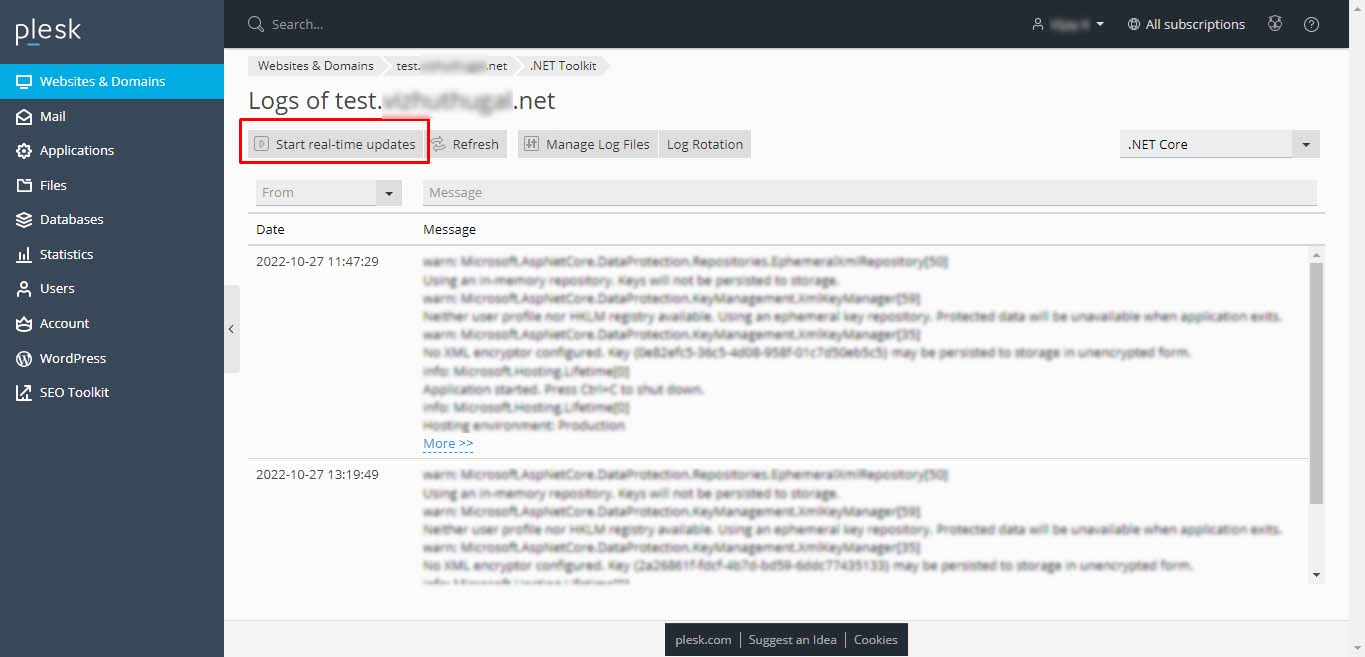
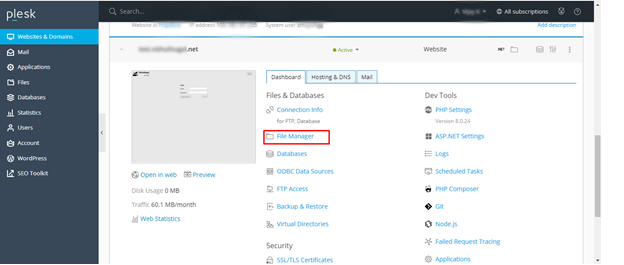
- Click Logs under the domain. In some Plesk versions this is inside Dashboard or under a link named Logs in the tools list.
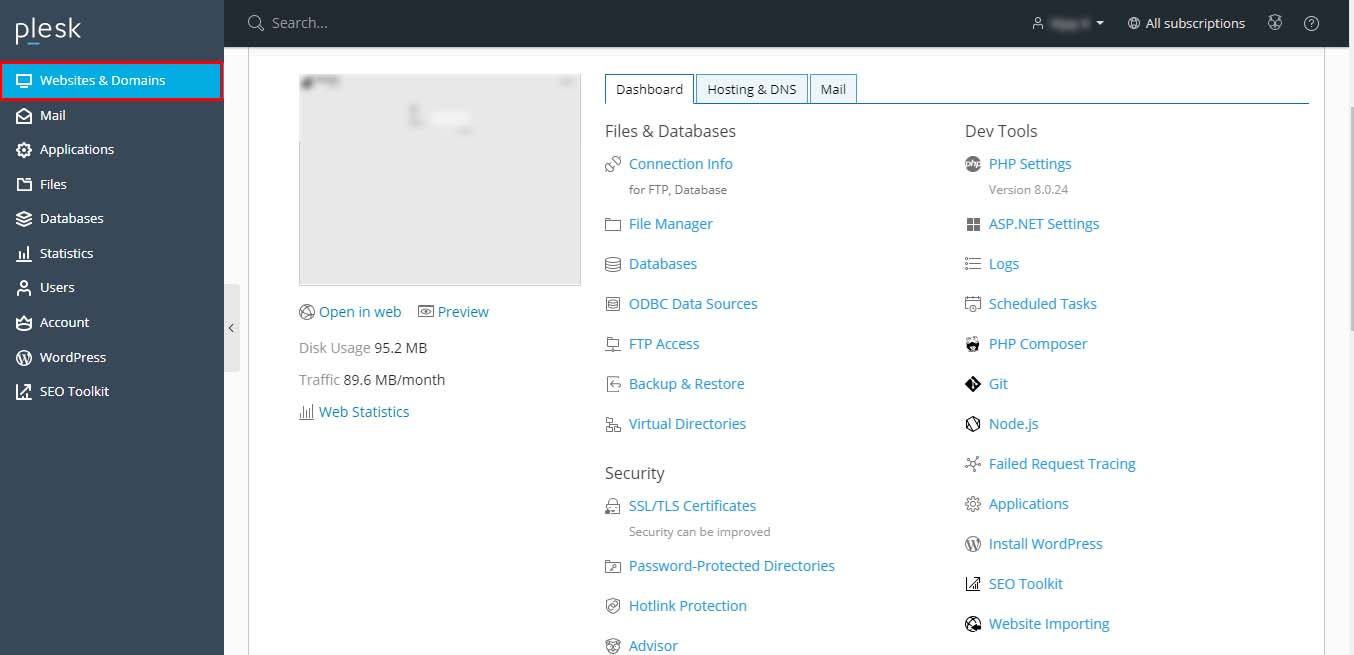
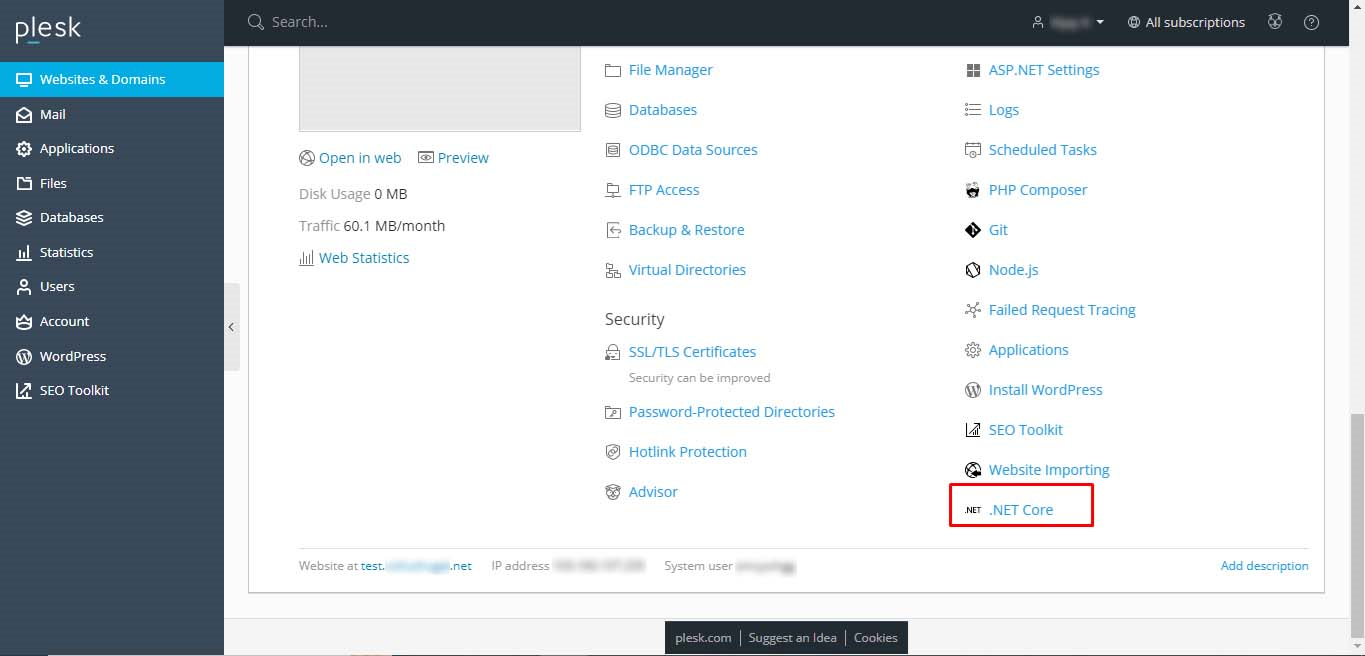
- Pick the log you need from the list. The Error log shows server errors.
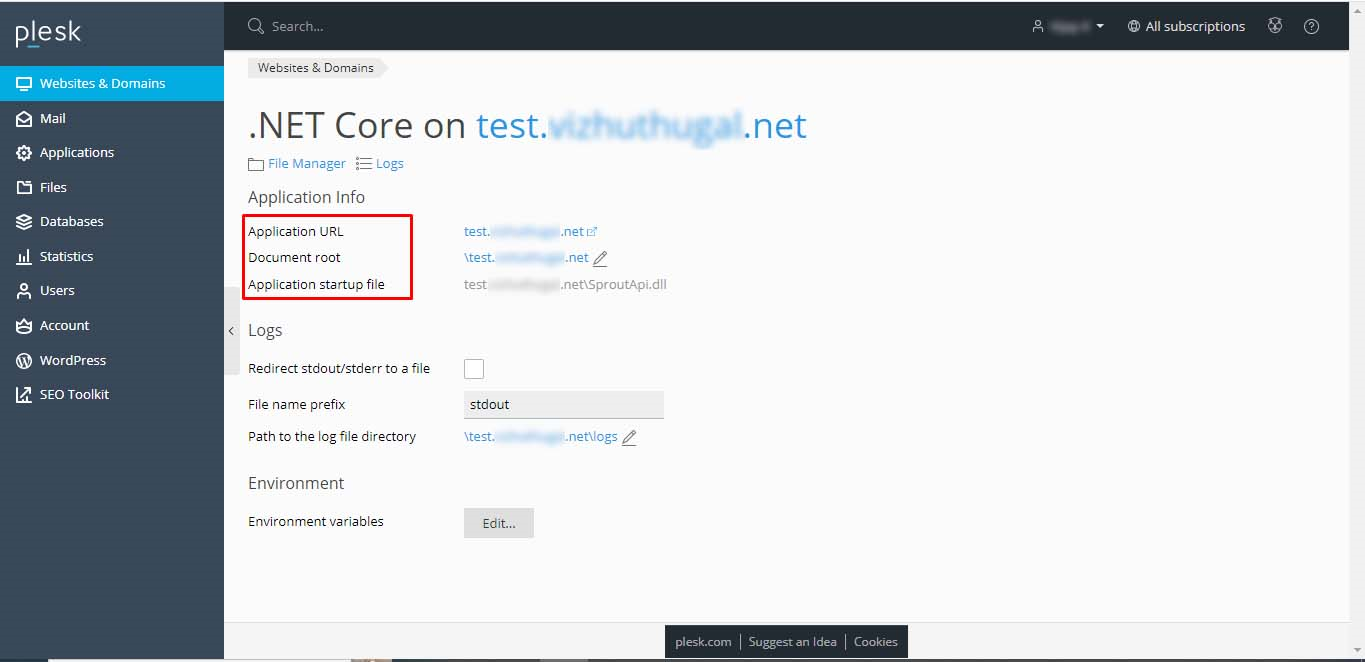
- Read the newest lines at the end. Each line has a date and time.
- Use the search box or the Download button to save the log if it is long.
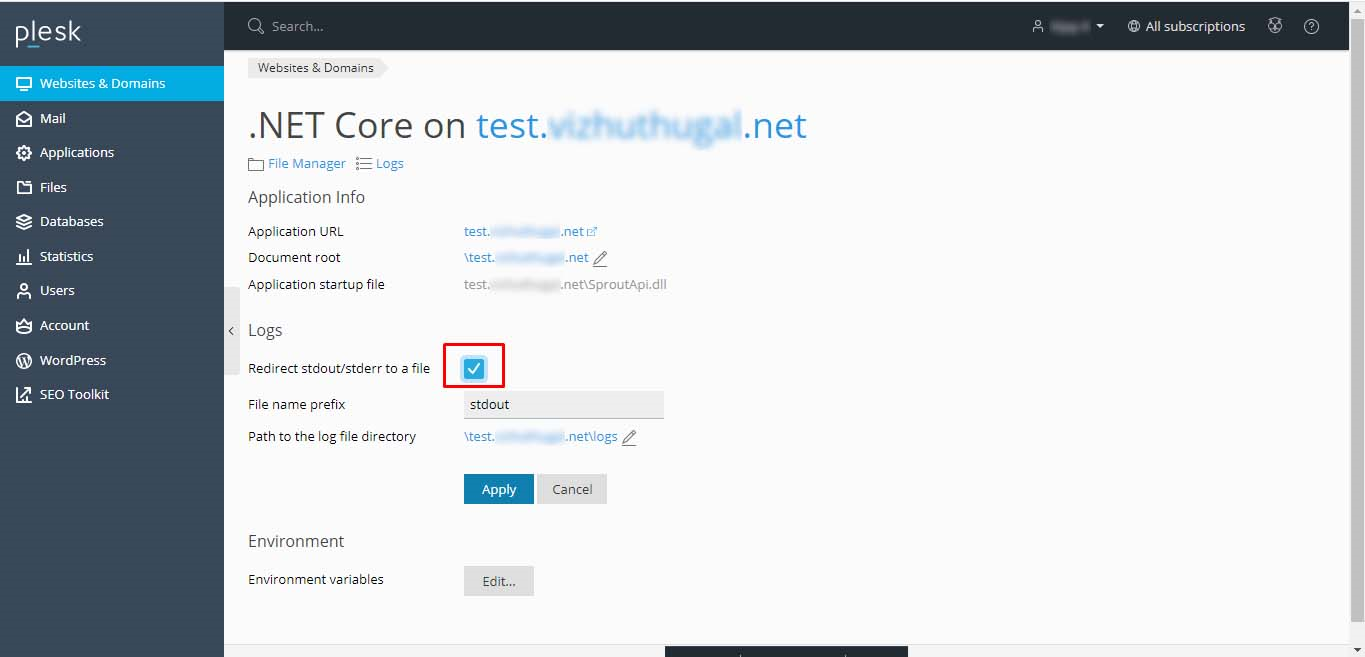
Show the real error on the page
By default, ASP.NET hides detailed errors from visitors. You will only see "Runtime Error". To see more, edit the web.config file. This file holds your site's settings. Take a backup copy of it first.
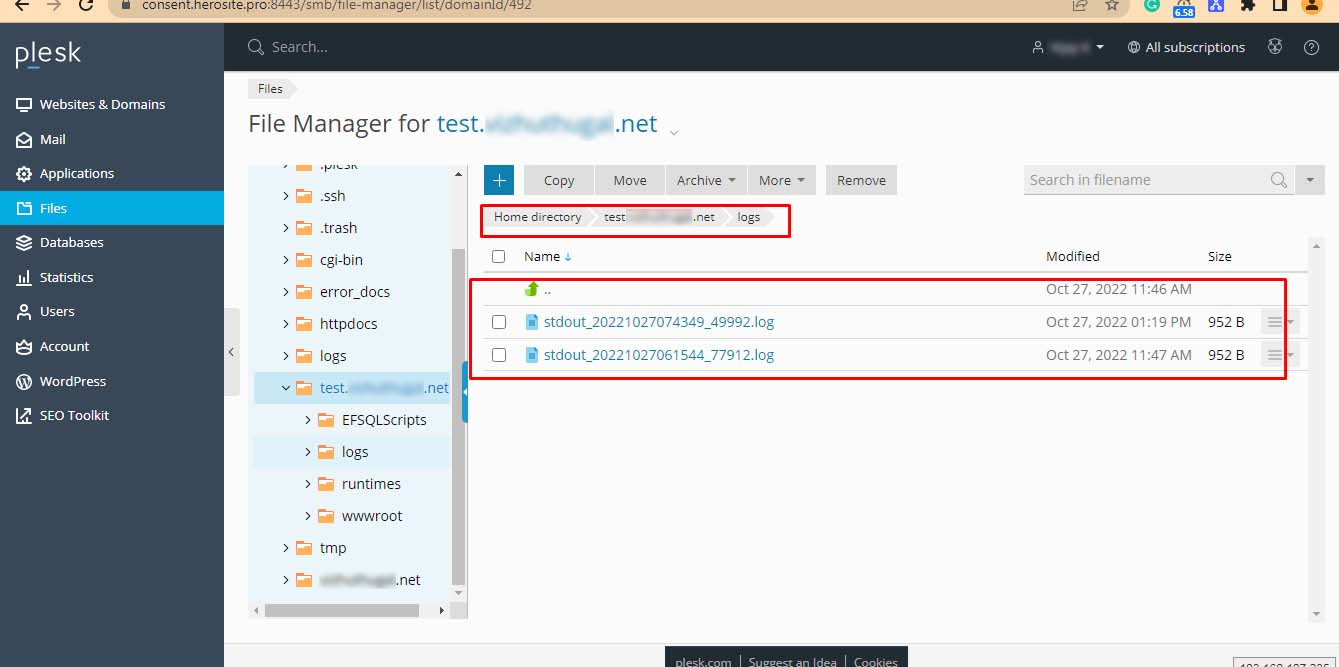
- In Plesk, open Files for your domain.
- Open the
httpdocsfolder.
- Click
web.configand choose to edit it. - Inside the
<system.web>section, add or change this line:
This line makes the site show the full error text.<customErrors mode="Off" /> - Save the file and reload the page.
Warning: Turn
customErrors back to RemoteOnly or On when you are done. Detailed errors can show private information to visitors.Other places to look
- The Windows Event Viewer on a server where you have admin rights, under Windows Logs, then Application.
- Failed request or IIS logs in the Plesk Logs section.
If you cannot read the error, send the log lines to Hostvento support in a ticket at https://secure.hostvento.com/submitticket.php.
Quick recap
- The error log is the server's diary of problems.
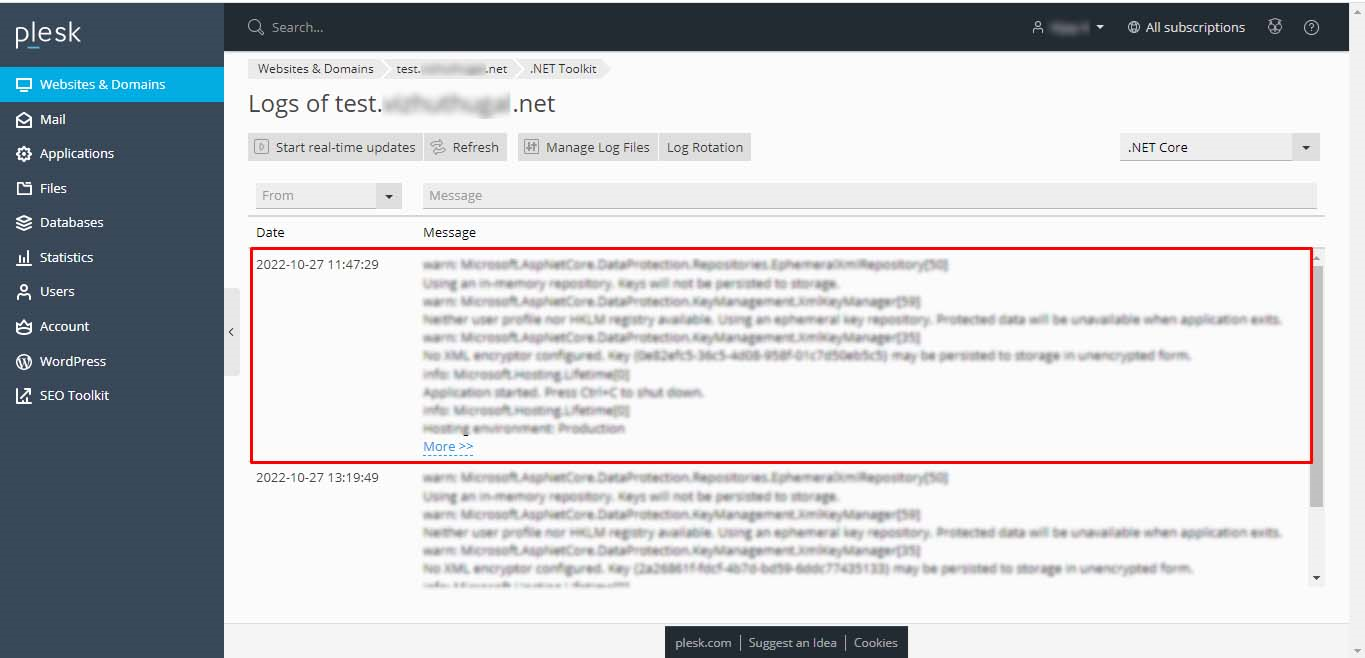
- In Plesk, go to Websites & Domains, then Logs.
- Turn off
customErrorsin web.config to see full errors, then turn it back on. - Send the lines to support if you need help.