

Two ways to change it
- On the remote machine. The resolution changes for every RDP connection.
- On your own computer. Only your session changes. Other users are not affected.
A high resolution gives a sharper picture and more room, but needs more bandwidth on a slow link.
On a Windows remote machine
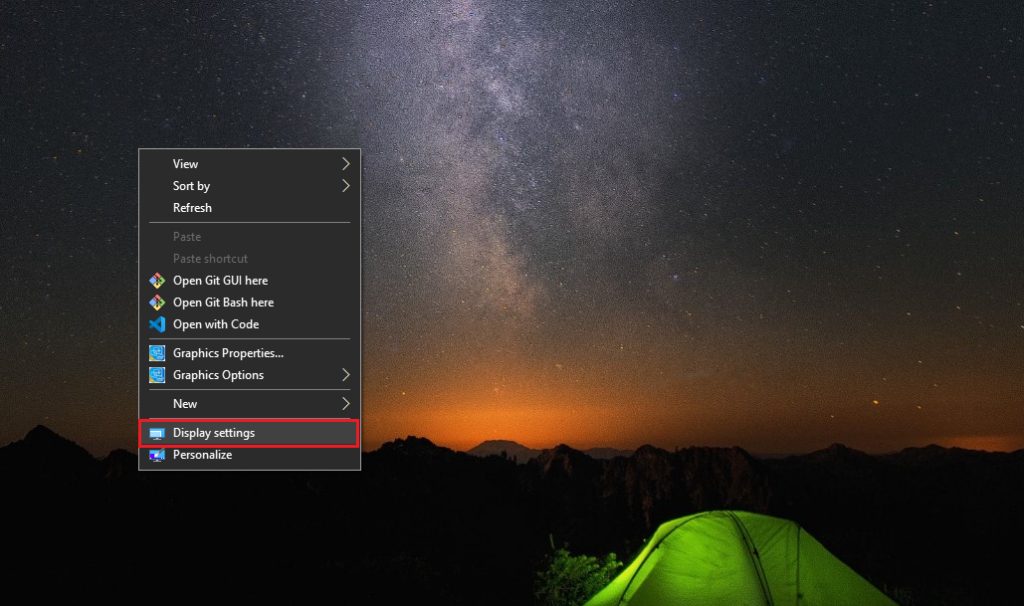
- Right-click an empty spot on the remote desktop and choose Display settings. You can also search for it in the Start menu.
- In the Resolution list, pick the size you want.
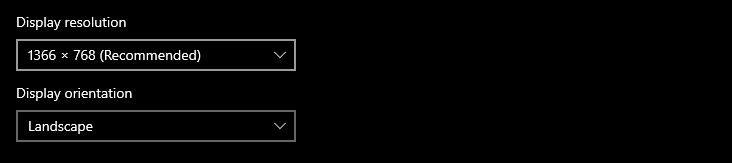
- Click Apply and confirm. The screen may flicker for a moment.
From your own Windows computer
- Open Remote Desktop Connection (search for
mstsc.exe). - Click Show Options, then the Display tab.
- Move the Display configuration slider to the size you want. For a custom size, use
.rdpfile settingsdesktopwidthanddesktopheight.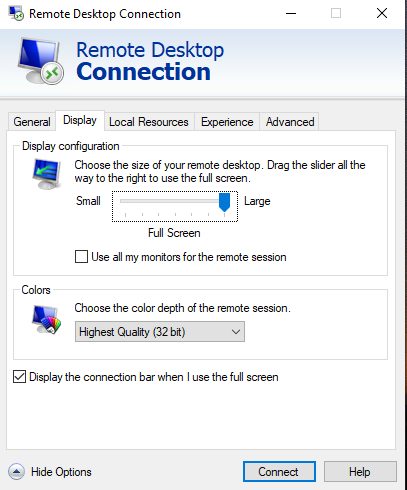
- Click Connect.
On a Linux remote machine (GNOME)
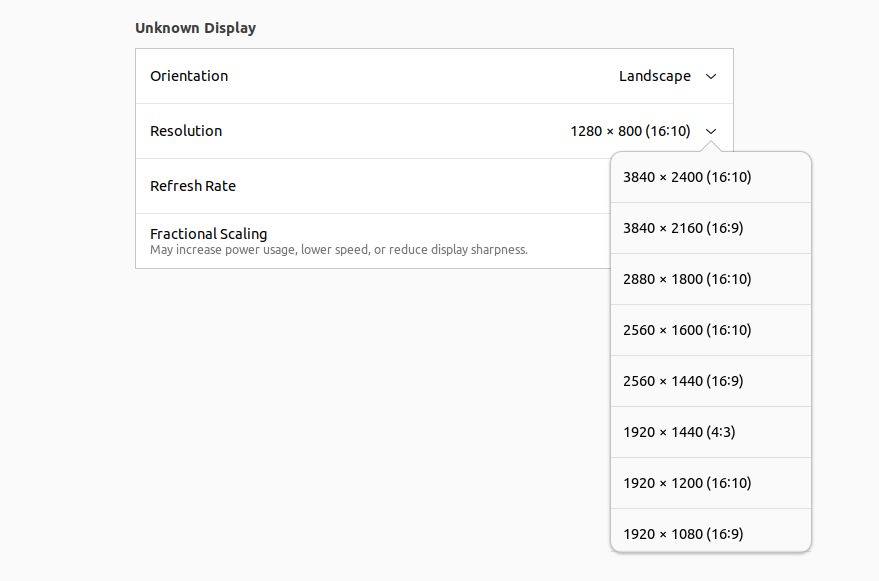
- Open Settings from the application menu.
- Go to Displays.
- Pick a size in Resolution and click Apply.
From a Linux computer with Remmina
- Open Remmina and add a new connection with the host name or IP address.
- In the Resolution section, enter the width and height you want.
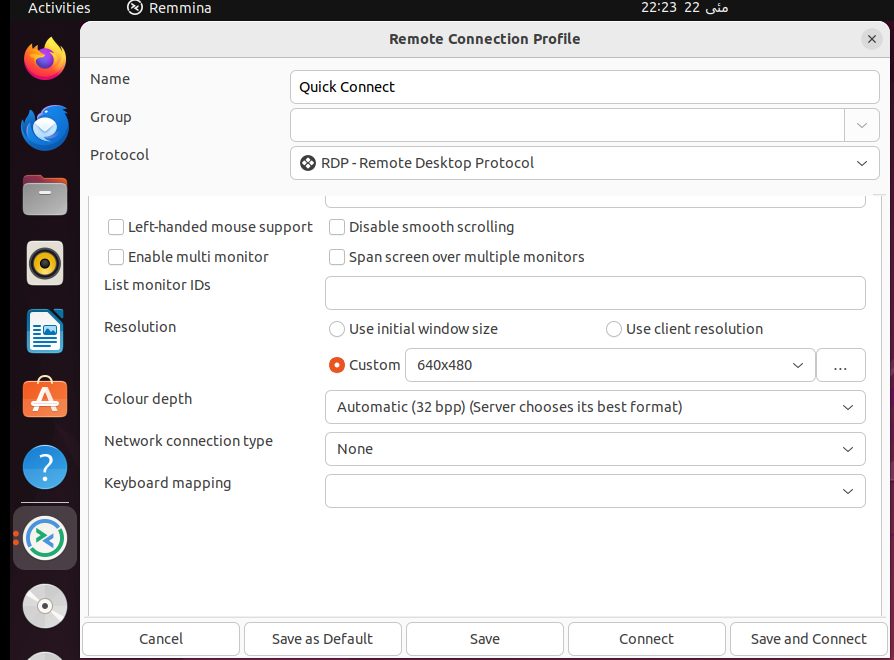
- Click Save, then Connect.
With xfreerdp you can set the size on the command line: xfreerdp /v:SERVER_IP /size:1920x1080.
Windows Group Policy (for admins)
You can set limits for all users from a domain controller:
- Open
gpmc.mscand edit the policy for the right group of computers. - Go to Computer Configuration, Administrative Templates, Windows Components, Remote Desktop Services, Remote Desktop Session Host, Connections.
- Enable Set client area restrictions and set the allowed width and height.
- Link the policy to the Organizational Units with the target machines.
Quick recap
- Change it on the server for all sessions, or on the client for your session.
- Windows:
mstsc.exe, Display tab. Linux: Remmina orxfreerdp /size:. - Lower the resolution if the connection feels slow.