

Note: Atlassian is moving customers to its cloud products. Check Atlassian's site for the self-hosted options that are available to you.
Step 1: Download the installer
Open the Jira Software download page.
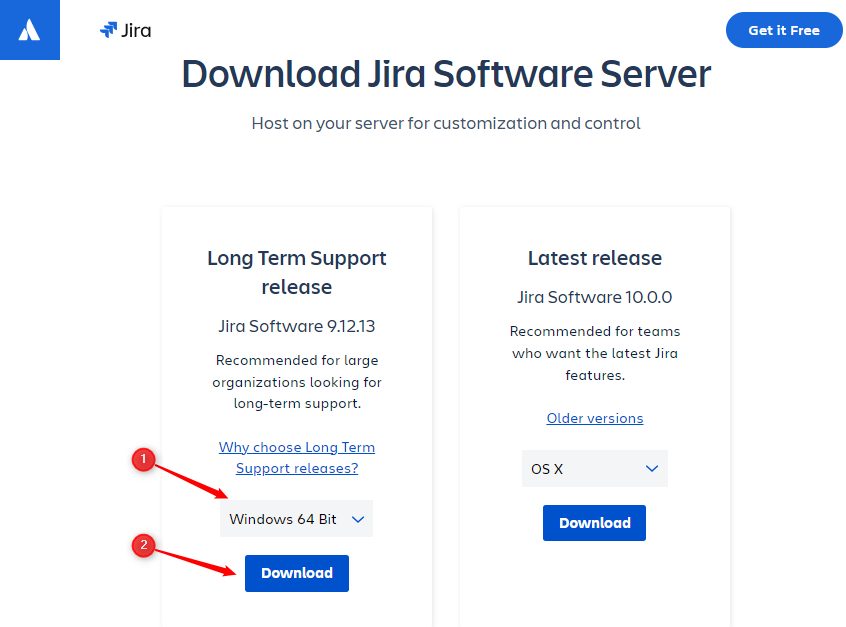
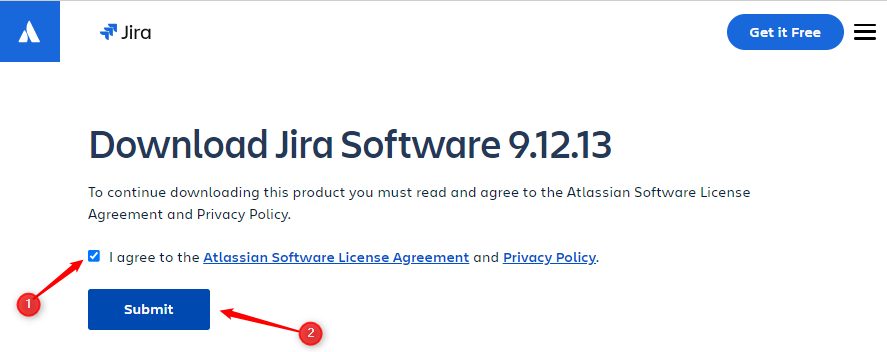
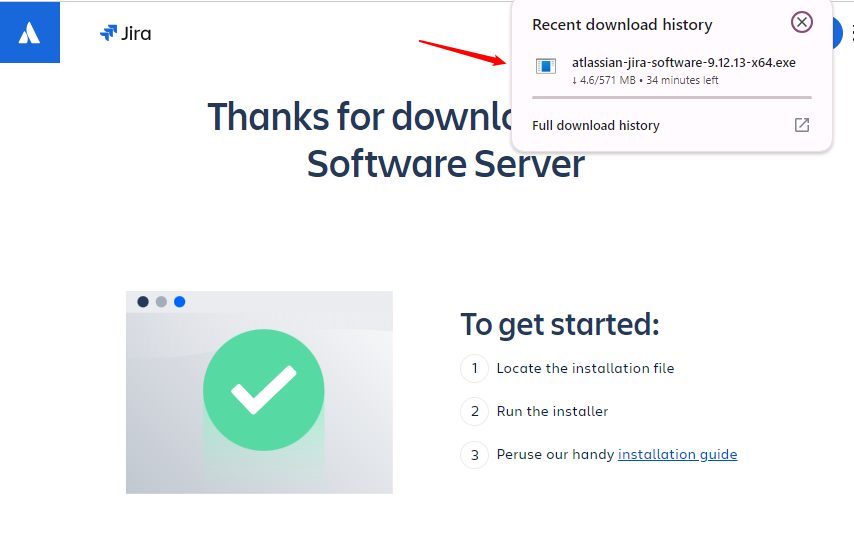
Accept the license agreement and download the Windows 64-bit installer (.exe).
Step 2: Run the installer
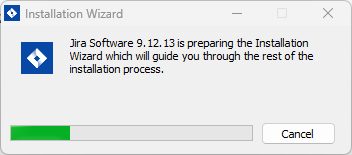
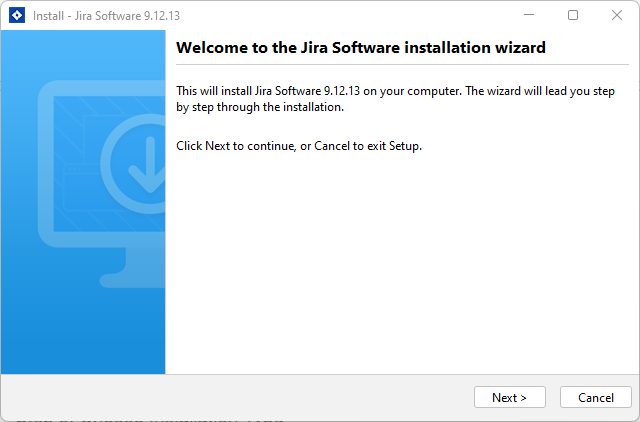
Right-click the file and choose Run as administrator. Click Yes if Windows asks for permission.
Step 3: Choose the installation type
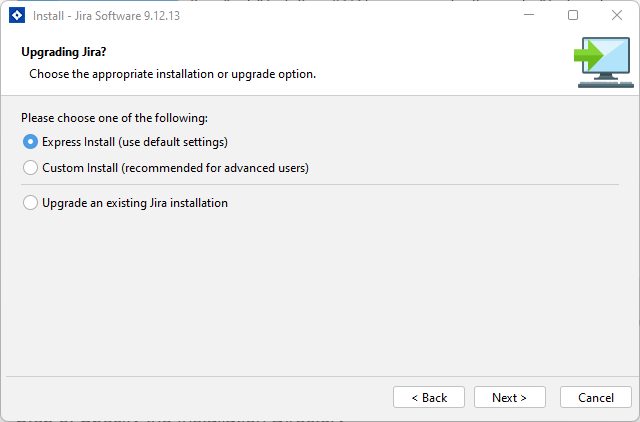
In the wizard, choose:
- Express install. Uses the defaults (recommended for tests).
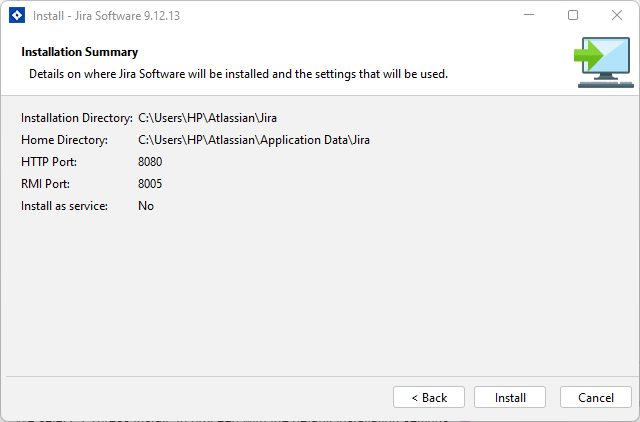
- Custom install. Lets you pick the install folder, the home folder, the ports and whether to install Jira as a Windows service.
Step 4: Install
Review the settings and click Install.
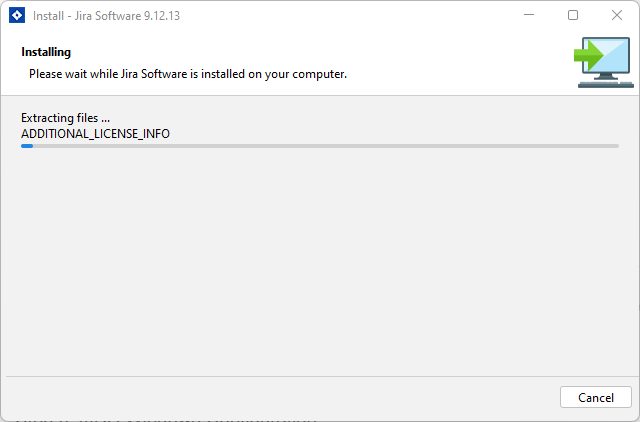
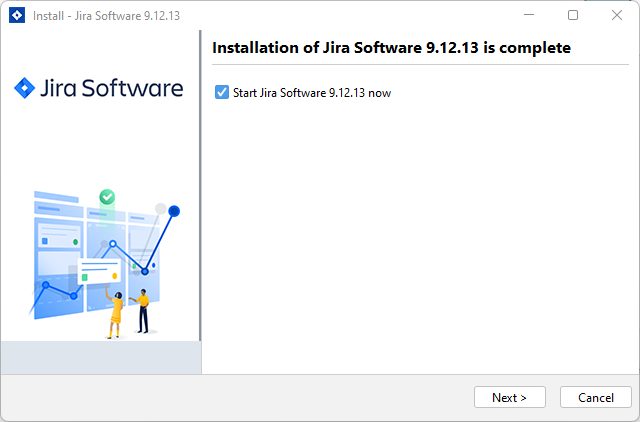
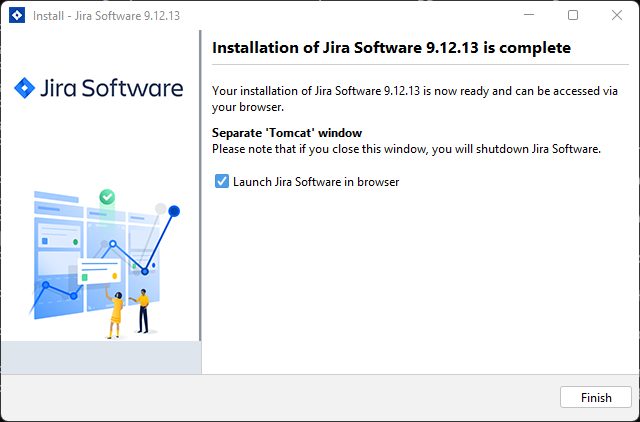
When it ends, keep Launch Jira in browser ticked and click Finish.
Set up Jira
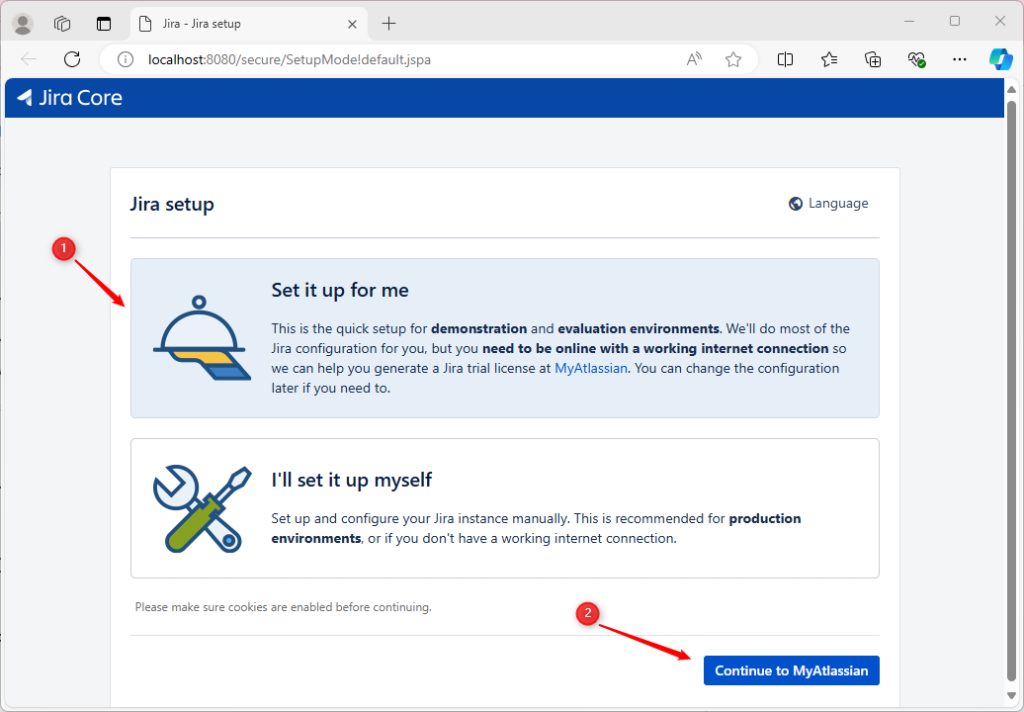
Jira opens in your browser at http://localhost:8080. Follow the setup:
- Choose Set it up for me or I'll set it up myself (to pick your own database).
- Enter your license key (a trial key is available from Atlassian).
- Create the admin account.
Use Jira
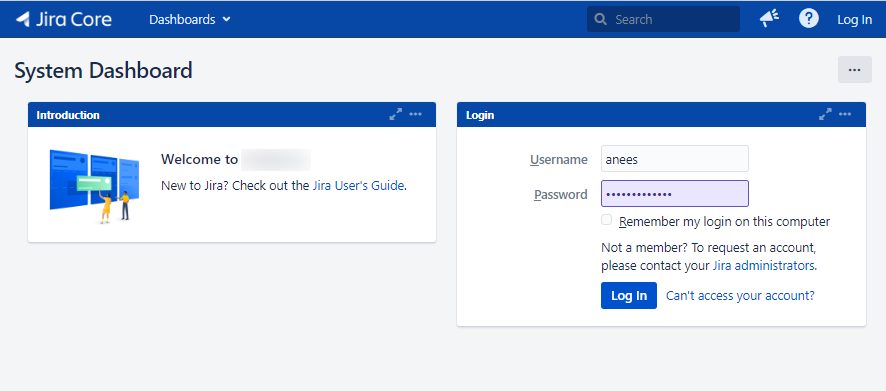
Log in and create your first project. Choose a template such as Scrum or Kanban, then add issues to the backlog or the board.
Tips
- Give Jira at least 4 GB of RAM.
- Use an external database (PostgreSQL or SQL Server) in real use.
- Open port 8080 in Windows Firewall to reach it from other computers.
Quick recap
- Download and run the installer as administrator.
- Choose express or custom install.
- Finish the setup in your browser and create a project.