

Why Java on Windows
Java runs a huge number of programs and servers, such as Tomcat, Jenkins and Minecraft-like tools. To develop in Java, or to run many server apps, you need a JDK (Java Development Kit).
Step 1: Download the JDK
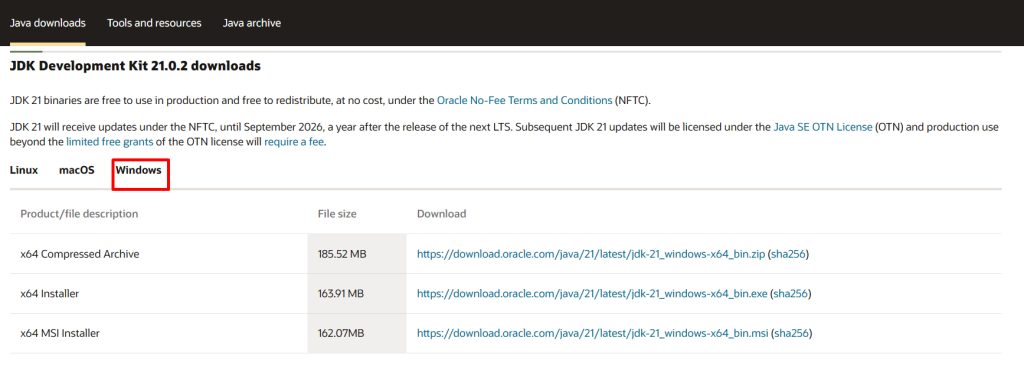
Open the Oracle website (or use a free OpenJDK build such as Eclipse Temurin) and download the Windows x64 Installer of the JDK version you need. Long-term support versions such as 17 and 21 are good choices.
Step 2: Run the installer
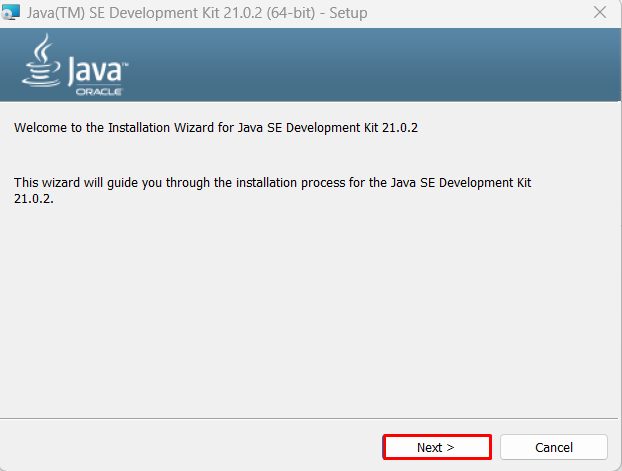
Open the downloaded .exe (or .msi) file.

Click Next.
Step 3: Choose the install location
The default folder is fine, for example C:\Program Files\Java\jdk-21.
Step 4: Install
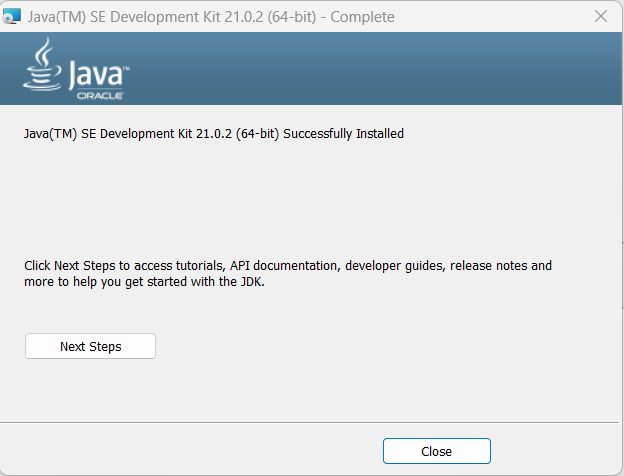
Click Install, wait, and click Close.

Step 5: Check Java
Open a new Command Prompt:
java -version
javac -version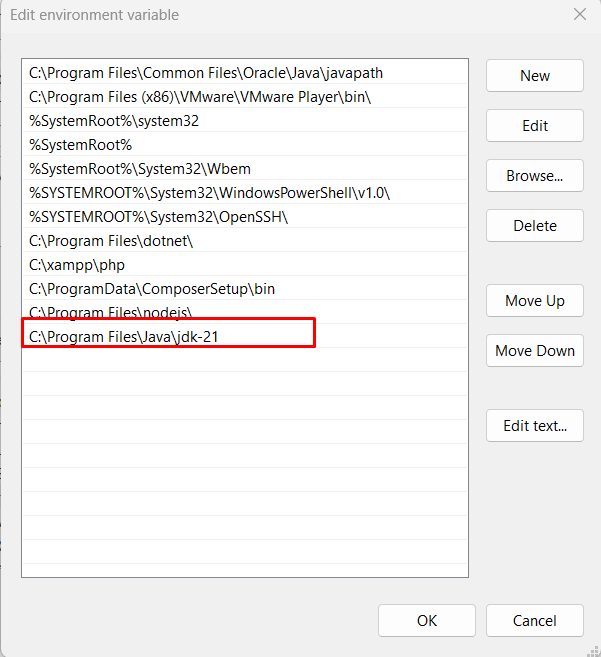
If you see the version, Java works.
Set JAVA_HOME and the PATH (if needed)
Some installers set the PATH by themselves. If java is not found:
- Search for environment variables and open Edit the system environment variables. Click Environment Variables.
- Click New under System variables. Name it
JAVA_HOMEand give the JDK folder as the value, for exampleC:\Program Files\Java\jdk-21. - Select Path, click Edit, click New and add
%JAVA_HOME%\bin. - Click OK in all windows and open a new Command Prompt.
A first program
Create Hello.java:
public class Hello {
    public static void main(String[] args) {
        System.out.println("Hello, Java!");
    }
}
Compile and run:
javac Hello.java
java Hello
Quick recap
- Download and run the JDK installer.
- Check with
java -version. - Set
JAVA_HOMEand the PATH if the command is not found.