

Choose an edition
- IntelliJ IDEA Community Edition. Free and open source. It is great for Java and Kotlin.
- IntelliJ IDEA Ultimate Edition. A paid edition with advanced features for web and enterprise development, such as Spring and databases.
(JetBrains now ships a unified installer for IntelliJ IDEA. Check the download page for the current edition names.)
System needs: Windows 10 or 11 (64-bit), at least 8 GB of RAM, and 3.5 GB or more of free disk space (an SSD is best).
Install
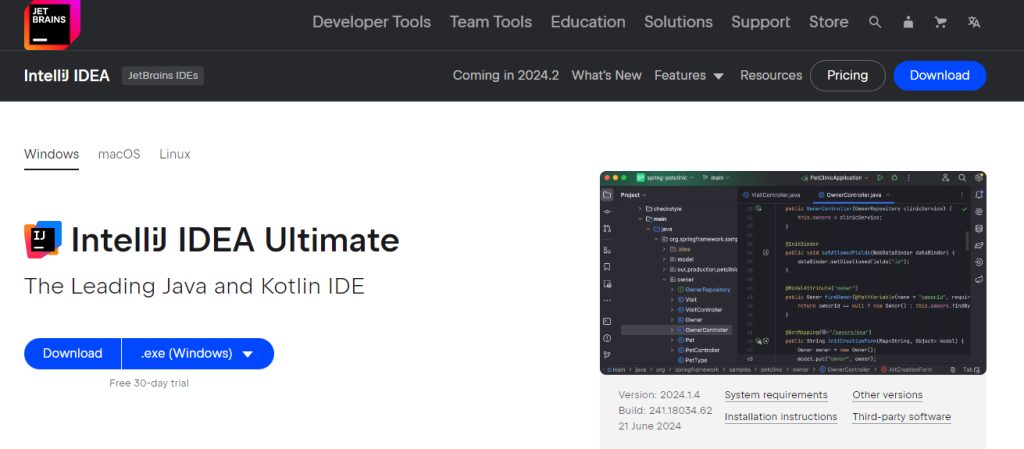
- Open the JetBrains website, go to IntelliJ IDEA and download the Windows installer.
- Right-click the downloaded
.exefile and choose Run as administrator.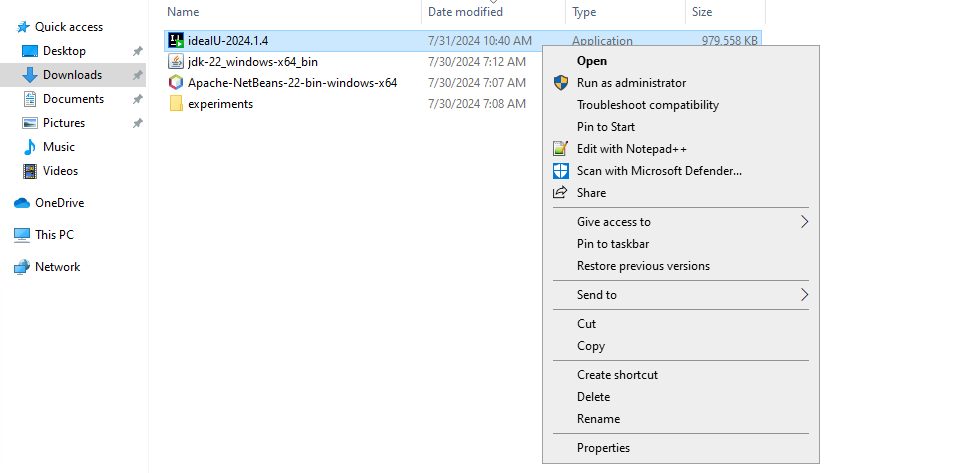
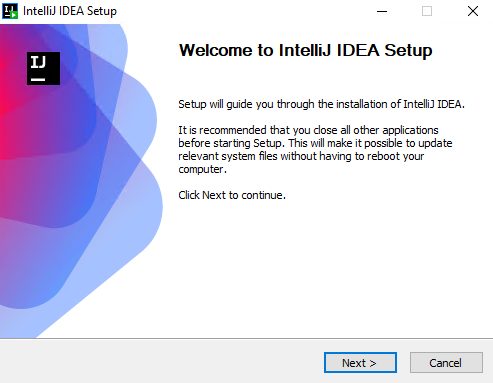
- In the welcome wizard, click Next.
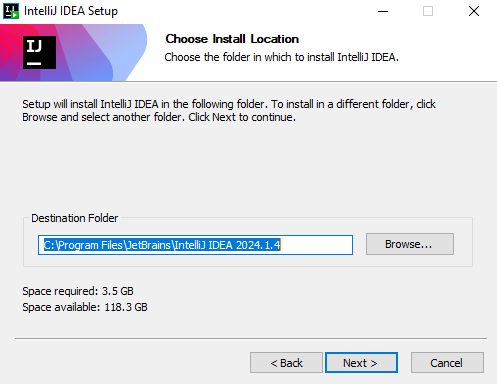
- Choose the install folder.
- Choose the installation options:
- Create Desktop Shortcut for the 64-bit launcher.
- Update PATH variable to start the IDE from the command line.
- Update context menu ("Open Folder as Project").
- Create associations for file types such as.java.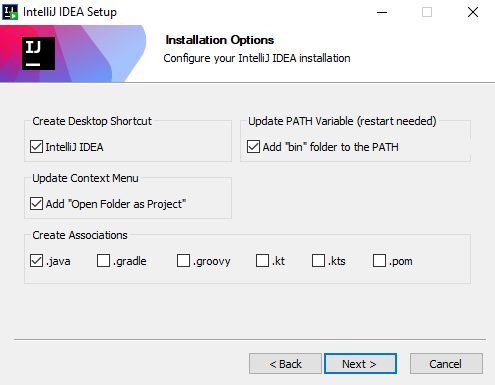
- Choose the Start Menu folder and click Install.
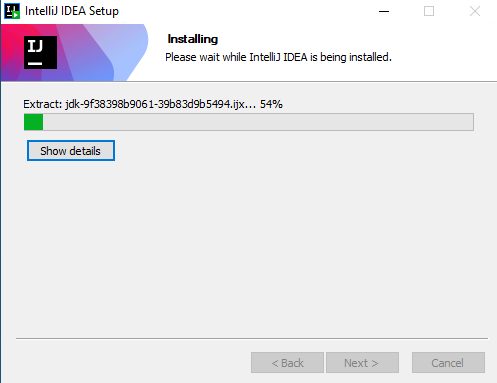
- Click Finish (tick Run IntelliJ IDEA).
Run IntelliJ IDEA
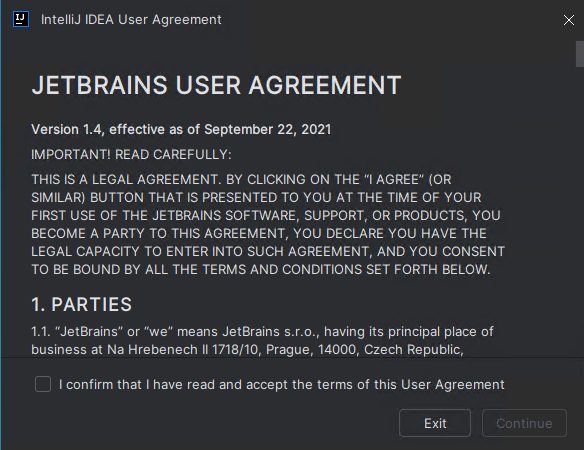
On the first start, accept the user agreement and decide if you want to share usage data.
The welcome screen opens. You can create a New Project, open one or get one from version control.
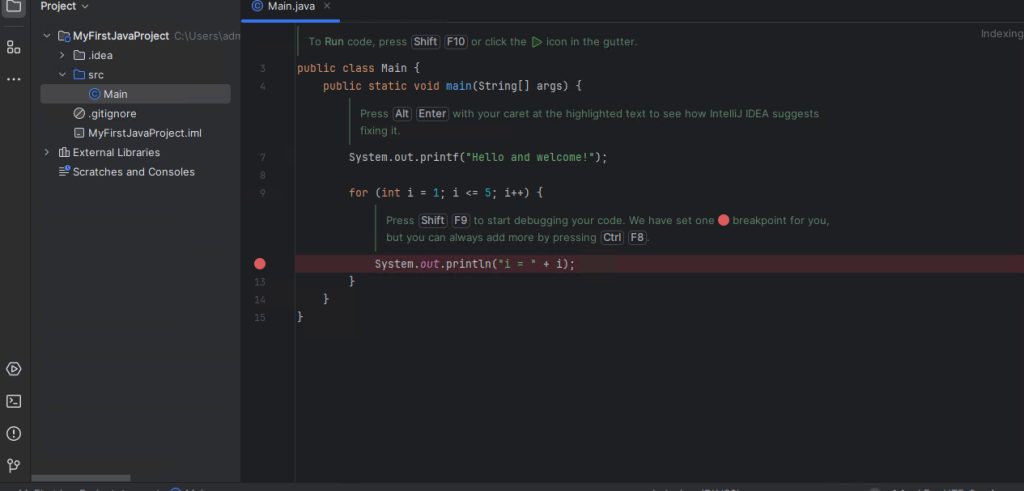
To create a Java project you need a JDK. IntelliJ can download one for you in the New Project dialog.
Troubleshooting
- Check that your system meets the minimum requirements.
- Run the installer again if the files seem damaged.
- Turn off antivirus software for a moment if it blocks the install.
Tips
- Check for updates from time to time.
- Customize the IDE (theme, fonts, keymap) under File, Settings.
- Add plugins from the JetBrains Marketplace.
- Learn keyboard shortcuts. They save a lot of time.
Quick recap
- Download the installer and run it as administrator.
- Choose the options (shortcut, PATH, associations).
- Create a project and select a JDK.