

System requirements
- OS: Windows 10, or Windows Server 2016/2019/2022.
- RAM: 1 GB minimum, 4 GB or more is better.
- Disk: 1 GB minimum, 10 GB or more is better.
- Java: Jenkins needs a supported Java (17 or 21 for current versions; older versions ran on Java 8 and 11). Install a matching JDK first.
Download
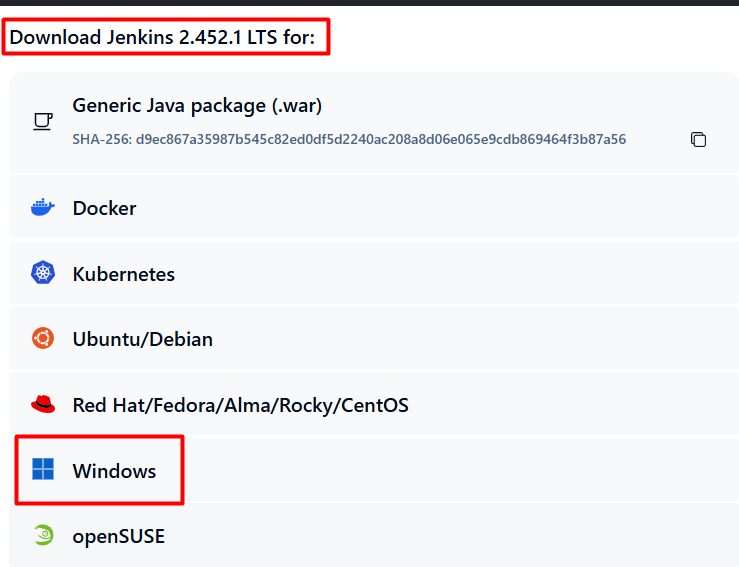
Open the Jenkins download page and choose a release line for Windows:
- LTS (Long-Term Support). Stable, updated less often. Best for most users.
- Weekly. New features each week, less stable.
Install
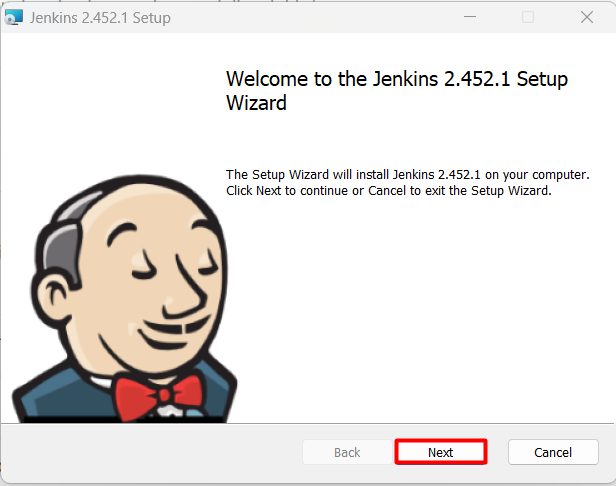
Step 1: Run the installer (the .msi file).
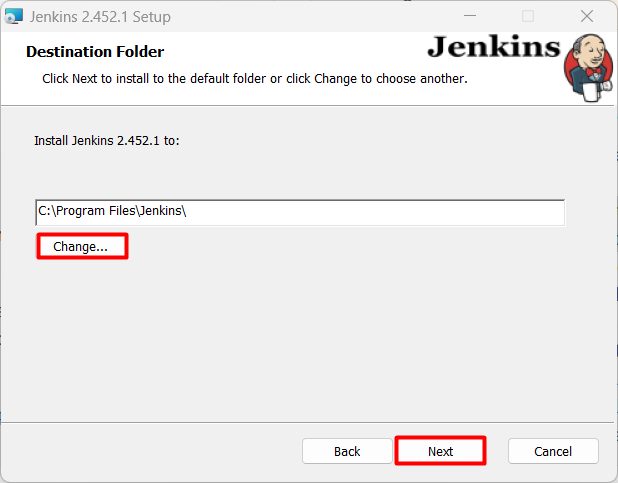
Step 2: Choose the install folder.
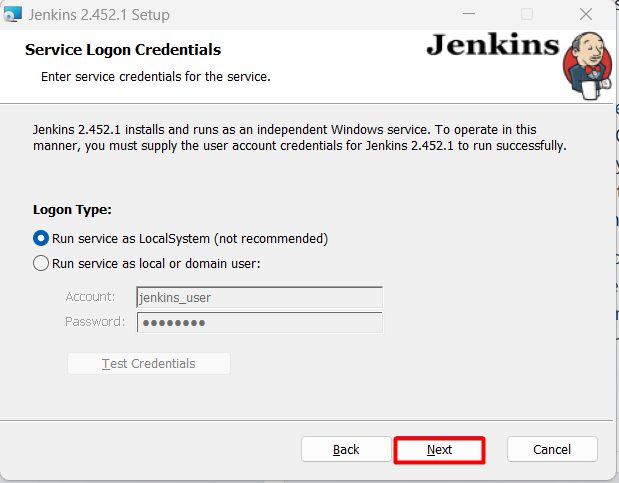
Step 3: Choose the service log-on.
- Run service as LocalSystem. Easy but not recommended, because Jenkins gets wide rights.
- Run service as a local or domain user. Gives you more control. Use a special account with the rights Jenkins needs.
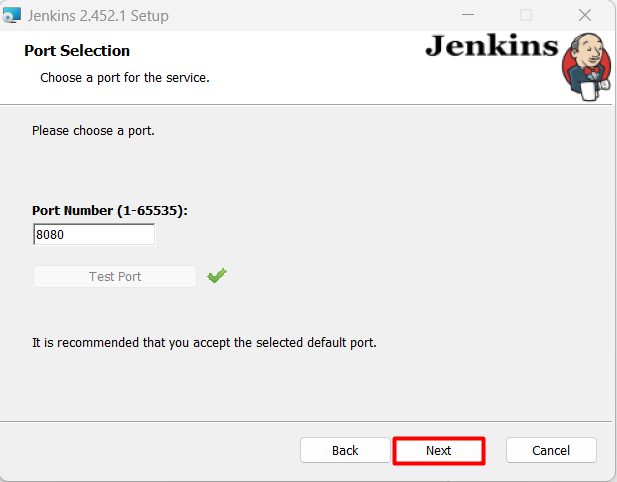
Step 4: Enter the port. The default is 8080. Use Test Port to make sure it is free.
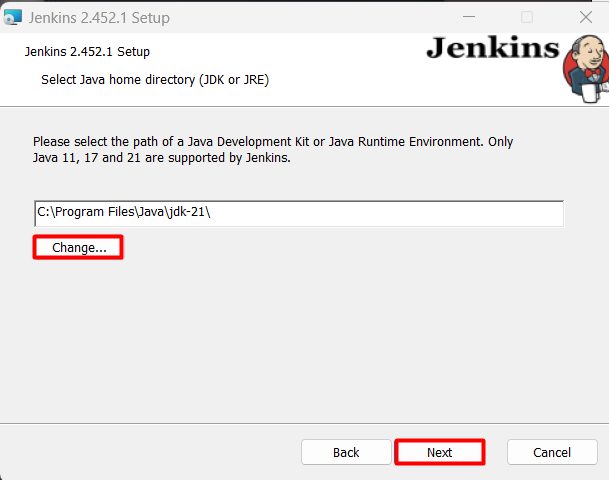
Step 5: Choose the Java path. Point the installer to your JDK folder.
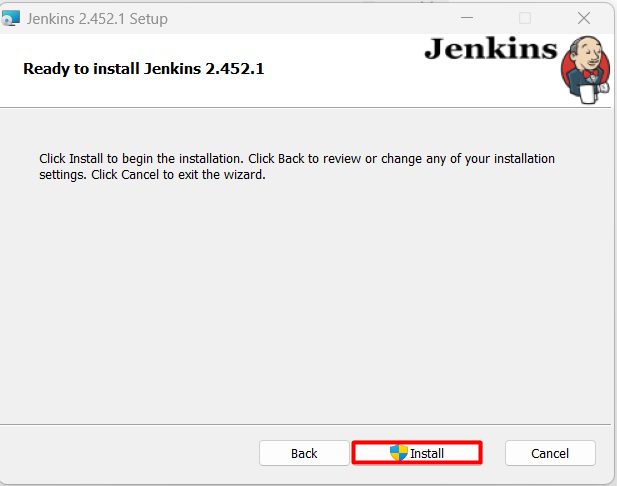
Step 6: Choose the firewall rule and click Install. Tick the option to add a Windows Firewall rule for the port, if you want to reach Jenkins from other computers.
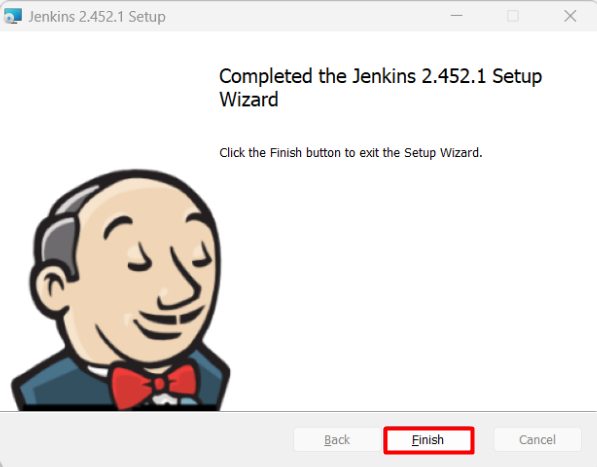
Step 7: Finish.
Unlock Jenkins
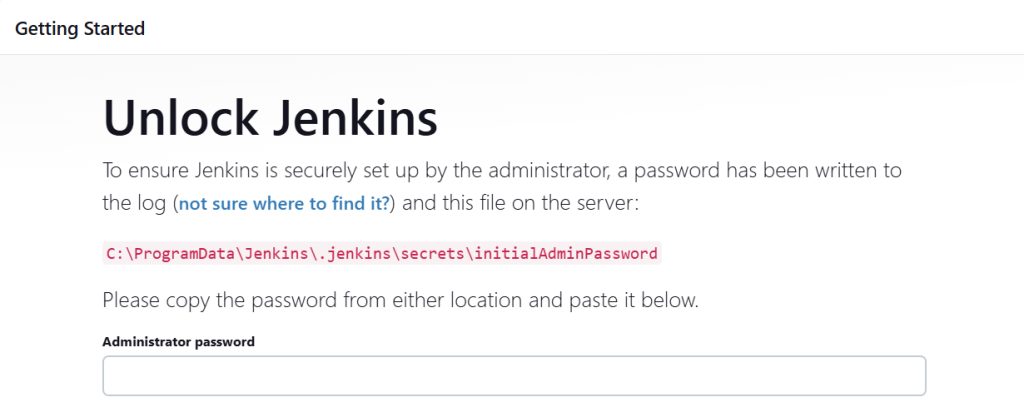
Open http://localhost:8080 in your browser. Jenkins asks for the first admin password. It is in this file:
C:\ProgramData\Jenkins\.jenkins\secrets\initialAdminPasswordOpen it with Notepad and paste the password into the page.
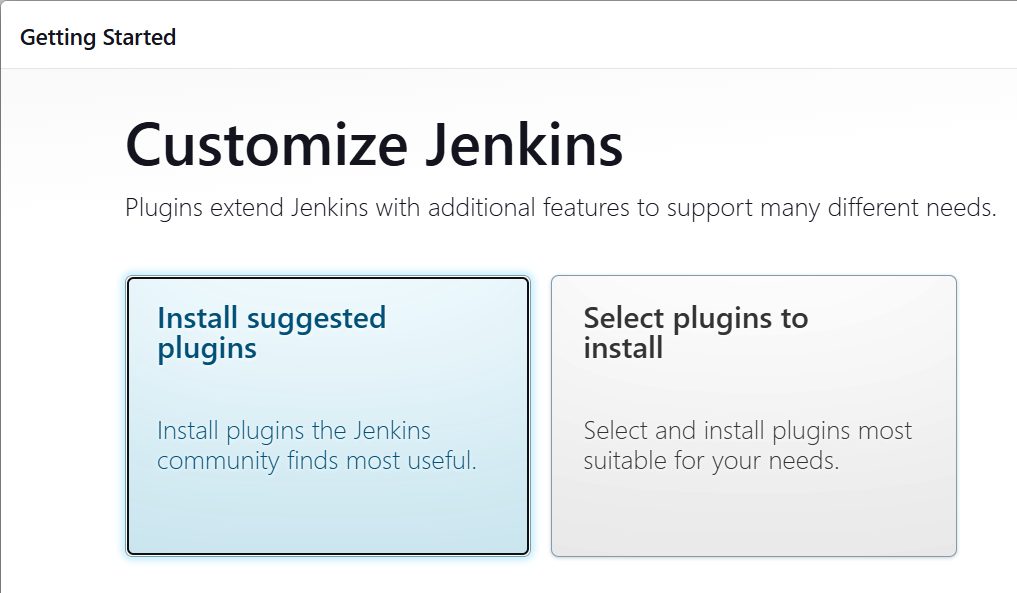
Choose Install suggested plugins.
Create your admin user and confirm the Jenkins URL. Jenkins is ready to use.
Quick recap
- Install a JDK first, then run the Jenkins MSI.
- Use a normal user account for the service if you can.
- Unlock Jenkins with the password from
initialAdminPassword.