

System requirements
- OS: Windows 10 or later.
- CPU: an Intel Core i5-4460 or AMD Ryzen 3 1200 or better.
- Memory: 8 GB of RAM.
- Graphics: integrated graphics or a GPU that supports OpenGL 3.3 or better.
Download OBS
Go to the official OBS Project website (obsproject.com) and choose Windows.
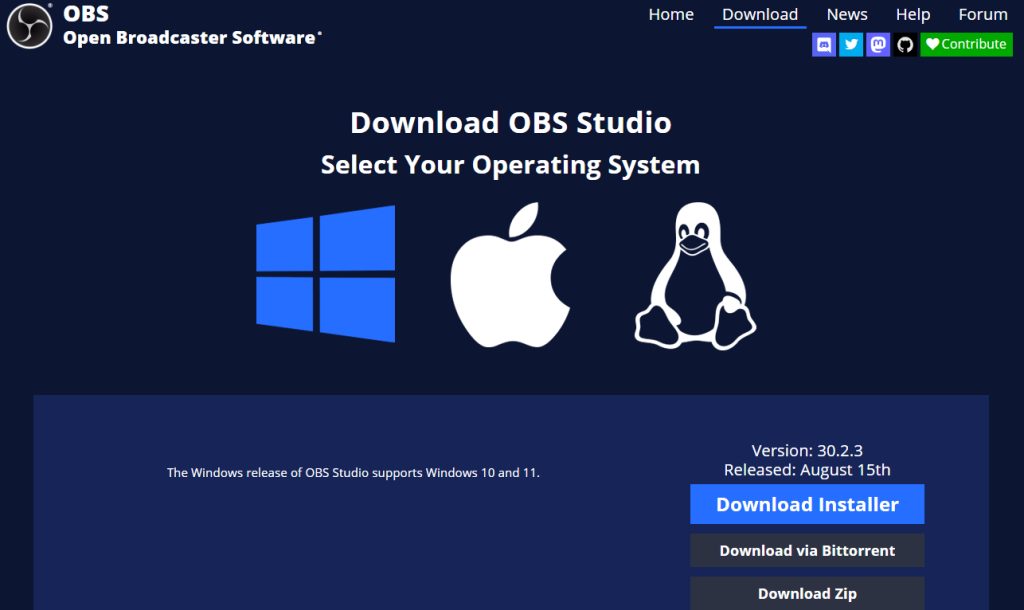
There are different downloads:
- Installer. The best choice for most people.
- Zip file. Gives you more control (a portable install).
- BitTorrent file. Downloads the installer through torrent.
Install OBS
With the installer
- Double-click the downloaded
.exefile.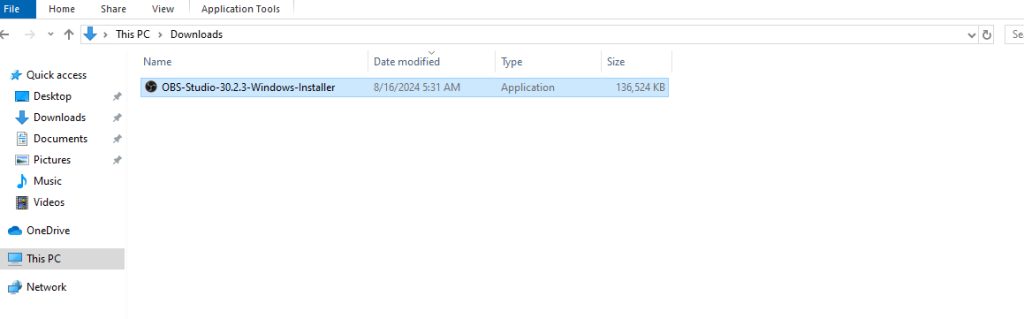
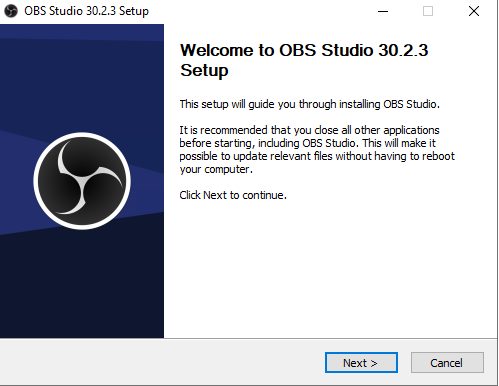
- Click Next in the wizard.
- Keep the default install folder, or choose another one.
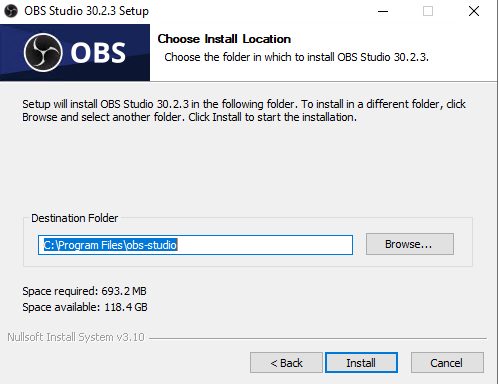
- Click Install, then Finish.
With the zip file
- Extract the zip file to a folder of your choice.
- Open the folder and double-click
obs64.exe(inbin\64bit).
First start
OBS starts the Auto-Configuration Wizard. Choose what you mostly do: Optimize for streaming or Optimize only for recording. The wizard tests your system and sets the base values.
Check or change the settings under Settings:
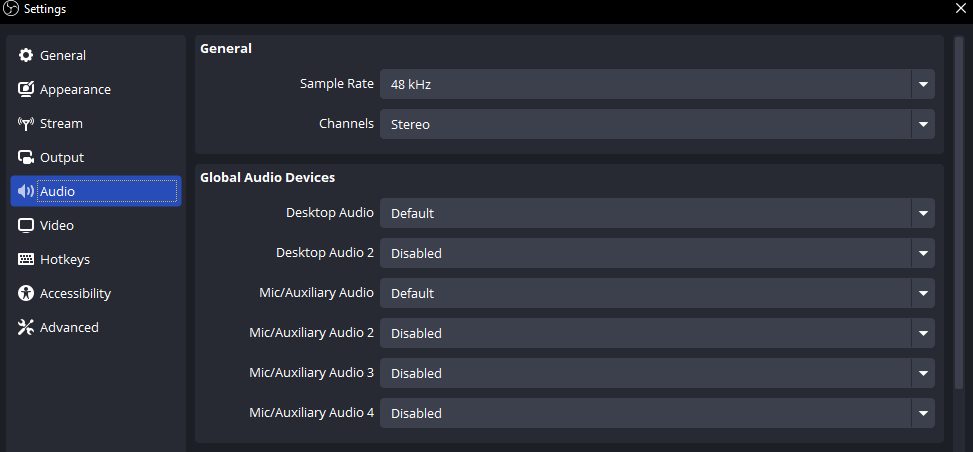
- Audio. Choose your microphone and the desktop sound device.
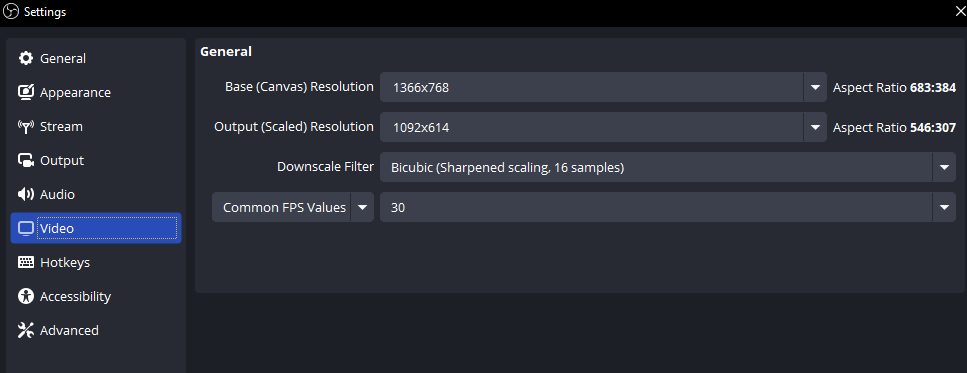
- Video. Set the base (canvas) resolution and the output resolution, and the FPS (frames per second).
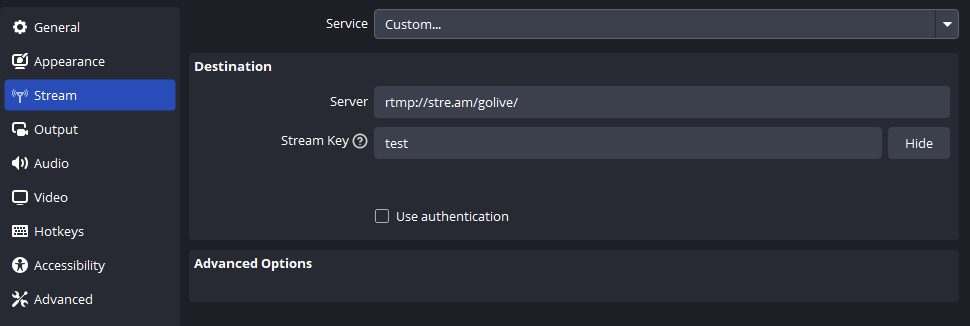
- Stream. Choose a service (YouTube, Twitch or a custom server) and enter the stream key.
Set up a scene
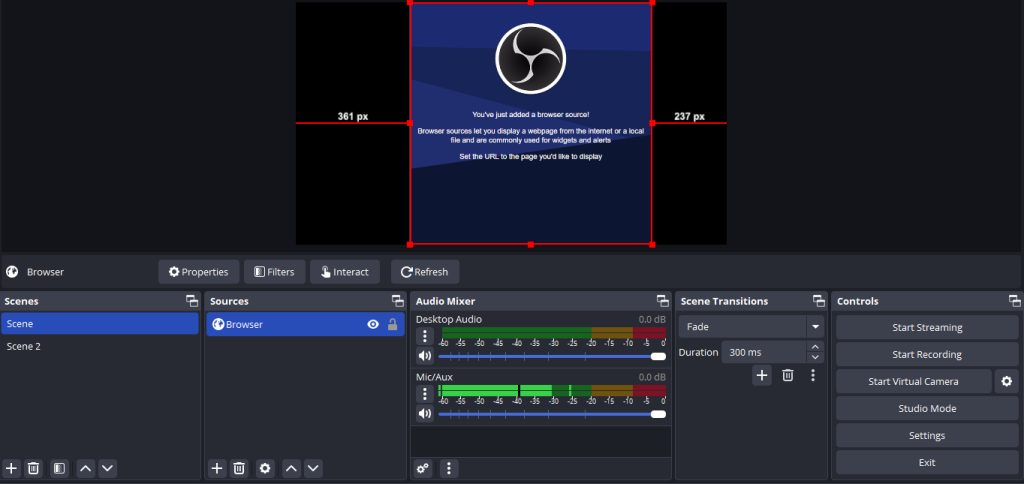
- In the Scenes box, add a scene.
- In Sources, click + and add a Display Capture (your screen), Window Capture or Video Capture Device (webcam).
- Click Start Recording to save a video, or Start Streaming to go live.
Tips
- Use a hardware encoder (NVENC, AMF or QuickSync) if your PC has one, to save CPU.
- Test a short recording before an important stream.
- Keep the stream key private.
Quick recap
- Download the installer from obsproject.com.
- Run the auto-configuration wizard.
- Add sources and click Start Recording or Start Streaming.