

What is Node.js?
JavaScript is a language that makes web pages interactive. Node.js lets you run JavaScript on your own computer or on a server, not only inside a browser. Many modern websites and tools use it. Node.js comes with npm. npm is a helper that downloads ready-made code packages for your projects.
Steps
- Open your web browser and go to the official Node.js website, nodejs.org.
- You will see two download buttons. Choose the one marked LTS. LTS means long-term support. It is the steady version that is best for most people.
- Click the Windows installer button. The file ends in
.msi.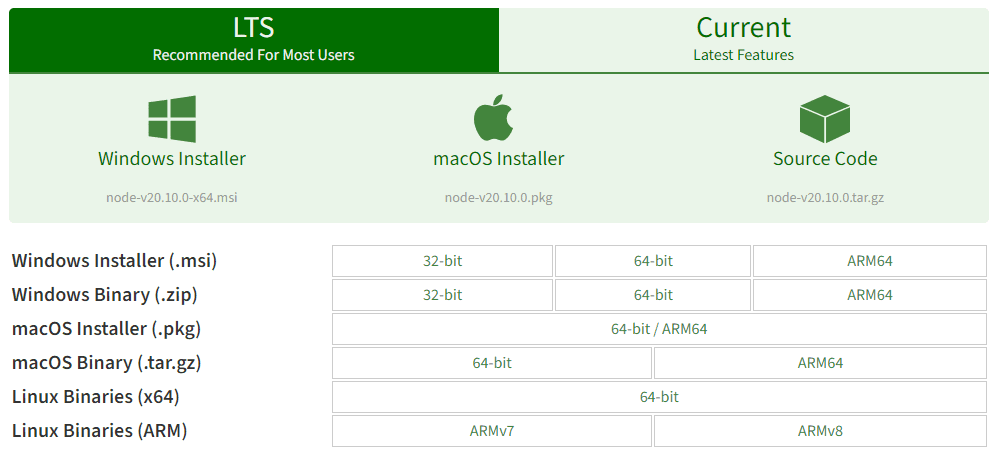
- Open the downloaded file.
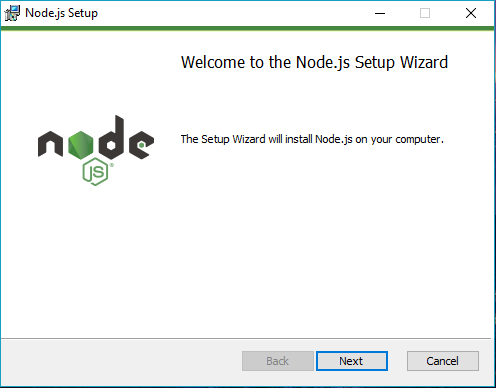
- Click Next on the welcome screen.
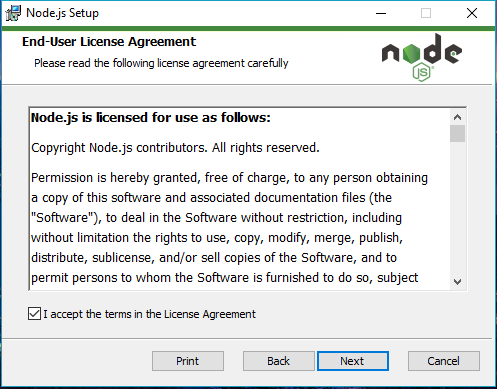
- Read and accept the license, then click Next.
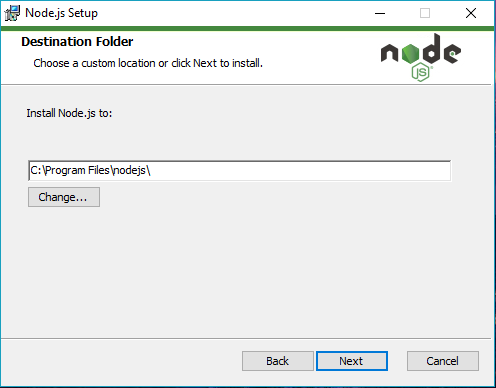
- Keep the default folder and click Next.
- Keep the default features. Make sure Add to PATH is on. PATH is a list of folders where Windows looks for programs. Without it, the commands will not work.
- You may see an option to install tools for native modules. You can leave it unticked for now.
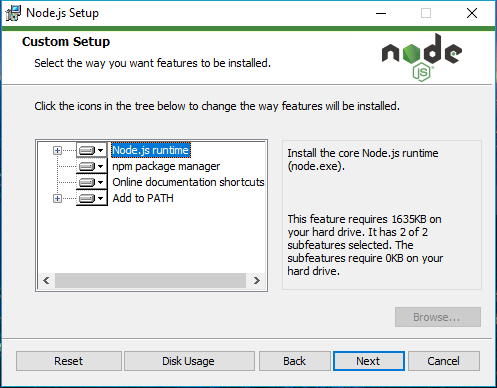
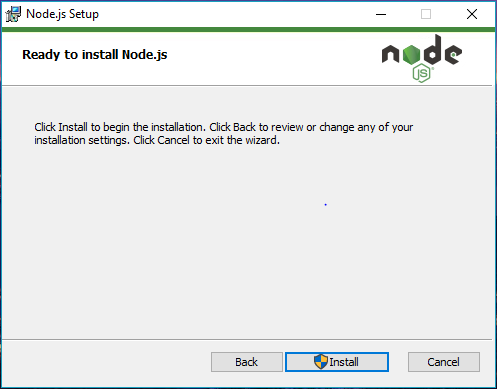
- Click Install. Click Yes if Windows asks for permission.
- Click Finish.
Check that it works
- Close any open Command Prompt windows.
- Click Start, type cmd, and open Command Prompt.
- Type this and press Enter:
This shows the Node.js version.node -v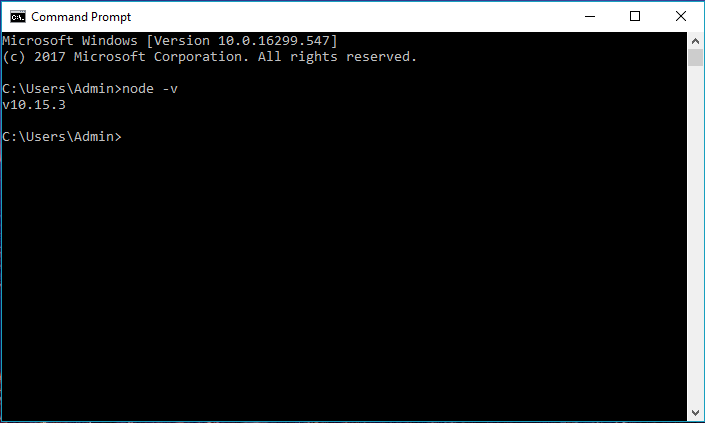
- Type this and press Enter:
This shows the npm version.npm -v
If you see version numbers, it worked.
Run your first program
- Open Notepad and type:
console.log("Hello"); - Save the file as
hello.jsin a folder, such asC:\test. - In Command Prompt, run:
The first line enters the folder. The second runs your program. It prints Hello.cd C:\test node hello.js
Tip: If you see "node is not recognized", restart the computer or open a new Command Prompt. This lets Windows read the new PATH.
Tip: Whether Node.js apps can run on your Hostvento plan depends on the plan. Ask Hostvento support if you want to host one.
Quick recap
- Node.js runs JavaScript outside the browser.
- Download the LTS Windows installer from nodejs.org.
- Run it and keep Add to PATH on.
- Check with
node -vandnpm -v.