

What OpenSSL is
OpenSSL is an open-source toolkit for the SSL and TLS protocols. It gives you tools to create keys and certificates, encrypt data and test secure connections.
Download OpenSSL
The OpenSSL project itself publishes source code. For Windows, use a trusted pre-built installer, such as the one listed on the OpenSSL wiki page "Binaries" (for example the builds from Shining Light Productions). Choose the 64-bit EXE installer (not "Light" if you want to develop).
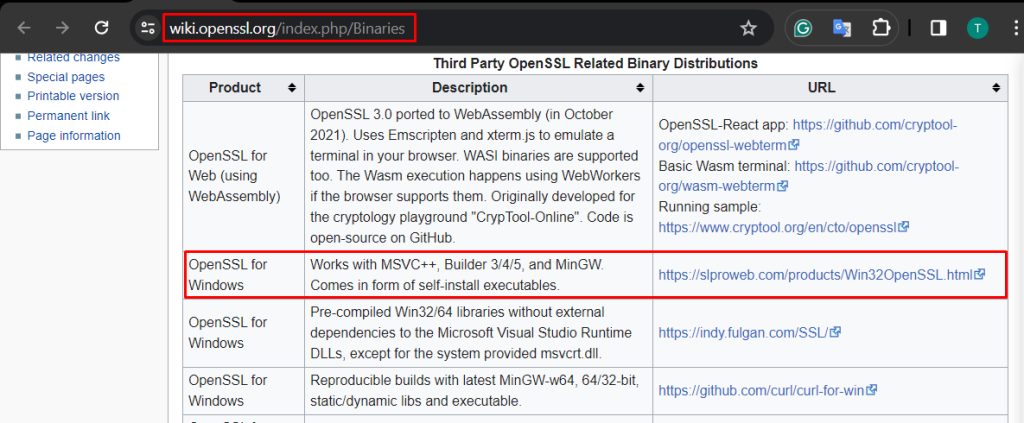
Click the link to the download page, then the EXE file.
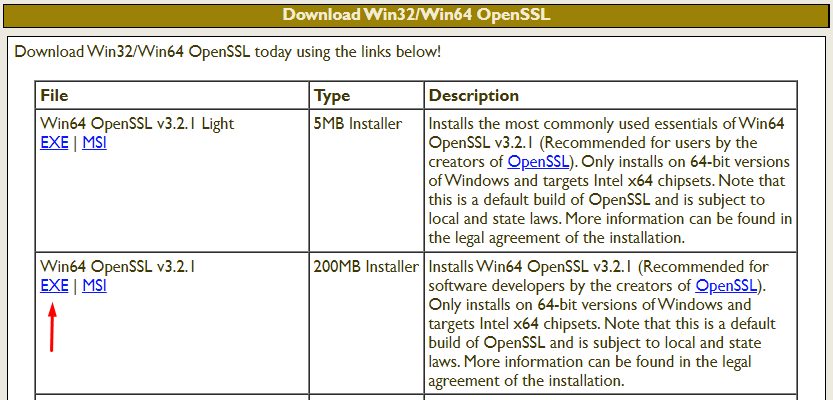
Install
- Run the downloaded file.
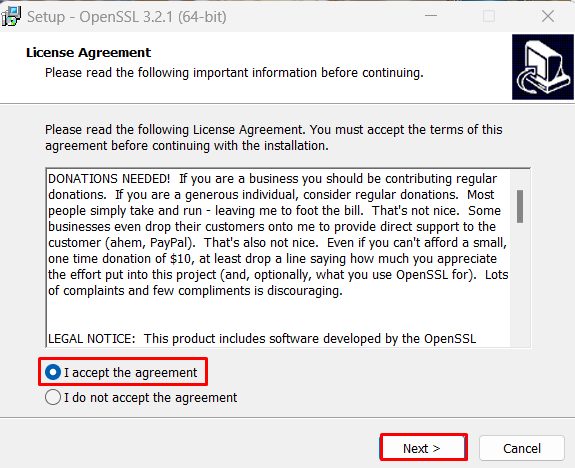
- Accept the license agreement and click Next.
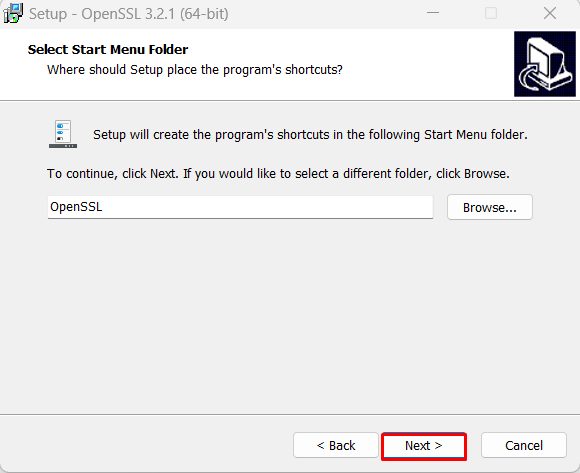
- Choose the install folder and the Start Menu entry.
- Click Install. When the installer asks where to copy the OpenSSL DLLs, keep the default (The OpenSSL binaries (/bin) directory).
- Click Finish.
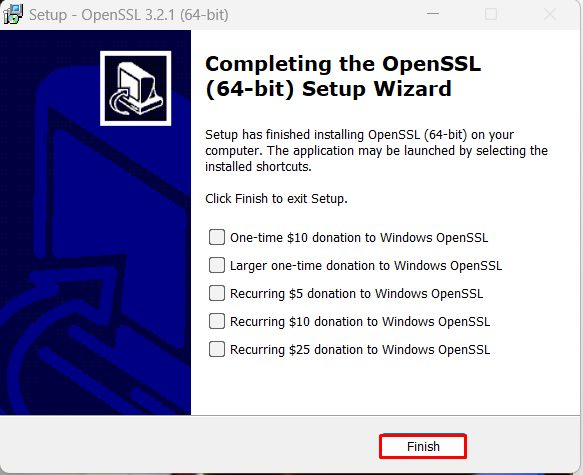
Check OpenSSL
Open Command Prompt and type:
openssl
If Windows says that openssl is not recognized, add the OpenSSL bin folder to the PATH.
Add OpenSSL to the PATH
- Search for environment variables in the Start menu and open it. Scroll to Path under System variables and click Edit.
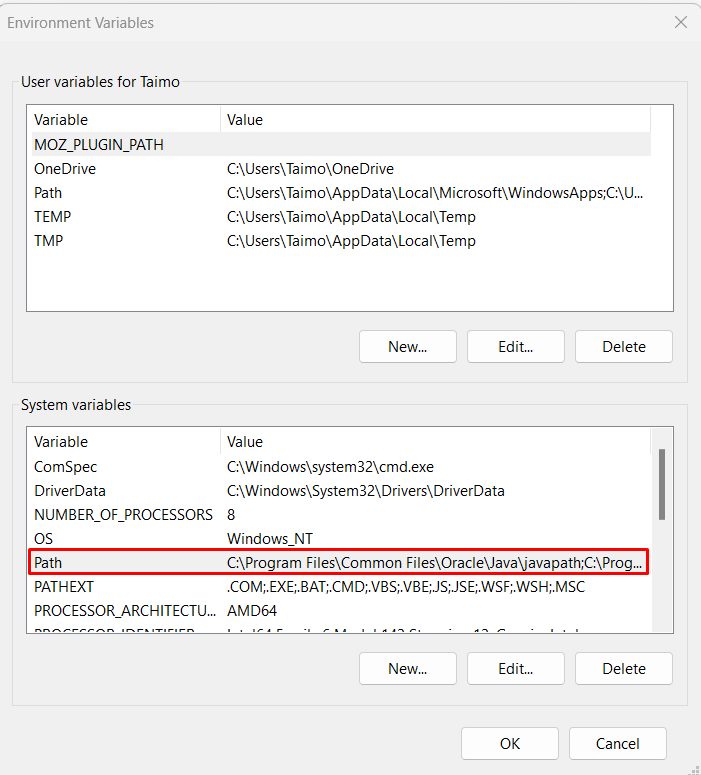
- Go to the folder where you installed OpenSSL (for example
C:\Program Files\OpenSSL-Win64\bin) and copy its full path.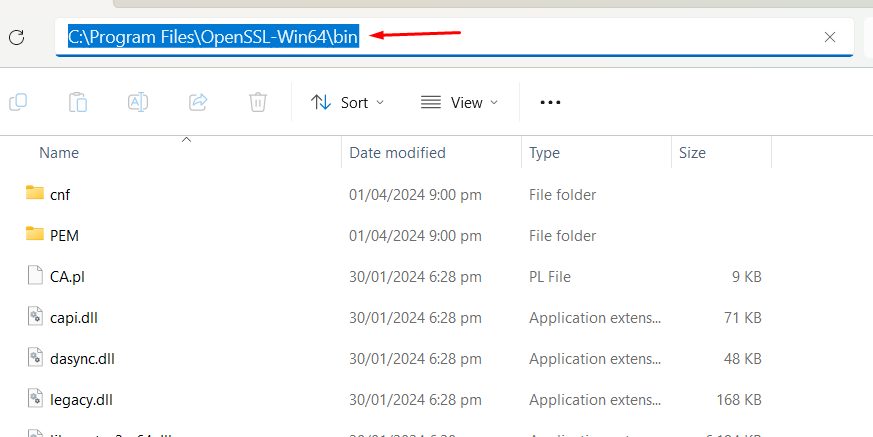
- In the Path window, click New and paste the path.
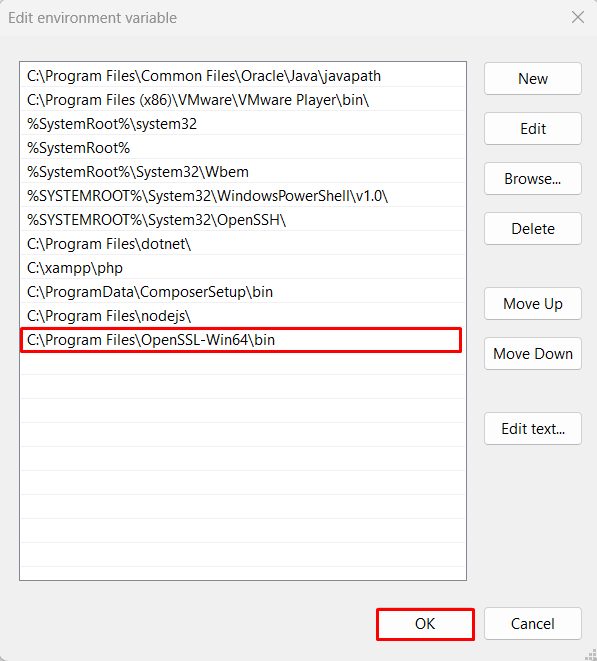
- Click OK in all windows.
Open a new Command Prompt and run:
openssl version
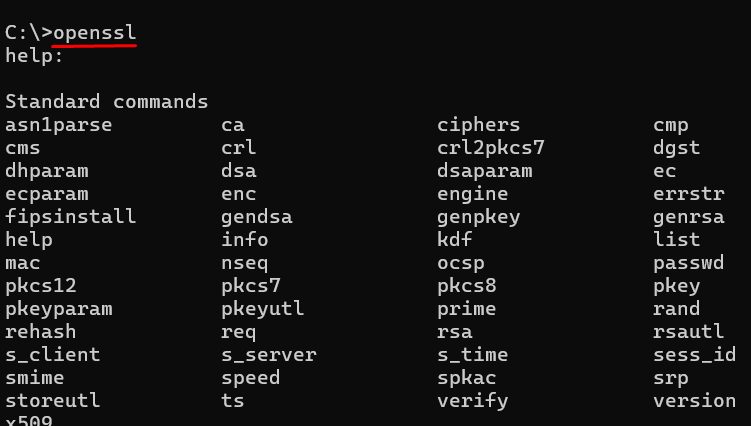
If you see the version, OpenSSL works. Typing openssl alone opens the OpenSSL prompt with the list of commands. Leave it with exit.
Use OpenSSL
Make a private key and a self-signed certificate:
openssl req -x509 -newkey rsa:2048 -nodes -keyout key.pem -out cert.pem -days 365Make a CSR:
openssl req -new -newkey rsa:2048 -nodes -keyout private.key -out request.csrWhy install it
- To create keys, CSRs and certificates for your sites.
- To convert certificate formats (PEM, PFX).
- To test TLS connections with
openssl s_client.
Quick recap
- Install a trusted Windows build.
- Add its
binfolder to the PATH. - Check with
openssl version.