

Step 1: Download the Rust installer
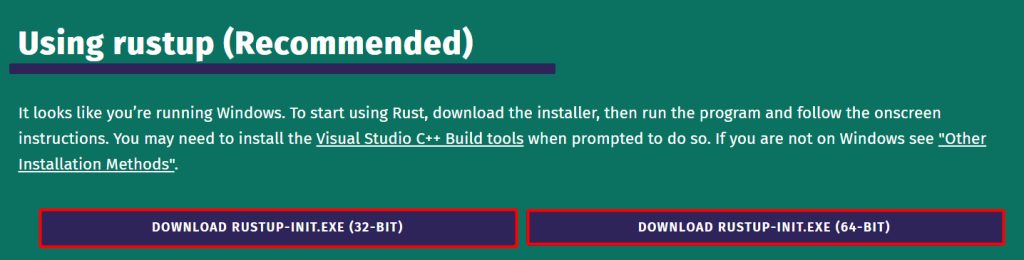
Open rust-lang.org, go to Install and download rustup-init.exe for Windows (64-bit).
Step 2: Run the installer
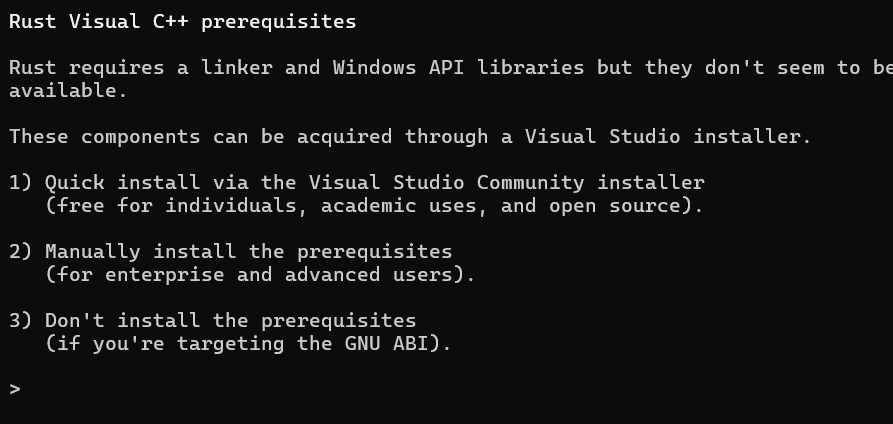
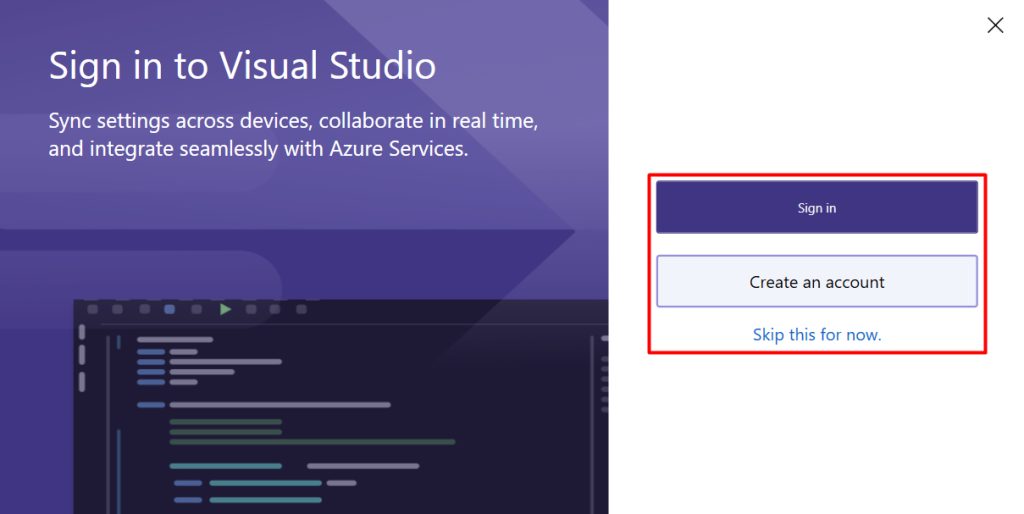
Rust on Windows needs the MSVC build tools. If you have none, rustup-init tells you and offers to install the Visual Studio C++ Build Tools. Accept it.
In the Visual Studio installer, choose Desktop development with C++, which contains:
- MSVC v143 - VS 2022 C++ build tools.
- Windows 11 SDK (or the Windows 10 SDK).
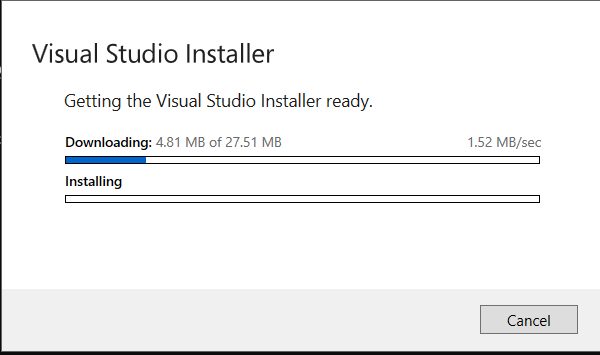
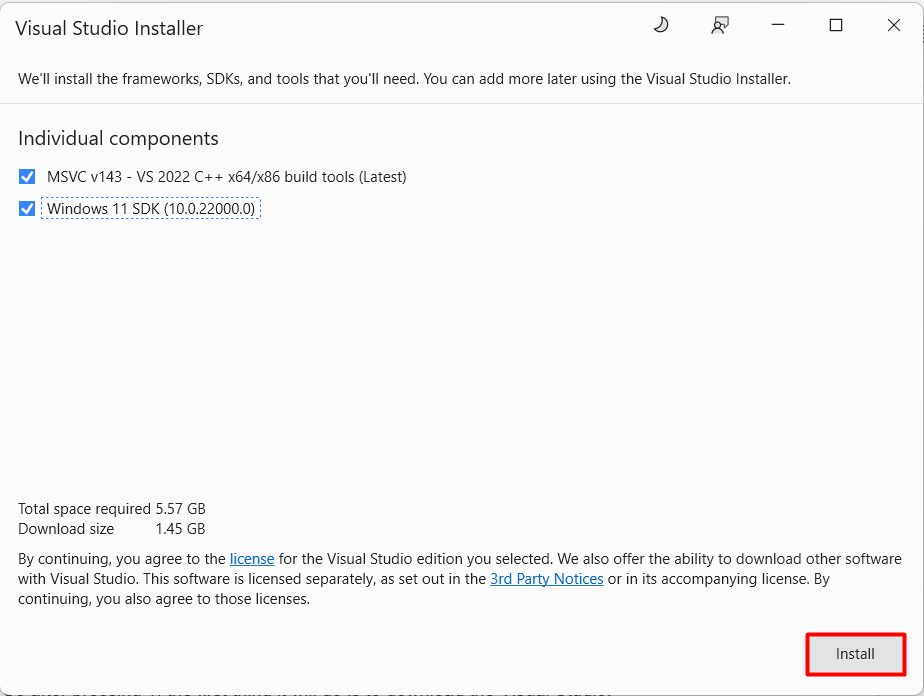
Install, then run rustup-init.exe again. In the Command Prompt window the installer offers:
- Proceed with standard installation (default). Recommended.
- Customize installation. Choose the toolchain.
- Cancel installation.
Press 1 and Enter.
Step 3: Check the install
Open a new Command Prompt or PowerShell:
rustc --version
cargo --version
A first program
cargo new hello
cd hello
cargo run
Benefits of Rust on Windows
- Memory safety without a garbage collector.
- High performance.
- Safe concurrency.
- Cross-platform. The same code builds on Windows, Linux and macOS.
Update and remove
rustup update
rustup self uninstall
Quick recap
- Install the Visual Studio C++ Build Tools.
- Run
rustup-init.exeand choose the standard install. - Check with
rustc --version.