

Before you start
R runs on Windows 7 and later (64-bit is advised). You need around 1 GB of free disk space. Install R before RStudio, if you plan to use RStudio.
Download R
Open the CRAN website (cran.r-project.org), click Download R for Windows, then base, and Download R x.y.z for Windows.
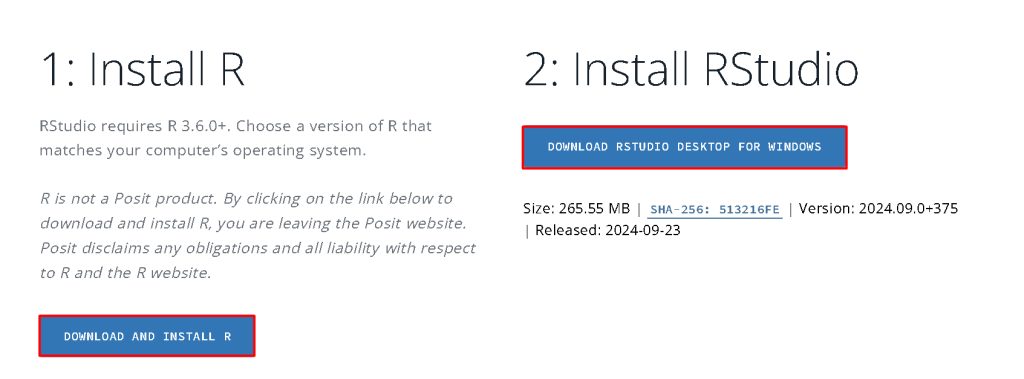


Install R
Step 1: Run the installer. Open the downloaded .exe file.
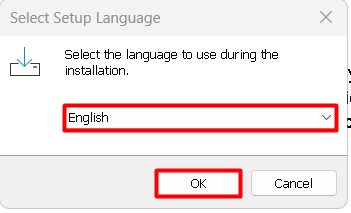
Step 2: Choose the language of the installer.
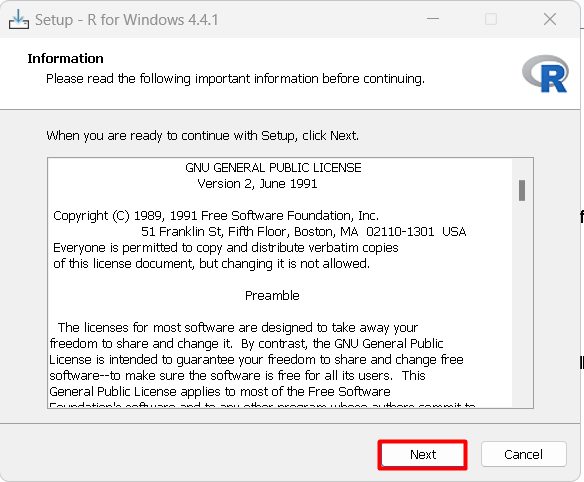
Step 3: Accept the license (GNU GPL) and click Next.
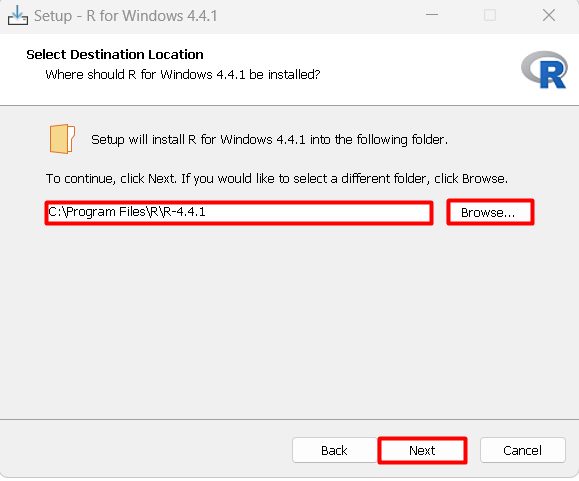
Step 4: Choose the install folder. The default is C:\Program Files\R\R-x.y.z.
Step 5: Select the components
- Main files. The core R software, including the R console.
- 64-bit files. The 64-bit version of R.
- Message translations. Translations of the R messages.
Keep the defaults.
Step 6: Choose the Start Menu folder.
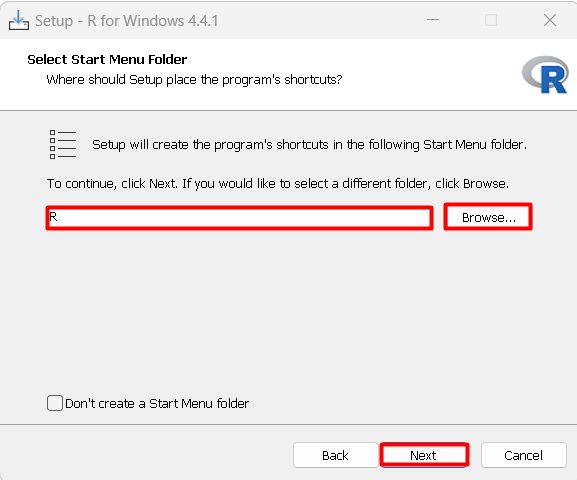
Step 7: Finish. Click Next and wait for the install.
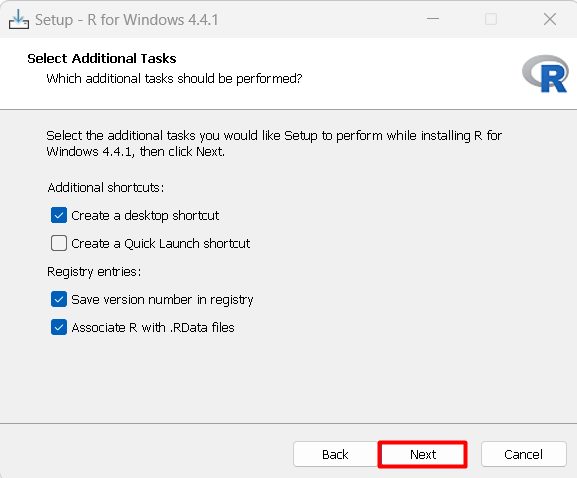
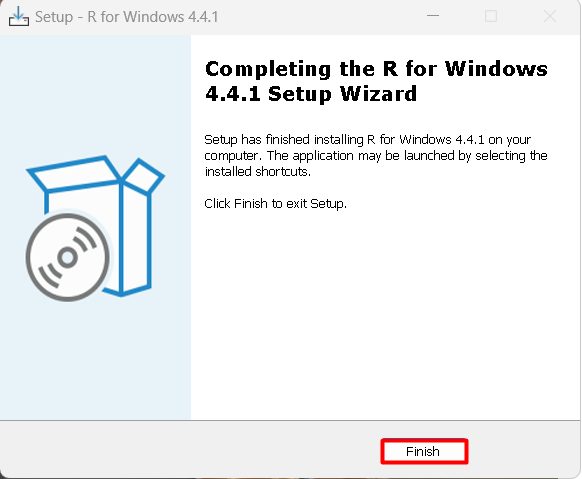
Step 8: Complete. Click Finish.
Check R
Open R from the Start menu (the R Console). Type:
versionand press Enter. You see the R version. Try a calculation:
2 + 2Install a package
install.packages("ggplot2")
library(ggplot2)
Why use R on Windows
- A great choice for data analysis and statistics.
- Cross-platform. Your scripts also run on Linux and macOS.
- Thousands of packages on CRAN.
- A strong community.
- Works well with RStudio (a friendly IDE).
Quick recap
- Download R from CRAN and run the installer.
- Keep the default components.
- Check with
versionin the R console.