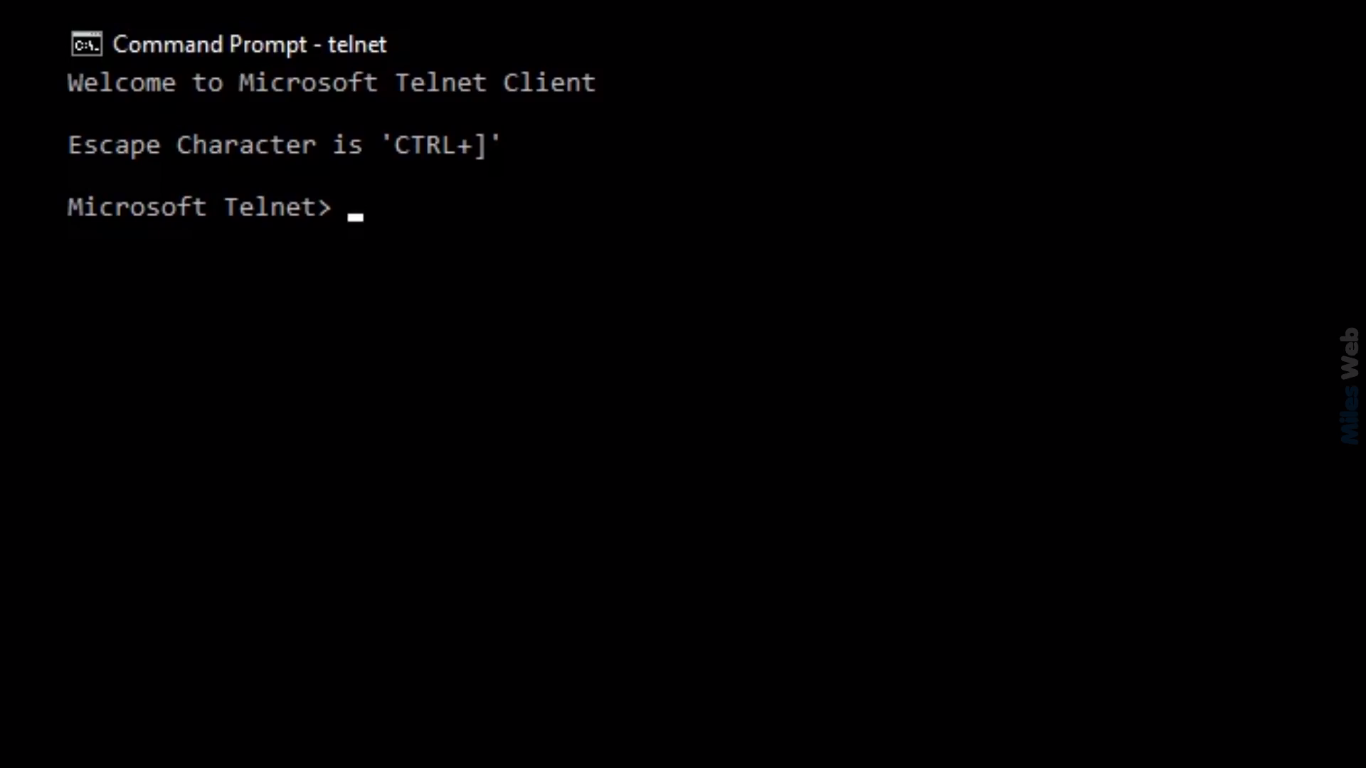
What is Telnet?
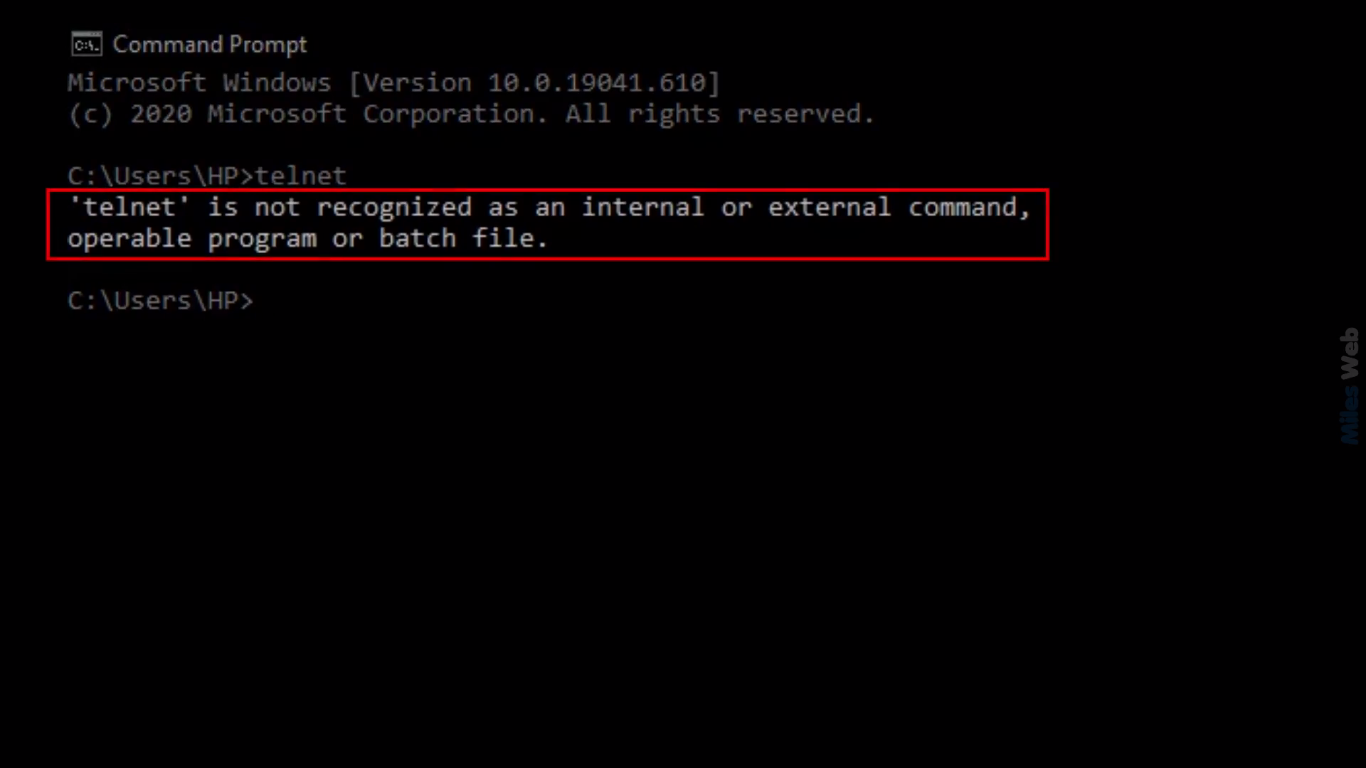
Telnet is a small tool that opens a plain text connection to another computer. Today people mostly use it to test a port. A port is like a numbered door on a server. Each service, such as a website or email, uses its own door. Telnet tells you if the door is open. Windows 10 has Telnet built in, but it is switched off.
Note: Windows 10 is an older system. Newer Windows versions use nearly the same steps.
Method 1: Windows Features
- Click Start and type Turn Windows features on or off.
- Open the result.
- Scroll down the list.
- Tick the box beside Telnet Client.
- Click OK.
- Wait while Windows installs it.
- Click Close.
Method 2: Command line
- Click Start and type cmd.
- Right-click Command Prompt and choose Run as administrator.
- Type this and press Enter:
This command turns on the Telnet Client feature.dism /online /Enable-Feature /FeatureName:TelnetClient - Wait for "The operation completed successfully."
Test a port
- Open a normal Command Prompt.
- Type
telnet, then a space, the server name or IP, a space, and the port number. Example:
This tries to open port 80 (the web door) on example.com.telnet example.com 80 - If the screen turns blank or shows some text, the port is open.
- If you see "Could not open connection to the host", the port is closed, blocked, or the server is down.
- To quit, press Ctrl + ], then type
quitand press Enter.
Common ports to test
| Port | Used for |
|---|---|
| 21 | FTP |
| 22 | SSH |
| 25 | Email sending (SMTP) |
| 80 | Websites |
| 443 | Secure websites |
| 3306 | MySQL database |
Warning: Telnet sends data as plain text. Never type passwords into a Telnet session. Use SSH for real logins.
Quick recap
- Telnet is built into Windows 10 but turned off.
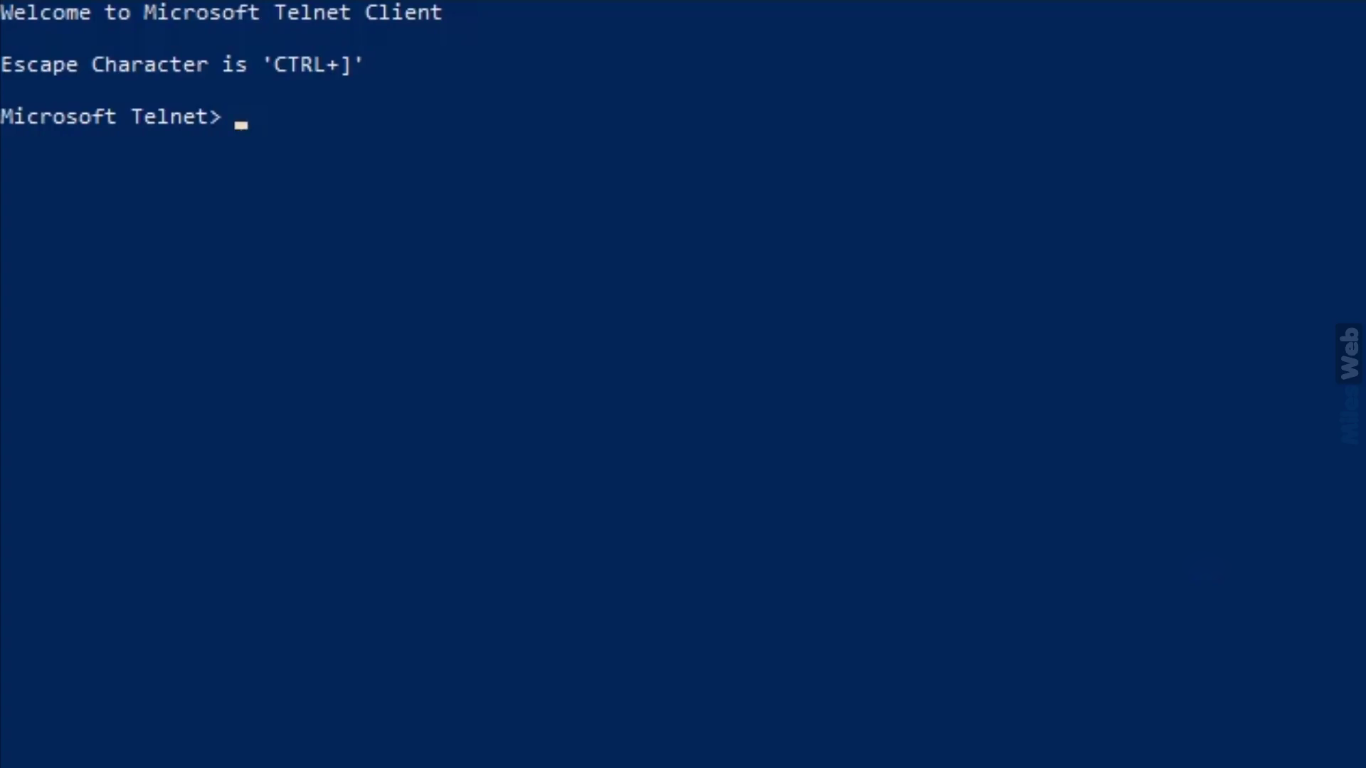
- Turn it on in Turn Windows features on or off.
- Run
telnet host portto test a port. - Do not use Telnet for passwords.