

Requirements
Hardware
- Disk: at least 6 GB of free space for SQL Server (the real need depends on the components).
- Memory: at least 1 GB (2 GB or more is recommended).
- Processor: an x64 processor of 1.4 GHz or faster.
Software
- OS: Windows 10 or newer, or a supported Windows Server.
- .NET Framework: the installer adds the .NET version it needs.
Step 1: Download the installer
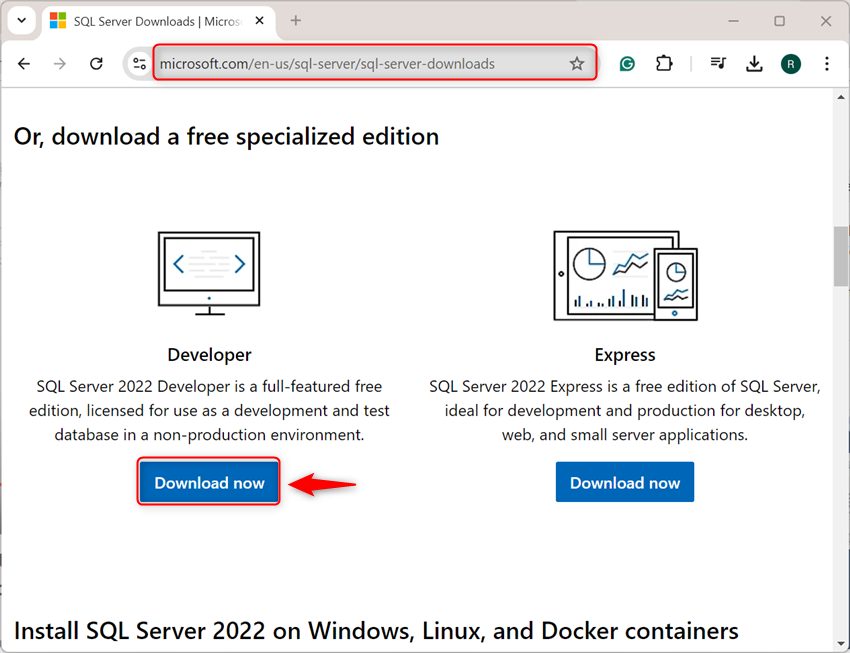
Open the SQL Server download page of Microsoft and download the free Express or Developer edition (Express is small and good for tests and small apps).
Step 2: Run the installer
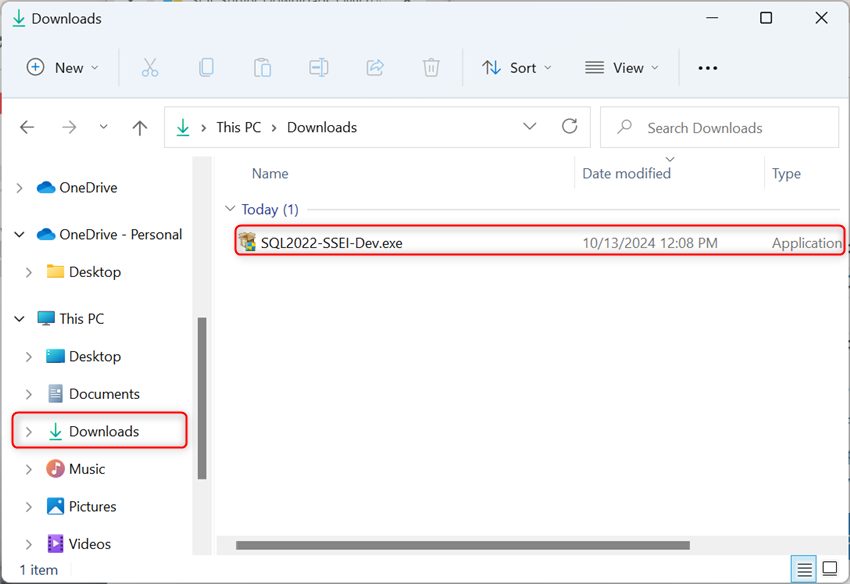
Open the downloaded file.
Step 3: Choose the installation type
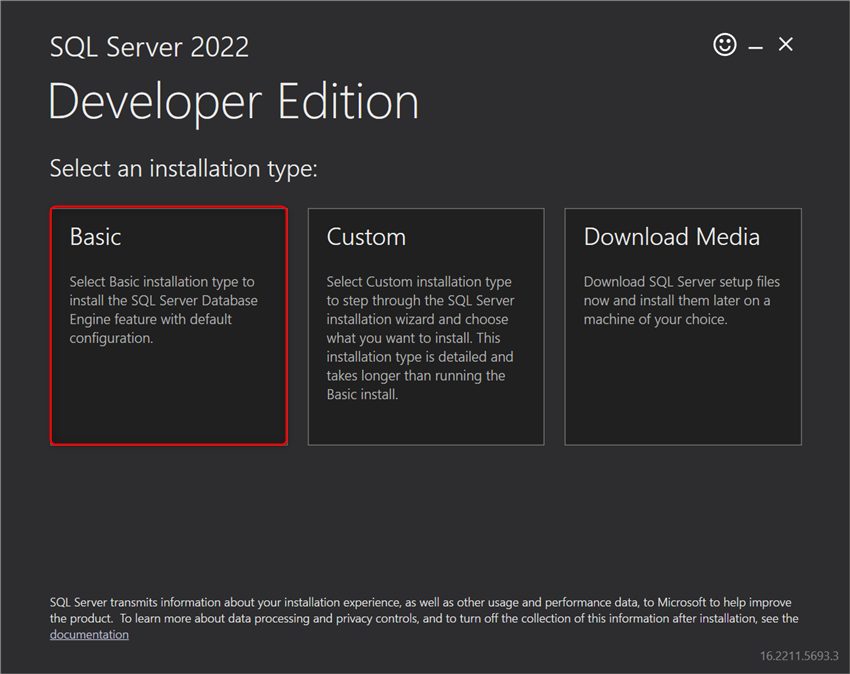
- Basic. Installs the engine with the default settings. The best choice for a first install.
- Custom. Lets you pick the features and the settings.
- Download Media. Downloads the setup files for later.
Step 4: Accept the license terms
Step 5: Install
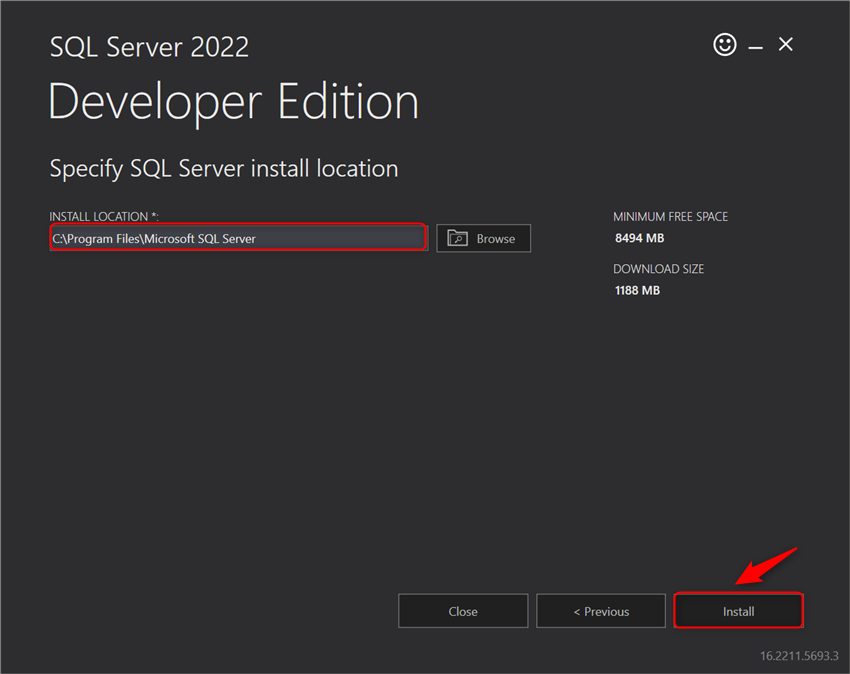
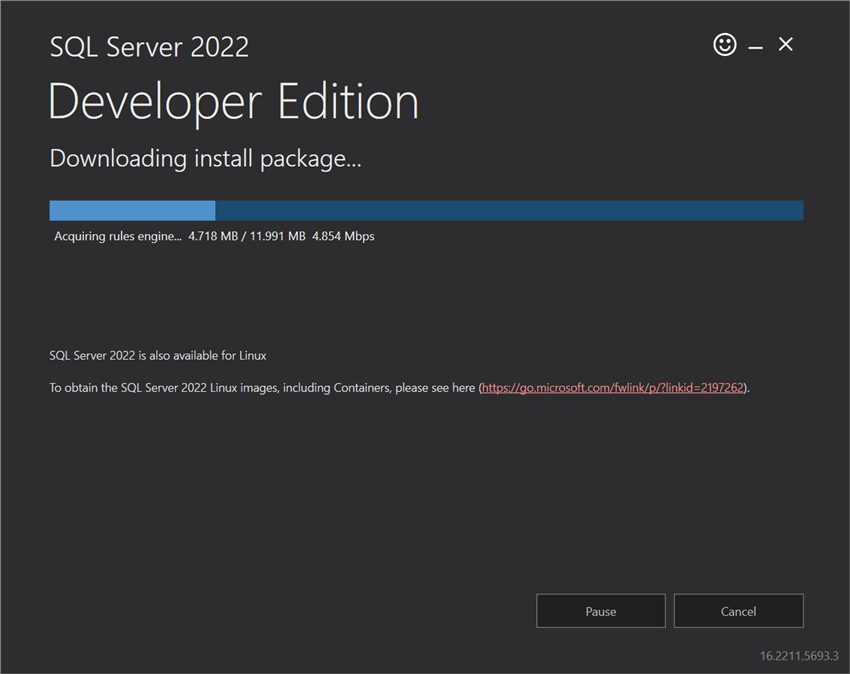
Choose the install location (or keep the default) and click Install. The installer downloads and installs the files.
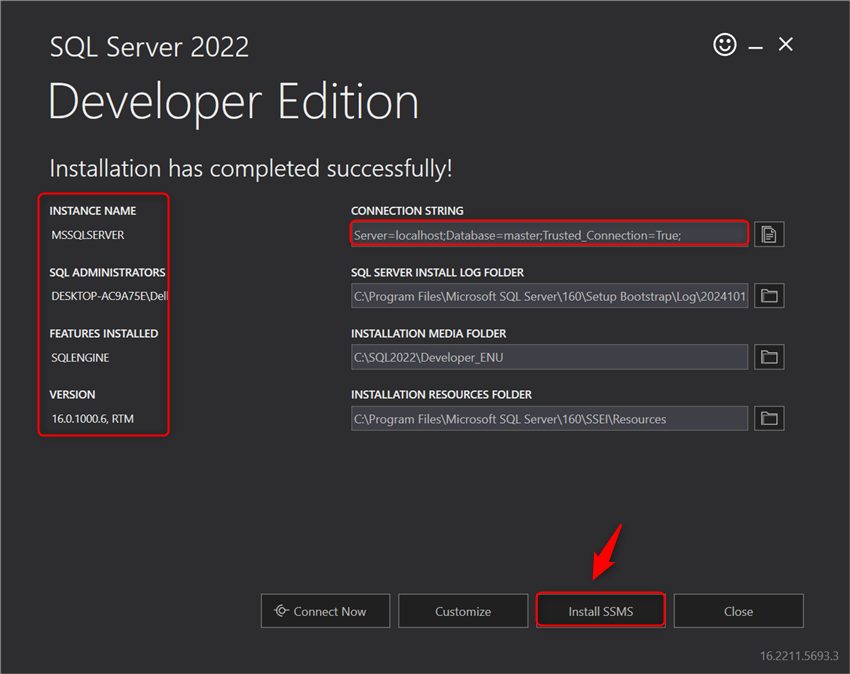
At the end, the installer shows the connection details. You can install SQL Server Management Studio (SSMS), the graphical tool, from the same screen.
Step 6: Connect with sqlcmd
Open Command Prompt and connect to the local server with Windows authentication (replace the name with your computer name, or use localhost; for Express the instance is localhost\SQLEXPRESS):
sqlcmd -S localhost\SQLEXPRESS -E
Step 7: See the databases
SELECT DB_NAME();
GO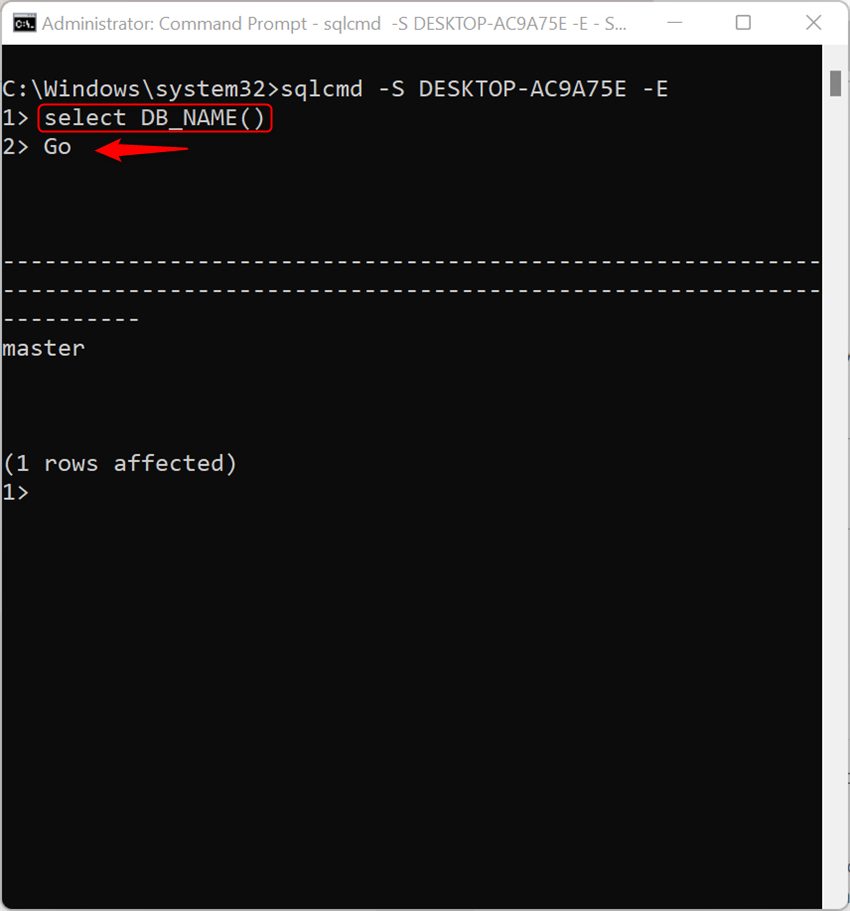
Step 8: Create a database
CREATE DATABASE Demodatabase;
GO
Check that it exists:
SELECT name FROM sys.databases;
GO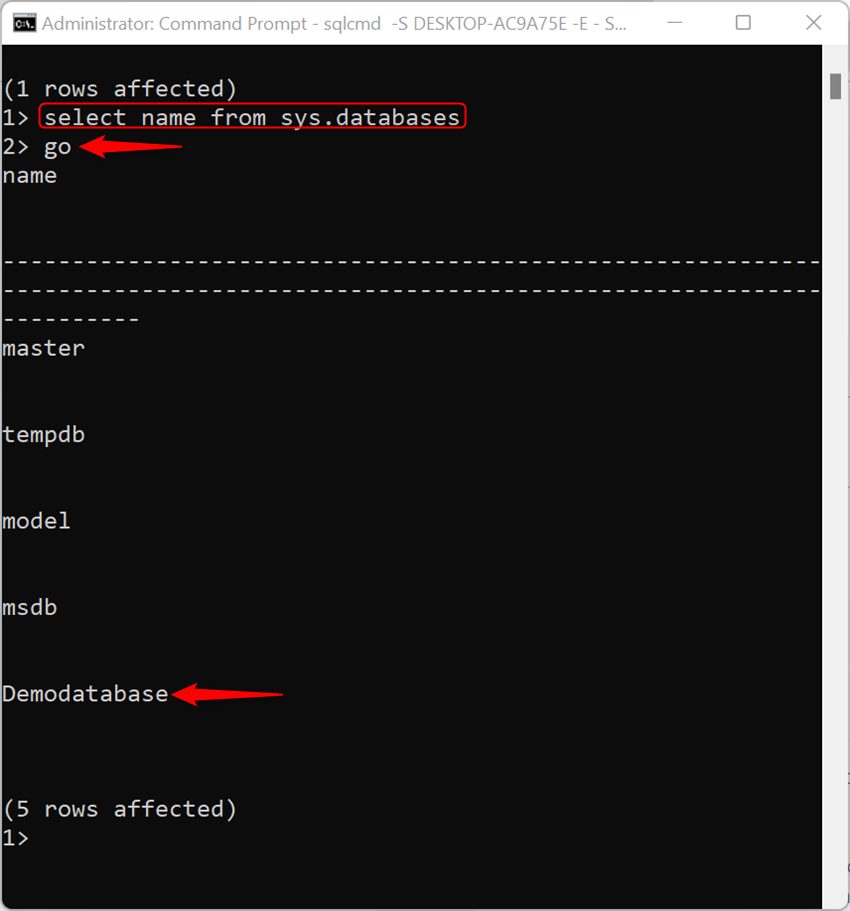
Leave sqlcmd with exit.
Next steps
- Use SSMS to manage the server with a graphical interface.
- Enable TCP/IP in SQL Server Configuration Manager and open port 1433 in the firewall if apps on other computers must connect.
- Use a strong password for the
saaccount, if you turn on mixed mode. - Back up your databases.
Quick recap
- Download SQL Server Express and choose Basic.
- Connect with
sqlcmd -S localhost\SQLEXPRESS -E. CREATE DATABASEmakes your first database.