

Step 1: Download MongoDB
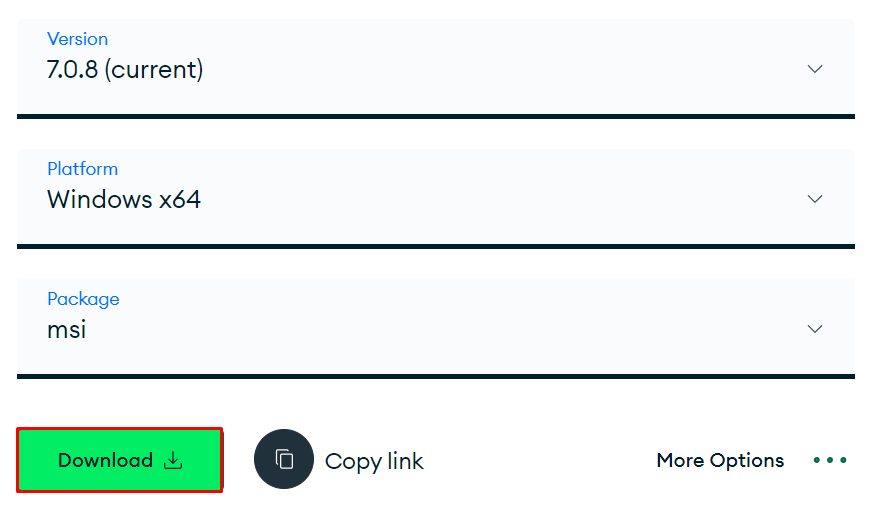
Open the MongoDB website, go to the Community Server download page, choose Windows and the msi package, and download it.
Step 2: Run the MSI package
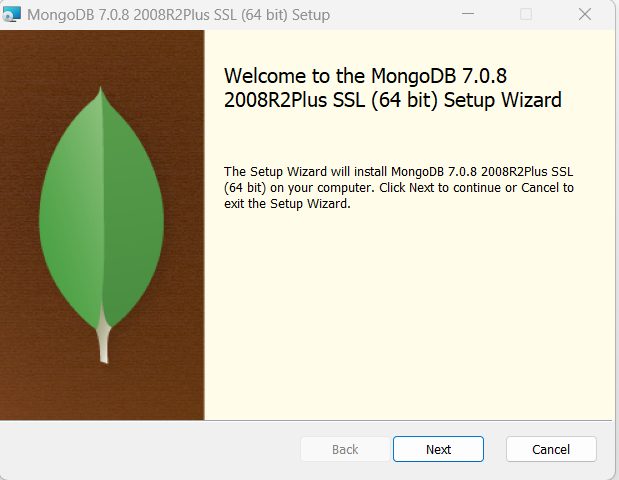
- Open the downloaded file and click Next.
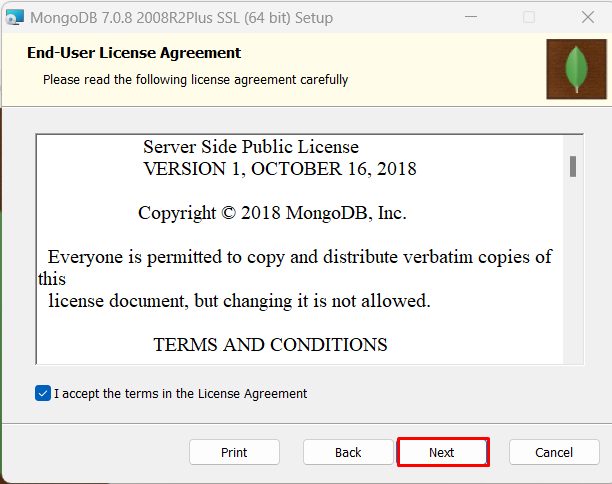
- Accept the license agreement.
- Choose Complete (or Custom if you want another folder).
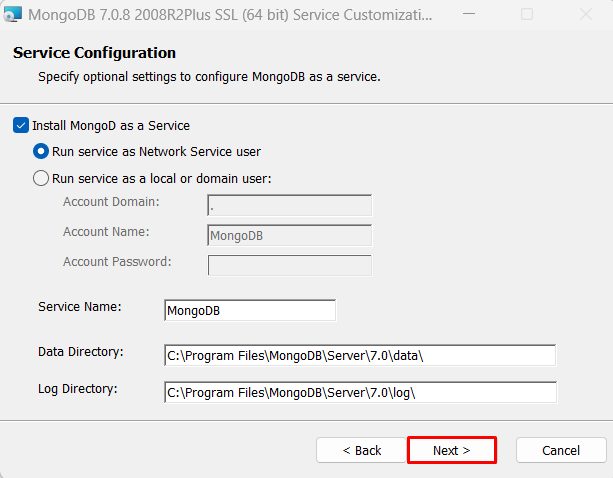
- Choose to run MongoDB as a Windows service. This starts it automatically. Keep the default data and log folders.
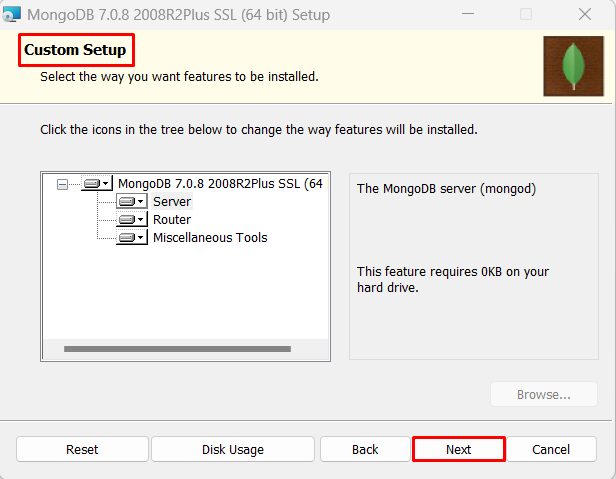
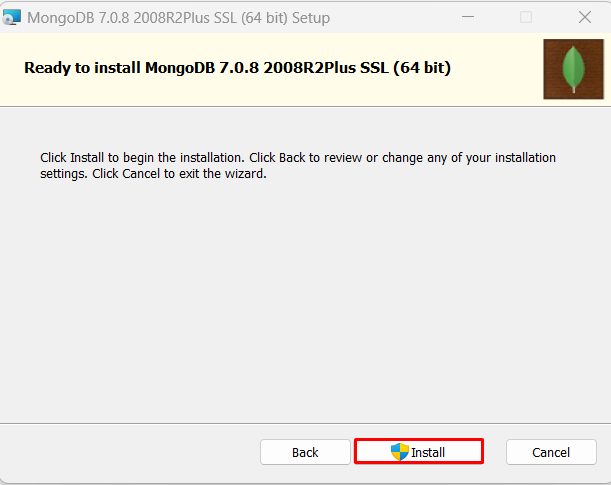
- Keep MongoDB Compass (the graphical tool) ticked, if you want it. Click Install.
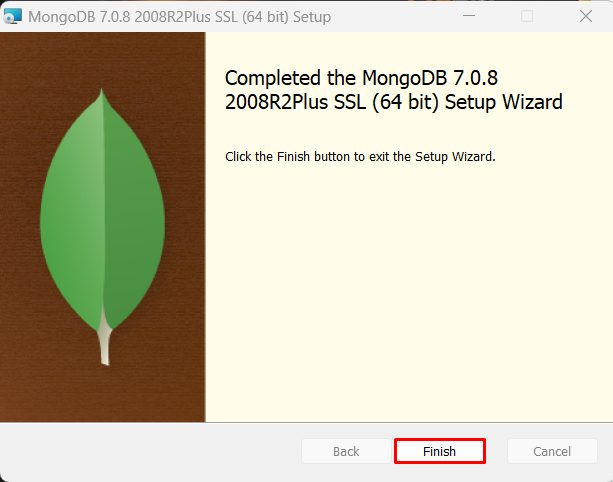
- Click Finish.
Run MongoDB by hand
If you did not install it as a service, make the data folder first:
mkdir C:\data\dbAdd the MongoDB bin folder to the PATH. It is usually C:\Program Files\MongoDB\Server\7.0\bin:
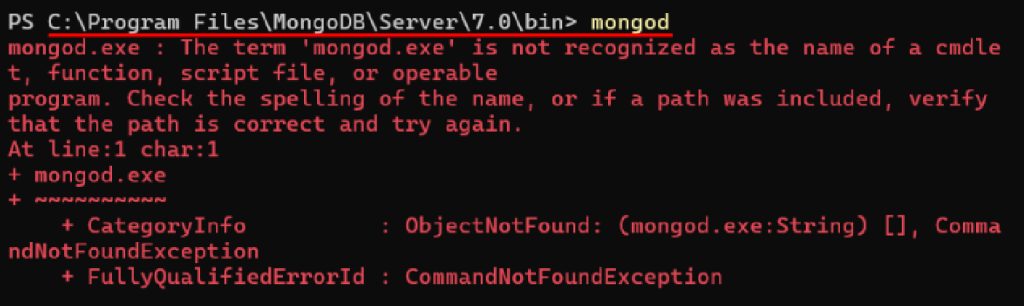
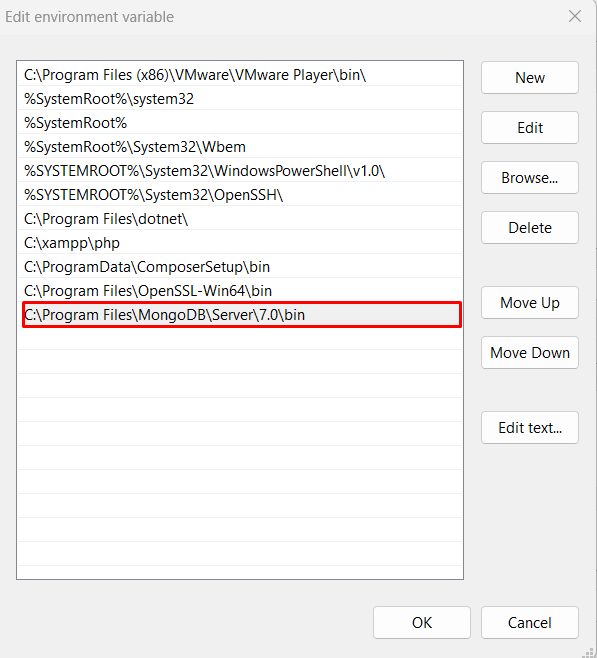
Open a new Command Prompt and start the server:
mongod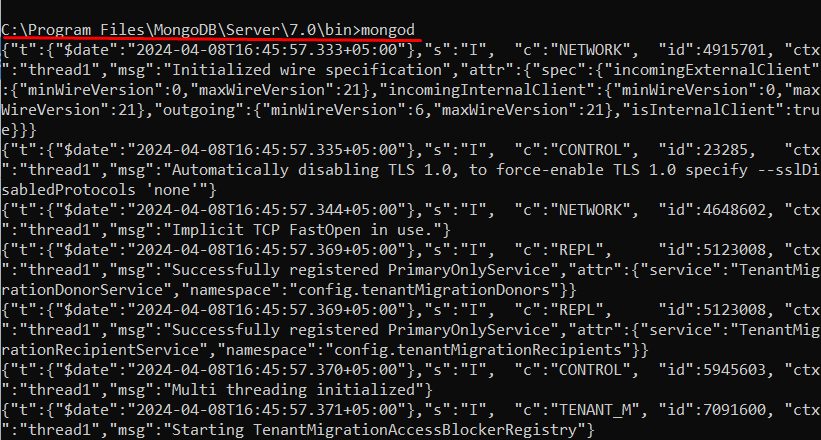
In the log you can see that:
- MongoDB started and uses the data folder
C:/data/db/. - TLS 1.0 is turned off by default.
- Multi-threading is on.
- MongoDB listens on
127.0.0.1at port27017.
Connect to MongoDB
Open another Command Prompt and use the MongoDB Shell (mongosh; install it from the MongoDB site if it is not there):
mongoshTry:
show dbs
use test
db.items.insertOne({ name: "first" })
Or use MongoDB Compass and connect to mongodb://localhost:27017.
Quick recap
- Download the MSI and run it as a service.
- Add the
binfolder to the PATH. - Connect with
mongoshon port 27017.