

Step 1: Download the installer
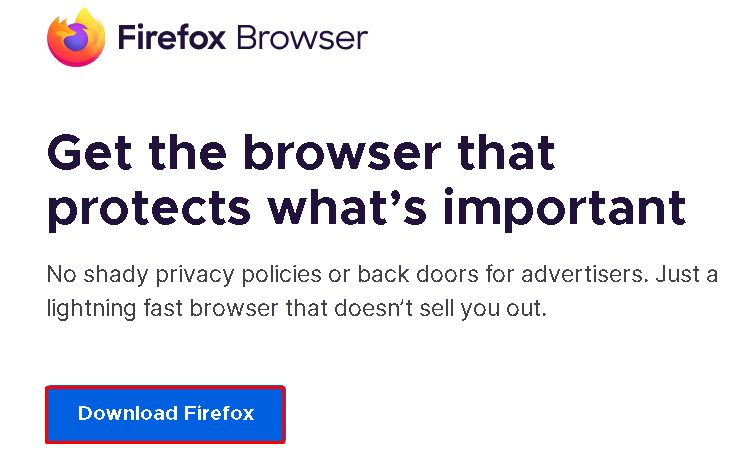
Open the official Firefox website (mozilla.org/firefox) and click Download Firefox.
Step 2: Run the installer
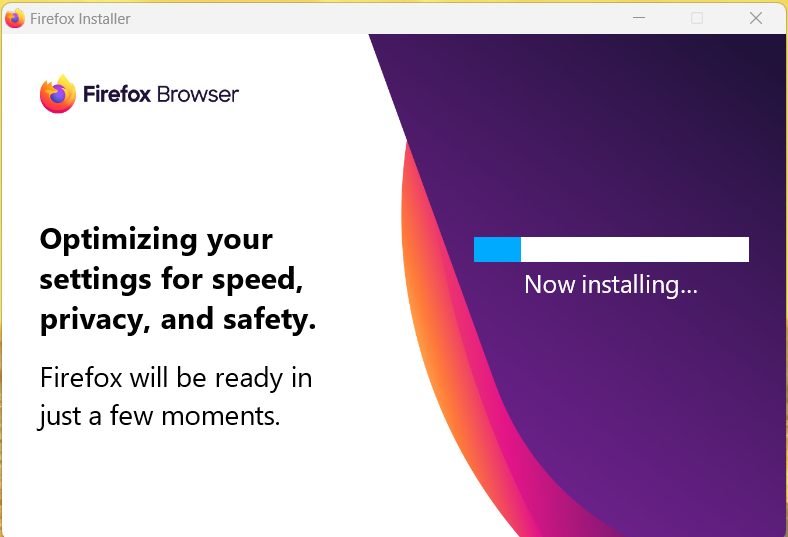
Open the downloaded file. Windows may ask if you allow the app to make changes. Click Yes. Firefox installs itself in a few seconds.
Step 3: Start Firefox
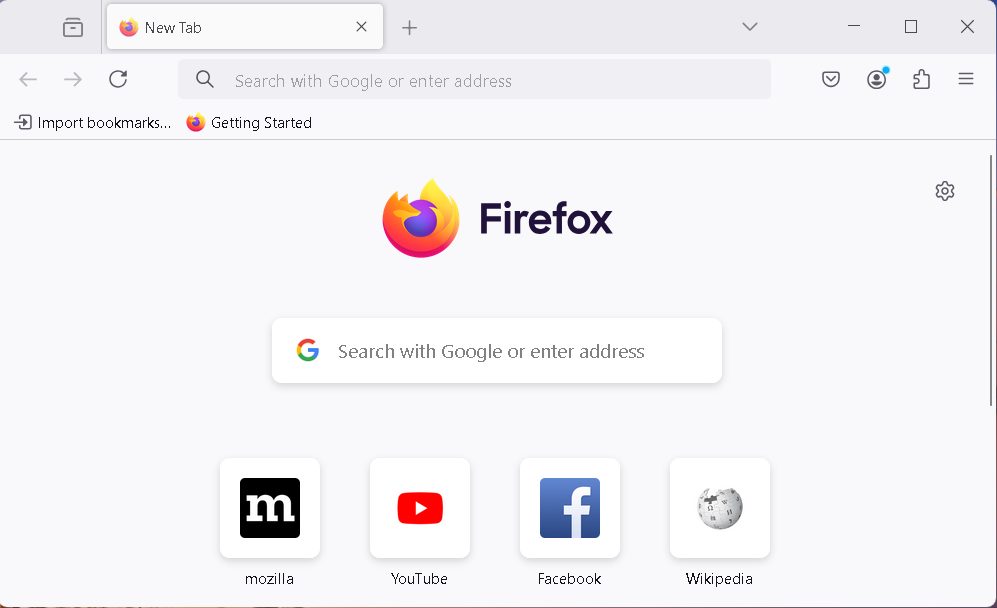
Firefox opens when the install ends. You can also start it from the Start menu or the desktop shortcut.
Step 4: Set up Firefox
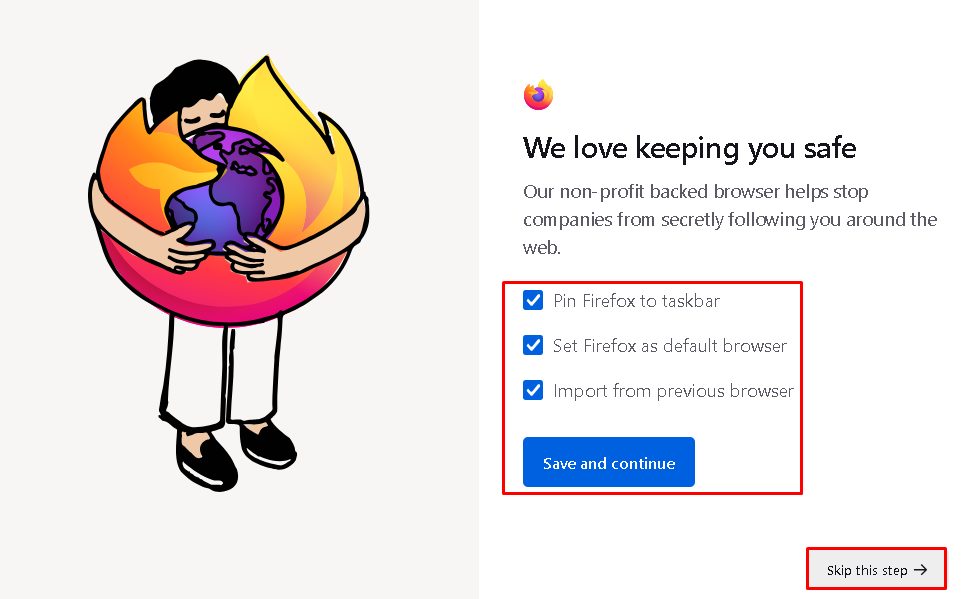
- Choose Firefox as your default browser if you like.
- Import bookmarks and passwords from another browser.
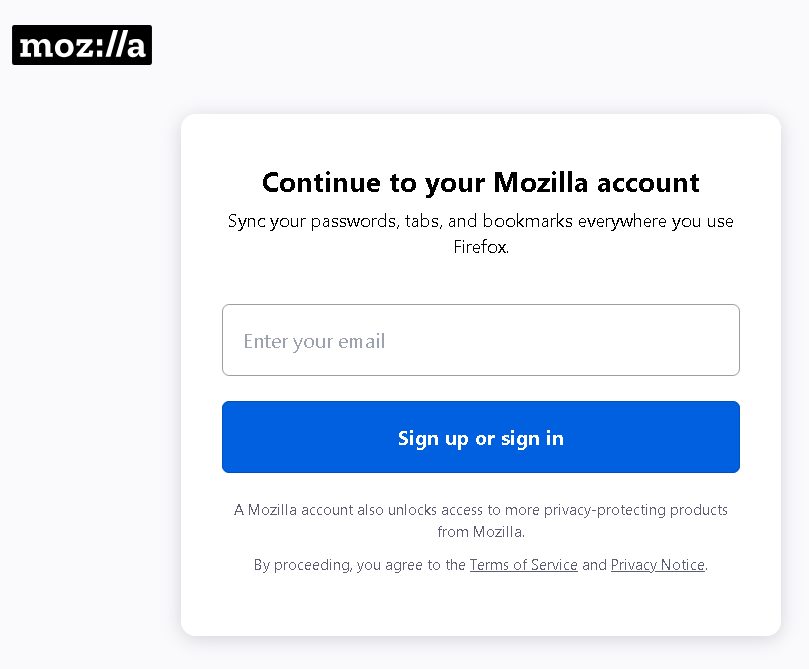
- Sign in to a Firefox account to sync your data.
- Choose your privacy settings under Settings, Privacy & Security.
Step 5: Update Firefox
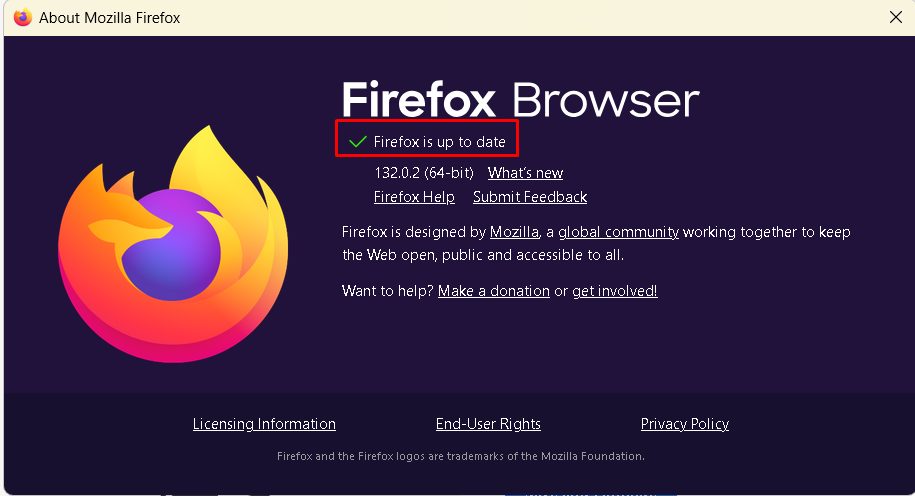
Firefox updates itself. To check by hand, open the menu (three lines), choose Help, then About Firefox. It looks for updates and installs them.
Step 6: Test
Open a few websites to check that Firefox works, and try a private window (Ctrl + Shift + P).
Key features of Firefox
- Privacy protection. Enhanced Tracking Protection blocks many trackers.
- Fast browsing.
- A customizable interface.
- Sync across devices.
- Strong security features.
Quick recap
- Download Firefox from mozilla.org and run the installer.
- Set it up, sign in to sync if you want.
- Check About Firefox for updates.