Flash Sale:75% Off Hosting + Free DomainEnds in13h47m14sView Plans
Hostvento logoHostvento

How to change the fonts on your WordPress site

This guide shows you several ways to change the fonts on your WordPress website, from easy to more advanced.

WordPress2 min read20 steps18 screenshots

What is a font?

A font is the style of the letters on a page. Some fonts look neat and formal. Others look playful. The font you choose changes how your site feels, and also how easy it is to read.
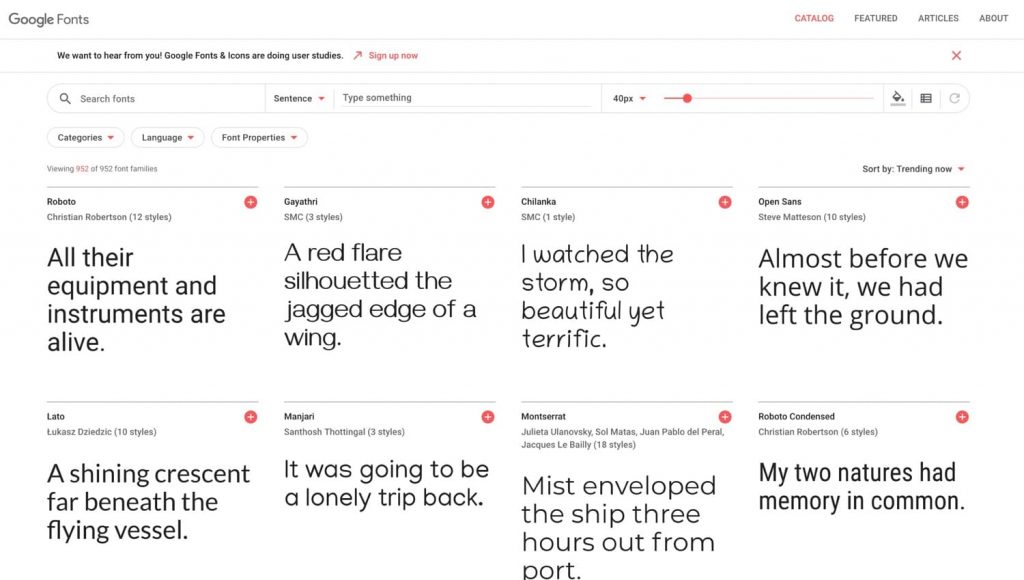
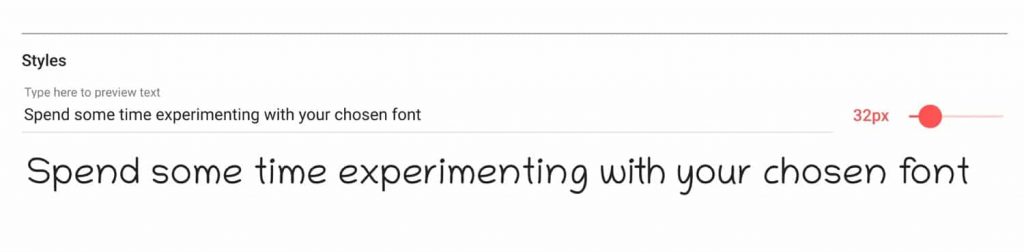
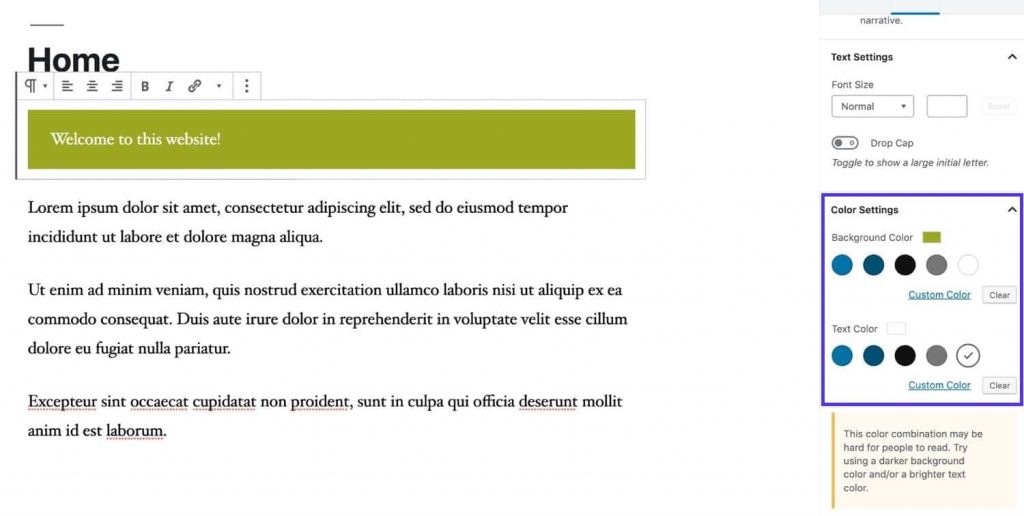
Screenshot: A font is the style of the letters on a page. Some fonts look neat and formal. Others look

A good rule is to use at most two fonts. One is for headings. One is for normal text.

Way 1: Use the Customizer

Many themes let you pick fonts in a settings screen called the Customizer. A theme is the ready-made design of your site.

  1. Log in to your WordPress dashboard.
  2. Go to Appearance, then Customize.
    Screenshot: Go to Appearance , then Customize .
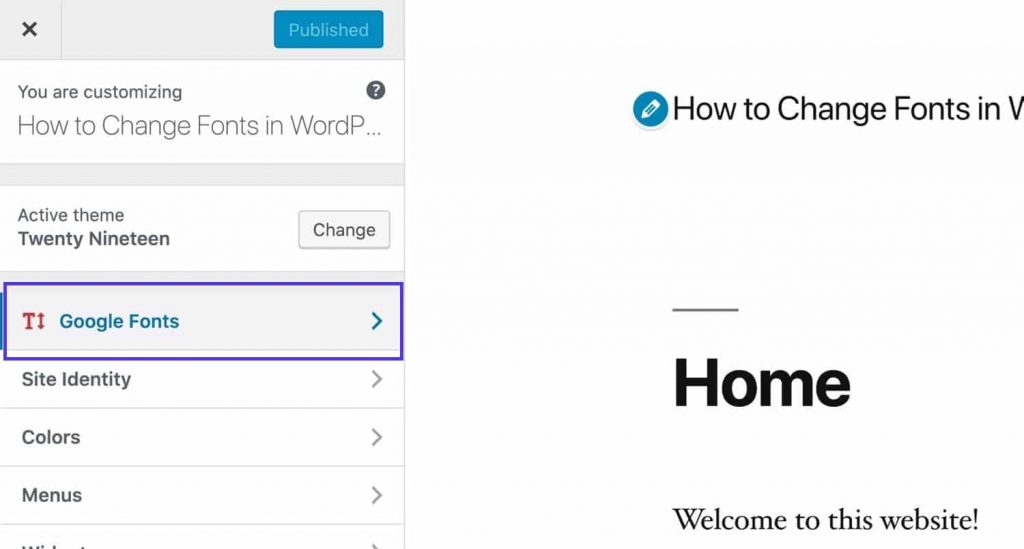
  3. Look for a menu called Typography or Fonts. The name depends on your theme.
  4. Choose a font for headings and for body text.
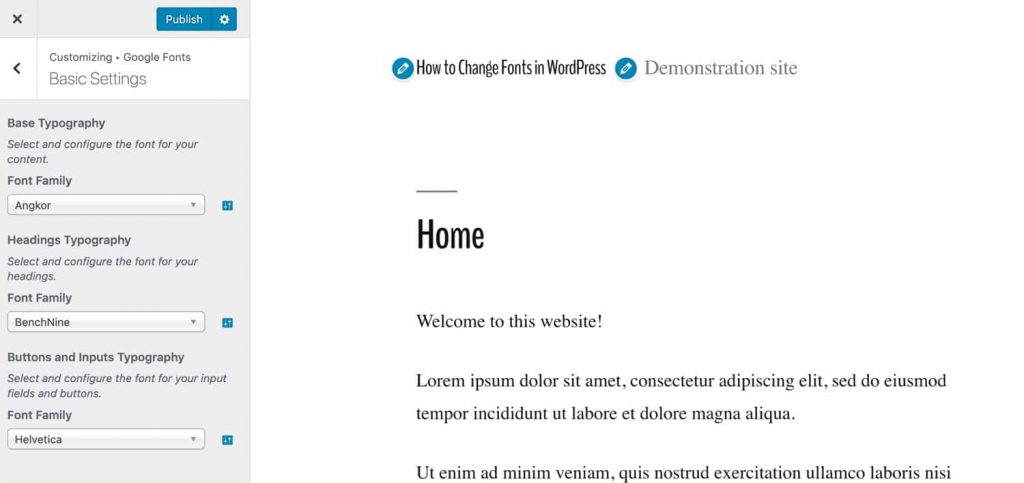
    Screenshot: Choose a font for headings and for body text.
  5. Click Publish.

If you do not find this menu, your theme may not offer font choices. Try Way 2 or Way 3.

Way 2: Use the Site Editor on a block theme

Newer themes are called block themes. They have a built-in editor for the whole site.
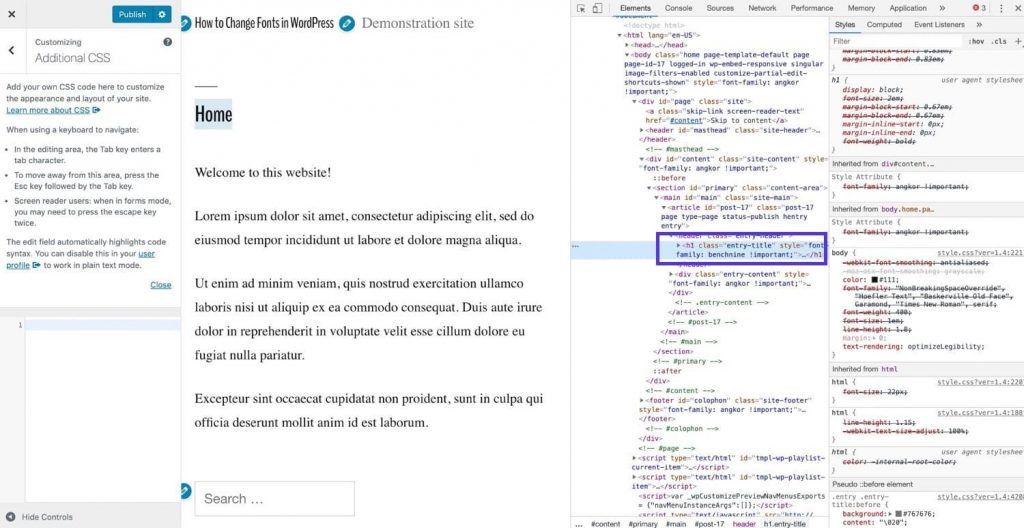
Screenshot: Newer themes are called block themes. They have a built-in editor for the whole site.
  1. Go to Appearance, then Editor.
  2. Click Styles (the half-black, half-white circle icon).
  3. Click Typography.
  4. Pick the part you want to change, such as text, links or headings.
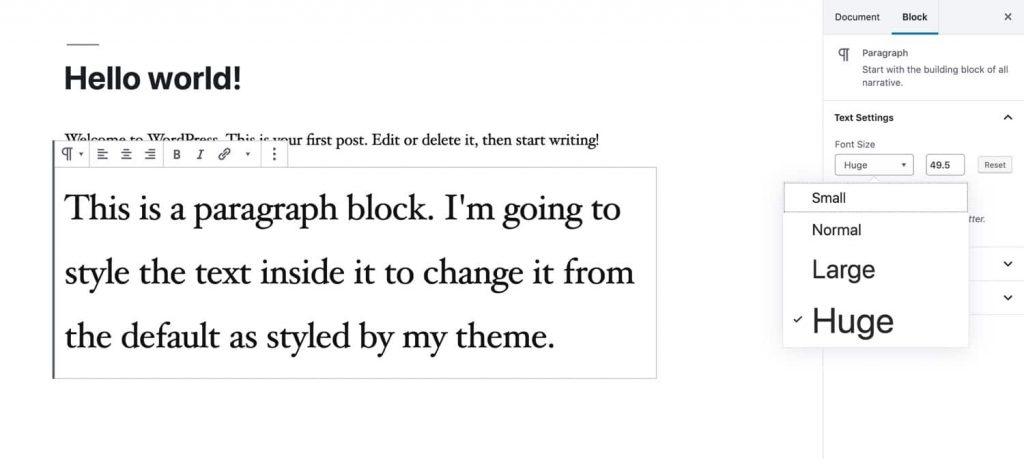
  5. Choose a font and a size.
  6. Click Save.

Way 3: Use a font plugin

A plugin is an add-on. Some plugins let you use free Google Fonts on any theme.
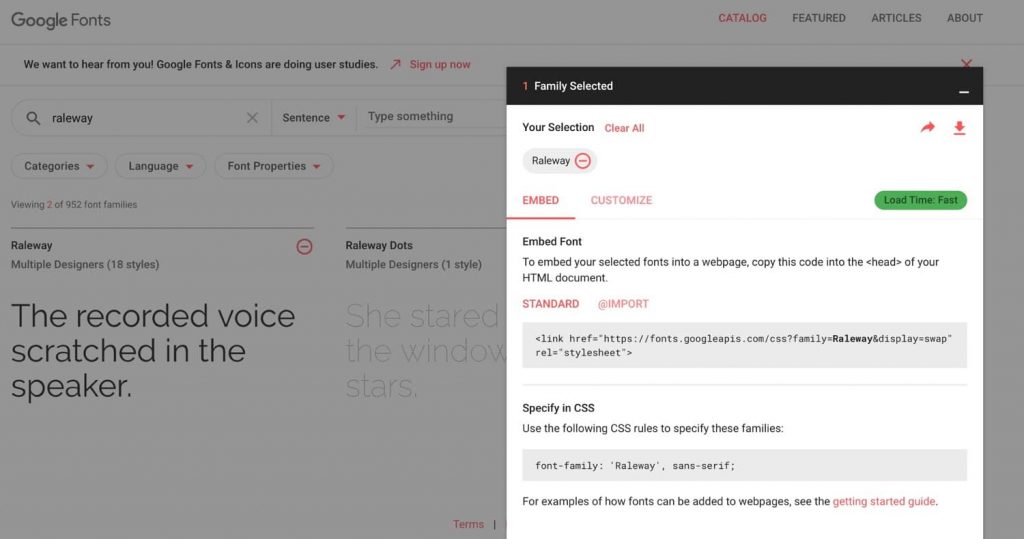
Screenshot: A plugin is an add-on. Some plugins let you use free Google Fonts on any theme.
  1. Go to Plugins, then Add New.
  2. Search for a font plugin, for example one that mentions Google Fonts.
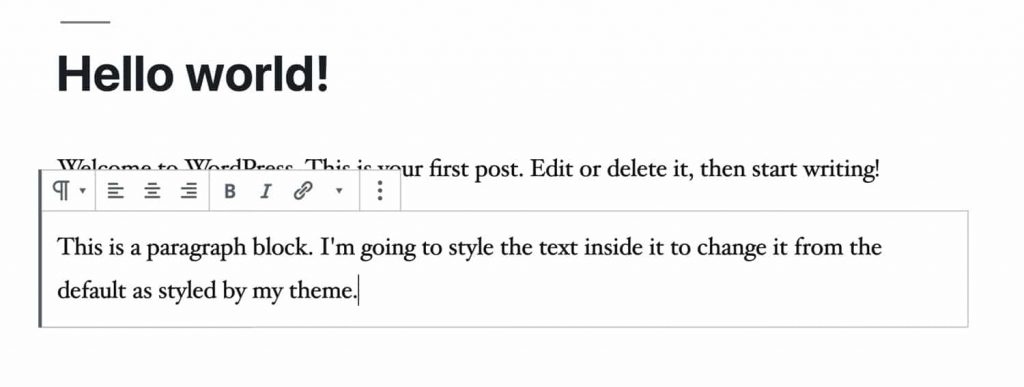
    Screenshot: Search for a font plugin, for example one that mentions Google Fonts.
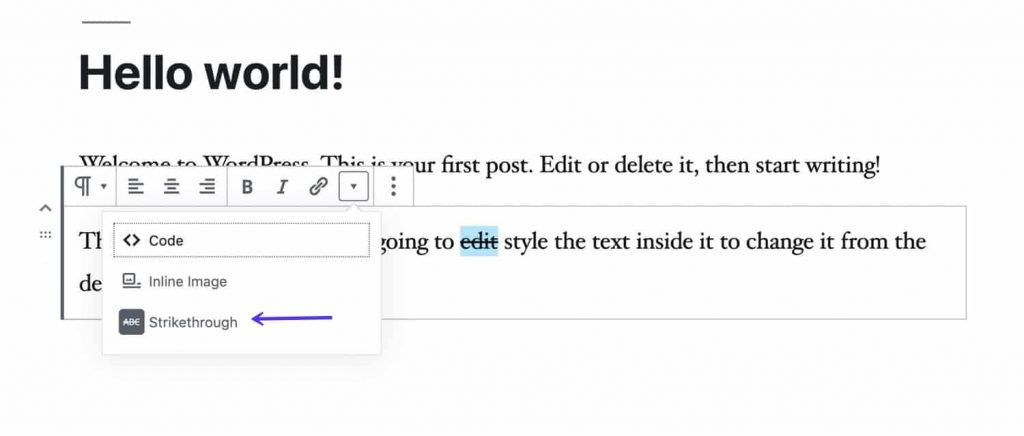
    Screenshot: Search for a font plugin, for example one that mentions Google Fonts.
  3. Click Install Now, then Activate.
    Screenshot: Click Install Now , then Activate .
  4. Open the plugin's settings page and pick fonts for each part of your site.
  5. Save your changes and check your site.

Way 4: Use CSS

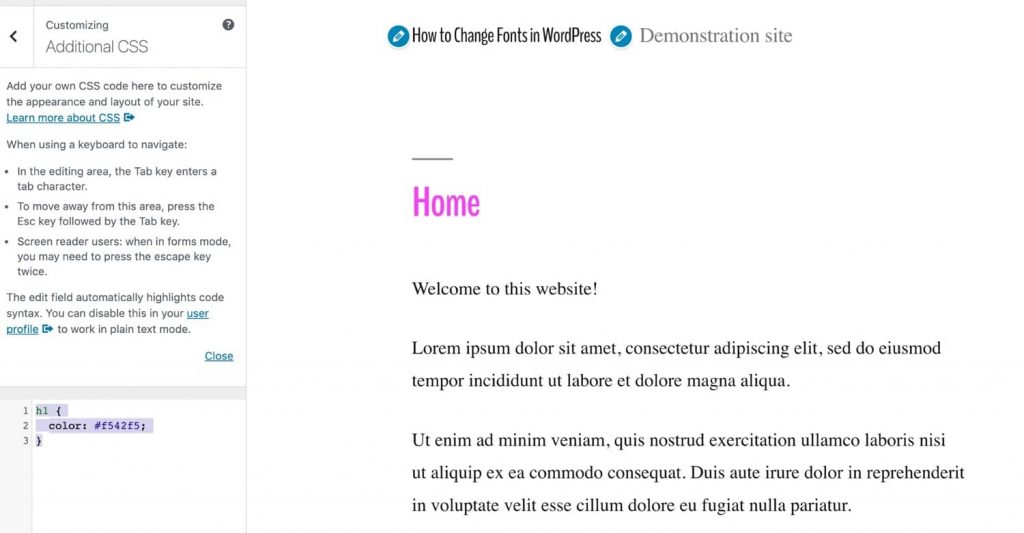
CSS is the code that tells a page how to look. This is for people who are comfortable with code. Take a backup first.

  1. Go to Appearance, then Customize.
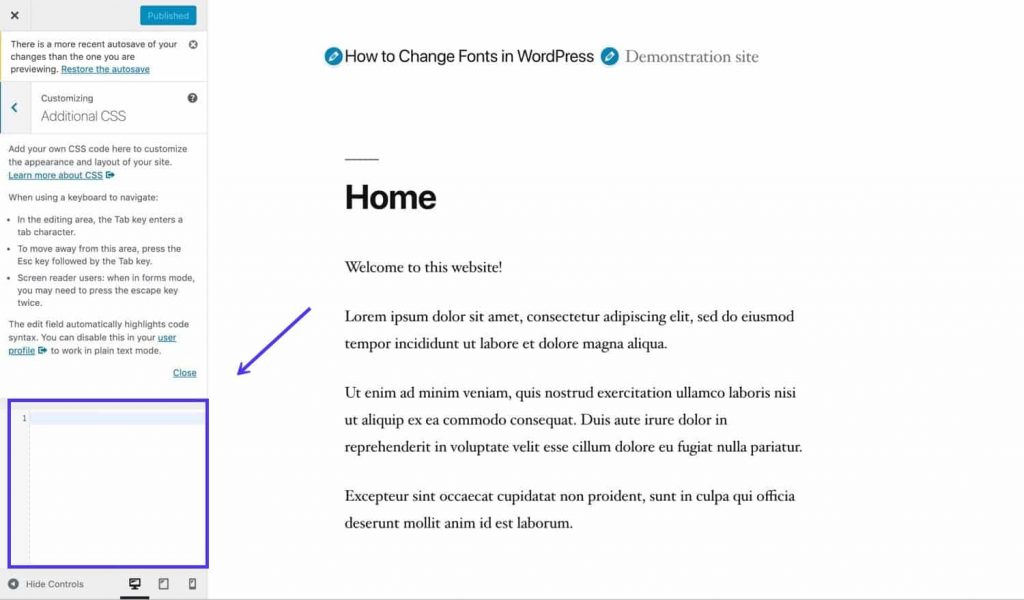
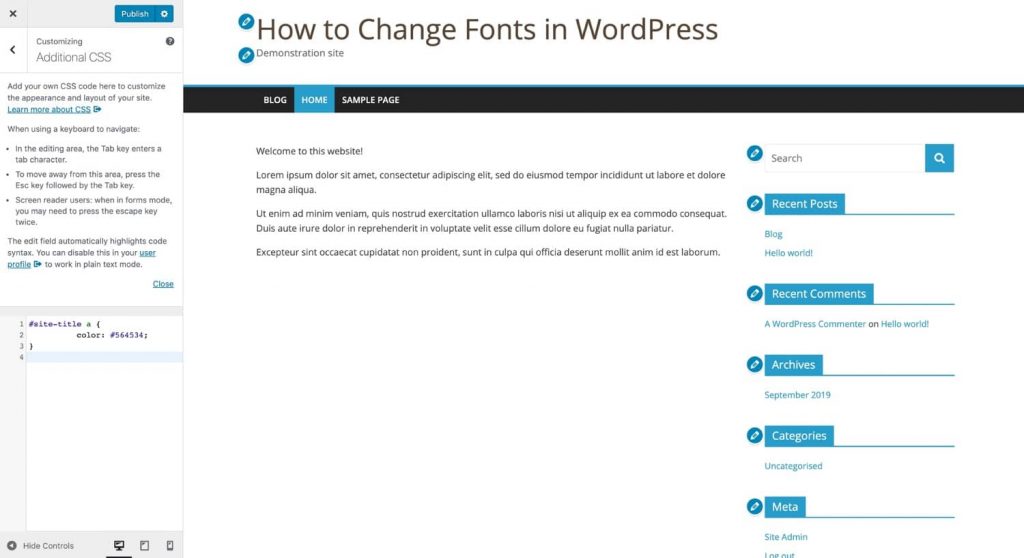
  2. Click Additional CSS.
    Screenshot: Click Additional CSS .
  3. Type a rule such as this:
    body {
      font-family: Georgia, serif;
    }
    h1, h2, h3 {
      font-family: Arial, sans-serif;
    }
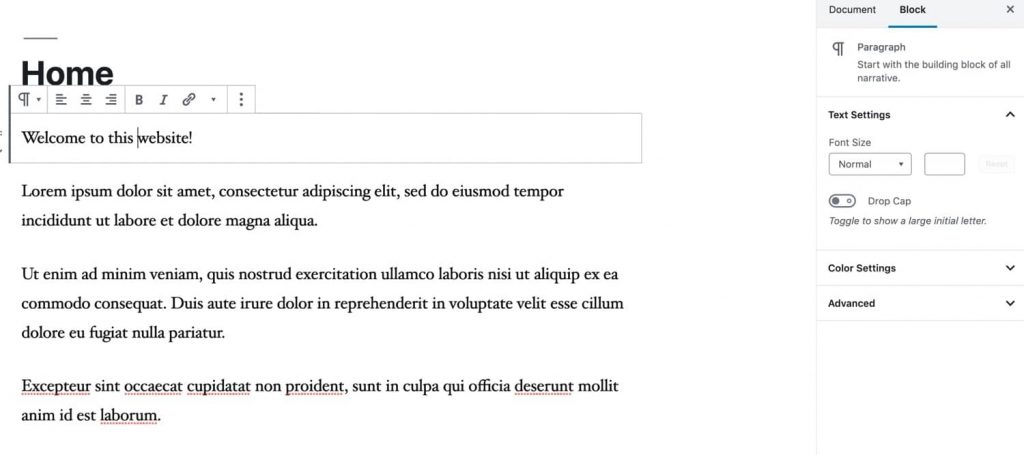
    This sets one font for the text and another for the headings.
    Screenshot: Type a rule such as this: body { font-family: Georgia, serif; } h1, h2, h3 { font-family:
    Screenshot: Type a rule such as this: body { font-family: Georgia, serif; } h1, h2, h3 { font-family:
    Screenshot: Type a rule such as this: body { font-family: Georgia, serif; } h1, h2, h3 { font-family:
    Screenshot: Type a rule such as this: body { font-family: Georgia, serif; } h1, h2, h3 { font-family:
    Screenshot: Type a rule such as this: body { font-family: Georgia, serif; } h1, h2, h3 { font-family:
    Screenshot: Type a rule such as this: body { font-family: Georgia, serif; } h1, h2, h3 { font-family:
  4. Click Publish.
Tip: Many fonts slow your site down because each one must be downloaded. Use as few as you can. Fonts that already exist on every computer, like Arial and Georgia, load fastest.

Quick recap

  • A font is the style of your letters. Use two at most.
  • Try Appearance then Customize or Editor first.
  • A font plugin works when your theme has no font options.
  • CSS in Additional CSS gives full control.
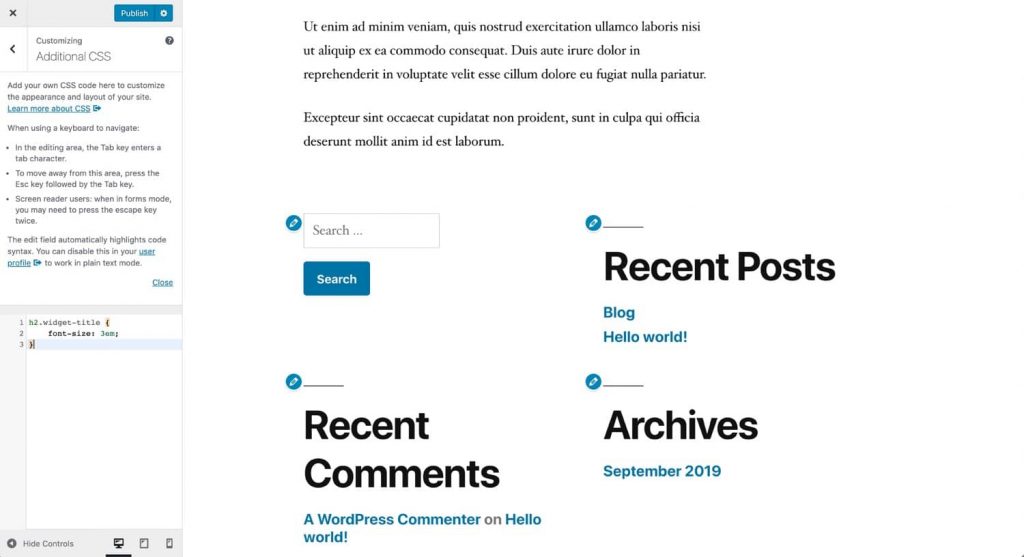
    Screenshot: CSS in Additional CSS gives full control.
  • Fewer fonts mean a faster site.